Why Is My Laptop Fan So Loud? Causes and Fixes
A loud laptop fan is often caused by heat, dust, blocked vents, or heavy CPU usage. Learn what causes fan noise, how to reduce it, and when a hardware check is needed.

TL;DR A laptop fan becomes loud when the system needs to remove more heat than usual. This commonly happens during gaming, video editing, large downloads or updates, or when several demanding applications are running at once. However, if the fan stays loud during light tasks, common causes include dust buildup, blocked air vents, excessive background CPU usage, an aggressive performance mode, an outdated BIOS or driver, or a cooling fan that is beginning to fail. Start by placing the laptop on a hard, flat surface, checking which applications are using the CPU, closing unnecessary programs, and cleaning accessible vents according to the manufacturer's instructions. If the fan produces grinding or rattling sounds, the laptop overheats while idle, shuts down unexpectedly, or remains at high speed despite low workloads, it may need professional diagnosis.
Why Is My Laptop Fan So Loud?
A laptop fan is designed to change speed according to the amount of heat being produced inside the computer. When the CPU or GPU is working harder, it generates more heat, and the cooling system responds by increasing fan speed. This means hearing the fan during gaming, video editing, rendering, large file transfers, or other demanding tasks is not automatically a sign that something is wrong. In fact, temporarily louder fan noise can simply mean the cooling system is doing its job.
The situation is different when the fan becomes unusually loud during basic activities such as browsing the web, writing documents, or sitting at the desktop. A fan that remains at high speed without an obvious workload can indicate restricted airflow, dust around the cooling system, excessive background processing, or a thermal-management issue. Windows updates and other background tasks can also temporarily increase processor activity, so fan noise may rise for a while and then settle once the work is finished.
The sound itself can also provide a useful clue. A steady airflow sound is generally different from a grinding, rattling, clicking, or scraping noise. The latter may point toward a mechanical problem with the fan rather than simply higher fan speed. If unusual noise is accompanied by overheating, sudden shutdowns, system freezes, or persistent performance problems, it is better to investigate the issue rather than simply trying to make the fan quieter.
| Fan behavior | What it may indicate |
|---|---|
| Fan gets louder during gaming | Normal increase in CPU/GPU workload |
| Fan speeds up during updates | Temporary background processing |
| Fan stays loud during light use | High background usage, heat, dust, or airflow issue |
| Laptop is hot while idle | Possible cooling or software problem |
| Grinding or rattling noise | Possible fan hardware problem |
| Fan noise plus shutdowns | Possible overheating or hardware issue |
Common Causes Of A Loud Laptop Fan
High CPU Or GPU Usage
One of the most common reasons for a loud laptop fan is simply a demanding workload. Games, video editing software, 3D applications, large spreadsheets, virtual machines, and other intensive programs can place substantial demand on the processor or graphics hardware. As component temperatures rise, the laptop increases fan speed to move more air through the cooling system.
Background processes can create a similar effect without being obvious. A browser with many tabs, cloud synchronization, software updates, antivirus scans, or another application may continue using processor resources even when you are not actively working in it. On Windows, Task Manager can help identify applications and processes that are consuming significant CPU resources.
This is why checking CPU usage should be one of the first troubleshooting steps. If one application is consistently using a large amount of processing power, closing it or allowing its task to finish may reduce both heat and fan noise. However, users should avoid randomly ending unfamiliar system processes because some are necessary for Windows or other installed software to operate correctly.
Dust And Blocked Air Vents
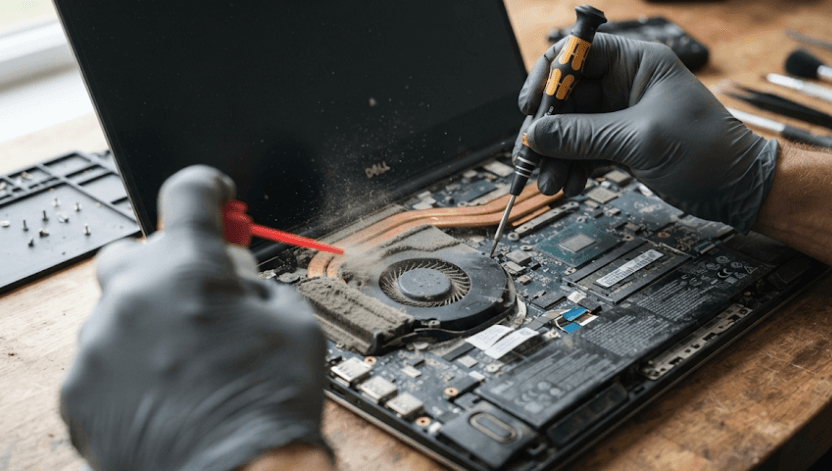
Dust, hair, and other debris can accumulate around laptop vents and cooling components over time. When airflow is restricted, the cooling system may have to work harder to remove heat. This can result in higher fan speeds and increased noise, particularly during workloads that already generate significant heat.
Where the vents are located depends on the laptop design. They may be underneath the machine, along the sides, near the rear hinge, or in other areas of the chassis. Using the laptop on a bed, sofa, blanket, or other soft surface can also restrict ventilation and make the problem worse because the material can cover the intake or exhaust areas.
Cleaning should be performed carefully and according to the laptop manufacturer's instructions. Do not open the laptop unnecessarily if it is under warranty or if you are uncomfortable working with internal hardware. For external vents, manufacturers commonly recommend turning the laptop off and removing dust using an appropriate cleaning method. Avoid blowing into the laptop with your mouth because moisture can enter the device.
High Temperature And Poor Ventilation
The surrounding environment can affect laptop cooling as well. Using a computer in a hot room, placing it in direct sunlight, or restricting the space around its vents can make it more difficult for the cooling system to keep internal temperatures under control. The laptop may respond by running its fan faster for longer periods.
The surface underneath the laptop also matters. A hard, stable desk generally provides better airflow than a soft surface such as a bed or cushion. If your laptop has intake vents on the bottom, keeping those openings unobstructed is particularly important.
If the laptop is consistently hot and slow, the problem should not be treated as merely a noise issue. Modern processors can reduce their operating speed when temperatures become too high, a behavior commonly called thermal throttling. This protects the hardware but can result in noticeably reduced performance during sustained workloads.
How To Fix A Loud Laptop Fan
Check Background Applications
Start by checking whether something is putting unusually high demand on the system. On Windows, open Task Manager and review CPU usage to identify applications consuming significant resources. If a program you recognize is performing a heavy task, allowing it to finish may be enough to bring fan speeds back down.
You can also review applications that launch when Windows starts. Too many unnecessary startup programs can increase background activity and system load. However, do not disable security software or unfamiliar system components simply because they appear in the list. If you are unsure what a process does, research the application first.
If the fan becomes quiet after closing a particular application, that provides a useful clue. You may need to reduce the application's workload, update it, change its settings, or simply avoid running several demanding applications simultaneously.
Improve Airflow
Move the laptop onto a hard, flat surface and make sure the vents are not covered. Give the machine sufficient clearance around its intake and exhaust areas, particularly when performing demanding tasks. A laptop stand can also help improve positioning, depending on the device's ventilation design.
Inspect the accessible vents for visible dust or debris. If cleaning is necessary, follow the specific instructions provided by the laptop manufacturer rather than applying the same method to every model. Different laptops have different cooling layouts and service requirements.
A cooling pad is another option, particularly for laptops used for gaming or sustained workloads, but it should not be treated as a substitute for proper ventilation or internal cleaning. If the laptop has a blocked or malfunctioning cooling system, adding an external accessory may not address the underlying problem.
Change Power Or Thermal Settings
Performance settings can affect how aggressively a laptop uses its processor and cooling system. Some laptops offer manufacturer-specific thermal profiles such as Quiet, Balanced, Cool, or Performance modes. Selecting a quieter or balanced profile can reduce fan activity when maximum performance is not necessary.
Windows devices may also offer power modes that balance performance, battery life, and heat. Microsoft notes that higher-performance modes can allow a device to become warmer and cause the fan to spin faster, while recommended or balanced settings can provide quieter operation.
The exact options vary by manufacturer and model, so avoid assuming that every laptop has the same controls. If your computer has software such as a manufacturer's system-management utility, check whether it provides an appropriate thermal or fan profile before installing third-party fan-control software.
Other Fixes Worth Trying
Update Windows, Drivers, And BIOS
Software and firmware can influence thermal management and fan behaviour. Manufacturers including Dell, HP, and ASUS recommend keeping Windows, relevant drivers, and BIOS or firmware updated when troubleshooting overheating and fan issues. Updates can address compatibility, stability, power-management, and thermal-control problems.
Before updating the BIOS, however, identify the exact laptop model and use the manufacturer's official support page. BIOS updates are more sensitive than ordinary application updates, and installing an incorrect firmware package can create serious problems. Keep the laptop connected to reliable power and follow the manufacturer's instructions carefully.
If the fan problem started immediately after a software or driver change, that timing is also worth noting. A recent update does not automatically mean it caused the issue, but the information can help when diagnosing persistent fan behavior.
Restart The Laptop
A restart is simple, but it can sometimes resolve temporary background activity. Windows may have completed an update, installation, synchronization task, or other process that was causing increased CPU usage. Restarting also closes many temporary processes and gives the system a fresh start.
After restarting, leave the laptop idle for a few minutes and listen to the fan. If the noise settles when the system is not performing a demanding task, the original increase may have been workload-related.
If the fan immediately returns to maximum speed even when the computer is doing very little, continue troubleshooting rather than repeatedly restarting the system. Persistent high-speed operation can indicate a thermal, software, or hardware problem that needs further attention.
Run Manufacturer Diagnostics
Many laptop manufacturers provide built-in diagnostic tools that can test hardware components, including fans and thermal systems. These tools can be particularly useful when the fan is making abnormal noises or when the laptop is overheating without an obvious software cause.
The exact diagnostic procedure depends on the manufacturer. For example, Dell provides preboot diagnostics that can test the fan independently of Windows. HP and ASUS also provide manufacturer-specific troubleshooting and system-management tools for supported devices.
If a diagnostic test reports a fan or thermal hardware failure, record the error information before contacting support. This gives a technician a much clearer starting point than simply reporting that the laptop is noisy.
When Should You Get Your Laptop Checked?
Not every loud fan requires repair. If the noise appears during gaming, rendering, updates, or another demanding task and disappears afterward, the behavior may be completely normal. Similarly, a short burst of fan activity immediately after startup can occur on some laptops.
The concern increases when the fan remains extremely loud during light use or when the computer is hot even though few applications are running. Unexpected shutdowns, freezing, severe slowdowns, or repeated thermal warnings are also signs that the cooling system needs attention. These symptoms should not be ignored because excessive heat can affect performance and, in some situations, contribute to hardware problems.
Pay particular attention to mechanical noises. Grinding, rattling, scraping, or clicking is different from ordinary airflow noise and can indicate a worn or damaged fan. If the fan is physically failing, software settings cannot permanently fix the problem. Professional inspection or replacement may be necessary.
| Situation | Recommended action |
|---|---|
| Fan is loud during gaming | Usually normal; check temperatures and airflow |
| Fan gets loud during updates | Allow the process to finish and monitor afterward |
| Fan is loud during basic use | Check CPU usage, airflow, and power settings |
| Laptop is hot while idle | Investigate software and cooling issues |
| Fan makes grinding/rattling sounds | Consider professional hardware inspection |
| Laptop shuts down from heat | Stop demanding use and seek technical assistance |
How To Prevent Excessive Laptop Fan Noise
Preventing fan problems is generally easier than dealing with persistent overheating. Keep the laptop on a suitable hard surface during demanding workloads and avoid blocking its ventilation openings. Regularly inspect accessible vents for dust and clean them using the manufacturer's recommended method.
It is also useful to avoid keeping unnecessary applications running continuously. Large numbers of browser tabs, synchronization services, launchers, and background applications can increase system activity. This does not mean every background process should be disabled, but periodically reviewing what is running can help identify unnecessary sources of CPU usage.
Finally, keep Windows, drivers, and manufacturer-recommended firmware updates reasonably current. Pay attention to changes in fan behavior rather than focusing only on how loud the fan sounds. A fan that briefly becomes noisy during a heavy workload is generally less concerning than one that runs at maximum speed while the laptop is idle.
Frequently Asked Questions
Q. Is it normal for a laptop fan to be loud?
Yes. Fan noise is normal when the CPU or GPU is under a heavy workload. It becomes more concerning when the fan stays unusually loud during light use or produces abnormal mechanical sounds.
Q. Why is my laptop fan loud when I am not doing anything?
Background applications, Windows updates, synchronization, security scans, dust, blocked vents, or thermal-management issues can cause increased fan activity even when you are not actively using the laptop.
Q. Can dust make a laptop fan louder?
Yes. Dust and debris can restrict airflow around vents and cooling components, causing the fan to work harder to remove heat.
Q. Does using a laptop on a bed make it overheat?
It can. Soft surfaces may cover or restrict ventilation openings, reducing airflow and increasing heat buildup.
Q. How do I reduce laptop fan noise?
Check CPU usage, close unnecessary demanding applications, improve airflow, clean accessible vents according to the manufacturer's instructions, and use a balanced or quieter thermal profile when appropriate.
Q. Should I use a cooling pad for a loud laptop fan?
A cooling pad can help some laptops by improving airflow, particularly during sustained workloads. However, it cannot replace cleaning or repairing a faulty internal cooling system.
Q. Why does my laptop fan get loud during gaming?
Games can place substantial demand on the CPU and GPU, producing more heat. The cooling system responds by increasing fan speed, so louder noise during gaming is often expected.
Q. Can a software update fix laptop fan noise?
Sometimes. Windows, driver, BIOS, or firmware updates can address certain power-management or thermal-control issues, although an update will not fix physical dust buildup or a damaged fan.
Q. Why does my laptop fan make a grinding or rattling sound?
Grinding, rattling, clicking, or scraping can indicate a mechanical problem with the fan. If the sound persists, professional inspection is recommended.
Q. When should I replace my laptop fan?
Fan replacement may be necessary when diagnostics identify a fan failure or when the fan produces persistent abnormal mechanical noise and the laptop overheats despite proper airflow and reasonable system loads.
Final Recommendation And Decision Framework
A loud laptop fan is not automatically a sign that your laptop is failing. In many cases, the fan is simply responding to higher CPU or GPU activity and doing exactly what it was designed to do. The first step is to identify whether the noise is workload-related or whether it continues when the laptop is barely being used.
If the fan is consistently loud, check CPU usage, restart the computer, move it to a hard and unobstructed surface, inspect the vents, and review the available power or thermal settings. Keep Windows, drivers, and manufacturer firmware updated, and use the manufacturer's diagnostic tools when available. If these steps do not help, particularly if the laptop overheats while idle, shuts down unexpectedly, or produces grinding or rattling noises, the problem may be hardware-related.
The goal should not simply be to make the fan silent. A functioning cooling system needs to produce some noise when the laptop is working hard. The better approach is to keep temperatures and airflow under control while allowing the fan to operate normally when the system needs cooling.
Ready to upgrade your tech?
Browse our collection of quality refurbished products at unbeatable prices.