Mini PC as a Home Server: Plex, Pi-hole and Home Assistant Setup
Learn how to turn a mini PC into a home server using Plex, Pi-hole and Home Assistant. Explore hardware requirements, installation methods, network setup and maintenance tips.

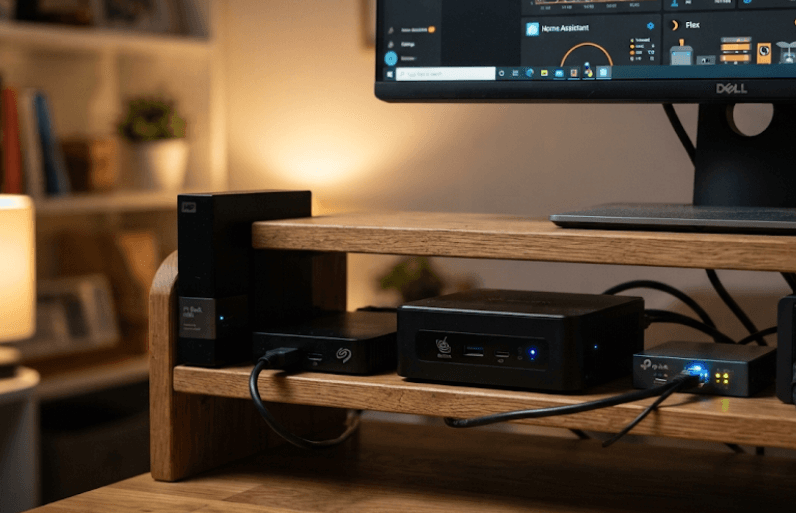
TL;DR A mini PC can serve as an affordable, space-saving home server for media streaming, network-wide advertisement blocking, and smart home automation. A system with a modern Intel processor, 8GB to 16GB RAM, an SSD, and Gigabit Ethernet is a sensible starting point for light to moderate workloads. Install Plex Media Server to organise and stream personal media, Pi-hole to filter unwanted DNS requests, and Home Assistant to manage connected devices and automations. Linux with Docker is a flexible option for running multiple services, while Home Assistant OS in a virtual machine is worth considering if you need its Supervisor and app management features. Choose hardware according to your streaming requirements, storage needs, and expected number of connected devices.
Why Use a Mini PC as a Home Server?
A home server is a computer that runs continuously and provides services to other devices connected to the same network. It can store files, stream media, manage network traffic, and control smart home equipment. Traditionally, people used older desktop computers or dedicated NAS devices for these tasks. However, mini PCs have become a practical alternative because they offer desktop-class computing capabilities in a much smaller form factor. They are also easier to place near a router or entertainment setup without requiring a dedicated workstation area.
One of the biggest advantages is that a single mini PC can run several applications simultaneously. Plex can manage your movie and music library, Pi-hole can filter DNS requests from connected devices, and Home Assistant can automate lighting, temperature controls and other compatible smart home equipment. Running these services together reduces the need to purchase multiple devices. It also makes administration easier because the services can be monitored from one machine.
However, choosing the right mini PC matters. A system that works comfortably for Pi-hole and basic home automation may struggle when several users stream high-resolution videos simultaneously. Media transcoding, virtual machines and large storage requirements can increase hardware demands considerably. Therefore, it is important to understand what each service requires before deciding which mini PC to purchase.
Choosing the Right Mini PC Hardware
A home server does not necessarily require an expensive processor or high-end graphics card. For a basic setup involving Pi-hole, Home Assistant and occasional Plex streaming, a modern entry-level Intel processor can be sufficient. However, users planning to transcode high-resolution media or run multiple virtual machines should consider a more capable processor. Intel processors with Quick Sync Video support are particularly useful for Plex because they can accelerate supported video encoding and decoding tasks.
Memory and storage are equally important. An 8GB RAM configuration can work for a relatively lightweight setup, but 16GB provides more flexibility when running several services together. Users planning to experiment with virtualisation may benefit from 32GB or more, depending on the number of virtual machines and their workloads. An SSD is preferable for the operating system, applications and databases because it offers faster access than a traditional hard drive. Larger media collections can be stored on additional internal or external drives.
Connectivity, cooling and reliability should also influence the purchase decision. Gigabit Ethernet is a sensible minimum for a wired home server, while 2.5GbE can be useful for faster transfers when the rest of the network supports it. Check whether the mini PC supports storage expansion, additional RAM and reliable cooling during extended operation. A machine that runs continuously should also have adequate ventilation and a BIOS option to restart automatically after a power interruption.
Recommended Hardware Specifications
Component | Suggested specification | Purpose |
|---|---|---|
Processor | Modern Intel Core i3 or equivalent | Running multiple services |
RAM | 8GB minimum; 16GB recommended | Handling simultaneous workloads |
Storage | 256GB or larger SSD | Operating system and applications |
Media storage | External HDD or additional SSD | Movies, music and personal files |
Networking | Gigabit Ethernet or faster | Reliable network connectivity |
Cooling | Active cooling with good ventilation | Continuous operation |
Setting Up the Home Server Operating System
Before installing Plex, Pi-hole and Home Assistant, you need an operating system to manage the mini PC. Ubuntu Server and Debian are popular Linux options because they are relatively lightweight and support Docker. Docker allows applications to run in separate containers rather than requiring every service to be installed directly into the operating system. This makes it easier to manage applications, update them and troubleshoot individual services without affecting the entire server.
After installing Linux, connect the mini PC to your router using an Ethernet cable. Complete the initial system updates, create a non-root administrator account and configure a reliable network connection. Assign the server a reserved IP address through your router's DHCP settings. This is important because services such as Pi-hole and Plex need a consistent address to remain accessible to other devices. You should also enable SSH if you want to manage the server remotely without keeping a monitor and keyboard connected.
Docker Engine and Docker Compose can then be installed to manage the applications. Docker Compose uses a configuration file to define containers, their storage locations, network settings and restart policies. This makes it easier to manage Plex and Pi-hole together while keeping their configurations separate. Home Assistant can also run as a container, although users who want its full Supervisor and app management experience should consider installing Home Assistant OS in a virtual machine instead.
Installing Plex Media Server for Home Streaming
Plex Media Server turns your mini PC into a personal media streaming platform. It organises supported movies, television shows, music and other media files into a library that can be accessed through compatible Plex applications. Instead of transferring files manually between devices, you can browse your collection and stream content to supported televisions, laptops, smartphones and streaming devices. The server manages the media library while the client device handles playback.
To install Plex, download the appropriate Plex Media Server package for your operating system or deploy its official Docker image. During configuration, create folders for your media files and connect them to the server. For example, you can maintain separate directories for movies, television shows and music. Once Plex is running, open its web interface, sign in to your account and add these folders as media libraries. Plex will scan the files and attempt to identify their titles, artwork and other relevant information.
One important consideration is the difference between Direct Play and transcoding. Direct Play allows a compatible device to play the original media file without requiring the server to convert it. Transcoding becomes necessary when the receiving device cannot support the original file format, resolution or bitrate. Intel Quick Sync can reduce CPU workload during supported hardware-accelerated transcoding, but enabling this feature requires a compatible processor, correct system configuration and an active Plex Pass subscription. Users should check the playback dashboard to confirm whether hardware acceleration is actually being used.
Plex Configuration Checklist
Setting | Recommended approach |
|---|---|
Media folders | Create separate movie, TV and music directories |
Network | Prefer wired Ethernet |
Playback | Use Direct Play whenever possible |
Transcoding | Enable hardware acceleration if supported |
Storage | Keep media on adequately sized drives |
Remote access | Configure securely if streaming outside home |
Installing Pi-hole for Network-Wide Ad Blocking
Pi-hole is a DNS-based network filtering application that helps block requests to known advertising, tracking and unwanted domains. Unlike browser extensions, which generally work within individual browsers, Pi-hole can filter DNS requests from multiple devices connected to a configured network. This means smartphones, smart televisions, computers and other compatible devices can benefit without requiring separate browser extensions. However, it does not block every advertisement, particularly those served from the same domains as regular content.
Pi-hole can be installed directly on a supported Linux distribution or deployed through Docker. For a mini PC already running Docker, using a container is a convenient way to keep the service separate from the host operating system. During installation, configure the appropriate network settings, select an upstream DNS provider and access the Pi-hole administration interface. The interface provides information about DNS queries, blocked requests, allowed domains and other network activity. Pi-hole's official documentation recommends at least 512MB RAM and 2GB of free storage, making it relatively lightweight.
The next step is to configure your router to use the mini PC's IP address as its primary DNS server. This allows devices receiving network settings through DHCP to send their DNS requests to Pi-hole. If your router does not allow custom DNS configuration, individual devices can be configured manually. Before changing network-wide settings, make sure the mini PC has a stable IP address and that you understand how to restore the previous DNS configuration. Incorrect DNS settings can prevent devices from accessing websites even when the internet connection itself is working.
Installing Home Assistant for Smart Home Automation
Home Assistant is an open-source home automation platform that brings compatible smart home devices and services together. It allows users to manage connected lights, switches, sensors, thermostats and other supported equipment through a central dashboard. Instead of opening separate applications for different smart devices, you can create a unified interface and build automations based on time, sensor readings or other events. For example, you could configure lights to switch on when motion is detected or receive an alert when a connected sensor detects an unexpected change.
There are two particularly relevant installation options for a mini PC. Home Assistant OS can be installed directly on compatible x86-64 hardware or run inside a virtual machine. It includes the Supervisor and supports Home Assistant apps, making it the recommended installation type for most users. Alternatively, Home Assistant Container can run through Docker alongside Plex and Pi-hole on a Linux host. However, this version does not include Supervisor or the built-in app management system, and updates and additional services need to be managed separately.
For a dedicated Home Assistant OS installation on a mini PC, download the generic x86-64 image and write it to the target SSD using an appropriate imaging tool. The machine must support UEFI boot, and Secure Boot needs to be disabled according to the official installation instructions. Remember that writing the image to the internal drive erases its existing data. Once installation is complete, connect the mini PC to your network and access Home Assistant through its local web interface. You can then complete onboarding, add compatible integrations and begin creating automations.
Running Plex, Pi-hole and Home Assistant Together
Running all three applications on one mini PC is possible, but the installation architecture needs to be planned carefully. A practical option is to install Ubuntu Server or Debian as the main operating system and use Docker Compose to manage Plex, Pi-hole and Home Assistant Container. Each application gets its own configuration and storage directories, making it easier to maintain the setup. This approach is suitable for users comfortable with Linux administration and managing individual application updates.
If you prefer the full Home Assistant experience, another approach is to install Proxmox VE as the virtualisation platform. You can then create a dedicated Home Assistant OS virtual machine and run Plex and Pi-hole in separate Linux containers or virtual machines. This separates the services and makes backups, resource allocation and recovery easier to manage. However, virtualisation adds some administrative complexity, and Plex hardware transcoding requires special attention. Plex's documentation notes that hardware-accelerated streaming is not currently available inside virtual machines in its documented configuration, so users who need Quick Sync transcoding should carefully plan how the hardware is exposed.
Service | Recommended environment | Main purpose |
|---|---|---|
Plex | Linux or Docker | Personal media streaming |
Pi-hole | Linux or Docker | DNS-based network filtering |
Home Assistant | Home Assistant OS VM or Container | Smart home management |
For a beginner, starting with one service at a time is the safest approach. First, get Plex working with a small media library, then configure Pi-hole and verify that DNS requests are being filtered correctly. Finally, install Home Assistant and connect a few compatible devices. This makes troubleshooting easier because you can identify which service is causing a problem instead of trying to diagnose three newly installed applications simultaneously.
Security, Maintenance and Long-Term Reliability
A home server often operates continuously and may contain personal media, device information and network configuration details. Therefore, security should be considered from the beginning. Keep the operating system and applications updated, use strong passwords and avoid exposing administrative interfaces directly to the internet. Remote access should be configured through secure methods such as a properly managed VPN or an appropriate supported remote-access solution. Avoid forwarding unnecessary ports on your router, particularly for administrative dashboards.
Backups are equally important. Keep copies of Plex metadata, Pi-hole configuration, Home Assistant backups and other important application data. Media files should also have a separate backup if they are valuable, because storing them on a home server does not automatically protect them from drive failure. An external drive or another backup destination can help reduce the risk of losing important information. Periodically check that backups can actually be restored rather than assuming that a completed backup process guarantees recovery.
Finally, monitor the mini PC's temperature, storage capacity, network availability and power consumption. Continuous operation can increase electricity usage, even with relatively efficient hardware. A small UPS can help the server shut down safely during longer power interruptions, while BIOS settings can enable automatic restart after power is restored. Keep the machine in a ventilated location and periodically review running containers, application logs and available storage. These basic maintenance practices can make a significant difference to long-term reliability.
Final Recommendation And Decision Framework
A mini PC is a practical starting point for building a home server without investing in a large desktop computer or a dedicated rack-mounted system. Plex, Pi-hole and Home Assistant serve different purposes, but together they can provide a useful combination of personal media streaming, network filtering and smart home automation. A modern Intel-based mini PC with 16GB RAM, SSD storage and Gigabit Ethernet is a sensible starting configuration for users planning to run all three services with light to moderate workloads. Those expecting multiple simultaneous media transcodes or extensive virtualisation should invest in more capable hardware.
The choice of operating system depends on how much control and flexibility you need. Linux with Docker Compose is suitable for users who want to manage several independent services from one host. Proxmox with a dedicated Home Assistant OS virtual machine is a better option for users who value service separation and virtualisation. If smart home management is your main priority, installing Home Assistant OS directly on the mini PC offers a simpler experience, although it means dedicating that machine to Home Assistant.
Ultimately, the best home server is not necessarily the most powerful or expensive one. It is the system that comfortably handles your everyday requirements, offers room for future expansion and remains easy to maintain. Start with the services you actually need, configure reliable storage and networking, and expand the setup gradually. With sensible hardware choices and proper security practices, a mini PC can become a dependable part of your home technology setup.
Frequently Asked Questions
Q. Can a mini PC run Plex, Pi-hole and Home Assistant simultaneously? Yes. A mini PC with a modern processor, 16GB RAM and SSD storage can run all three services, provided its hardware is suitable for the expected workload.
Q. How much RAM is required for a mini PC home server? 8GB can handle lightweight workloads, but 16GB is a more comfortable starting point for running multiple services. Users planning virtualisation may need 32GB or more.
Q. Is an Intel processor better for running Plex? Intel processors with Quick Sync Video support are useful for hardware-accelerated transcoding. However, the best choice depends on the processor generation, supported codecs and streaming requirements.
Q. Does Plex require a subscription to stream media? Plex Media Server is available without a paid subscription. However, certain premium features, including hardware-accelerated streaming, require an active Plex Pass.
Q. Can Pi-hole block advertisements on every device? Pi-hole can filter DNS requests from devices configured to use it. However, it cannot guarantee that every advertisement will be blocked, particularly advertisements served from the same domains as regular website content.
Q. Does Pi-hole work without a Raspberry Pi? Yes. Pi-hole can run on supported Linux systems installed on mini PCs, desktops and other compatible hardware. It does not require a Raspberry Pi.
Q. Should Home Assistant run in Docker or as a virtual machine? Home Assistant Container is suitable for users comfortable managing Docker services. Home Assistant OS in a virtual machine is preferable if you need Supervisor and its app management features.
Q. Can a mini PC home server run continuously? Yes. Most suitable mini PCs can operate continuously, provided they have adequate cooling, reliable power and appropriate maintenance.
Q. Do I need an external hard drive for a home server? Not necessarily. An internal SSD can store applications and smaller media libraries. External HDDs or additional SSDs are useful when storing larger collections of movies, music and personal files.
Q. Is a mini PC home server accessible outside the home network? Yes. Services such as Plex and Home Assistant offer remote-access options. However, remote access should be configured securely using supported methods, strong authentication and appropriate network protections.
Ready to upgrade your tech?
Browse our collection of quality refurbished products at unbeatable prices.