How to Stream and Record PS5 or Xbox Gameplay With a Capture Card (Elgato HD60 S)
Learn how to stream and record PS5 or Xbox gameplay using the Elgato HD60 S capture card. Explore connection steps, OBS Studio settings, audio configuration, and troubleshooting tips for smooth 1080p60 gameplay capture.

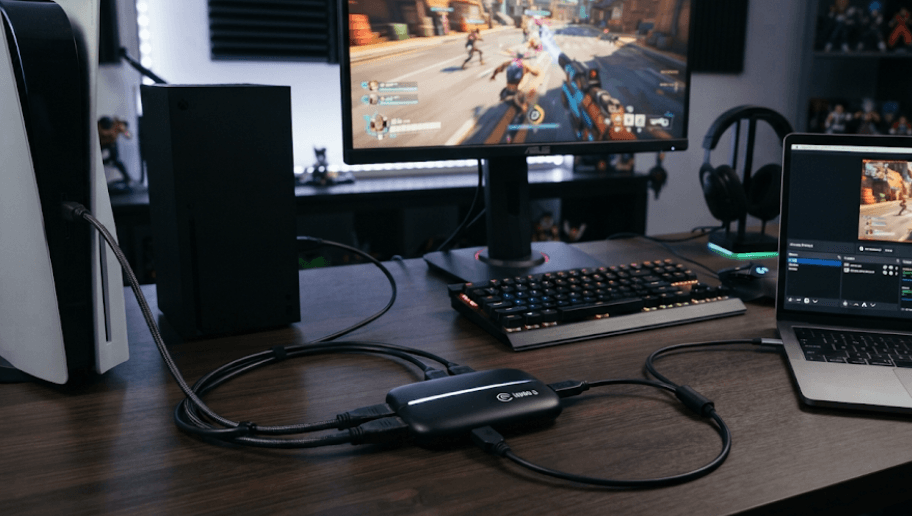
TL;DR: If you want to stream or record your PS5 or Xbox gameplay on a computer, the Elgato HD60 S capture card makes the process relatively straightforward. It connects your console to your PC or Mac through HDMI and USB 3.0, allowing you to capture gameplay at up to 1080p and 60 FPS. You can use OBS Studio to add a webcam, microphone, overlays, and other streaming elements. The setup involves connecting the capture card, adjusting console settings, configuring your recording software, and checking audio and video before going live. However, remember that the HD60 S is an older capture card and does not support 4K capture, 4K passthrough, or 120Hz gameplay.
What Is the Elgato HD60 S Capture Card?
The Elgato HD60 S is an external USB capture card designed to record and stream gameplay from consoles such as the PlayStation 5, PlayStation 4, Xbox Series X/S, and Xbox One. Instead of relying entirely on your console's built-in recording and broadcasting features, it sends the console's HDMI video signal to a computer, where dedicated software handles recording or live streaming. This makes it useful for gamers who want greater control over their content.
One of its main features is 1080p capture at 60 frames per second (FPS). This means you can record smooth, Full HD gameplay without needing a complicated internal capture card installation. The device also offers HDMI passthrough, allowing you to connect your console to a television or monitor while simultaneously sending the video feed to your computer. You can continue playing on your display while your PC handles the recording or stream.
It is important to understand the device's limitations before setting it up. The HD60 S supports up to 1080p60 input and capture, so it is not designed for native 4K recording or high-refresh-rate 120Hz gaming. It is also an older, discontinued product in Elgato's hardware lineup. Nevertheless, it remains a practical option for creators who are comfortable with 1080p60 content and already own a compatible unit.
Elgato HD60 S: Key Specifications
| Feature | Details |
|---|---|
| Connection | USB 3.0 Type-C |
| Video input | HDMI (unencrypted) |
| Maximum capture resolution | 1080p at 60 FPS |
| HDMI passthrough | Up to 1080p60 |
| Audio capture | HDMI audio and analogue audio input |
| Compatible consoles | PS5, PS4, Xbox Series X/S, Xbox One |
| Computer connection | USB 3.0 |
| Streaming software | OBS Studio and compatible capture software |
What You Need Before Setting Up the Capture Card
Before connecting everything, make sure you have the necessary equipment. The capture card itself is only one part of the setup. You will also need a gaming console, a computer, compatible HDMI cables, and recording or streaming software. Having everything ready beforehand can save you from troubleshooting connection issues halfway through the process.
Your computer should have an available USB 3.0 port. This is particularly important because the HD60 S relies on a high-speed USB connection to transfer video to your computer. Connecting it to a USB 2.0 port or an unsuitable hub can result in performance problems, dropped frames, or an unstable connection.
You should also check that your computer meets the software's requirements. Older Elgato documentation lists Windows 10 (64-bit), a fourth-generation Intel Core i5 or equivalent AMD processor, compatible graphics hardware, and USB 3.0 as baseline requirements. These are historical minimum specifications, not a guarantee of compatibility with every modern operating system. Check the available software and driver support for your computer before beginning.
Equipment Checklist
| Equipment | Purpose |
|---|---|
| PS5 or Xbox console | Provides the gameplay video and audio |
| Elgato HD60 S | Captures the console's HDMI signal |
| HDMI cables (2) | Connect the console, capture card, and display |
| PC or laptop | Runs recording and streaming software |
| USB 3.0 cable | Connects the capture card to the computer |
| Monitor or TV | Displays gameplay through HDMI passthrough |
| Microphone (optional) | Captures your commentary |
| Webcam (optional) | Adds a camera feed to your stream |
How to Connect the Elgato HD60 S to Your Console
The physical connection process is almost identical for PlayStation and Xbox consoles. The capture card sits between your console and your display, while a USB connection sends the captured video to your computer. Once connected correctly, you should be able to play normally while monitoring the footage on your PC.
Start by connecting one HDMI cable from your console's HDMI OUT port to the HDMI IN port on the Elgato HD60 S. Next, connect a second HDMI cable from the capture card's HDMI OUT port to your television or gaming monitor. This creates the passthrough connection, which allows the gameplay signal to reach your display.
Finally, connect the capture card to your computer using the supplied USB-C cable and an available USB 3.0 port. Make sure the connections are secure before opening your recording software. Your console should now send its video signal to both the display and the computer, provided the output resolution and other signal settings are compatible.
Connection Setup at a Glance
| Connection | Where It Goes |
|---|---|
| HDMI cable 1 | Console HDMI OUT → HD60 S HDMI IN |
| HDMI cable 2 | HD60 S HDMI OUT → TV or monitor |
| USB cable | HD60 S USB-C → Computer USB 3.0 |
How to Set Up the Elgato HD60 S With a PS5
Connecting the PS5 to the HD60 S requires one additional step: disabling HDCP. HDCP stands for High-bandwidth Digital Content Protection. It is a copy-protection technology used to prevent unauthorised recording of protected video content. Since the HD60 S cannot capture an HDMI signal protected by HDCP, leaving this setting enabled can result in a black screen or no signal.
To change the setting, first connect your PS5 directly to your television or monitor. Navigate to Settings, select System, and open HDMI. Find the Enable HDCP option and turn it off. Once this setting has been changed, switch off the console if necessary before reconnecting it through the capture card.
Now connect your PS5 to the HD60 S using the HDMI connections described earlier. Open your recording software and check whether the gameplay appears. You should be able to capture compatible gameplay footage once the signal is detected. Remember that disabling HDCP is intended for gameplay capture; protected streaming services and other copyrighted video content will remain unavailable for capture.
PS5 Setup Steps
- Connect the PS5 directly to your television or monitor.
- Open Settings on the console.
- Select System and then HDMI.
- Turn off Enable HDCP.
- Connect the PS5 HDMI OUT to the HD60 S HDMI IN.
- Connect the capture card HDMI OUT to your display.
- Connect the capture card to your computer through USB 3.0.
- Open OBS Studio or compatible capture software and check the video feed.
How to Set Up the Elgato HD60 S With an Xbox
Setting up an Xbox Series X or Series S with the HD60 S follows a similar process, but there is no equivalent PS5-style HDCP toggle that you need to disable for ordinary gameplay capture. The important requirement is that the HDMI signal reaching the capture card must not be HDCP-protected. Protected video apps and media may therefore produce a black screen even when your console and capture card are connected correctly.
Start by connecting your Xbox HDMI OUT port to the HDMI IN port on the Elgato HD60 S. Use another HDMI cable to connect the capture card's HDMI OUT port to your television or monitor. After that, connect the HD60 S to your computer using its USB 3.0 cable.
Once the physical connections are complete, turn on your Xbox and check its display settings. For the HD60 S, select a compatible output resolution, preferably 1080p, rather than expecting the capture card to handle a 4K signal. The card's maximum supported input is 1080p60, so using an unsupported resolution or refresh rate can prevent the video signal from appearing correctly.
Xbox Setup Steps
- Connect your Xbox directly to a display first to verify its video output.
- Connect Xbox HDMI OUT to HD60 S HDMI IN.
- Connect HD60 S HDMI OUT to your TV or monitor.
- Connect the capture card to your PC using USB 3.0.
- Set your Xbox output to a compatible resolution, such as 1080p.
- Open your capture or streaming software.
- Check that both the gameplay video and audio are appearing correctly.
How to Record and Stream Gameplay Using OBS Studio
Once your capture card is connected, the next step is configuring recording and streaming software. OBS Studio is a popular choice because it is free, open-source, and offers several customisation options. You can use it to record gameplay, broadcast live, add overlays, and combine different audio and video sources in one scene.
Start by downloading and installing OBS Studio on your computer. Open the application and locate the Scenes and Sources panels. Under Sources, click the plus (+) icon and select Video Capture Device. Give your source a recognisable name, such as Elgato HD60 S, and click OK. From the device list, select the Elgato Game Capture HD60 S video device.
Once selected, the capture card's video feed should appear in the OBS preview window. If it does not, open the source properties and check the resolution and frame-rate settings. You can select Custom under Resolution/FPS Type and choose 1920 × 1080 with the highest supported frame rate. If the picture does not fill the preview area, right-click the source, select Transform, and choose Fit to Screen.
Recommended OBS Video Settings
| Setting | Recommended Starting Point |
|---|---|
| Base Canvas Resolution | 1920 × 1080 |
| Output Resolution | 1920 × 1080 |
| Frame Rate | 60 FPS |
| Audio Sample Rate | 48 kHz |
| Audio Channels | Stereo |
| Output Mode | Simple |
| Recording Format | MKV |
| Encoder | Compatible hardware encoder, if available |
These settings are a starting point rather than fixed requirements. If your computer struggles to process 1080p60 footage, try reducing the output resolution to 1280 × 720. You can also adjust the encoder and bitrate according to your computer's processing capabilities and internet upload speed.
Adding Your Microphone and Webcam
To include commentary, open the Sources panel and add an Audio Input Capture source. Select your microphone from the available devices and speak into it to check the audio levels. You can also add a webcam through Video Capture Device and position its video feed within the OBS preview.
For a live stream, you can add text, alerts, overlays, and other graphics to make your presentation more engaging. Keep these elements organised into separate sources so that you can reposition or hide them without disturbing the gameplay feed. Before going live, make a short test recording to check whether the game audio, microphone, and webcam are all working together.
How to Save Recordings and Go Live
OBS Studio allows you to record gameplay directly to your computer or stream it to a supported platform. You can also use both features during the same session, depending on your computer's available resources and your chosen output settings. This is particularly useful if you want to save a high-quality local copy while broadcasting a compressed version online.
To record gameplay, open Settings and navigate to Output. Choose your preferred recording path so that you know exactly where the videos will be saved. Select a suitable encoder and recording format. MKV is a useful starting choice because it is more resilient if OBS or your computer unexpectedly stops working during a recording. You can remux the completed recording to MP4 through OBS if you need a more widely compatible file.
For streaming, open Settings and select Stream. Choose your preferred service, such as Twitch or YouTube, and connect your account or enter the appropriate stream key. Configure your video bitrate according to the platform's recommendations and your available upload bandwidth. Avoid setting a bitrate that your internet connection cannot consistently maintain.
Before clicking Start Streaming, check the OBS audio mixer, video preview, and stream configuration. A short private or unlisted test, where supported by the platform, can help identify problems before an actual broadcast. Once everything looks right, select Start Streaming. To save a separate local recording, select Start Recording as well.
Common Elgato HD60 S Problems and How to Fix Them
Even when the capture card is connected correctly, you may occasionally encounter problems such as a black screen, missing audio, or choppy footage. Most of these issues are related to console output settings, USB connections, software conflicts, or incorrect audio configuration. Checking these areas individually is usually more effective than repeatedly reconnecting every cable.
A common issue is the capture card displaying no signal. On a PS5, first check whether HDCP has been disabled. On either console, confirm that the HDMI cable is connected to the correct input and output ports and that the console is using a supported resolution. Also, try a different HDMI cable if the signal continues to disappear.
Audio problems may require a separate check. Confirm that the capture card is selected as the video source and that its audio is being captured in OBS. Elgato recommends using a 48 kHz sample rate and stereo audio configuration. If OBS displays video but no sound, check the source's audio output mode, the Audio Mixer, and the selected monitoring device. Also, close other capture applications that may already be using the device.
Quick Troubleshooting Guide
| Problem | Possible Solution |
|---|---|
| Black screen on PS5 | Disable HDCP under Settings > System > HDMI |
| No signal on Xbox | Check HDMI connections and select a supported output resolution |
| Choppy gameplay footage | Check USB 3.0 connection and reduce output settings if needed |
| No game audio | Check OBS audio source and capture-device properties |
| Video not filling the screen | Use Transform > Fit to Screen in OBS |
| Capture card not detected | Try another USB 3.0 port and check driver/software compatibility |
| Capture software shows an error | Close other applications using the capture card |
Frequently Asked Questions
Q. Can the Elgato HD60 S record PS5 gameplay?
Yes. The HD60 S is compatible with PS5 and can record gameplay at up to 1080p and 60 FPS. You must disable HDCP on the console before capturing gameplay.
Q. Can I use the Elgato HD60 S with Xbox Series X and Series S?
Yes. Both consoles are supported. Connect the Xbox through HDMI and set its video output to a resolution supported by the HD60 S.
Q. Does the Elgato HD60 S support 4K recording?
No. The HD60 S supports a maximum capture resolution of 1080p at 60 FPS. It cannot record native 4K gameplay.
Q. Can I play games while recording with the HD60 S?
Yes. Its HDMI passthrough allows you to play on a connected television or monitor while your computer records the gameplay.
Q. Do I need a PC to use the Elgato HD60 S?
For the standard capture-card recording and streaming setup, yes. You need a compatible computer to receive the video feed and run recording or streaming software.
Q. Can I use OBS Studio with the Elgato HD60 S?
Yes. Add the capture card as a Video Capture Device source in OBS Studio and configure the resolution, frame rate, and audio settings.
Q. Why is my PS5 showing a black screen on the capture card?
The most common reason is that HDCP is enabled. Navigate to Settings > System > HDMI and turn off Enable HDCP. Also check your HDMI connections and output resolution.
Q. Can I stream directly to Twitch or YouTube using the HD60 S?
Yes. You can connect OBS Studio to Twitch or YouTube and use the HD60 S as your gameplay video source. You will also need a suitable internet connection.
Q. Does the Elgato HD60 S support 120 FPS gaming?
No. The HD60 S does not support 120Hz input or 120 FPS capture. Its maximum supported capture rate is 60 FPS.
Q. Is the Elgato HD60 S still worth using?
It can still be useful if you already own one and need basic 1080p60 gameplay capture. However, it is an older, discontinued model, so check current software and operating-system compatibility before purchasing or building a new setup around it.
Final Recommendation
The Elgato HD60 S remains a practical capture card for gamers who want to record or stream PS5 and Xbox gameplay without relying entirely on their consoles' built-in broadcasting features. Its 1080p60 capture capability, USB 3.0 connection, and HDMI passthrough make it suitable for beginners, casual streamers, and content creators who do not need 4K recording.
For the best results, use a compatible computer, connect the console through the correct HDMI ports, disable HDCP on your PS5, and configure OBS Studio carefully. Always test your video and audio before starting a live stream or recording an important gaming session.
However, if you are purchasing a new capture card and want 4K passthrough, HDR, or higher refresh-rate support, consider a newer model instead. The HD60 S is best suited to straightforward Full HD recording and streaming, not high-end next-generation capture requirements.
Ready to upgrade your tech?
Browse our collection of quality refurbished products at unbeatable prices.