How to Set Up a Soundbar With Your TV: HDMI ARC, eARC and Optical
Learn how to connect a soundbar to your TV using HDMI ARC, eARC or optical. Understand the differences, correct settings, cable connections and common fixes.

TL;DR
\ Setting up a soundbar with your TV is usually straightforward once you identify the correct ports. HDMI ARC or eARC is generally the best wired option because it can carry TV audio through a single HDMI cable and, with HDMI-CEC, can allow compatible TV remotes to control volume and power. eARC offers greater audio bandwidth than standard ARC and can handle higher-quality formats when the TV, soundbar, cable, and content all support them. If your TV or soundbar does not have ARC or eARC, optical audio is a reliable alternative. The key is to connect the correct ports, select the matching sound output on the TV, and choose the correct input on the soundbar.
Check Your TV And Soundbar Ports
Before connecting any cable, look at the back or side of both your TV and soundbar. The connection options available on both devices determine which setup you can use. On the TV, look for an HDMI port labeled ARC or eARC, an optical audio output, or Bluetooth audio support. On the soundbar, look for an HDMI OUT port marked ARC or eARC, an optical input, or Bluetooth pairing. A regular HDMI port is not automatically an ARC port, so the label matters.
If both devices support HDMI ARC or eARC, this is usually the connection worth choosing first. ARC stands for Audio Return Channel and allows the TV to send audio back to the soundbar through HDMI. eARC, or Enhanced Audio Return Channel, provides substantially more audio bandwidth and supports a wider range of high-quality audio formats. This can be particularly useful if you have a compatible soundbar and TV and want to take advantage of advanced surround-sound formats.
Optical audio is the main wired alternative when ARC or eARC is unavailable. It uses a separate optical cable to send digital audio from the TV's optical output to the soundbar's optical input. Bluetooth can also work with compatible TVs and soundbars, but wireless audio behavior, latency, supported formats, and controls can vary between models. For a stable TV-to-soundbar connection, a wired connection is generally easier to troubleshoot.
| Connection | What You Need | Main Advantage | Main Limitation |
|---|---|---|---|
| HDMI eARC | TV eARC + soundbar eARC | Highest audio capability | Requires compatible devices and cable |
| HDMI ARC | TV ARC/eARC + soundbar ARC/eARC | One cable and HDMI-CEC control | More limited bandwidth than eARC |
| Optical | TV optical out + soundbar optical in | Reliable digital connection | Fewer HDMI control features |
| Bluetooth | Compatible Bluetooth devices | Wireless setup | Possible latency and model-dependent features |
How To Connect A Soundbar Using HDMI ARC
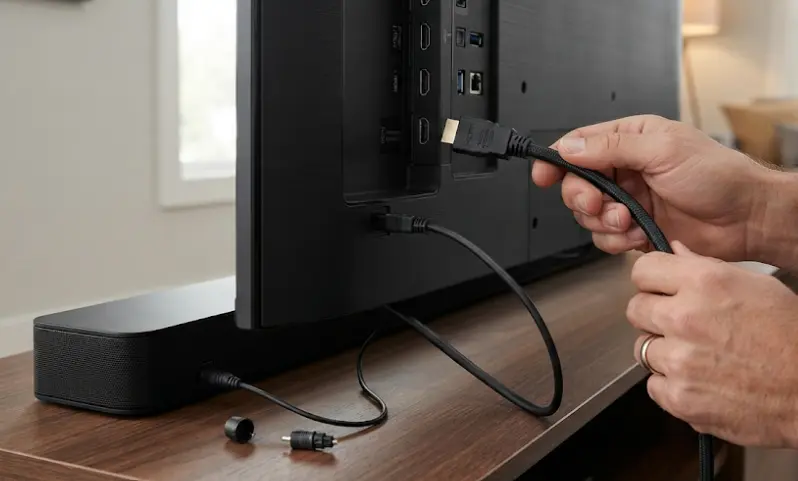
For most compatible TVs and soundbars, HDMI ARC is the simplest wired setup. Start by locating the HDMI port on the TV specifically labeled HDMI ARC or HDMI eARC. Then locate the corresponding HDMI OUT or TV-ARC/eARC port on the soundbar. Connect these two ports with the HDMI cable. Connecting the soundbar to an ordinary HDMI input on the TV will not provide the same ARC function because the audio return channel is available only through the designated ARC/eARC port.
Once the cable is connected, turn on the TV and soundbar and select the appropriate input on the soundbar. Depending on the manufacturer, this may appear as ARC, HDMI ARC, TV ARC, eARC, or a similar name. The TV also needs to be configured to send sound to an external audio device. Menu names differ between brands, but you will usually find the option under Settings, Sound, Audio Output, Sound Output, or Speakers.
HDMI-CEC should also be enabled when you want compatible control functions such as adjusting the soundbar volume with the TV remote. HDMI-CEC has different names depending on the manufacturer. Samsung calls it Anynet+, while LG uses SIMPLINK. Sony uses BRAVIA Sync on compatible devices. Once ARC and HDMI-CEC are configured correctly, the TV and soundbar can communicate through the HDMI connection, reducing the need to switch between multiple remotes for everyday volume control.
How To Use HDMI eARC For Better Audio
HDMI eARC works in a similar way to ARC, but it provides considerably more bandwidth. This allows compatible equipment to handle higher-quality audio formats, including uncompressed multichannel audio and certain high-bitrate object-based formats. Depending on the complete equipment chain, eARC can support formats such as Dolby TrueHD and DTS:X, as well as Dolby Atmos carried through compatible formats. Simply having an eARC label, however, does not guarantee that every format will work.
To use eARC, connect the TV's HDMI eARC port to the soundbar's HDMI eARC or HDMI OUT eARC port. Both devices need to support eARC for the full benefits of the connection. The HDMI cable also needs to meet the requirements of the equipment. Using a suitable High Speed HDMI cable with Ethernet or an Ultra High Speed HDMI cable is a sensible choice for modern eARC setups, while the exact cable requirement should be checked against the TV and soundbar manufacturer specifications.
After connecting the cable, check the TV's sound settings for an eARC option. Some TVs provide a setting such as HDMI eARC Mode, which may need to be switched on or set to Auto. You may also see Digital Audio Output Format options such as PCM, Auto, or Pass-Through. The correct choice depends on the connected equipment and the audio format being used. If an advanced format does not play correctly, switching temporarily to PCM or another compatible output mode can help identify whether the problem is format compatibility.
How To Connect A Soundbar Using Optical
Optical audio is a useful option when your TV or soundbar does not support HDMI ARC or eARC. The setup uses a digital optical cable, often called a TOSLINK cable. Connect one end to the TV's Optical Out or Digital Audio Out port and the other end to the soundbar's Optical In port. Be careful when inserting the cable because the connectors are shaped to fit in a particular orientation, and forcing them can damage the port or connector.
After connecting the optical cable, switch the soundbar's input to Optical, OPT, or the equivalent setting. On the TV, open the sound settings and choose Optical, Digital Audio Out, External Speaker, or the corresponding option. The exact menu names depend on the manufacturer and TV software. If the TV continues playing sound through its built-in speakers, manually selecting the external or optical audio output may be necessary.
Optical can provide good digital audio quality and is often a dependable fallback for older TVs and soundbars. However, it does not provide the same HDMI-CEC integration as an HDMI ARC/eARC connection. It also has more limited audio-format capabilities than eARC. If your goal is simply to get reliable TV sound through a compatible soundbar and your equipment lacks ARC or eARC, optical remains a practical choice.
Choose The Right Audio Output Settings
Connecting the cable is only half of the setup. The TV must know where to send its audio. Open the TV's sound settings and look for an option such as Sound Output, Audio Output, Speakers, or Sound Out. Select the connected soundbar or the appropriate HDMI ARC/eARC or optical output. Some TVs automatically recognize the soundbar, while others require you to select the output manually.
If you are using HDMI ARC or eARC, check whether HDMI-CEC is enabled. Without CEC, some of the expected control features may not work even if the audio connection itself is functioning. If your TV uses a manufacturer-specific name for CEC, search the TV settings for that feature rather than looking only for the letters "CEC." The soundbar may also need to be switched to the TV, ARC, or eARC input.
For audio format settings, Auto or Pass-Through can be useful when the connected equipment supports the incoming format, but compatibility is important. If you hear no sound or experience dropouts, PCM can be a useful troubleshooting setting because it reduces format complexity. This does not mean PCM is always the best final setting. Once the connection is stable, check which audio formats your TV, soundbar, and content source actually support before selecting the final output mode.
| Setting | When It Is Useful |
|---|---|
| TV Speakers | When using the TV's built-in speakers |
| HDMI ARC/eARC | When the soundbar is connected through ARC/eARC |
| Optical | When using an optical cable |
| PCM | Useful as a compatibility test or for supported stereo output |
| Auto/Pass-Through | Useful when the connected equipment supports the incoming audio formats |
Fix Common Soundbar Connection Problems
If there is no sound, start with the physical connection rather than immediately changing advanced settings. For HDMI, make sure the cable runs from the TV's HDMI ARC/eARC port to the soundbar's HDMI OUT or TV-ARC/eARC port. For optical, check that the cable connects from the TV's optical output to the soundbar's optical input. Then confirm that the soundbar is set to the same input you are using. A surprisingly common cause of "no sound" is simply having the soundbar on the wrong source.
If HDMI ARC or eARC is not working, check HDMI-CEC on the TV and the corresponding control setting on the soundbar. Power cycling both devices can also help re-establish the HDMI connection. If external devices such as a streaming box, set-top box, or game console are connected, temporarily disconnecting them can help identify whether another device is interfering with the HDMI connection. A faulty or unsuitable HDMI cable can also cause connection problems.
If you have a picture but no sound, check the TV's Digital Audio Output Format. Try PCM as a temporary compatibility test, followed by Auto or Pass-Through if your equipment supports them. If optical works but ARC/eARC does not, the issue may be related to HDMI settings, CEC, the selected ports, cable compatibility, or the specific capabilities of the connected devices. Always check the manuals for your exact TV and soundbar because menu names and supported formats vary by model.
Final Recommendation And Decision Framework
For most modern TV and soundbar combinations, HDMI eARC is the best option when both devices support it. It provides the greatest audio capability of the connections covered here and keeps the setup simple with one HDMI cable. If both devices support only ARC, use HDMI ARC because it still provides a convenient one-cable connection and can enable HDMI-CEC features such as volume and power control.
If eARC or ARC is unavailable, optical is the most practical wired alternative. It is simple, reliable, and does not require a network connection or wireless pairing. Bluetooth can be convenient when you want a cable-free setup, but wired connections are generally preferable for consistent TV audio and avoiding potential wireless latency or compatibility issues.
The most important rule is to match the connection to the capabilities of your equipment. Don't assume every HDMI port supports ARC, every eARC device supports every advanced audio format, or an expensive cable can add features the TV and soundbar don't support. Check the port labels, select the correct audio output, enable HDMI-CEC when needed, and use the audio format your full setup canhandle.
Frequently Asked Questions
Q. What is the easiest way to connect a soundbar to a TV?
Use HDMI ARC or eARC if both the TV and soundbar support it. Connect the TV's labeled ARC/eARC port to the soundbar's HDMI OUT ARC/eARC port, then select the soundbar as the TV's audio output.
Q. Is HDMI ARC better than optical for a soundbar?
HDMI ARC is generally more convenient because it can support HDMI-CEC control features in addition to carrying audio. Optical is a good alternative when ARC or eARC is unavailable.
Q. What is the difference between HDMI ARC and eARC?
eARC is an enhanced version of ARC with substantially greater bandwidth. It can support higher-quality and uncompressed multichannel audio formats when the connected devices and content support them.
Q. Can I use a normal HDMI port for a soundbar?
For TV audio through ARC or eARC, the TV's HDMI port must specifically support and be labeled for ARC or eARC. A standard HDMI input does not automatically provide the audio return function.
Q. Does a soundbar need HDMI eARC for Dolby Atmos?
Not necessarily. Dolby Atmos can be delivered through different audio formats and connection methods depending on the equipment. eARC provides greater bandwidth and is useful for higher-bitrate formats, but the TV, soundbar, source, and content all need to support the required format.
Q. Can I connect a soundbar to a TV using an optical cable?
Yes. Connect the TV's Optical Out to the soundbar's Optical In and select Optical as the soundbar input and the appropriate digital audio output on the TV.
Q. Why is my soundbar connected but there is no sound?
Check that the cable is connected to the correct ports, the soundbar is on the correct input, and the TV's audio output is set to the soundbar. For HDMI, also check HDMI-CEC and ARC/eARC settings.
Q. Should I use PCM, Auto, or Pass-Through for TV audio?
It depends on your equipment and the audio formats you want to use. Auto or Pass-Through can preserve compatible formats, while PCM can be useful as a troubleshooting or compatibility setting.
Q. Can I control the soundbar volume with my TV remote?
Usually with HDMI ARC/eARC and HDMI-CEC, provided both devices support the feature and it is enabled. The exact name of HDMI-CEC varies by manufacturer.
Q. Do I need a special HDMI cable for eARC?
The cable must meet the requirements of the TV and soundbar. A suitable High Speed HDMI cable with Ethernet or an Ultra High Speed HDMI cable is generally appropriate for modern eARC setups, but checking the manufacturers' specifications is the safest approach.
Ready to upgrade your tech?
Browse our collection of quality refurbished products at unbeatable prices.