How to Run Android Apps on a Windows Laptop: Phone Link and Emulators
Learn how to run Android apps on a Windows laptop using Phone Link or an emulator, with setup steps, requirements, compatibility limits, and practical tips.

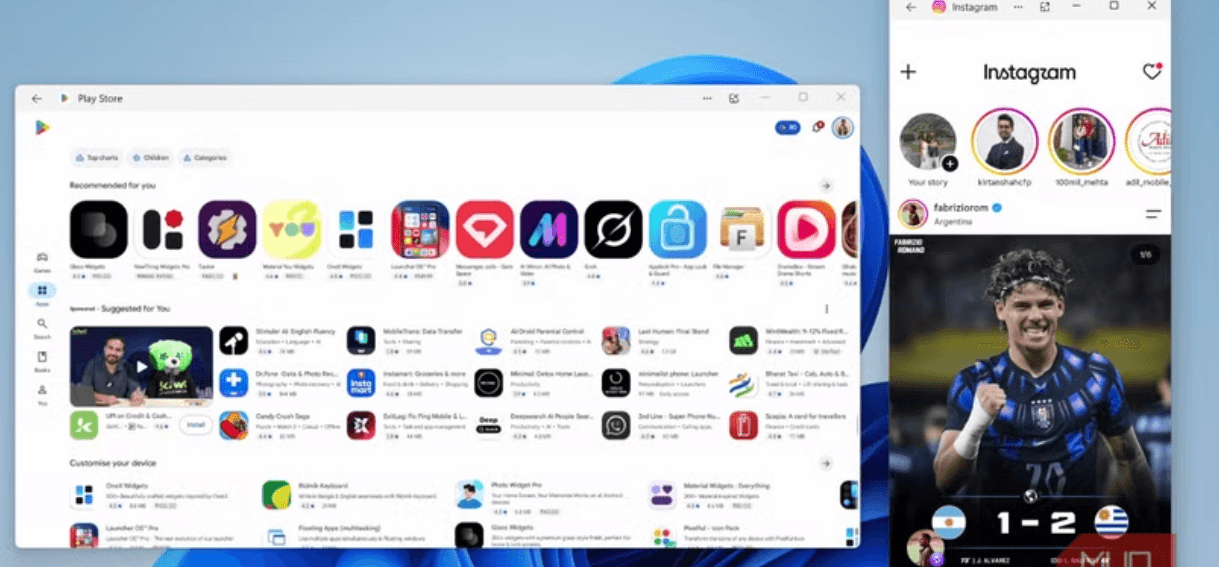
TL;DR: You can use Android apps on a Windows laptop in two main ways: Microsoft Phone Link or an Android emulator. Phone Link lets you access compatible apps already installed on a supported Android phone, with the app continuing to run on the phone while its interface is displayed on Windows. An emulator, such as BlueStacks, creates an Android environment on the laptop itself, so you can install and run compatible Android apps without keeping your phone connected. The right option depends on whether you want quick access to your phone's apps or a more independent Android experience on your Windows PC.
What Is The Best Way To Run Android Apps On Windows?
The best method depends on what you actually want to do. If you already have an Android phone and simply want to use some of its apps from your laptop, Phone Link is the easiest place to start. It connects your phone to Windows and can make supported Android apps available through the Apps section of Phone Link. However, this does not mean the Android app has been installed on Windows. The app continues to run on your phone while Windows provides the interface for using it.
If you want the Android app to operate independently on the laptop, an emulator is more suitable. An emulator creates a virtual Android environment on your Windows computer. Consumer-focused options such as BlueStacks are designed for running Android apps and games, while Android Studio's Emulator is primarily intended for developers who need to test applications on different virtual Android devices. These options generally require more system resources than Phone Link because Android is being handled locally on the PC.
It is also important not to confuse today's options with the old Windows Subsystem for Android method. Windows 11 previously offered WSA alongside the Amazon Appstore, but Microsoft ended its availability through the Microsoft Store on March 5, 2025. Therefore, current guides should not tell users to install WSA as though it were still a normal Windows feature.
| Method | Where Android Runs | Phone Required? | Best For |
|---|---|---|---|
| Phone Link | Android phone | Yes | Using compatible phone apps on a laptop |
| Android Emulator | Windows laptop | No | Running Android apps locally |
| Android Studio Emulator | Windows laptop | No | App development and testing |
| Google Play Games on PC | Windows laptop | No | Supported Android games |
How To Use Phone Link For Android Apps
Check Phone Link Requirements
Phone Link is the simpler option if your Android phone is compatible. Microsoft currently requires a Windows 10 PC with the October 2022 update or later, or Windows 11, along with an Android device running Android 10 or later. The phone and PC should be connected to the same Wi-Fi network. However, simply having Android 10 or later does not guarantee access to the Apps feature because app support depends on the phone model and market.
The Apps experience is available on selected devices from manufacturers including Samsung, HONOR, OPPO, ASUS, vivo and Xiaomi, although the exact supported models can change. Some supported Android 11 devices can also use the multiple-app experience. Microsoft specifically recommends checking the supported-device list rather than assuming that every Android phone can use the feature.
Your laptop should also have an up-to-date version of Windows and Phone Link. On the phone, Link to Windows may already be installed depending on the manufacturer. If it is not, Microsoft provides the app through supported app stores. Keeping both Phone Link and Link to Windows updated can help avoid compatibility problems when setting up the connection.
Connect Your Android Phone
Start by opening Phone Link on your Windows laptop. Choose the Android option and sign in with your Microsoft account if prompted. On the Android phone, open or install Link to Windows and sign in using the same Microsoft account. Microsoft provides QR-code pairing, which makes the initial connection relatively straightforward.
After selecting the QR-code pairing option on your laptop, a QR code appears on the Windows screen. Open Link to Windows on your phone and use it to scan the code. Windows may then request additional permissions for notifications, photos, calls or other phone features. These permissions determine which Phone Link features you can use, so follow the prompts that appear on both devices.
Once pairing is complete, open Apps inside Phone Link if the feature is available for your device. You can select supported apps and interact with them using your laptop's mouse, keyboard, trackpad, pen, or touchscreen. Microsoft also allows supported Android apps to be added to Phone Link favourites or pinned to the Windows Start menu and taskbar.
How To Run Android Apps With An Emulator
Choose A Suitable Emulator
An emulator is the better choice when you want Android to operate independently of your smartphone. Instead of displaying an app that is running on your phone, the emulator creates an Android environment on the Windows laptop. This makes it possible to install compatible Android apps within the emulator and use them without keeping the physical phone connected.
For general users, a consumer Android emulator such as BlueStacks is designed to make this process relatively accessible. Current BlueStacks documentation describes its desktop product as a full Android environment for Windows that can run Android apps in separate windows. Requirements vary between emulator versions, so users should check the requirements for the specific version before installation.
For developers and testers, Android Studio Emulator is a different type of solution. It allows users to create Android Virtual Devices and test apps against different Android configurations. It is considerably more demanding than a simple consumer emulator, so it is usually unnecessary if your goal is only to use an occasional Android app on a laptop.
Install And Set Up The Emulator
After choosing an emulator, download it from the developer's official website rather than from an unknown software-download portal. Install the program and complete its initial setup. Depending on the emulator, you may need to sign in with a Google account before accessing Google Play or other Android services.
Hardware virtualization is particularly important for emulator performance. Modern Android emulation uses virtualization or hardware acceleration to improve performance, and Android Developers recommends Windows Hypervisor Platform for Android Emulator on Windows. If virtualization is disabled in the computer's firmware, an emulator may run poorly or fail to start correctly.
System requirements can vary significantly. Android Studio currently lists 16 GB of RAM as the minimum for running Studio and the Emulator together on Windows, with 32 GB recommended. It also requires virtualization support and sufficient storage. Consumer emulators can have different requirements, so users should not treat Android Studio's specifications as universal requirements for every emulator.
Install Android Apps Inside The Emulator
Once the emulator is running, the process is similar to using an Android device. If the emulator provides Google Play access, you can sign in and search for compatible applications. Install the app inside the Android environment and launch it from the emulator's home screen.
Some emulators also support APK installation, but users should be careful when downloading APK files. An APK is an installable Android application package, so downloading one from an unknown or modified source can create security and privacy risks. It is safer to use the application's official source or a reputable store whenever possible.
Compatibility is another consideration. An app can install successfully but still fail to work correctly if it relies on specific hardware, device certification, DRM, biometrics, NFC, telephony features or other capabilities that an emulator does not provide. This is particularly relevant for banking, streaming and other security-sensitive applications.
Phone Link Vs Android Emulator
The biggest difference between Phone Link and an emulator is where the Android app actually runs. Phone Link connects Windows to a compatible Android phone, so the phone remains responsible for running the application. An emulator instead creates an Android environment on the Windows computer, allowing compatible applications to operate locally on the laptop.
This difference affects convenience as well as compatibility. Phone Link requires a compatible Android phone, a connection between the phone and laptop, and support for the specific Phone Link feature. An emulator removes the phone requirement but consumes additional laptop resources. A less powerful laptop may therefore feel slower when running an emulator alongside normal Windows applications.
The right choice ultimately comes down to your purpose. If you want to reply to messages, check a mobile app or interact with an application already installed on your phone, Phone Link is usually the more convenient option. If you want to run Android apps without your phone, play compatible games, or create a separate Android environment, an emulator is the more appropriate choice.
| Feature | Phone Link | Android Emulator |
|---|---|---|
| Requires Android phone | Yes | No |
| Android app runs locally on laptop | No | Yes |
| Works with every Android phone | No | Not applicable |
| Uses laptop resources | Relatively low | Usually higher |
| Suitable for gaming | Depends on phone/app | Often suitable |
| Suitable for app testing | No | Yes |
| Works without phone connection | No | Yes |
| Best for quick everyday access | Yes | Depends on use |
What About Google Play Games On PC?
Google Play Games on PC is another option, but it should not be presented as a general Android-app emulator. Google's Windows client is designed specifically around supported Android games. Users can search the available PC catalogue and install compatible games directly on their Windows computer. It does not provide the same general-purpose Android environment as an emulator.
For supported games, Google provides a dedicated PC experience with features such as larger-screen controls and cross-device progress for select titles. The current minimum requirements include Windows 10 version 2004 or later, an SSD with at least 10 GB of available storage, 8 GB of RAM, four physical CPU cores, compatible graphics, and hardware virtualization.
This makes Google Play Games a sensible choice when the goal is specifically to play a supported Android game. However, it should not be recommended to someone who wants to install arbitrary Android applications such as messaging, shopping or productivity apps. For those use cases, Phone Link or a general Android emulator is more appropriate.
Common Problems When Running Android Apps
One common problem with Phone Link is that the Apps option may not appear even though the phone is connected successfully. This does not necessarily mean that Phone Link is broken. Microsoft limits the Apps experience to supported Android devices, and availability can also depend on the Android version, manufacturer and market. Checking the current supported-device information is therefore the first troubleshooting step.
If Phone Link repeatedly disconnects, check that both devices are connected to the same Wi-Fi network and that the relevant applications are updated. Microsoft recommends using the same Wi-Fi network and band for the best Apps experience. Permissions on the Android phone can also affect which Phone Link features work correctly.
For emulators, poor performance is more commonly related to hardware resources or virtualization. Closing unnecessary Windows applications, updating graphics drivers, and ensuring hardware virtualization is enabled can help. Users should also remember that some Android applications simply may not be compatible with a particular emulator, even when the emulator itself is working normally. Android Developers recommends Windows Hypervisor Platform for hardware acceleration on Windows.
Frequently Asked Questions
Q. Can I run Android apps on a Windows laptop?
Yes. You can use Phone Link for compatible apps from a connected Android phone or use an Android emulator to run compatible apps locally on Windows.
Q. Can Phone Link install Android apps on Windows?
No. Phone Link provides access to supported apps from your connected Android phone. It does not install the Android application as a native Windows application.
Q. Do I need an Android phone to use Phone Link?
For the Android Apps feature, yes. Phone Link needs a compatible Android device to provide access to the supported mobile apps.
Q. Can every Android phone use Phone Link Apps?
No. The Apps feature is available only on selected compatible Android devices. Android version alone does not guarantee compatibility.
Q. Can I run Android apps without connecting my phone?
Yes. An Android emulator can provide a separate Android environment on your Windows laptop, so a physical Android phone is not required.
Q. Is Windows Subsystem for Android still available?
No. Microsoft stopped making Windows Subsystem for Android and the Amazon Appstore available through the Microsoft Store on March 5, 2025.
Q. Can I use Google Play Store apps on a Windows laptop?
You can access compatible apps through an Android emulator that supports Google Play. Google Play Games on PC is different because it provides a catalogue of supported Android games rather than a general Android app environment.
Q. Is Phone Link better than an Android emulator?
Neither is universally better. Phone Link is easier when you already have a supported Android phone, while an emulator is better when you want Android apps to run independently on the laptop.
Q. Why is my Android emulator running slowly?
Slow performance can result from insufficient RAM, CPU or graphics resources, disabled hardware virtualization, or other virtualization conflicts. Checking the emulator's system requirements and enabling appropriate hardware acceleration can help.
Q. Can I use Android games on a Windows laptop?
Yes. You can use Google Play Games on PC for supported games or use a compatible Android emulator for a broader range of Android gaming experiences.
Final Recommendation
For most people, Phone Link is the easiest starting point if they already own a compatible Android phone and only need occasional access to mobile apps while working on a Windows laptop. It avoids installing a separate Android environment and integrates phone features directly into Windows. The main limitation is that compatibility depends on the phone and the app, and the Android app itself continues to run on the phone.
If you need Android apps to run independently from your smartphone, a reputable Android emulator is the better choice. It is particularly useful for apps and games that you want to use directly on the laptop. Users should check hardware requirements, enable virtualization where required and download emulator software only from legitimate sources.
For gaming, Google Play Games on PC is worth considering when the game is supported by Google's catalogue. For Android development and testing, Android Studio Emulator is the more appropriate professional option. The key is to choose the method based on where you need the Android app to run, rather than assuming that Phone Link and an emulator do the same thing.
Ready to upgrade your tech?
Browse our collection of quality refurbished products at unbeatable prices.