How to Download the Right Drivers for Dell, HP and Lenovo Laptops
Learn how to download the right drivers for Dell, HP, and Lenovo laptops using official support pages, automatic tools, and Windows Update.

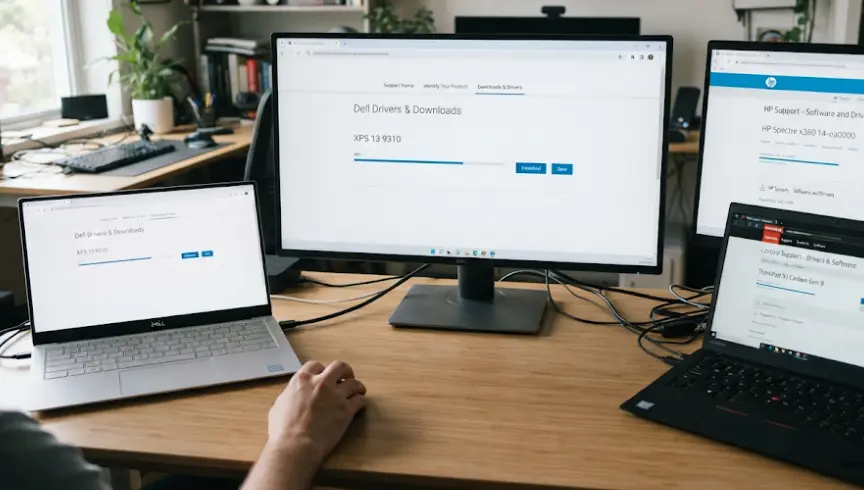
TL;DR The safest way to download laptop drivers is to use the manufacturer's official support website or its recommended update utility. Dell users can identify their laptop with a Service Tag or use Dell SupportAssist, while HP users can search by product name, product number, or serial number and use HP Support Assistant when appropriate. Lenovo users can identify their laptop on Lenovo Support or use Lenovo Vantage for available updates. Windows Update can also provide recommended and optional driver updates, but manufacturer support pages are useful when you need a specific driver or when Windows does not resolve a hardware issue. Before downloading anything, confirm the exact laptop model, operating system, and driver category. Avoid random third-party driver websites, because the wrong package can create compatibility or stability problems.
Why Laptop Drivers Matter
A driver is software that allows Windows to communicate with a hardware component. Your laptop's graphics hardware, wireless adapter, audio system, touchpad, chipset, and other components rely on appropriate drivers to work correctly. Windows can provide many drivers automatically through Windows Update, but laptop manufacturers also publish drivers specifically tested or supplied for their particular systems.
This is why simply searching Google for something like "latest Wi-Fi driver" is not always the best approach. Two laptops can use similar hardware but require different driver packages because of differences in system design, firmware, configuration, or operating system support. The manufacturer's support page is generally the safest place to start because it can associate available drivers with a particular laptop model or identifier.
Driver updates can also help resolve hardware problems, improve compatibility, and provide fixes for known issues. However, newer does not automatically mean that every available driver needs to be installed immediately. If your laptop is working correctly, you do not necessarily need to replace every driver simply because a newer version exists. The goal should be to install a compatible driver that addresses your requirement rather than downloading drivers at random.
Check Your Laptop Before Downloading
Before looking for a driver, identify the exact laptop model. A product family name such as "Dell Inspiron," "HP Pavilion," or "Lenovo IdeaPad" is often not specific enough. A single product family can contain multiple configurations with different processors, wireless adapters, graphics hardware, displays, and other components. Using the exact model or manufacturer-specific identifier reduces the chance of selecting an incompatible package.
You should also confirm which version of Windows your laptop is running. Driver pages can offer packages for particular operating systems, and the available options can vary by device. On Windows, you can check your system information through Settings or System Information. It is also useful to know whether you are troubleshooting a particular component, such as Wi-Fi, audio, graphics, Bluetooth, or the touchpad.
The following information is worth checking before you start:
| Information | Why It Matters |
|---|---|
| Laptop model | Identifies the correct device family |
| Service Tag/Serial Number | Helps the manufacturer's website identify the exact system |
| Windows version | Determines compatible driver packages |
| Driver category | Helps locate Wi-Fi, audio, graphics, chipset, etc. |
| Hardware problem | Helps determine whether a driver update is actually needed |
Taking a minute to verify these details can prevent a common mistake: installing a driver that looks correct in a search result but was designed for a different laptop configuration.
How To Download Dell Laptop Drivers
Dell provides a Drivers & Downloads section where users can identify their system using a Service Tag, product identifier, model, or automatic detection. Once the laptop is identified, Dell can display drivers and other updates associated with the system. This is more reliable than choosing a Dell driver solely because its name appears similar to the hardware in your laptop.
For automatic assistance, Dell provides SupportAssist on supported Windows PCs. SupportAssist can scan the computer and identify available driver updates. If you prefer more control, you can manually browse the Drivers & Downloads page, select the appropriate operating system, and filter drivers by categories such as chipset, network, audio, video, or BIOS. The manual method is particularly useful when you are trying to fix one specific hardware component.
After downloading a driver, open the downloaded installation file and follow the manufacturer's instructions. Some driver installations may require a restart. Dell also notes that the drivers shown for a system depend on the operating systems Dell supports and validates for that particular product. If a desired operating system is not offered for your model, you should not assume that a driver designed for another Dell model will be appropriate.
Dell Driver Download Options
| Method | Best For | |
|---|---|---|
| Dell Drivers & Downloads | Manual driver selection | |
| Service Tag | Identifying a specific Dell laptop | |
| Detect This PC | Automatic device identification | |
| SupportAssist | Automated scanning and updates | |
| Dell Command | Update | Managing updates on supported Dell systems |
How To Download HP Laptop Drivers
HP's Software and Drivers support page allows users to identify a laptop using information such as the product name, product number, or serial number. HP can also provide an option to detect the product. Once the correct computer is selected, the support page displays the software and driver packages available for that particular system and its supported operating system.
For users who want a more automated approach, HP Support Assistant can check for updates and provide driver and firmware updates for supported HP computers. HP also recommends Windows Update for many driver updates. If you are looking for a specific component, however, the HP support page can be more useful because you can locate the relevant category and download the appropriate package directly.
One important point is that HP does not make every driver or software update available through Windows Update. For example, HP's own software and some manufacturer-specific updates may require HP's support resources. BIOS updates also deserve extra care. HP specifically advises users to obtain BIOS updates from HP rather than installing a BIOS package from a system-board manufacturer's website.
HP Driver Download Options
| Method | Best For |
|---|---|
| HP Software and Drivers | Manual downloads |
| Product/Serial Number | Identifying the correct laptop |
| HP Support Assistant | Automated HP updates |
| Windows Update | Recommended Windows driver updates |
| Device Manager | Checking or updating an individual device |
How To Download Lenovo Laptop Drivers
Lenovo provides a support website where you can detect or search for your laptop and then open its Drivers & Software section. After identifying the device, users can view available driver packages and select the category they need. Lenovo's support documentation also provides manual-update options, which can be useful when you are trying to resolve a problem with one particular component.
Lenovo Vantage provides another convenient option for supported Lenovo systems. Its System Update feature can check for available updates and allow users to install selected packages. Lenovo also provides Lenovo System Update for certain update workflows, while Windows Update can handle compatible Windows driver updates. The exact tools available can depend on the Lenovo device and configuration.
If you need a particular driver rather than a general update, Lenovo's support website is usually the better place to start. Search for the exact product and then check the Drivers & Software section. Pay attention to the driver category and operating system before downloading. Installing a package intended for a different Lenovo model can create unnecessary compatibility issues.
Lenovo Driver Download Options
| Method | Best For |
|---|---|
| Lenovo Support | Manual driver downloads |
| Detect Product | Automatic product identification |
| Lenovo Vantage | Convenient system updates |
| Lenovo System Update | Supported Lenovo update workflows |
| Windows Update | Windows-provided driver updates |
Can Windows Update Download Laptop Drivers?
Yes. Windows Update can automatically provide recommended hardware drivers, and Windows 11 also allows users to review optional driver updates when they are available. This makes Windows Update a useful first step when a device is not working correctly or when you want Windows to handle compatible driver updates automatically.
However, Windows Update should not be treated as a complete replacement for the laptop manufacturer's support website. Microsoft explains that optional driver updates are not installed automatically. In addition, manufacturers may provide specific software, firmware, or driver packages outside Windows Update. If Windows Update does not solve a hardware problem, checking Dell, HP, or Lenovo's official support page is a sensible next step.
Device Manager is another Windows tool that can help with individual hardware components. You can locate a device, select the driver update option, and allow Windows to search for an available driver. This is useful for troubleshooting, but it does not necessarily provide the same manufacturer-specific options as the laptop maker's support page.
How To Choose The Right Driver
The right driver is not necessarily the one with the newest date or the highest version number. Compatibility with your exact laptop and operating system matters first. Start by identifying the device and then compare the driver category, operating system, version, and release information shown on the manufacturer's support page.
For example, if your laptop's Wi-Fi is not working, you should look for the appropriate network or wireless driver rather than downloading every driver listed on the support page. Similarly, a graphics problem may require a display or graphics driver, while a touchpad issue may involve a touchpad or human-interface-device package depending on the laptop and manufacturer.
BIOS and firmware updates should be approached differently from ordinary device drivers. A BIOS update can affect the laptop's firmware and should be installed only when it is appropriate for the exact system. Use the laptop manufacturer's instructions and make sure the laptop has sufficient power before starting such an update. Do not download a BIOS file simply because it has a similar model name.
Common Driver Download Mistakes To Avoid
One of the biggest mistakes is downloading drivers from random websites that promise to update every driver automatically. A search result can lead to a website offering a package that is outdated, modified, incorrectly matched, or simply unnecessary. The safest approach is to use Dell, HP, Lenovo, Microsoft, or the relevant hardware manufacturer's official support resources.
Another common mistake is installing a driver for a similar but different laptop model. Laptop names can be surprisingly close while their internal hardware differs. This is especially important for graphics, wireless, Bluetooth, storage-controller, chipset, and firmware-related packages. Always verify the model and operating system before installing the file.
It is also unnecessary to update every driver just because an update appears. If your system is functioning properly, there may be no practical reason to change a driver without a specific need. For troubleshooting, start with the affected component, use Windows Update or the manufacturer's support tool, and restart the laptop when the installation process requires it.
What To Do If The Driver Does Not Work
If a newly installed driver does not solve the problem, first check whether the driver was intended for the exact laptop model and operating system. Manufacturer support pages can contain multiple versions or packages for related configurations, so going back and verifying the product identifier is an important troubleshooting step.
If the issue started immediately after a driver change, Windows may provide options for managing the installed driver through Device Manager. Depending on the situation, reinstalling the manufacturer's driver or returning to a previous working driver can be appropriate. It is better to troubleshoot the specific component than to repeatedly install unrelated driver packages.
If Windows cannot find a suitable driver and the manufacturer's website also does not list one, check whether the device is already supported by Windows through a generic or built-in driver. For third-party hardware, such as an external accessory, the device manufacturer's official website may be the correct source rather than Dell, HP, or Lenovo.
Final Recommendation And Decision Framework
For most laptop users, the safest driver strategy is simple: identify the exact laptop first, use the manufacturer's official support page or recommended utility, and install only the driver that matches the system and the problem you are trying to solve. Dell users can rely on Dell Drivers & Downloads and SupportAssist, HP users can use HP Software and Drivers and HP Support Assistant, and Lenovo users can use Lenovo Support and Lenovo Vantage.
Windows Update should remain part of the process because Microsoft provides recommended driver updates through Windows, while optional driver updates can be reviewed separately. It is particularly useful when Windows can automatically identify a compatible driver or when a manufacturer-specific download is not required. Device Manager is useful for troubleshooting individual hardware components, but it should not encourage users to download drivers from unverified sources.
The key takeaway is that downloading the "right" driver is about compatibility, not simply getting the newest file available. Verify the laptop model, operating system, component, and manufacturer before installing anything. When in doubt, go directly to the official Dell, HP, or Lenovo support page rather than relying on third-party driver websites. This approach is safer, easier to troubleshoot, and more likely to keep a laptop stable after the update.
Frequently Asked Questions
Q. What is a laptop driver?
A laptop driver is software that allows Windows to communicate with a hardware component such as the Wi-Fi adapter, graphics hardware, audio device, or touchpad.
Q. Where should I download Dell laptop drivers?
Download Dell laptop drivers from Dell's official Drivers & Downloads support page. You can identify the laptop using its Service Tag, model, or Dell's automatic detection options.
Q. Where should I download HP laptop drivers?
Use HP's official Software and Drivers support page. You can identify the laptop using its product name, product number, serial number, or available product-detection options.
Q. Where should I download Lenovo laptop drivers?
Use Lenovo Support and identify your laptop before opening its Drivers & Software section. Lenovo Vantage can also help check for available updates on supported systems.
Q. Can Windows Update install laptop drivers automatically?
Yes. Windows can automatically install recommended hardware drivers through Windows Update. Optional driver updates may also be available for manual installation.
Q. Do I need to update every laptop driver?
No. You do not necessarily need to install every available driver update. Focus on compatible updates that address a hardware issue, improve compatibility, or are recommended for your system.
Q. How do I know which driver I need?
Identify the hardware component causing the problem and then find its corresponding category on the laptop manufacturer's support page. Also verify the laptop model and operating system.
Q. Is it safe to download drivers from third-party websites?
It is safer to download drivers from the laptop manufacturer or the relevant hardware manufacturer's official website. Avoid unknown driver-download websites and unverified driver-update tools.
Q. Is a BIOS update the same as a driver update?
No. BIOS or firmware updates affect the system's firmware and require more care than ordinary driver updates. Use the laptop manufacturer's official BIOS package and instructions for your exact model.
Q. What should I do if my new driver does not fix the problem?
First verify that the driver matches your exact laptop and operating system. If the issue continues, use Windows troubleshooting or Device Manager and check the manufacturer's support resources for another compatible driver version.
Ready to upgrade your tech?
Browse our collection of quality refurbished products at unbeatable prices.