How to Back Up an iPhone: iCloud, Mac or Windows PC
Learn how to back up your iPhone using iCloud, Mac or Windows PC. Explore step-by-step instructions, compare backup methods and protect your important data.

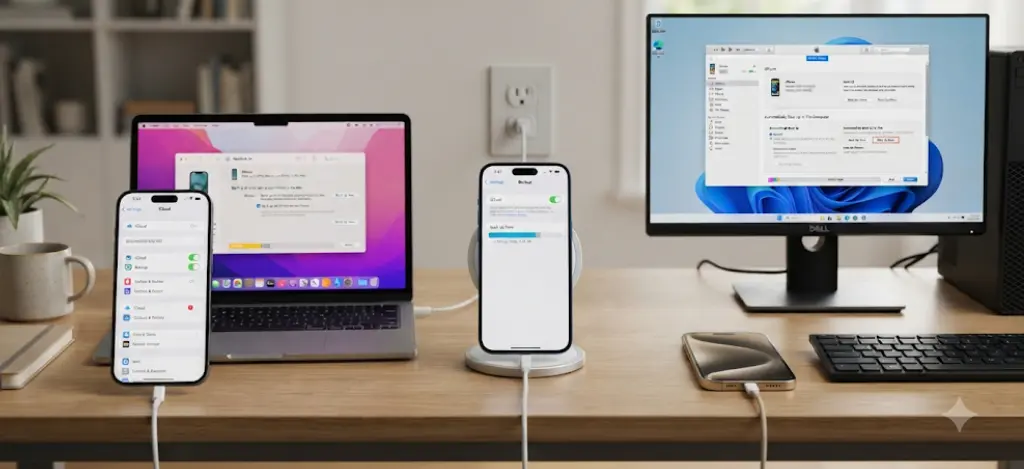
TL;DR: Backing up your iPhone helps protect your photos, messages, contacts, app data and important settings if your device is lost, damaged or replaced. Apple offers three main backup options: iCloud, Mac and Windows PC. iCloud allows automatic backups over Wi-Fi, while a Mac or Windows computer lets you save a local copy of your device data. On a Mac, you can use Finder, while Windows users can use the Apple Devices app or iTunes, depending on their setup. For additional protection, you can also encrypt a computer backup to include sensitive information such as saved passwords, Health data and Wi-Fi settings. Choosing the right method depends on your available storage, internet connection and backup preferences.
Why Should You Back Up Your iPhone?
An iPhone stores much more than photographs and contact numbers. Over time, it collects messages, application information, personal settings, documents and other data that can be difficult to recover if something happens to the device. A backup creates a recoverable copy of eligible information, making it easier to restore your data if your iPhone is lost, damaged, replaced or reset.
Backing up is particularly important before installing a major iOS update, performing a factory reset or switching to a new iPhone. Although Apple provides options to transfer information directly between devices, having a recent backup offers an additional layer of protection if the transfer is interrupted or something goes wrong.
Another reason to maintain regular backups is that data loss is not always caused by physical damage. Accidental deletion, software problems and unexpected device failures can also affect important information. A recent backup gives you a practical recovery option instead of having to rebuild your digital information from scratch.
Things to Check Before Backing Up Your iPhone
Check Your Available Storage
Before starting an iPhone backup, check whether you have sufficient storage. If you are using iCloud, open Settings, tap your name, select iCloud and review your available storage. Apple provides 5 GB of free iCloud storage with an account, which may not be enough for a device containing years of photos, videos and application data. You can manage your storage or consider an iCloud+ subscription if additional space is required.
For a computer backup, check the available storage on your Mac or Windows PC. The amount of space required depends on the data stored on your iPhone and the content already synced with cloud services. Keeping sufficient free space helps prevent interruptions during the backup process.
Update Your Software and Check Your Connection
Make sure your iPhone is running a compatible version of iOS and that your computer has the required Apple software installed. On a Mac, Finder is used for backups on macOS Catalina or later. On Windows, the Apple Devices app is the current dedicated option, while iTunes remains available for supported setups.
For an iCloud backup, connect your iPhone to a reliable Wi-Fi network. For a computer backup, use a compatible USB or USB-C cable. Keep your device sufficiently charged, and make sure you can unlock it and approve the Trust This Computer prompt if it appears.
Understand What Your Backup Includes
Not every type of data is handled in the same way. Information already synchronised with iCloud, such as content in iCloud Photos or Messages in iCloud, is generally not duplicated in an iCloud device backup. Similarly, computer backups exclude content already synced to iCloud and certain purchased or synchronised media.
If you want to preserve sensitive information such as Health data, Activity data and saved passwords in a local computer backup, enable encrypted backup. Understanding these differences before starting helps you choose the right method.
How to Back Up an iPhone Using iCloud
Step-by-Step Process
iCloud is a convenient option for people who prefer backing up their iPhones without connecting them to a computer. Once enabled, it can automatically back up eligible information when the device is connected to power, connected to Wi-Fi and locked. This makes it easier to maintain an updated backup without having to remember to start the process manually.
To enable iCloud Backup, follow these steps:
- Open the Settings app on your iPhone.
- Tap your name at the top of the screen.
- Select iCloud.
- Tap iCloud Backup.
- Turn on Back Up This iPhone.
- To create an immediate backup, tap Back Up Now.
- Keep your iPhone connected to Wi-Fi until the backup finishes.
After completion, the date and time of the most recent successful backup will appear on the same screen. You can return to this section whenever you want to check whether your device has been backed up recently.
What If You Do Not Have Enough iCloud Storage?
Insufficient iCloud storage is one of the common reasons an iPhone backup fails. If your backup is larger than your available storage, Apple may display a notification asking you to free up space or upgrade your storage plan.
You can review which applications are using iCloud storage by going to Settings, tapping your name and selecting iCloud. From there, check your storage usage and review the backup settings for your device. You can exclude apps whose data you do not need in the backup, but remember that disabling an app's backup can also remove its existing backup data from iCloud.
If you regularly take photographs and videos or use several applications that store substantial amounts of information, upgrading to an appropriate iCloud+ storage plan may be a more practical option.
How to Back Up an iPhone Using a Mac
Step-by-Step Process Using Finder
If you own a Mac, you can create a local iPhone backup using Finder. This option is useful when you want to keep a copy of your device data on your computer rather than relying entirely on cloud storage. Finder supports iPhone backups on Macs running macOS Catalina or later.
Follow these steps to create a backup:
- Connect your iPhone to your Mac using a compatible cable.
- Unlock your iPhone and tap Trust if the confirmation appears.
- Open Finder on your Mac.
- Locate your iPhone under the Locations section in the sidebar.
- Select your device and open the General tab.
- Choose Back up all of the data on your iPhone to this Mac.
- Click Back Up Now to begin.
Wait until the process finishes before disconnecting your iPhone. You can check the latest backup information in Finder to confirm that the process was completed successfully.
How to Encrypt a Mac Backup
Finder also allows you to encrypt local backups with a password. This is particularly useful if you want to include additional sensitive information that an unencrypted computer backup does not preserve, including saved passwords, Wi-Fi settings, Health data and Activity data.
To enable this option, connect your iPhone, open it in Finder and select the General tab. Tick Encrypt local backup and create a password when prompted. Store this password somewhere secure because Apple cannot recover an encrypted local backup if you forget the password.
Once encryption is enabled, click Back Up Now to start the process. You may also see an option to manage previous backups. Remember that encryption is optional, but it is recommended if you want a more comprehensive local backup.
How to Back Up an iPhone Using a Windows PC
Using the Apple Devices App
Windows users can back up an iPhone through Apple's dedicated Apple Devices app. This is the preferred method for supported Windows setups and provides options to manage, back up and restore connected Apple devices.
Follow these steps:
- Install and open the Apple Devices app on your Windows PC.
- Connect your iPhone using a compatible USB or USB-C cable.
- Unlock your iPhone and approve the Trust This Computer prompt if requested.
- Select your iPhone from the sidebar in the Apple Devices app.
- Open the General section.
- Select Back up all of the data on your iPhone to this computer.
- Click Back Up Now to begin the backup.
Keep your iPhone connected until the process is complete. You can also use the Manage Backups option to view available computer backups.
Using iTunes on Windows
If you do not have the Apple Devices app installed, or you are using a supported older setup, iTunes can also be used to back up your iPhone. The process is straightforward and follows a similar approach.
Connect your iPhone to the Windows PC, open iTunes and select the device icon near the top of the window. Open the Summary section, locate the Backups area and select This Computer if that option is available. Click Back Up Now to begin.
If you want to include Health and Activity data, enable Encrypt local backup and create a password before starting. Keep the password safe, as it is required when restoring the encrypted backup. After completion, check the latest backup date and time to verify that the process was successful.
iCloud vs Mac vs Windows PC: Which Backup Method Is Better?
Each backup method offers different advantages. iCloud is convenient for automatic backups, while computer backups provide a local copy that does not depend on available iCloud storage. The choice largely depends on how you use your iPhone and where you prefer to store your information.
| Feature | iCloud | Mac | Windows PC |
|---|---|---|---|
| Storage location | Apple cloud storage | Mac storage | PC storage |
| Internet required | Yes, for Wi-Fi backup | Not for a wired backup | Not for a wired backup |
| Automatic backup | Yes, when conditions are met | Requires setup or manual backup | Requires setup or manual backup |
| Encryption | Always encrypted | Optional local encryption | Optional local encryption |
| Storage limit | Based on available iCloud storage | Based on Mac storage | Based on PC storage |
| Main tool | iPhone Settings | Finder | Apple Devices or iTunes |
Which Option Should You Choose?
If convenience is your priority, iCloud is a practical choice because it can automatically back up your iPhone when the required conditions are met. You do not need to connect your device to a computer every time you want to create a backup.
If you prefer keeping your data locally, a Mac or Windows PC may be more suitable. Computer backups are particularly useful when you have limited iCloud storage or want to maintain an additional copy of your information. Encrypted local backups also provide access to certain categories of sensitive information that unencrypted backups exclude.
For stronger data protection, consider using both iCloud and a computer backup. This gives you two separate backup options and reduces your dependence on a single storage method.
How to Check If Your iPhone Backup Was Successful
Creating a backup is only useful if you know that the process has actually finished. After backing up through iCloud, open Settings, tap your name, select iCloud and then iCloud Backup. Check the date and time displayed under the Back Up Now option to confirm the latest successful backup.
If you used a Mac, connect your iPhone, open Finder and select your device. The General section provides information about the most recent backup. You can also manage existing backups through Finder's device management options.
On Windows, open the Apple Devices app, select your iPhone and check the available backup management options. If you used iTunes, open the device's Summary section and review the latest backup information. Always confirm the backup date rather than assuming that connecting your iPhone to a computer automatically creates a new backup.
Common iPhone Backup Problems and How to Fix Them
Sometimes, an iPhone backup may fail because of insufficient storage, a weak internet connection, outdated software or a connection issue between the device and computer. Identifying the cause can help you resolve the problem without repeatedly restarting the process.
If an iCloud backup fails, check your Wi-Fi connection, available iCloud storage and whether iCloud Backup is enabled. Restarting your iPhone and trying again may also help. If you are using a computer, check the cable, USB port and software updates. Make sure you have unlocked your iPhone and approved the trust request.
If your iPhone is not appearing in Finder or the Apple Devices app, reconnect the cable, try another USB port and check whether your computer recognises the device. On Windows, ensure that the Apple Devices app or supported iTunes installation is updated. If an encrypted backup cannot be restored, verify that you are entering the correct backup password. Without that password, the encrypted backup cannot be accessed.
Final Recommendation And Decision Framework
Backing up an iPhone regularly is one of the simplest ways to protect important personal information. Whether you choose iCloud, Finder on a Mac or the Apple Devices app on Windows, the most important thing is to ensure that your backup is completed successfully and updated regularly.
For users who prefer a simple, automated approach, iCloud is a convenient option, provided sufficient storage is available. Those who want to maintain a local copy can use a Mac or Windows PC, with encrypted backups offering additional data protection. If you have enough storage and access to a computer, maintaining both an iCloud backup and a separate encrypted computer backup is a sensible approach.
Before selling, exchanging, resetting or upgrading your iPhone, always verify that you have a recent and accessible backup. A few minutes spent checking your backup today can save considerable time and frustration if you need to recover your data later.
The best backup method is ultimately the one you use consistently and verify before you need it.
Frequently Asked Questions
Q. How often should I back up my iPhone?
It is a good idea to back up your iPhone regularly. With iCloud Backup enabled, your device can back up automatically each day when connected to power and Wi-Fi and when its screen is locked. You can also create a manual backup whenever necessary.
Q. Can I back up my iPhone without iCloud?
Yes. You can back up your iPhone directly to a Mac using Finder or to a Windows PC using the Apple Devices app or supported iTunes installation. These methods store the backup locally on your computer.
Q. Is backing up an iPhone to iCloud free?
Apple provides 5 GB of free iCloud storage with an Apple Account. If your backup requires more space, you may need to manage existing storage or subscribe to an iCloud+ plan.
Q. Does backing up an iPhone save all my photos and videos?
Photos and videos can be included in an iCloud backup if iCloud Photos is turned off. If iCloud Photos is enabled, your photos and videos are synced separately and are not duplicated in the device backup. Check your photo-sync settings before relying on a backup.
Q. Can I back up my iPhone to a Windows laptop?
Yes. Connect your iPhone to your Windows laptop using a compatible cable, open the Apple Devices app and select your device. Choose the General section, select the computer backup option and click Back Up Now.
Q. What is the difference between an iCloud backup and a computer backup?
An iCloud backup is stored online and can run automatically over Wi-Fi. A computer backup is stored locally on your Mac or Windows PC. Both can help restore your information, but they have different storage requirements and backup exclusions.
Q. Do I need Wi-Fi to back up my iPhone to a computer?
No. A wired backup through Finder, Apple Devices or iTunes does not normally require an internet connection. You need a compatible data cable, an available USB port and sufficient storage on your computer.
Q. What happens if I forget my encrypted iPhone backup password?
Apple cannot recover the password for an existing encrypted computer backup. Without it, you cannot access that backup. If your iPhone is still available, you can create a new encrypted backup with a new password and store it securely.
Q. Can I back up my iPhone before performing a factory reset?
Yes. Creating a recent backup before a factory reset is strongly recommended. Check that the backup has completed successfully and verify its date and time before erasing your device.
Q. Can I use both iCloud and a computer to back up my iPhone?
Yes. Apple supports both methods, and they can complement each other. Keeping an iCloud backup alongside an encrypted computer backup provides an additional copy of your important information and reduces dependence on a single storage location.
Ready to upgrade your tech?
Browse our collection of quality refurbished products at unbeatable prices.