Essential Free Software to Install on a New or Refurbished Laptop
Set up your new or refurbished laptop with essential free software for security, browsing, office work, media playback, file compression, productivity, and faster file searches.

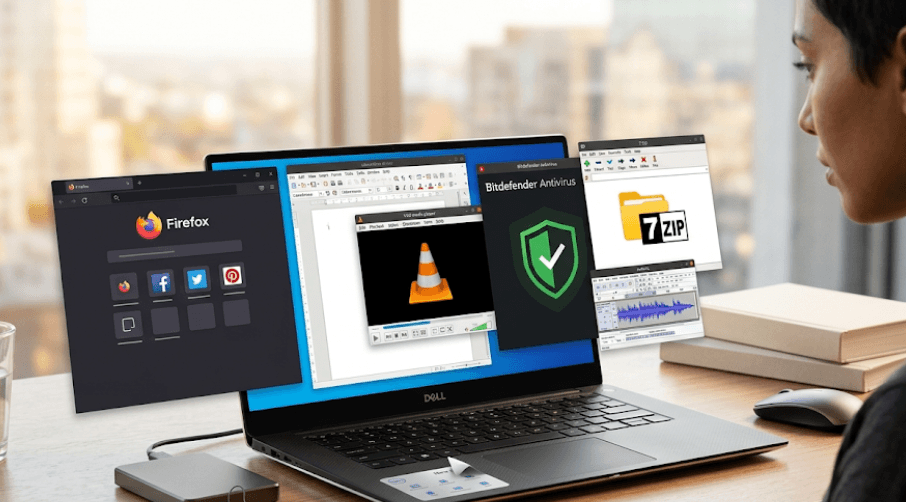
TL;DR: A new or refurbished laptop does not need dozens of apps to work well. Start with a reliable browser, office suite, media player, archive utility, password manager, and productivity tools. On Windows 11, Microsoft Defender Antivirus is already built in, so installing another antivirus is usually unnecessary for everyday users. Free tools such as Firefox, LibreOffice, VLC, 7-Zip, Microsoft PowerToys, and Everything can cover most daily needs without filling your laptop with bloatware.
What To Install First On A New Laptop
When you switch on a new or refurbished laptop, it can be tempting to install every application you have used before. That usually creates the opposite of the experience you want. More applications mean more updates, background processes, notifications, and potentially unwanted software. A better approach is to install only the tools that solve a clear problem.
For most Windows users, the essential setup starts with security, a browser, productivity software, and utilities for handling everyday files. Windows 11 already includes Windows Security and Microsoft Defender Antivirus, which provides built-in protection against viruses and malware. That means an additional third-party antivirus is not automatically necessary just because the laptop is new or refurbished.
A refurbished laptop deserves the same approach, with a little extra attention to updates. Before installing your personal applications, run Windows Update, check that the manufacturer's drivers and firmware are current, remove unwanted trial software, and make sure your account is properly secured. Once the basics are complete, install the applications you actually expect to use rather than creating a crowded desktop on day one.
| Requirement | Free option to consider | Best for |
|---|---|---|
| Security | Microsoft Defender Antivirus | Everyday Windows protection |
| Web browsing | Firefox or Chrome | Browsing and web apps |
| Office work | LibreOffice | Documents, spreadsheets and presentations |
| Media playback | VLC | Video and audio files |
| Compressed files | 7-Zip | ZIP and other archives |
| Productivity | Microsoft PowerToys | Windows utilities |
| File searching | Everything | Finding files quickly |
1. Firefox Or Google Chrome
A web browser is one of the first applications worth setting up because so much modern computing happens online. Email, banking, college portals, cloud storage, shopping, streaming, collaboration tools, and productivity platforms all run through a browser. Windows already includes Microsoft Edge, so you do not necessarily need another browser, but Firefox and Chrome are popular alternatives if they better suit your workflow.
Mozilla describes Firefox as free and open-source software, and it is available for Windows, macOS, Linux, Android, and iOS. It can be a useful choice for users who value customization and Mozilla's approach to privacy.
Google Chrome is another straightforward option, particularly if you already use Google services such as Gmail, Google Drive, Docs, Sheets, and YouTube. Google provides Chrome at no charge, with versions available for supported Windows systems.
You do not need to install all three browsers. Pick one as your primary browser and keep another only if you have a genuine reason, such as testing websites or separating personal and work accounts.
2. LibreOffice For Office Work
If your laptop does not come with a Microsoft 365 subscription, LibreOffice is one of the most useful free office suites to consider. It includes Writer for documents, Calc for spreadsheets, Impress for presentations, Draw for diagrams, Base for databases, and Math for formulas.
LibreOffice is free and open source, and its official documentation states that it can be used without license fees, including in business environments. It supports common Microsoft Office file formats such as DOCX, XLSX, and PPTX, although complex documents can sometimes display differently between office suites.
For students, freelancers, and users who mainly create documents, basic spreadsheets, and presentations, LibreOffice can reduce the need for an additional paid office subscription. However, if your college or workplace depends heavily on Microsoft 365 collaboration features, Microsoft Office may still be the better choice. The important point is to choose based on your workflow rather than installing software simply because everyone else uses it.
3. VLC Media Player
VLC is a practical addition for anyone who regularly watches downloaded videos, opens different audio formats, or works with media files. It is a free, open-source, cross-platform multimedia player that supports a broad range of files, discs, webcams, devices, and streaming protocols.
One of VLC's biggest advantages is that it can handle many formats without requiring users to search for separate media players. It also provides features such as subtitle synchronization, audio and video filters, and hardware decoding on supported platforms.
For a refurbished laptop, VLC can be particularly convenient when you are transferring an older collection of videos or recordings and do not know which formats you will encounter. You do not have to replace the default Windows media applications, but VLC is worth keeping as a versatile backup player when a particular file refuses to cooperate.
4. 7-Zip For Compressed Files
Compressed files are common when downloading software, receiving project files, sharing folders, or transferring large collections of documents. 7-Zip is a free, open-source file archiver that can create and extract several archive formats, including 7z, ZIP, TAR, GZIP, and WIM. It can also unpack many additional formats.
The software is lightweight, integrates with the Windows shell, and supports AES-256 encryption for 7z and ZIP archives. Its official site also states that 7-Zip can be used on computers in commercial organisations without requiring a paid license.
This makes 7-Zip especially useful for students and professionals who frequently download datasets, software packages, project folders, or large collections of files. Windows can already handle ZIP files, so 7-Zip is not mandatory. Its value comes from broader archive support and additional compression and extraction features.
5. Microsoft PowerToys
Microsoft PowerToys is less of a traditional application and more of a toolbox for Windows. It is a collection of free, open-source utilities designed to improve everyday workflows. Current utilities include FancyZones for arranging windows, PowerRename for bulk renaming, Image Resizer, Keyboard Manager, Peek, Color Picker, Text Extractor, Command Palette, and more.
For example, FancyZones can help users create custom window layouts, while PowerRename can rename groups of files without editing each filename individually. Text Extractor can copy text from areas of the screen, and Image Resizer can resize images directly from File Explorer. These are small conveniences, but they can save significant time when repeated throughout the week.
PowerToys works with Windows 10 version 2004 or newer and Windows 11 on supported x64 and ARM64 systems. Microsoft provides installation through the Microsoft Store, GitHub, and package managers such as WinGet.
6. Everything For Faster File Searches
Windows Search is useful for everyday searches, but users with large folders or years of accumulated files may want a dedicated file-search tool. Everything by Voidtools is a Windows file-search application designed around fast filename indexing and searching. Its official documentation highlights quick indexing, real-time updating, low resource usage, and offline operation.
The application can search for partial filenames and supports filters such as file extensions, locations, and dates. For example, users can search for all PDF files or narrow a search to files modified on a particular date. It can also perform content searches under certain conditions, although content searching is slower because file contents are not indexed in the same way as filenames.
Everything is particularly helpful on refurbished laptops that have been used for years and contain folders scattered across different drives. Instead of manually opening folders and guessing where a file might be, you can search by filename almost instantly. It is not essential for everyone, but it is one of the more useful optional utilities for people with large file collections.
7. Use Built-In Windows Security First
Security software deserves special attention because installing multiple antivirus programs can create unnecessary complications. Windows 11 already includes Windows Security and Microsoft Defender Antivirus, with Microsoft stating that Defender Antivirus is built into Windows 11 and does not require a separate payment.
For everyday users, the better approach is to keep Windows and its security components updated rather than immediately downloading another antivirus application from an unfamiliar website. Microsoft also provides security features such as Defender SmartScreen and Windows Hello as part of the broader Windows security ecosystem, although exact features can vary depending on the device and configuration.
This is especially important on refurbished laptops. Avoid software that claims your computer has hundreds of urgent problems immediately after installation and then demands payment to fix them. Before adding third-party security tools, check what Windows Security already provides. A simple security setup that is updated and properly configured is generally preferable to a collection of overlapping utilities.
8. Optional Software Based On Your Needs
Not every laptop needs the same software. A student writing assignments may need an office suite and PDF tools, while a content creator may need image or video editing software. Installing applications based on actual requirements keeps the laptop cleaner and leaves more storage available for the files that matter.
For example, someone working with spreadsheets might prioritise LibreOffice Calc, while a content creator may need a dedicated video editor. A photographer may require RAW-image software, whereas a casual user might never need anything beyond the built-in Photos application. The same principle applies to communication tools: if you use a service through your browser, there may be no reason to install its desktop application.
Before installing an application, check whether Windows already provides the required function. You may discover that you do not need a separate PDF viewer, screenshot tool, calculator, archive utility, or security application. This simple check can prevent a new or refurbished laptop from becoming overloaded with unnecessary programs.
| User type | Useful additions |
|---|---|
| Student | LibreOffice, Firefox or Chrome, VLC, 7-Zip |
| Office user | Browser, Microsoft 365 or LibreOffice, PowerToys |
| Content creator | VLC, 7-Zip, PowerToys, editing software |
| Casual user | Browser, VLC, 7-Zip |
| Heavy file user | Everything, 7-Zip, PowerToys |
Software You Should Not Rush To Install
A fresh Windows installation often looks like it needs a long list of "PC cleaner," "driver updater," and "RAM booster" applications. In many cases, it does not. Windows already includes tools for managing storage, security, updates, and basic system maintenance, so third-party utilities should have a clear purpose before they earn a place on your laptop.
Be particularly careful with applications that promise dramatic performance improvements through one-click optimisation. Some may add background processes, advertisements, notifications, or paid upgrades without providing meaningful benefits. A refurbished laptop that feels slow may have a hardware limitation, an outdated drive, too little RAM, excessive startup applications, or thermal issues. Installing another cleaner does not automatically solve those problems.
The same rule applies to browser extensions and free downloads. Download applications from their official websites or trusted app stores, verify that the software is compatible with your operating system, and avoid unofficial download portals when an official source is available. A smaller, trustworthy software collection is generally better than a large collection of questionable utilities.
How To Set Up Your Laptop The Right Way
The best software setup starts before the first application is installed. Run Windows Update, restart the laptop when required, check Windows Security, and make sure the system is activated and functioning normally. On a refurbished device, also check battery health, storage capacity, available RAM, webcam, speakers, Wi-Fi, Bluetooth, ports, keyboard, and trackpad.
Next, install your primary browser and productivity software. Add VLC and 7-Zip if you regularly work with media or compressed files. PowerToys and Everything can come later because they are useful enhancements rather than essential components. This staged approach makes it easier to identify whether a new application is causing a problem.
Finally, sign in to your important accounts, enable strong authentication where available, organise your folders, and establish a backup routine. Software alone cannot protect important files from every possible failure. Keeping important documents backed up to a reliable cloud service or external storage is just as important as installing the right applications.
Frequently Asked Questions
Q. What software should I install first on a new laptop?
Start with Windows updates and security checks, followed by a browser and the productivity applications you actually need. Add utilities such as VLC, 7-Zip, PowerToys, or Everything based on your usage.
Q. Is Microsoft Defender enough for a Windows laptop?
Windows 11 includes Microsoft Defender Antivirus as part of Windows Security. For many everyday users, it provides the built-in antivirus protection they need without requiring a separate antivirus subscription.
Q. Is LibreOffice completely free?
Yes. LibreOffice is free and open-source software, and its official FAQ states that it can be used without license fees, including in business environments.
Q. Do I need VLC if Windows already has a media player?
Not necessarily. VLC is useful when you want broad format support and additional playback features. It can serve as a versatile alternative or backup media player.
Q. Is 7-Zip safe to use?
7-Zip is free and open-source software. Downloading it from its official website is the safest way to ensure you receive the legitimate application.
Q. What does Microsoft PowerToys do?
PowerToys provides a collection of Windows utilities for tasks such as window management, bulk file renaming, image resizing, keyboard customisation, text extraction, and quick application launching.
Q. Is Everything better than Windows Search?
Everything is designed specifically for fast filename searching and can be very useful when you have a large number of files. It is an optional tool rather than a replacement that every Windows user needs.
Q. Should I install multiple web browsers?
You can, but most users only need one primary browser. A second browser can be useful for testing websites, separating accounts, or accessing a service that works better in another browser.
Q. Should I install a PC cleaner on a refurbished laptop?
Usually, there is no need to rush into installing one. First use Windows' built-in storage, update, startup, and security tools to identify the actual cause of slow performance.
Q. Does a new laptop need all these programs?
No. Think of the list as a toolkit rather than a mandatory checklist. Install only what matches your work, studies, entertainment, or file-management needs.
Final Recommendation
A good laptop setup is not about installing the maximum number of applications. It is about choosing a small collection of trustworthy tools that make everyday tasks easier without unnecessarily consuming storage, memory, or attention.
For most Windows users, the practical starting combination is Windows Security, one primary browser, LibreOffice if an office suite is needed, VLC for media, 7-Zip for archives, and Microsoft PowerToys for productivity. Add Everything if you regularly manage large numbers of files. These choices cover a wide range of everyday requirements while keeping the software setup relatively simple.
For a refurbished laptop in particular, prioritise updates, security, backups, and hardware checks before downloading extra software. A clean installation with fewer reliable applications will usually be easier to maintain than a laptop packed with unnecessary optimisation tools. Start with the essentials, add software only when you need it, and let your actual workflow determine what stays installed.
Ready to upgrade your tech?
Browse our collection of quality refurbished products at unbeatable prices.