
Dell Precision Ports and Connectivity Explained: Thunderbolt, HDMI and More
Dell Precision workstations offer different combinations of Thunderbolt 4, USB-C, HDMI, SD card, audio and Ethernet ports. Here is what each connection does and what to check before buying.

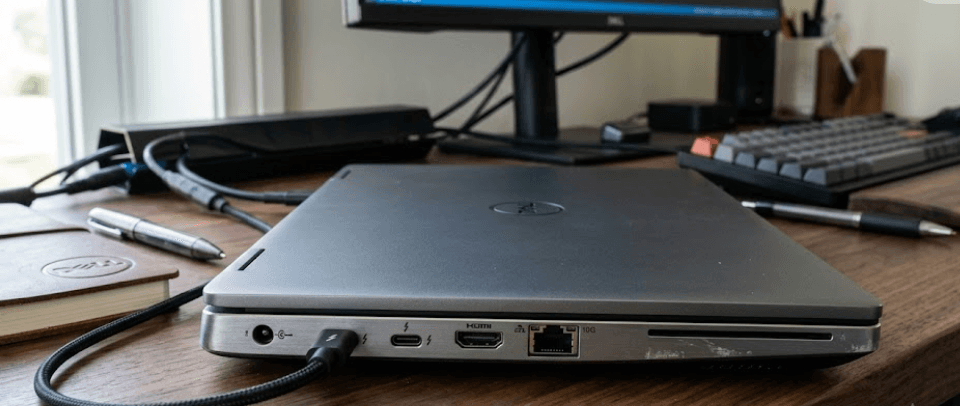
TL;DR Dell Precision workstations offer a wide range of connectivity options, but the exact ports depend on the model and configuration. Recent mobile workstations such as the Precision 5690 include two Thunderbolt 4 ports with Power Delivery, a USB 3.2 Gen 2 Type-C port with DisplayPort 1.4 Alt Mode, HDMI 2.1 and a universal audio jack, while larger models such as the Precision 7680 can also include Ethernet, USB-A and other workstation-focused connections. Thunderbolt 4 is particularly useful because one USB-C-shaped port can handle high-speed data, charging, DisplayPort connectivity and docking. HDMI remains useful for directly connecting monitors and TVs, while USB-C and DisplayPort provide additional flexibility. The important point is that Dell Precision ports should always be checked against the exact model and configuration rather than the Precision name alone.
Understanding Dell Precision Ports
Dell Precision workstations are designed for professional workloads, so connectivity is an important part of their design. Unlike a basic laptop where two or three USB ports may be enough, a Precision system can be used with external monitors, storage drives, docking stations, wired networks, SD cards and professional peripherals. Dell therefore uses a mixture of USB, Thunderbolt, HDMI, DisplayPort-capable USB-C and, on some larger Precision models, Ethernet and other dedicated connections.
The exact combination is not identical across the Precision range. For example, Dell lists two Thunderbolt 4 ports, one USB 3.2 Gen 2 Type-C port with DisplayPort 1.4 Alt Mode, one HDMI 2.1 port and one universal audio port on the Precision 5690. The Precision 5680 has two Thunderbolt 4 ports, one USB 3.2 Gen 2 Type-C port with DisplayPort 1.4 Alt Mode, HDMI 2.0b, an audio jack and an SD card slot. This difference is important when comparing Precision generations because a newer or thinner workstation does not necessarily have every physical connection you might expect.
The larger Precision 7680 takes a different approach. Its documented ports include an RJ45 Ethernet port, HDMI, USB-A and Thunderbolt 4, giving it a broader selection of physical connections than some thinner Precision models. This makes the 7680-style design more convenient for users who regularly connect wired networking, traditional USB accessories and multiple displays without relying on adapters. For buyers, the practical lesson is simple: look at the port diagram and exact configuration for the Precision model you are considering rather than assuming every Dell Precision workstation has the same connectivity.
Thunderbolt 4 On Dell Precision
What Thunderbolt 4 Actually Does
Thunderbolt 4 is one of the most useful connections available on modern Dell Precision workstations because it combines several functions through a USB-C connector. On supported Precision models, Dell specifies Thunderbolt 4 at up to 40 Gbps and supports Power Delivery, USB4 and DisplayPort functionality. That means the same physical port can be used for high-speed peripherals, compatible charging, external displays and docking accessories.
For a professional user, this can make a noticeable difference to the desk setup. Instead of connecting a separate cable for every monitor, keyboard, mouse, Ethernet adapter and storage device, a compatible Thunderbolt dock can consolidate many of those connections into one cable running back to the laptop. Dell specifically documents docking support through the Thunderbolt 4 ports on the Precision 5690 and 7680. This makes Thunderbolt particularly useful for people who move their workstation between a mobile setup and a permanent desk.
Thunderbolt 4 is also useful when transferring large files. A photographer moving high-resolution images, a video editor working with large media files or an engineer handling sizeable project files can benefit from a fast external SSD connected through a compatible Thunderbolt interface. However, the speed you actually experience depends on the connected device, cable, dock and workload. A Thunderbolt 4 port does not automatically make every USB-C accessory run at 40 Gbps, so checking the specifications of the complete setup still matters.
| Connection | Main Use | Key Point |
|---|---|---|
| Thunderbolt 4 | High-speed data, displays, docking and Power Delivery | Up to 40 Gbps on supported Precision models |
| USB-C with DisplayPort Alt Mode | Data and external displays | Not automatically Thunderbolt |
| HDMI | Direct display connection | Simple connection for compatible monitors and TVs |
| USB-A | Traditional peripherals | Useful for mice, keyboards, drives and accessories |
| Ethernet | Wired networking | Available on larger Precision models such as the 7680 |
HDMI, DisplayPort And USB-C Explained
Choosing The Right Display Connection
HDMI remains one of the easiest ways to connect a Dell Precision workstation to an external monitor or television. Dell documents HDMI ports on multiple Precision models, although the version can differ. The Precision 5690 includes HDMI 2.1, while the Precision 5680 uses HDMI 2.0b. The Precision 7680 can have HDMI 2.0a with integrated graphics or HDMI 2.1 with discrete graphics. That difference demonstrates why checking the exact configuration matters when planning a high-resolution external display setup.
DisplayPort is also important, although it does not always appear as a full-size DisplayPort connector on a Precision laptop. Dell uses DisplayPort Alt Mode through USB-C on models such as the Precision 5690 and 5680. A compatible USB-C-to-DisplayPort cable or adapter can therefore connect the workstation to a DisplayPort monitor. Thunderbolt 4 ports also support DisplayPort functionality, giving compatible Precision systems another route to external displays.
USB-C can be slightly confusing because the connector shape does not tell you everything about its capabilities. Two USB-C ports can look identical while offering different standards and functions. A Precision 5690, for example, has dedicated Thunderbolt 4 USB-C ports as well as a USB 3.2 Gen 2 Type-C port with DisplayPort 1.4 Alt Mode. Before buying a dock, monitor or adapter, check whether the particular USB-C port supports Thunderbolt, DisplayPort Alt Mode, Power Delivery or only USB data.
Other Dell Precision Connectivity Options
USB, Audio, SD Card And Ethernet
Traditional USB-A ports remain useful because many workplace accessories still use the familiar rectangular connector. A mouse, keyboard, printer, external hard drive or USB flash drive can often connect directly without an adapter. Larger Precision systems can provide more of these conventional connections than thin mobile workstations. The Precision 7680, for example, includes a USB 3.2 Gen 1 port capable of data transfer speeds up to 5 Gbps.
SD card support can also be valuable for professionals who regularly move photographs, video footage or other files from removable media. Dell lists an SD card slot on the Precision 5680, while the Precision 5690 lists the SD card reader as optional. This is another example of why the exact configuration matters. If an SD card reader is essential to your workflow, confirm that it is physically included rather than assuming it comes standard across the Precision family.
Audio and networking connections also affect how convenient a workstation is away from a desk. The Precision 5690 includes a universal audio jack, while the Precision 7680 provides an RJ45 Ethernet port for wired networking. A wired Ethernet connection can be useful in offices, studios and engineering environments where stable network access is more important than minimizing cables. On thinner models without Ethernet, a compatible USB-C or Thunderbolt adapter or dock may be required.
| Port Type | Typical Precision Use | Check Before Buying |
|---|---|---|
| USB-A | Keyboard, mouse, storage and peripherals | Number and USB generation |
| SD Card | Camera and removable storage | Standard or optional availability |
| 3.5mm Audio | Headsets and headphones | Whether the model includes the jack |
| RJ45 Ethernet | Wired networking | Usually more common on larger workstations |
| USB-C | Data, displays and accessories | Exact protocol and display support |
Dell Precision Ports For Multiple Monitors
External display support is one of the areas where Dell Precision connectivity becomes particularly useful. A Precision workstation can use HDMI, DisplayPort through USB-C, or Thunderbolt 4 depending on the model and graphics configuration. Dell's Precision 5680 documentation, for example, shows support for multiple external displays through its Thunderbolt 4 and HDMI connections, with the supported resolutions depending on the graphics mode and configuration.
Thunderbolt also makes multi-monitor setups easier to manage because a compatible dock can provide additional display outputs through a single connection to the workstation. Dell's documentation shows that supported Precision systems can connect multiple external displays through Thunderbolt docking solutions. However, the number of displays and maximum resolution are not determined by the physical port alone. The graphics processor, internal display status, dock and connection method can all affect the final configuration.
This matters particularly for professionals using CAD, engineering applications, data analysis, video editing or large productivity dashboards. A dual-monitor setup may be enough for one user, while another may need three or four external displays. Before purchasing a dock or workstation, check the exact display support for the graphics configuration you are ordering. Dell's documentation for the Precision 5680 and newer Precision systems demonstrates that display capabilities can vary depending on integrated versus discrete graphics and the connection method.
Dell Precision Connectivity And Docking
When A Dock Makes Sense
A docking station becomes useful when your desk contains more peripherals than the laptop has convenient physical ports for. A single Thunderbolt connection can potentially link the workstation to displays, Ethernet, USB accessories, storage and other peripherals through a compatible dock. This is particularly useful for professionals who want to leave their desk setup connected rather than repeatedly plugging individual accessories into the laptop.
Thunderbolt docking is especially relevant to Precision users because Dell explicitly supports docking through the Thunderbolt 4 ports on models such as the Precision 5690 and Precision 7680. However, not every USB-C dock offers the same capabilities as a Thunderbolt dock. A USB-C dock may work perfectly well for basic peripherals and displays, but users should compare bandwidth, display outputs, Power Delivery and compatibility before choosing one.
The best approach is to start with the devices you already own. If your desk has two monitors, Ethernet, external storage and several USB accessories, count those connections before buying a dock. If you only need a monitor, mouse and keyboard, a full Thunderbolt dock may be unnecessary. Matching the dock to the Precision's actual ports and your daily workflow can prevent you from paying for connectivity you will never use.
How To Choose The Right Dell Precision Connectivity
The right Precision connectivity depends on what you connect every day. A designer working with a high-resolution monitor and external SSD may place greater importance on Thunderbolt 4 and DisplayPort support. A photographer may care more about an SD card reader. An office-based engineer may prioritize Ethernet, multiple USB-A ports and a docking setup. There is no single port combination that is ideal for every Precision buyer.
It is also worth considering how long you plan to keep the workstation. A laptop may have enough ports for today's accessories but become less convenient when you add another monitor, faster external storage or a new dock. Thunderbolt 4 provides considerable flexibility because it can support multiple types of peripherals through a compatible connection. At the same time, having dedicated HDMI, USB-A or Ethernet can reduce the number of adapters you need.
The safest buying process is to check Dell's specification page for the exact Precision model and configuration before placing an order. Compare the number of Thunderbolt ports, USB-C functions, HDMI version, USB-A availability, SD card support, Ethernet and audio connections. Dell's current documentation makes clear that even closely related Precision workstations can differ substantially in their port selection, so the model name alone is not enough to determine connectivity.
| If You Need | Look For |
|---|---|
| Fast external SSDs | Thunderbolt 4 |
| External HDMI monitor | HDMI port |
| DisplayPort monitor | USB-C DisplayPort Alt Mode or Thunderbolt 4 |
| Multiple monitors | Thunderbolt 4 and compatible dock |
| Camera cards | SD card reader |
| Wired internet | RJ45 Ethernet |
| Older USB accessories | USB-A |
| One-cable desk setup | Thunderbolt-compatible dock |
Frequently Asked Questions
Q. Does every Dell Precision laptop have Thunderbolt 4?
No. Thunderbolt availability varies by Precision model and configuration. For example, Dell lists two Thunderbolt 4 ports on the Precision 5690 and 5680, but buyers should check the exact specifications of their chosen system.
Q. Can Dell Precision Thunderbolt 4 connect to a monitor?
Yes. Dell documents DisplayPort functionality through Thunderbolt 4 on supported Precision systems. A compatible cable, adapter or dock can be used depending on the monitor's input.
Q. Does USB-C mean the port supports Thunderbolt?
No. USB-C describes the physical connector, not the underlying technology. A USB-C port may support USB data, DisplayPort Alt Mode, Power Delivery or Thunderbolt depending on the specific laptop.
Q. Does the Dell Precision 5690 have HDMI?
Yes. Dell lists one HDMI 2.1 port on the Precision 5690, alongside two Thunderbolt 4 ports and one USB 3.2 Gen 2 Type-C port with DisplayPort 1.4 Alt Mode.
Q. Does the Dell Precision 5680 have an SD card reader?
Yes. Dell's Precision 5680 documentation lists one SD card slot. The exact availability of card readers can differ between Precision models and configurations.
Q. Can Dell Precision laptops support multiple monitors?
Yes, supported Precision models can drive multiple external displays, but the maximum number and resolution depend on the graphics configuration, ports, docks and whether the internal display is active.
Q. Is Thunderbolt 4 faster than regular USB-C?
Thunderbolt 4 can provide up to 40 Gbps of bandwidth on supported systems. Regular USB-C can use different USB standards and speeds, so the connector alone does not determine performance.
Q. Can I charge a Dell Precision through Thunderbolt 4?
Supported Precision models can provide Power Delivery through their Thunderbolt 4 ports. However, charging requirements and supported adapters vary by model, so the workstation's specifications should be checked before choosing a charger.
Q. Does the Dell Precision 7680 have Ethernet?
Yes. Dell's documentation lists an RJ45 network port on the Precision 7680, with support for 10/100/1000 Mbps Ethernet.
Q. Should I buy a Dell Precision with more ports?
If you regularly connect monitors, storage, networking and multiple peripherals, having more built-in ports can reduce your dependence on adapters and docks. The right configuration depends on your actual workflow rather than the number of ports alone.
Final Recommendation
Dell Precision connectivity is best understood by looking at the exact workstation rather than assuming that every Precision model has the same ports. Thunderbolt 4 is particularly valuable for professionals because it combines high-speed data, DisplayPort functionality, Power Delivery and docking support through a USB-C connector. HDMI remains convenient for direct monitor and TV connections, while USB-A, SD card readers and Ethernet can be important for users with traditional peripherals or specialized workflows.
For a thin mobile workstation such as the Precision 5690, the combination of two Thunderbolt 4 ports, USB-C with DisplayPort 1.4 Alt Mode and HDMI 2.1 provides substantial flexibility. Larger systems such as the Precision 7680 add useful connections such as Ethernet and USB-A. The right choice ultimately depends on the peripherals you use, the number of displays you need and whether your workstation spends most of its time on a desk or moving between locations.
Before buying, check Dell's official specification sheet for the exact configuration and confirm every port you need. Pay particular attention to Thunderbolt support, USB-C capabilities, HDMI version, display limits, SD card availability and Ethernet. That simple check can prevent the most common connectivity problem: buying a professional workstation and then discovering that an important peripheral requires an adapter or dock.






