Camera Memory Card Error: How to Fix "Card Not Formatted" and Recover Photos
Seeing “Card Not Formatted” on your camera? Learn why memory card errors happen, how to fix them safely, and how to recover photos before formatting.

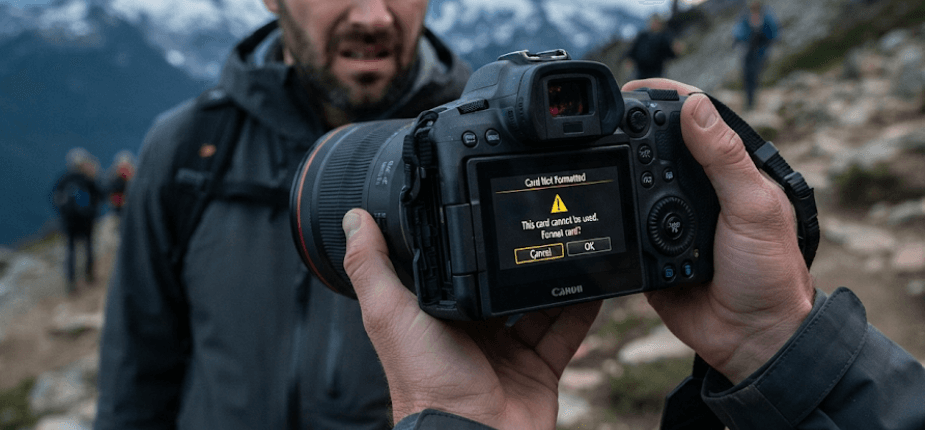
TL;DR: If your camera shows a “Card Not Formatted,” “Memory Card Error,” or “Format Card?” message, do not format the card immediately if it contains important photos. The error can be caused by file-system corruption, an incompatible card, improper removal, a faulty card, or a camera/card-reader issue. First, turn off the camera, remove and reinsert the card, check its compatibility and lock switch, and try a card reader or another device. If the card is detected but the photos are inaccessible, recover the files before formatting. Formatting permanently removes the card’s existing data, so it should be the final step after important photos are safely backed up.
What Does “Card Not Formatted” Mean?
When a camera displays “Card Not Formatted,” “Format Card?” or “Memory Card Error,” it means the camera cannot properly read or use the memory card. This does not automatically mean that every photo stored on the card has been deleted. In some cases, the camera cannot interpret the card’s file system even though the underlying photo data may still be present. Nikon, Canon, and Sony all document similar situations where a camera cannot access a card because of formatting, compatibility, insertion, or card-related problems.
A memory card uses a file system to organize stored data so that the camera knows where photos and videos are located. If that structure becomes corrupted, the camera may treat the card as unformatted. This can happen after interrupted writing, removing the card while data is being written, using a card formatted by another device, or encountering a problem with the card itself. A card can also simply be incompatible with a particular camera, especially if its capacity or specifications are outside the camera’s supported range.
The important distinction is between making the card usable again and recovering the photos already stored on it. Formatting may solve a formatting-related camera error, but it also erases the existing data. If the photos are important, recovery should come before formatting. Canon and Sony explicitly warn that formatting a memory card deletes its stored images and other data.
| Camera Message | What It Usually Indicates | First Action |
|---|---|---|
| Card Not Formatted | Camera cannot read the card's formatting | Do not format if photos are important |
| Memory Card Error | Camera cannot properly access the card | Power off and reinsert the card |
| Card Locked | Write-protection switch is enabled | Move the lock switch to unlock |
| No Memory Card | Card is not detected | Check insertion and compatibility |
| Cannot Access This Memory Card | Access or compatibility problem | Try another supported card or reader |
Why Does A Camera Memory Card Show An Error?
One common reason is file-system corruption. The card may have been removed while the camera was still writing a photo or video, or the camera may have lost power during the writing process. In such cases, the data structure that tells the camera where files are stored can become inconsistent. That can leave the photos inaccessible even though some or all of their underlying data may still be present.
Another possibility is card compatibility or formatting. Camera manufacturers specify which memory-card types, capacities, and speeds their cameras support. A card that works perfectly in one device may not be supported by another. Sony, for example, recommends checking memory-card compatibility before troubleshooting further, while Nikon advises using approved or compatible cards when a card cannot be accessed.
Physical or hardware problems can also cause the message. Dirty contacts, a damaged card, a failing card controller, a malfunctioning card reader, or even a problem with the camera's card slot can prevent normal access. This is why testing another known-compatible card can be useful. If several compatible cards produce the same error, the camera itself may require service rather than the original card being the only problem.
What To Do Before Trying Any Fix
If the card contains photos you cannot replace, stop shooting immediately. Do not take new pictures, delete files, repeatedly format the card, or copy new files onto it. New writes can potentially overwrite data that recovery software might otherwise be able to find.
Next, switch the camera off before removing the card. Check that the card is seated correctly and inspect it for obvious physical damage. If you are using a full-size SD card, check the small write-protection switch on its side. A locked card can prevent writing, although a lock message is different from a genuine “card not formatted” error. Canon and Sony both recommend checking the card's insertion and lock position when troubleshooting card-related messages.
If the card contains valuable photos, avoid repeatedly inserting it into multiple devices just to see whether one works. Instead, use a reliable card reader and check whether a computer can detect the card. If the computer asks you to format the card, cancel that prompt if you still need the existing files. The priority is to preserve the current state of the card before attempting a repair or format.
How To Fix “Card Not Formatted” Error
1. Turn Off And Reinsert The Card
Start with the simplest possibility. Turn the camera completely off, remove the memory card, and inspect it for visible damage or dirt. Reinsert it carefully in the correct orientation and turn the camera back on.
This step can resolve problems caused by an incomplete connection or a card that was not seated correctly. Sony specifically recommends powering down, removing and reinserting the card, and checking that it is properly inserted. Canon similarly recommends turning the camera off, reinserting the card, and restarting it when the card is not detected.
If the same card continues to show the error but another compatible card works normally, the original card is more likely to be the problem. If multiple known-compatible cards fail in the same camera, the camera's card slot or internal hardware may need attention.
2. Check The Card Lock Switch
If your camera says “Card Locked,” check the physical lock switch on a full-size SD card. Slide the switch away from the locked position and reinsert the card.
This is particularly worth checking if the camera can read the card but refuses to take photographs. A locked card is a write-protection issue, not necessarily evidence that the card is corrupted. Canon and Sony both identify the SD card's physical lock position as a cause of card-locked messages.
Do not confuse this with the “Card Not Formatted” message. If the camera specifically says the card needs formatting and the card contains important photographs, move on to recovery rather than immediately formatting it.
3. Check Card Compatibility
Check your camera's manual or manufacturer's support page to confirm that the memory card type and capacity are supported. Different cameras can have different requirements for SD, SDHC, and SDXC cards, as well as supported capacities and speed classes.
Compatibility problems can produce messages that look similar to corruption. Sony's troubleshooting guidance specifically recommends checking whether the memory card is compatible with the camera, while Nikon advises using compatible or approved cards when access errors occur.
If the card was previously used in another camera, computer, or device, its formatting may also be different from what your current camera expects. Camera manufacturers commonly recommend formatting a new card or a card previously used elsewhere in the camera itself, but only after any important existing data has been safely copied or recovered.
4. Try A Card Reader
If the camera cannot access the card, remove it and connect it to a computer using a compatible SD card reader. This can help determine whether the problem is limited to the camera or affects the card itself.
If the computer can see the card and its files, immediately copy the important photos to another storage location. Do not use the card as the destination for the recovered files.
If Windows displays a message such as “You need to format the disk before you can use it,” cancel the prompt if the card contains important data. The goal at this stage is recovery, not making the card usable again.
How To Recover Photos From A Card Not Formatted Error
Recover Photos Before Formatting
If your computer detects the card but you cannot open it, a data-recovery application may be able to scan the card and locate recoverable photographs. Recovery software can search the card's storage for file information even when the normal file structure is damaged.
Before scanning, avoid writing anything to the affected card. If the card is unstable, disconnects repeatedly, or produces read errors, creating a sector-by-sector image of the card first can be safer because you can perform recovery attempts against the image rather than repeatedly accessing the original media.
When recovered files are found, save them to your computer's internal drive or a different external storage device. Never save recovered photographs back onto the affected memory card because doing so can overwrite other recoverable data.
| Situation | Recommended Approach |
|---|---|
| Card works normally and photos are visible | Copy photos to another drive immediately |
| Card is detected but photos are inaccessible | Use photo/data recovery software |
| Card shows RAW or asks to be formatted | Avoid formatting and attempt recovery |
| Card repeatedly disconnects | Stop DIY attempts and consider professional recovery |
| Card is not detected anywhere | Try one known-good reader; then consider professional recovery |
| Photos are recovered successfully | Save them to another drive before formatting the card |
Nikon notes that corrupted or accidentally deleted images can sometimes be recovered, although recovery is not guaranteed because parts of the underlying data may be missing.
Should You Format The Memory Card?
Not if you still need the photos on it. Formatting is designed to prepare the card for use, not to preserve its existing contents. Canon states that formatting erases all images and data on the card, including protected images. Sony provides a similar warning that formatting deletes recorded photos and videos.
Once you have successfully copied or recovered everything important, formatting the card in the camera that will use it is generally the preferred approach. Camera manufacturers commonly recommend in-camera formatting for cards that are new or have previously been formatted in another camera or computer.
However, formatting should not be viewed as a guaranteed cure for a failing card. If the card repeatedly produces errors after formatting, becomes unreliable, or is no longer recognized correctly, replace it. A memory card that has already demonstrated repeated failures should not be trusted with important photographs simply because it temporarily starts working again.
When Should You Stop Trying To Fix The Card?
DIY troubleshooting makes sense when the card is still detected consistently and the problem appears to be related to formatting or file-system access. But there are situations where continuing to experiment can make recovery harder.
For example, if the card shows 0 bytes, an incorrect capacity, repeated disconnections, or is not detected by multiple compatible readers, the issue may go beyond a simple formatting problem. In such cases, repeatedly formatting, repairing, or scanning the card can add unnecessary risk.
Professional data recovery becomes especially sensible when the photographs are irreplaceable, such as wedding photographs, professional shoots, family archives, or important work documentation. If the card has physical damage or cannot be detected reliably, stop using it and seek a specialist rather than trying increasingly aggressive software fixes.
How To Prevent Future Memory Card Errors
The easiest way to prevent a painful memory-card recovery is to avoid treating one card as permanent storage. Copy important photographs to a computer, external drive, or cloud backup as soon as practical, especially after important shoots.
Always use memory cards that are compatible with your camera and meet its requirements. Before important events, test the card in the camera and, where appropriate, format it using the camera after confirming that any previous data has been backed up. This helps avoid surprises caused by cards previously formatted on another device.
It is also good practice to avoid removing the card while the camera is writing data. Wait until the camera has finished saving images, and avoid allowing the battery to die during an active write. Keeping spare, compatible memory cards available is also useful for photographers who cannot afford to stop shooting because of a single card failure.
Final Recommendation
If your camera suddenly displays “Card Not Formatted” or “Memory Card Error,” don't rush to press Format. If the card contains photos you care about, preservation should come before troubleshooting. Turn off the camera, check the card's insertion and compatibility, and try a reliable card reader to determine whether the card can still be accessed.
If the card is detected but the photographs are inaccessible, recover the photos first using appropriate recovery software or professional data-recovery services when necessary. Save recovered files to a different drive, verify that the photos actually open, and only then consider formatting the card in the camera.
If the same card continues to fail after recovery and formatting, replace it rather than trusting it with another important shoot. A memory card is replaceable; an irreplaceable set of photographs often is not.
Frequently Asked Questions
Q. Can I recover photos from a card that says “Card Not Formatted”?
Yes, recovery may be possible if the underlying photo data has not been overwritten or physically damaged. Avoid formatting the card and try recovery before making further changes.
Q. Does “Card Not Formatted” mean my photos are gone?
No. The message means the camera cannot properly read the card's formatting or file structure. It doesn't automatically mean all stored photos have been erased.
Q. Should I format my camera's memory card when this error appears?
Not if you need the photos stored on it. Formatting erases the card's existing data, so recover or back up important files first.
Q. Why does my camera keep saying “Memory Card Error”?
Possible causes include an incompatible card, incorrect insertion, a locked card, file-system corruption, card damage, or a problem with the camera's card slot.
Q. Can a card reader help with a camera memory card error?
Yes. A card reader can help determine whether the computer can detect the card even though the camera cannot. If the computer asks you to format it, cancel the prompt if you need the existing photos.
Q. Can I recover photos after formatting the memory card?
Sometimes. Recovery may still be possible after formatting, but the chances depend on what happened to the card and whether new data has overwritten the previous files.
Q. Why does my memory card work in one camera but not another?
The cameras may support different card types, capacities, or specifications. Formatting and compatibility requirements can also differ between camera models.
Q. What should I do if my SD card is locked?
Check the physical lock switch on a full-size SD card and move it to the unlocked position. Then reinsert the card and check whether the camera can write to it.
Q. Should I keep using a memory card after it gives an error?
If the card repeatedly produces errors, becomes unreliable, or disconnects, replace it after recovering your important files. It should not be trusted for important shoots.
Q. How can I prevent camera memory card errors in the future?
Use a compatible card, format it in the camera when appropriate, avoid removing it during writing, keep the camera adequately powered, and regularly back up important photographs.
Ready to upgrade your tech?
Browse our collection of quality refurbished products at unbeatable prices.