Blue Screen of Death (BSOD): Common Error Codes and How to Fix Them
Learn what common BSOD error codes mean, what causes Windows crashes, and how to troubleshoot drivers, memory, system files, storage, and hardware.

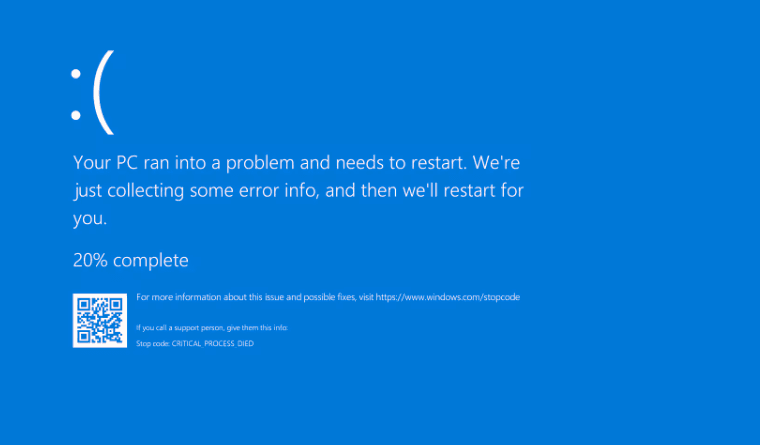
TL;DR: A Blue Screen of Death (BSOD) appears when Windows encounters a serious system problem that it cannot safely recover from. The crash screen usually shows a stop code such as MEMORY_MANAGEMENT, PAGE_FAULT_IN_NONPAGED_AREA, or DRIVER_IRQL_NOT_LESS_OR_EQUAL, which can point toward the underlying issue. Common causes include faulty or incompatible drivers, memory problems, corrupted system files, storage issues, problematic updates, and hardware failures. The right fix depends on the specific stop code, but updating Windows and drivers, removing recently added hardware or software, checking system files, testing memory, and using Windows Recovery options are good places to start.
What Is A Blue Screen Of Death?
The Blue Screen of Death, commonly called BSOD, is Windows' way of stopping the system when it encounters a serious error that could make continuing unsafe. Instead of allowing the operating system to keep running with potentially corrupted data or an unstable kernel, Windows performs a bug check and may restart the computer. The screen normally displays a message explaining that the device ran into a problem, along with a stop code that can help identify what went wrong.
Although the term "Blue Screen of Death" remains popular, the appearance of the error can vary between Windows versions. Microsoft currently refers to these incidents as stop code errors, bug checks, or Blue Screen errors. Some newer Windows 11 releases may display a black screen for a stop-code failure instead of the traditional blue screen. So, if a Windows PC suddenly crashes and shows a stop code, it is still essentially the same type of system failure even if the screen is not blue.
A BSOD does not automatically mean that the computer is permanently damaged. A one-time crash can sometimes be triggered by a temporary software or driver problem. However, repeated crashes should not be ignored, especially when the same stop code keeps appearing. The code, any driver or file name shown on the screen, and what the computer was doing immediately before the crash can provide useful clues.
Why Does A BSOD Happen?
There is no single cause behind every BSOD. Windows relies on many hardware components, device drivers, system services, and applications working together, so a failure in one area can sometimes bring down the operating system. Microsoft identifies hardware, drivers, and software among the possible sources of unexpected restarts and stop-code errors.
Common causes include:
| Possible Cause | What It Can Lead To |
|---|---|
| Outdated or incompatible drivers | Driver-related crashes and hardware communication problems |
| Faulty RAM | Memory-related stop codes and random crashes |
| Corrupted Windows files | System instability and service-related errors |
| Storage problems | Boot errors, file corruption, and crashes |
| Problematic updates | Driver or software compatibility issues |
| New hardware | Conflicts with existing drivers or firmware |
| Overheating or hardware faults | Instability under heavy workloads |
| Unstable system configuration | Crashes caused by incorrect or unsupported settings |
The important thing is not to assume that every error code has one guaranteed cause. For example, a memory-related stop code can be caused by physical RAM problems, but software or driver activity can also contribute. Similarly, a driver-related error does not always mean the driver itself is defective. The driver may simply be the component that exposed an underlying hardware or compatibility problem.
That is why troubleshooting should generally move from the simplest and least disruptive checks to more specific diagnostics. Start by noting the stop code, thinking about any recent changes, and checking Windows and driver updates. If the problem continues, move toward memory, storage, system-file, recovery, and hardware diagnostics.
Common BSOD Error Codes And Their Meanings
The stop code displayed on a BSOD is one of the most useful clues available. Microsoft maintains a detailed Bug Check Code Reference, while manufacturers such as Dell also document commonly encountered Windows stop codes.
Here are some of the more useful codes to recognize:
| BSOD Error | Stop Code | What It Generally Indicates |
|---|---|---|
| IRQL_NOT_LESS_OR_EQUAL | 0x0000000A | Invalid memory access at an inappropriate interrupt request level |
| DRIVER_IRQL_NOT_LESS_OR_EQUAL | 0x000000D1 | A kernel-mode driver accessed memory improperly at a high IRQL |
| PAGE_FAULT_IN_NONPAGED_AREA | 0x00000050 | Windows encountered an invalid memory reference involving nonpaged memory |
| MEMORY_MANAGEMENT | 0x0000001A | A serious memory-management error occurred |
| SYSTEM_SERVICE_EXCEPTION | 0x0000003B | An exception occurred while executing a system service |
| KMODE_EXCEPTION_NOT_HANDLED | 0x0000001E | A kernel-mode exception was not handled |
| SYSTEM_THREAD_EXCEPTION_NOT_HANDLED | 0x0000007E | A system thread generated an unhandled exception |
| CRITICAL_PROCESS_DIED | 0x000000EF | A critical system process terminated unexpectedly |
| INACCESSIBLE_BOOT_DEVICE | 0x0000007B | Windows could not access the device needed to start the system |
| VIDEO_TDR_FAILURE | 0x00000116 | Windows detected that the display driver or GPU failed to respond in time |
| DPC_WATCHDOG_VIOLATION | 0x00000133 | Windows detected a prolonged or unacceptable delay involving a DPC |
| WHEA_UNCORRECTABLE_ERROR | 0x00000124 | Windows reported an uncorrectable hardware error |
These codes are clues rather than complete diagnoses. For example, PAGE_FAULT_IN_NONPAGED_AREA can be associated with faulty hardware, drivers, or storage-related problems. Likewise, WHEA_UNCORRECTABLE_ERROR is strongly associated with hardware errors, but the exact component still needs to be investigated.
The same principle applies to driver-related codes. DRIVER_IRQL_NOT_LESS_OR_EQUAL often points toward a driver problem, but identifying the actual driver or hardware involved is important before deciding what to replace. If Windows displays a driver or module name alongside the stop code, record it. That extra information can significantly narrow down the troubleshooting process.
How To Fix Common BSOD Errors
Start With Windows Update
If the computer can boot normally after the crash, check Windows Update first. Microsoft recommends keeping Windows updated because updates can include fixes and updated drivers that address compatibility and stability problems. Open Settings > Windows Update and install available updates, then restart the computer.
Driver updates are particularly important when the BSOD started after connecting a new device or when the error appears to involve graphics, networking, storage, or another specific component. Whenever possible, use Windows Update or the hardware manufacturer's official support channel rather than downloading drivers from random third-party websites.
If the BSOD started immediately after a driver or Windows update, however, simply installing another update may not solve the problem. In that situation, consider whether the recent change is connected to the crashes. A driver rollback, uninstalling a problematic update, or using System Restore may be more appropriate depending on the circumstances.
Remove Recent Hardware Or Software
Think about what changed shortly before the first BSOD. Did you install a new graphics card, USB device, storage drive, driver, utility, antivirus program, or other application? A recent change does not prove that it caused the crash, but it gives you a useful starting point.
Disconnect unnecessary external devices and restart the computer. If the crashes stop, reconnect devices one at a time to identify whether a particular peripheral is involved. This approach is especially useful when the BSOD began after connecting a USB accessory, external storage device, printer, dock, or other hardware.
The same logic applies to recently installed software. If crashes began immediately after installing a program, uninstalling it temporarily can help determine whether there is a compatibility problem. Avoid removing essential Windows components or randomly disabling services simply because they appear unfamiliar.
Check And Repair Windows System Files
Corrupted Windows system files can contribute to instability, particularly when crashes appear after an interrupted update, unexpected shutdown, or other system problem. Windows includes built-in tools that can check and repair system components.
A common troubleshooting sequence is to run DISM first and then System File Checker from an elevated Command Prompt. The commands are:
DISM /Online /Cleanup-Image /RestoreHealthAfter DISM completes, run:
sfc /scannowDISM repairs the Windows component store that System File Checker relies on, while SFC checks protected system files and attempts to replace corrupted versions. These commands are not a universal BSOD cure, but they are useful when damaged Windows components are suspected.
If either command reports errors, follow its result before moving on. If the system continues crashing despite clean system-file checks, the next step should be identifying whether the issue is related to memory, storage, drivers, or hardware rather than repeatedly running the same repair commands.
Test Your RAM And Storage
Memory problems are a common suspect when a computer produces different BSOD codes at different times. Windows includes the Windows Memory Diagnostic tool, which can be used to test system memory. If the test reports an error, the RAM or its configuration needs further investigation.
Storage should also be considered, particularly when the computer shows boot-related errors, file corruption, or crashes while accessing files. Depending on the specific situation, Windows disk-checking tools can help identify file-system or drive problems. If a drive is showing signs of failure, back up important data before performing extensive troubleshooting.
Do not assume that a failed memory test or disk check automatically identifies every possible cause. Hardware diagnostics from the computer or component manufacturer can provide more targeted information. If a machine continues to crash after software troubleshooting, manufacturer diagnostics can be a sensible next step.
What To Do If Windows Keeps Crashing
If Windows crashes repeatedly before you can reach the desktop, Safe Mode can help. Safe Mode starts Windows with a limited set of drivers and services, making it useful for determining whether a third-party driver or startup component is involved.
You can access Safe Mode through the Windows Recovery Environment. From there, you can try options such as Startup Settings, System Restore, Startup Repair, or uninstalling a recent update. If BitLocker is enabled, Windows may request the BitLocker recovery key during certain recovery operations, so keep that possibility in mind.
If the system continues crashing even in Safe Mode, the problem may require deeper investigation. Persistent crashes can point toward hardware, firmware, storage, memory, or a lower-level driver problem. At this stage, repeatedly restarting the machine without investigating the cause is unlikely to help.
How To Find The Cause Of A BSOD
The stop code is the first clue, but it is not always enough to identify the faulty component. If Windows displays a driver or module name on the crash screen, record that information as well. Take a photo if the computer restarts too quickly for you to write everything down.
Windows can also create crash dump files that contain information about the system state when the crash occurred. More advanced users and technicians can analyze these files with WinDbg, Microsoft's Windows Debugger. The !analyze extension can help examine bug-check information and identify potential causes.
For everyday users, however, there is no need to jump immediately into kernel debugging. Start with the stop code, recent changes, Windows Update, drivers, system-file checks, memory diagnostics, and hardware diagnostics. If the same BSOD keeps returning, professional support may be more useful than making random changes to the system.
How To Prevent Future BSOD Errors
Preventing every BSOD is impossible, but good system maintenance can reduce avoidable crashes. Keep Windows and important device drivers updated, particularly for graphics, networking, storage, and chipset components. Install drivers from Windows Update or the device manufacturer's official support page.
Avoid using unstable hardware configurations or aggressive overclocking settings if system stability is a priority. Keep the computer properly ventilated and pay attention to unusual temperatures, fan behaviour, shutdowns, or performance drops. Hardware that is already failing can produce increasingly frequent crashes, so repeated BSODs should not simply be treated as a Windows annoyance.
Regular backups are equally important. A BSOD itself does not necessarily mean that files have been lost, but repeated crashes or a failing storage device can increase the risk of data problems. Keeping important files backed up means you can troubleshoot more confidently without putting irreplaceable documents, photos, or work at unnecessary risk.
Final Recommendation
A BSOD can look dramatic, but the stop code is actually useful information rather than just an error message. Start by recording the exact code and checking whether the crash began after a Windows update, driver change, software installation, or hardware upgrade. Then work through basic troubleshooting: install appropriate Windows and driver updates, remove recently added hardware or software, repair Windows system files, and test memory or storage when the symptoms point in that direction.
If the same BSOD keeps returning, do not keep applying random fixes. Use Safe Mode and Windows Recovery options when necessary, check crash information, and run manufacturer hardware diagnostics if a component is suspected. For persistent or hardware-related errors, professional diagnosis is safer than replacing parts based only on the name of the stop code.
The most important takeaway is simple: a BSOD code is a starting point for diagnosis, not a guaranteed diagnosis by itself. Identifying what changed, when the crash happens, and which component Windows was using at the time will usually lead to a much more reliable fix.
Frequently Asked Questions
Q. What does BSOD mean?
BSOD stands for Blue Screen of Death. It refers to a serious Windows stop-code error that causes the operating system to halt and usually restart.
Q. What causes a Blue Screen of Death?
Common causes include faulty or incompatible drivers, memory problems, corrupted Windows files, storage issues, problematic updates, and hardware failures.
Q. Is a BSOD dangerous for my computer?
A single BSOD does not necessarily mean the computer is damaged. However, repeated crashes can indicate an underlying driver, software, storage, memory, or hardware problem that should be investigated.
Q. How do I find my BSOD error code?
The stop code normally appears on the crash screen. It may look like PAGE_FAULT_IN_NONPAGED_AREA or include a hexadecimal value such as 0x00000050.
Q. What does MEMORY_MANAGEMENT BSOD mean?
MEMORY_MANAGEMENT, associated with stop code 0x0000001A, indicates a serious Windows memory-management error. Memory hardware, drivers, or other system problems may need to be investigated.
Q. What does PAGE_FAULT_IN_NONPAGED_AREA mean?
PAGE_FAULT_IN_NONPAGED_AREA, associated with 0x00000050, indicates an invalid memory reference involving nonpaged memory. Drivers, memory hardware, and storage-related issues can be possible causes.
Q. Can outdated drivers cause a BSOD?
Yes. Incompatible, corrupted, or malfunctioning drivers can trigger several types of stop-code errors, including driver-related BSODs.
Q. Can Windows Update fix a BSOD?
Sometimes. Windows updates can include operating-system and driver fixes. However, if the crash was introduced by a recent update, rolling back or uninstalling the relevant change may be necessary.
Q. What should I do if my computer keeps showing a BSOD?
Record the stop code, remove recent hardware or software changes, check Windows and driver updates, run system-file checks, test memory and storage, and use Safe Mode or Windows Recovery if the system cannot boot normally.
Q. Should I reinstall Windows after a BSOD?
Not usually after a single crash. Reinstalling Windows should generally be considered only after less disruptive troubleshooting has failed or when there is a broader system problem that requires a reset or clean installation.
Ready to upgrade your tech?
Browse our collection of quality refurbished products at unbeatable prices.