
Best Docking Station to Buy for Your Dell Precision Workstation
Dell Precision workstations need more than a basic USB hub. Here is how the WD25TB5, WD25TB4, and WD22TB4 compare for displays, power, ports, and professional workloads.

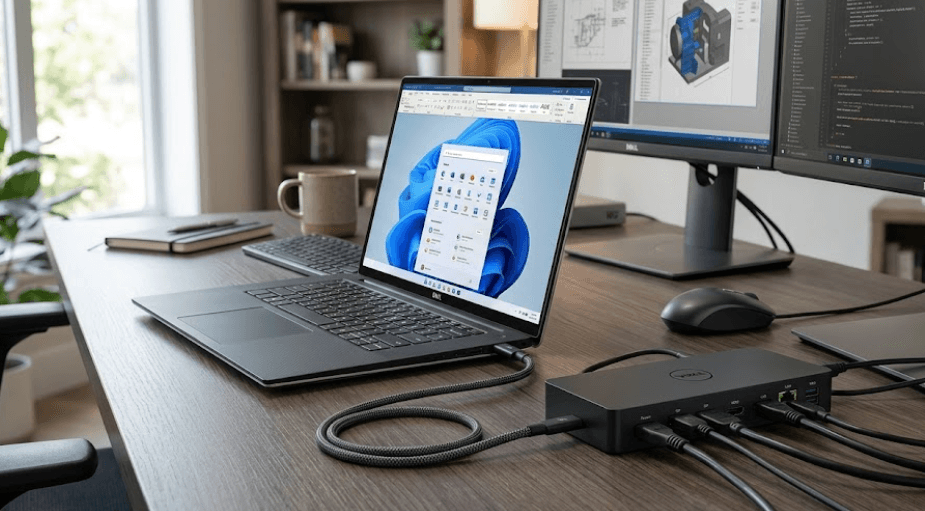
TL;DR The Dell Pro Thunderbolt 5 Dock WD25TB5 is the most capable current choice for a compatible Dell Precision mobile workstation in 2026, particularly if you need high power delivery, multiple high-resolution displays, and fast connectivity. Dell rates it for up to 300W power delivery to Dell systems and support for up to four 4K 120Hz displays, although actual capability depends on the Precision model and its display configuration. For Precision systems using Thunderbolt 4, the Dell Pro Thunderbolt 4 Dock WD25TB4 is a more appropriate match, while the older WD22TB4 remains useful for compatible systems. The important point is to check your exact Precision model before buying because Dell specifically notes that some high-performance Precision systems cannot receive enough power through a single dock connection and may require their original AC adapter as well.
Why Your Dell Precision Needs A Proper Dock
A Dell Precision mobile workstation is designed for workloads that can be considerably heavier than those handled by an everyday office laptop. Engineers, architects, designers, video editors, developers, and other professionals may connect several monitors, external storage devices, wired networking, keyboards, mice, graphics peripherals, and other accessories at the same time. A basic USB-C hub can add a few ports, but it may not provide the combination of display bandwidth, networking, power delivery, and connectivity that a workstation setup requires. Dell itself describes Thunderbolt docks as the preferred solution for users who need multiple high-resolution displays, fast data transfer, and higher-power laptop charging.
The distinction becomes even more important with Precision systems because power requirements vary between models. Dell documents cases involving Precision 7000-series systems where a single-cable connection to certain docks does not provide sufficient power, and the workstation's own AC adapter must remain connected. This means buying a dock based only on its number of USB ports can lead to an inconvenient setup where the workstation still needs its original charger. The exact requirement depends on the Precision model, dock, and power adapter configuration, so compatibility should always be checked before purchase.
A proper docking station also changes how you use the workstation every day. Instead of reconnecting individual monitors, Ethernet, storage, keyboard, mouse, and other peripherals each time you sit down, one Thunderbolt connection can bring the workstation into your desk setup. That is particularly useful if you move a Precision between an office and another workspace. The dock effectively becomes the connection point between the workstation and the rest of your desk, but it should be selected around the capabilities of the specific Precision rather than simply around the dock's headline specifications.
What A Workstation Dock Should Provide
| Requirement | Why It Matters |
|---|---|
| Thunderbolt 4 or 5 | High-bandwidth connection for displays and peripherals |
| High power delivery | Helps reduce reliance on a separate charger where supported |
| Multiple display outputs | Useful for CAD, editing, development, and productivity |
| USB-A and USB-C | Connects older and newer peripherals |
| Ethernet | Provides a wired network connection |
| DisplayPort and HDMI | Makes monitor compatibility easier |
| Firmware support | Helps maintain reliable dock and workstation operation |
Dell Pro Thunderbolt 5 Dock WD25TB5
The Dell Pro Thunderbolt 5 Dock WD25TB5 is the highest-performance option in Dell's current docking lineup. Dell lists up to 300W power delivery to Dell systems and up to 240W for non-Dell systems. It uses Thunderbolt 5 and includes two DisplayPort 2.1 outputs, one HDMI 2.1 port, two Thunderbolt 5 ports, four USB-A 3.2 Gen 2 ports, one USB-C 3.2 Gen 2 port, and 2.5GbE Ethernet. That combination makes it particularly relevant to newer high-performance Precision mobile workstations where the goal is to build a desk around several high-resolution displays and multiple professional peripherals.
Display support is another reason the WD25TB5 stands out. Dell specifies support for configurations including up to four 4K displays at 120Hz, alongside 5K, 6K, and 8K display options depending on the configuration. However, these figures describe what the dock can support, not a guarantee that every Precision workstation can drive every combination. The workstation's graphics hardware, display outputs, Thunderbolt implementation, and Dell's tested compatibility matrix still determine what you can actually use. That distinction is important for professional users who may be planning a three- or four-monitor workstation.
The WD25TB5 also makes sense from a long-term connectivity perspective if your Precision supports Thunderbolt 5. Dell currently positions Thunderbolt 5 docks as the highest-power option for its latest systems, while its docking guide places the WD25TB5 among the current-generation Pro docks recommended for new purchases. It also supports Dell's management ecosystem, including Dell Device Management Console and firmware management features. For a business environment with managed Precision systems, those capabilities can be useful, although an individual user does not necessarily need the additional management features found on Dell's Smart Dock variants.
Dell Pro Thunderbolt 4 Dock WD25TB4
For a Precision workstation with Thunderbolt 4, the Dell Pro Thunderbolt 4 Dock WD25TB4 is a more natural choice than paying for Thunderbolt 5 hardware that the workstation cannot fully use. Dell lists 130W power delivery for Dell systems and 96W for non-Dell systems, along with two DisplayPort 1.4 outputs, HDMI 2.1, a USB-C multifunction DisplayPort connection, two Thunderbolt 4 ports, four USB-A 3.2 Gen 2 ports, one USB-C 3.2 Gen 2 port, and 2.5GbE Ethernet.
The WD25TB4 can support demanding multi-monitor configurations, with Dell listing up to four 4K displays at 60Hz, three 4K displays, two 6K displays, or one 8K display depending on the system and configuration. That makes it suitable for professional workflows where several monitors are more important than extremely high refresh rates. A CAD user might use multiple displays for models, tool palettes, references, and documentation, while a developer could dedicate separate screens to code, testing, and documentation.
There is also a practical reason to consider the WD25TB4 instead of automatically moving to Thunderbolt 5. Dell describes the WD25TB4 as one of its current-generation Pro Thunderbolt docks, and compatibility is more important than simply choosing the newest standard. If your Precision is a Thunderbolt 4 model, the WD25TB4 already provides substantial display bandwidth, networking, USB connectivity, and power delivery. The key is to confirm that your exact workstation is supported and whether its power requirements exceed what a single dock connection can provide.
WD25TB5 Vs WD25TB4
| Feature | WD25TB5 | WD25TB4 |
|---|---|---|
| Thunderbolt | Thunderbolt 5 | Thunderbolt 4 |
| Dell Power Delivery | Up to 300W | Up to 130W |
| Ethernet | 2.5GbE | 2.5GbE |
| DisplayPort | 2 x DP 2.1 | 2 x DP 1.4 |
| HDMI | HDMI 2.1 | HDMI 2.1 |
| Maximum External Displays | Up to 4 | Up to 4 |
| High-Resolution Support | Up to 8K, configuration dependent | Up to 8K, configuration dependent |
| Best Match | Compatible newer Precision systems | Thunderbolt 4 Precision systems |
Specifications are Dell's dock-level capabilities. Actual display and charging support depends on the connected Precision workstation and its configuration.
When The WD22TB4 Still Makes Sense
The Dell Thunderbolt Dock WD22TB4 is older than the WD25TB4 and WD25TB5, but that does not automatically make it irrelevant. Dell continues to list the WD22TB4 in its current docking-station guide, and the dock supports Thunderbolt 4 connectivity, two DisplayPort 1.4 outputs, HDMI 2.0, a USB-C DisplayPort Alt Mode output, USB-A ports, USB-C connectivity, and Gigabit Ethernet. Dell rates it for up to four external displays and up to 130W power delivery to Dell systems when paired with its 180W AC adapter.
The WD22TB4 can therefore be a sensible option when your Precision is already compatible with it, particularly if you find one at a lower price or already have one in an existing office setup. It provides the core features that many workstation users actually need, including multiple display outputs, Ethernet, USB connectivity, and charging. There is little benefit in replacing a functioning dock simply because a newer model exists if your current Precision and monitor setup already work correctly with it.
However, power requirements deserve particular attention with older and high-performance Precision models. Dell specifically documents Precision systems where a single-cable connection through the WD22TB4 does not provide sufficient power and the original AC adapter needs to remain connected. Dell identifies several Precision 7000-series models in this guidance, including the Precision 7560, 7670, 7680, 7760, 7770, and 7780. That is why a dock should never be judged only by its advertised wattage.
Current Dell Docking Options
| Dock | Connection | Dell Power Delivery | Display Support | Best Use |
|---|---|---|---|---|
| WD25TB5 | Thunderbolt 5 | Up to 300W | Up to 4 displays | Newer high-performance Precision systems |
| WD25TB4 | Thunderbolt 4 | Up to 130W | Up to 4 displays | Thunderbolt 4 Precision systems |
| WD22TB4 | Thunderbolt 4 | Up to 130W | Up to 4 displays | Existing compatible Precision setups |
| WD25 | USB-C | Model dependent | Up to 4 displays | USB-C business setups |
| UD22 | USB-C/USB | Up to 96W | Up to 4 with DisplayLink | Broader device compatibility |
Dell's compatibility guidance states that commercial docks should be checked against the specific computer because unsupported systems can have limited functionality or errors.
How To Choose The Right Dock For Your Precision
The first step is to identify the exact Precision model rather than shopping from the word "Precision" alone. Dell sells Precision mobile workstations with different generations of connectivity and different power requirements. For example, current Dell documentation lists models such as the Precision 3490, 3590, 3591, 5490, and 5690 among its mobile workstation families, while older Precision 7000-series machines can have substantially higher power requirements. The correct dock therefore depends on the specific model and configuration you own.
The second step is to look at your monitor setup. If you use one or two 4K monitors at 60Hz, a Thunderbolt 4 dock can already provide plenty of connectivity. If you are building a newer multi-monitor workstation and your Precision supports Thunderbolt 5, the WD25TB5 gives you more bandwidth and significantly higher dock-level power delivery. Dell lists up to four 4K 120Hz displays for the WD25TB5, while the WD25TB4 is specified for up to four 4K displays at 60Hz. Actual results still depend on the workstation's graphics hardware and supported display configuration.
Finally, check the power adapter requirement before you order. This is particularly important with high-performance Precision workstations because the dock's USB-C or Thunderbolt power delivery may not replace the workstation's dedicated adapter. Dell explicitly documents this limitation for certain Precision systems. It is also worth keeping the BIOS, graphics drivers, Thunderbolt software, Ethernet drivers, and dock firmware current because Dell says outdated firmware and drivers can cause recognition or performance problems.
Common Docking Mistakes To Avoid
One common mistake is assuming that every USB-C port supports the same features. USB-C describes the physical connector, not necessarily the capabilities behind it. A Precision may have USB-C ports with different support for Thunderbolt, DisplayPort Alt Mode, charging, or data speeds. Dell specifically recommends checking whether the computer supports the required docking interface and consulting its compatibility guide before selecting a dock.
Another mistake is buying a dock based solely on the maximum number of displays printed on the product page. A dock may be capable of driving four displays, but the connected workstation's graphics hardware may impose a lower limit or different resolution and refresh-rate combinations. This is especially relevant to professional users because a Precision workstation can have discrete NVIDIA graphics, integrated graphics, or different display-routing configurations depending on the model. The dock and workstation need to be considered as one system.
It is also easy to overlook firmware. A docking station is effectively a small piece of computer hardware with its own firmware, and Dell recommends updating the workstation BIOS, graphics drivers, Thunderbolt components, Ethernet drivers, and dock firmware for proper operation. This can matter when you encounter issues such as displays not waking correctly, Ethernet disconnects, charging problems, or the workstation failing to recognize the dock.
Docking Checklist
| Check Before Buying | Why It Matters |
|---|---|
| Exact Precision model | Determines compatibility and power requirements |
| Thunderbolt version | Determines available dock bandwidth |
| Number of monitors | Determines required display connectivity |
| Monitor resolution and refresh rate | Affects required bandwidth |
| Workstation AC adapter wattage | May determine whether the dock can power the system alone |
| Ethernet requirement | Useful for office and workstation networks |
| USB-A and USB-C requirements | Ensures all peripherals can connect |
| Linux or Windows use | Operating-system support varies by dock |
| Firmware support | Helps maintain reliable operation |
Which Dock Should You Buy?
For a newer Dell Precision mobile workstation with Thunderbolt 5, the WD25TB5 is the model to look at first. Its 300W Dell-system power delivery, Thunderbolt 5 connectivity, 2.5GbE Ethernet, multiple USB ports, and support for high-resolution multi-monitor configurations give it the specifications expected from a current high-performance workstation dock. It is particularly relevant if your desk includes several displays and numerous peripherals.
For a Thunderbolt 4 Precision, the WD25TB4 is the more straightforward choice. Its 130W Dell-system power delivery and support for up to four external displays give it enough capability for many professional desk setups, while its DisplayPort, HDMI, Thunderbolt, USB, and Ethernet connections cover the ports most workstation users need. It also belongs to Dell's current Pro Thunderbolt dock generation, so it is not simply an outdated alternative to Thunderbolt 5.
The WD22TB4 remains worth considering when you already have one, find it at an attractive price, or have a Precision configuration specifically supported by it. However, the most important buying decision is not simply choosing the newest dock. It is matching the dock's Thunderbolt generation, power delivery, display support, and compatibility to your exact Precision model. For high-power Precision systems, remember that Dell may require the workstation's original AC adapter to remain connected even when using a capable Thunderbolt dock.
Frequently Asked Questions
Q. What is the best docking station for a Dell Precision workstation?
The Dell Pro Thunderbolt 5 Dock WD25TB5 is the highest-capability current option for a compatible Dell Precision mobile workstation. It supports Thunderbolt 5, up to 300W power delivery to Dell systems, 2.5GbE Ethernet, and up to four 4K 120Hz displays, depending on the workstation and display configuration.
Q. Is the WD25TB5 compatible with every Dell Precision workstation?
No. Dell docking compatibility depends on the specific Precision model and its connectivity. Dell recommends checking the exact system against its compatibility guide before purchasing because unsupported systems can have limited functionality or errors.
Q. Can a Dell docking station power a Precision workstation?
It can power compatible Precision systems within the dock's supported power-delivery limits, but not every Precision can operate entirely from a single dock connection. Dell specifically documents several high-performance Precision systems that may require their original AC adapter alongside the dock.
Q. Is Thunderbolt 5 better than Thunderbolt 4 for Dell Precision?
Thunderbolt 5 provides a newer, higher-bandwidth connection and is paired with substantially higher power delivery on the WD25TB5. However, it only makes sense to pay for those capabilities if the Precision workstation supports them and your monitor and peripheral setup can use the additional capacity.
Q. How many monitors can the Dell WD25TB5 support?
Dell specifies up to four external displays, including configurations of up to four 4K displays at 120Hz. The exact number and resolution depend on the connected workstation's graphics capabilities and supported display configuration.
Q. How many monitors can the WD25TB4 support?
Dell lists support for up to four external displays on the WD25TB4, including up to four 4K displays at 60Hz, with other combinations involving 5K, 6K, and 8K displays. Actual support depends on the connected system.
Q. Does the WD22TB4 still make sense in 2026?
Yes, particularly for an existing compatible setup or where its specifications meet your requirements. Dell continues to list the WD22TB4 in its docking guide, but newer WD25TB4 and WD25TB5 models are Dell's current-generation Pro Thunderbolt options.
Q. Can I use a Dell USB-C dock with a Precision workstation?
Some Precision systems can use USB-C docks, but the available features depend on the port and dock. Thunderbolt docks are more appropriate when you need higher bandwidth, multiple high-resolution displays, or greater power delivery.
Q. Why does my Precision still need its charger when connected to a dock?
Some high-performance Precision systems require more power than a single dock connection can supply. Dell specifically identifies several Precision 7000-series systems where the original AC adapter should be connected alongside certain docks, including the WD22TB4.
Q. Should I update my Dell dock firmware?
Yes. Dell recommends keeping the workstation BIOS, graphics drivers, Thunderbolt components, Ethernet drivers, and dock firmware updated. Older software can prevent the dock from being recognized or cause it to operate incorrectly.
Final Recommendation
For most newer Dell Precision mobile workstations that support Thunderbolt 5, the Dell Pro Thunderbolt 5 Dock WD25TB5 is the most capable option to consider in 2026. Its 300W Dell-system power delivery, Thunderbolt 5 connection, 2.5GbE networking, broad port selection, and high-resolution multi-monitor support make it well suited to demanding professional desks.
If your Precision uses Thunderbolt 4, the WD25TB4 is a more appropriate match and already provides the connectivity and display support required by many professional workstation setups. The WD22TB4 remains useful for compatible existing systems, but it is an older generation.
The most important thing to remember is that there is no universal Precision docking setup. Check your exact workstation model, Thunderbolt version, graphics configuration, monitor requirements, and required power before buying. For some high-performance Precision systems, keeping the original AC adapter connected is still necessary even with a high-power Thunderbolt dock. That compatibility check is ultimately more important than simply choosing the dock with the biggest number on its specification sheet.






