Xbox vs DualSense vs Switch Pro Controller: Which Is Best for PC Gaming?
Compare Xbox, DualSense, and Nintendo Switch Pro controllers for PC gaming. Explore their compatibility, comfort, connectivity, battery life, and gaming features to find the right controller for your setup.

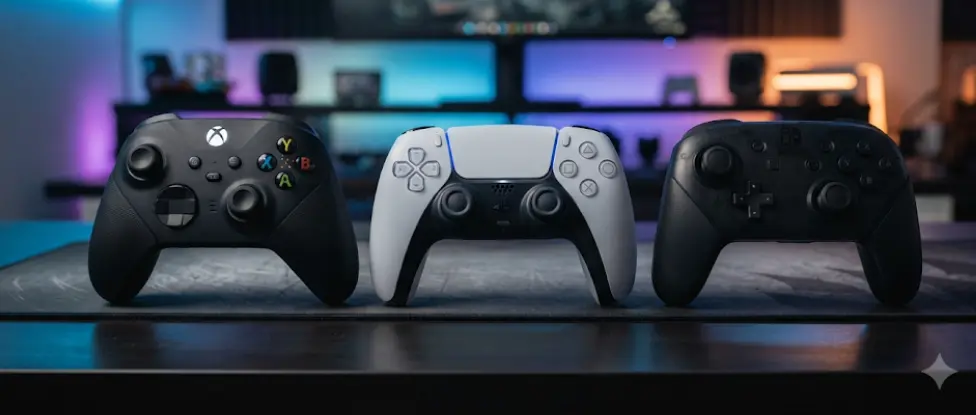
TL;DR: Choosing the right controller for PC gaming depends on compatibility, comfort, game preferences, and the features you actually use. The Xbox Wireless Controller is the most straightforward option for Windows users because of its native XInput support and broad game compatibility. The PlayStation DualSense stands out with adaptive triggers, advanced haptic feedback, and an immersive design, although several of its standout features require individual game support. The Nintendo Switch Pro Controller offers excellent battery life, comfortable ergonomics, and a responsive D-pad, but may need Steam Input configuration for a smoother PC experience. For most PC gamers, Xbox is the safest all-round choice, while DualSense is ideal for players who value immersive feedback.
Xbox Vs DualSense Vs Switch Pro: An Overview
A good gaming controller can make a noticeable difference to how you play, particularly in racing games, platformers, sports titles, action adventures, and fighting games. While a keyboard and mouse remain popular for PC gaming, controllers offer a more relaxed and familiar experience for games designed around analogue sticks, triggers, and directional inputs. The Xbox Wireless Controller, Sony DualSense, and Nintendo Switch Pro Controller are three popular options worth comparing.
Although all three can work with a PC, they approach gaming differently. Microsoft's Xbox controller is designed around the Windows and Xbox ecosystem, making it a familiar choice for many PC games. Sony's DualSense focuses on tactile feedback and immersive controls, while Nintendo's Pro Controller prioritises comfort, a traditional button layout, and long battery life.
The important thing is to look beyond brand preference. A controller that works perfectly with one game or platform may require additional configuration with another. Connectivity, button recognition, input compatibility, battery arrangements, and game-specific features all influence the overall experience.
1. Xbox Wireless Controller: Best For Overall PC Compatibility
Design And Comfort
The Xbox Wireless Controller features an asymmetrical analogue stick layout, with the left stick positioned higher than the D-pad. This arrangement feels natural for many players, especially in racing games, shooters, sports titles, and action games. Its sculpted surfaces, textured grips, triggers, and bumpers provide a secure hold during longer gaming sessions.
Its hybrid D-pad is another useful addition. It provides a more defined directional feel than older Xbox controller designs, making menu navigation and directional inputs comfortable. The controller also includes a dedicated Share button for capturing and sharing screenshots or game clips on supported devices and platforms.
PC Compatibility And Performance
Compatibility is where the Xbox Wireless Controller has its biggest advantage. Windows recognises supported Xbox controllers through Microsoft's XInput interface, which is widely used by PC games. As a result, many modern Windows titles detect the controller automatically, display the correct Xbox button prompts, and require little manual configuration.
You can connect it to a Windows PC using a compatible USB-C cable or Bluetooth. A separate Xbox Wireless Adapter is another option for supported wireless connections, but it is not included with every controller. The Xbox Accessories app on Windows also allows supported customisation, including button remapping and controller configuration.
Battery And Limitations
The standard Xbox Wireless Controller uses replaceable AA batteries, with Microsoft advertising up to 40 hours of battery life under its stated testing conditions. Actual battery life varies depending on usage and connected accessories. You can also use compatible rechargeable AA batteries or a separately purchased rechargeable battery pack.
Its biggest drawback is that the standard controller does not include a built-in rechargeable battery. Players who prefer charging through a cable may find this less convenient. It also does not offer the advanced adaptive triggers and game-specific haptic features found on the DualSense. However, for straightforward Windows gaming, these compromises are relatively easy to accept.
2. Sony DualSense: Best For Immersive Gaming Features
Design And Comfort
The DualSense has a symmetrical analogue stick layout, with both sticks positioned at the same height. Its wider body, textured grips, integrated light bar, and familiar PlayStation button arrangement give it a distinctive design. The controller feels particularly suitable for players who enjoy action adventures, narrative-driven games, and titles originally developed for PlayStation.
One of its most noticeable design features is the built-in touchpad, which can support additional inputs in compatible games. It also includes a built-in microphone, speaker, motion sensors, and a 3.5 mm headset jack. These features add flexibility, although their availability and functionality depend on the connected device and game.
Adaptive Triggers And Haptic Feedback
The DualSense stands out because of its advanced feedback technology. Its adaptive triggers can change resistance depending on what is happening in a supported game. For example, a game might simulate the tension of drawing a bow or the changing resistance of a vehicle's accelerator. This creates a more tactile experience than conventional trigger buttons.
Its haptic feedback system can also reproduce a wider range of sensations than traditional basic rumble vibration. Players may experience different feedback patterns for environmental effects, movement, and in-game actions. However, these features are not automatically available in every PC game. On PC, supported haptic feedback requires a USB connection, while adaptive triggers work only in compatible games.
PC Compatibility And Limitations
The DualSense connects to Windows 10 (64-bit) and Windows 11 through USB or Bluetooth. Steam also supports PlayStation controllers through Steam Input, allowing users to configure button layouts and controller settings for compatible games. Sony's PlayStation Accessories application for Windows can be used to update the controller's firmware.
The main limitation is that PC game support varies. Some titles provide native DualSense support, while others may recognise it as a more generic controller or require Steam Input configuration. Xbox-style button prompts may also appear in games that do not specifically support PlayStation layouts. If you want to experience its full feature set, check individual game compatibility before purchasing.
3. Nintendo Switch Pro Controller: Best For Comfort And Battery Life
Design And Ergonomics
The Nintendo Switch Pro Controller has a traditional, symmetrical button layout and a comfortable shape designed for extended gaming sessions. Its full-size grip design makes it more substantial than the smaller Joy-Con controllers, while the well-spaced analogue sticks and directional pad provide a familiar arrangement.
One of its strongest features is the D-pad, which is particularly useful in platformers, fighting games, retro titles, and games requiring precise directional inputs. The controller also includes motion controls and HD Rumble, giving it more functionality than a basic gamepad. Its build and ergonomics make it a comfortable option for players who prefer a conventional controller design.
PC Compatibility And Connectivity
The Switch Pro Controller can connect to a Windows PC through Bluetooth, and Steam Input officially supports it. Once connected, users can configure button layouts, create game-specific control profiles, and adjust supported settings through Steam. This makes it a practical choice for people who regularly play games through the Steam client.
However, compatibility can be less straightforward outside Steam. Many Windows games are designed around Xbox-style XInput controls, and the Switch Pro Controller may not be recognised natively by every title. Steam Input can help translate and configure inputs for supported games, but non-Steam launchers and games may require additional setup or third-party tools.
Another detail worth considering is its button arrangement. The A, B, X, and Y buttons are positioned differently from their Xbox counterparts. This can take some adjustment, especially when switching between controllers or following on-screen instructions.
Battery Life And Limitations
Battery performance is a major advantage of the Nintendo Switch Pro Controller. Nintendo states that a fully charged controller can provide approximately 40 hours of use, although actual battery life varies depending on the software and features being used. A full charge takes approximately six hours.
Its limitations become more apparent when using it primarily for PC gaming. The controller does not have analogue trigger functionality, which can matter in racing games where gradual trigger pressure controls acceleration or braking. It also lacks the DualSense's adaptive triggers and advanced haptic feedback. For players who prioritise long battery life and comfortable handling over specialised PC features, however, it remains a strong option.
Xbox Vs DualSense Vs Switch Pro: Side-By-Side Comparison
The three controllers offer different advantages, so comparing their core specifications makes the buying decision easier. The following table focuses on the standard Xbox Wireless Controller, standard DualSense Wireless Controller, and original Nintendo Switch Pro Controller rather than their premium or newer variants.
| Feature | Xbox Wireless | DualSense | Switch Pro |
|---|---|---|---|
| PC compatibility | Excellent | Good to excellent, game-dependent | Good with Steam Input |
| Connectivity | USB-C, Bluetooth, Xbox Wireless | USB-C, Bluetooth | USB-C, Bluetooth |
| Stick layout | Asymmetrical | Symmetrical | Asymmetrical |
| Trigger technology | Standard analogue triggers | Adaptive triggers | Digital triggers |
| Feedback | Conventional vibration | Advanced haptics | HD Rumble |
| Battery | AA batteries | Built-in rechargeable | Built-in rechargeable |
| Advertised battery life | Up to 40 hours | Varies by use | Approximately 40 hours |
| Motion controls | No | Yes | Yes |
| Touchpad | No | Yes | No |
| Best suited for | General PC gaming | Immersive supported games | Comfort and battery life |
Note: Features and compatibility depend on the controller version, operating system, game, connection method, and software support.
Which Controller Should You Choose For Different Games?
For FPS And Competitive Games
For first-person shooters and competitive titles, the Xbox Wireless Controller is a sensible choice because of its straightforward Windows compatibility and familiar button mapping. Its asymmetrical stick placement also works well for many players who prefer this arrangement. However, controller performance ultimately depends on the game, and competitive PC shooters often favour keyboard and mouse controls.
For Racing And Sports Games
The Xbox Wireless Controller and DualSense are both strong options for racing and sports games. Their analogue triggers allow players to control pressure more gradually, which can be useful for acceleration and braking. The DualSense can offer an additional layer of immersion in games that support adaptive triggers, while the Xbox controller provides simpler and more consistent compatibility across Windows titles.
For Platformers And Casual Gaming
The Nintendo Switch Pro Controller is particularly appealing for platformers, retro games, and casual titles. Its D-pad is comfortable for directional inputs, while its long battery life makes it suitable for extended sessions. The Xbox controller is also a reliable alternative, especially if you frequently switch between different PC games and launchers.
How To Connect These Controllers To A Windows PC
Connecting a controller is generally straightforward, but the exact process depends on the device and connection method.
Xbox Wireless Controller
Turn on the controller and press and hold its Pair button until the Xbox button starts flashing. On your PC, open Settings, select Bluetooth & devices, and choose Add device. Select Bluetooth and choose your controller when it appears. Alternatively, connect it using a compatible USB-C cable.
Sony DualSense Controller
For Bluetooth pairing, turn off the controller first. Hold the Create button and PS button together until the light bar begins flashing. Open your PC's Bluetooth settings, select Add device, and choose the DualSense controller. For a wired connection, use a compatible USB-C data cable.
Nintendo Switch Pro Controller
Turn on Bluetooth on your Windows PC. Press and hold the small Sync button on the top of the Pro Controller until its indicator lights begin flashing. Select Add device in Windows Bluetooth settings and choose the controller. For Steam games, open Steam Settings, navigate to Controller, and enable the relevant Steam Input support for Nintendo controllers if needed.
After connecting any controller, open a game or Steam's controller settings and test the buttons, triggers, and analogue sticks. If a game does not recognise the controller, check its controller-support information and available input settings before installing additional software.
Final Recommendation And Decision Framework
Choosing between these three controllers ultimately comes down to how much convenience, immersion, and customisation you expect from your PC gaming setup. The Xbox Wireless Controller is the most practical recommendation for most Windows users. Its broad compatibility, familiar layout, and simple connection options make it a dependable everyday choice, particularly if you play games from multiple launchers.
The DualSense is worth considering if you enjoy immersive gameplay and want to experience adaptive triggers and advanced haptics in supported PC titles. It offers more distinctive features, but those features should not be the only reason to buy it unless your preferred games actually support them. The Nintendo Switch Pro Controller, meanwhile, is a comfortable alternative with excellent battery life and a useful D-pad, particularly for players who already own a Nintendo Switch.
Ultimately, there is no universal winner. If you want the least complicated PC gaming experience, choose Xbox. If tactile feedback and immersive features matter most, choose DualSense. If comfort, battery life, and Nintendo-style controls are your priorities, the Switch Pro Controller is a worthwhile option. Check game compatibility, connection preferences, and current pricing before making your final purchase.
Frequently Asked Questions
Q. Which controller is best for PC gaming overall?
The Xbox Wireless Controller is generally the best all-round option for Windows PC gaming because many games support its XInput layout natively, reducing the need for additional configuration.
Q. Is the PS5 DualSense controller compatible with Windows 11?
Yes. The DualSense connects to Windows 11 through USB-C or Bluetooth. However, individual game support determines which controller features are available.
Q. Does the Xbox controller work better than DualSense on Steam?
Both are supported by Steam. Xbox controllers generally require less configuration in many Windows games, while DualSense support depends more on the game's implementation and Steam Input settings.
Q. Can I use a Nintendo Switch Pro Controller on a PC?
Yes. It can connect through Bluetooth or USB and is supported by Steam Input. Some non-Steam games may require additional configuration.
Q. Which controller has the longest battery life?
The standard Xbox Wireless Controller and Nintendo Switch Pro Controller are both advertised for up to approximately 40 hours under specified conditions. Actual battery life varies with usage and features.
Q. Does DualSense haptic feedback work on PC?
Yes, but only in supported games. Sony specifies that DualSense haptic feedback on PC requires a USB connection, so Bluetooth does not provide the same supported experience.
Q. Is the Nintendo Switch Pro Controller good for FPS games on PC?
It can work well with supported games, particularly through Steam Input. However, its digital triggers and less universal native Windows compatibility may make it less convenient than an Xbox controller for some FPS titles.
Q. Which controller is better for racing games?
Xbox and DualSense are generally better suited to racing games because both have analogue triggers that support gradual pressure input. DualSense also offers adaptive trigger feedback in compatible titles.
Q. Can I connect these controllers to a PC without Bluetooth?
Yes. All three support USB connectivity, although you need a compatible data cable. The Xbox controller can also use a separate Xbox Wireless Adapter for supported wireless connections.
Q. Do I need additional software to use a controller on PC?
Not always. Xbox controllers are recognised by many Windows games automatically, while Steam Input can configure supported PlayStation and Nintendo controllers. Additional software may be needed for certain non-Steam games or specialised configurations.
Ready to upgrade your tech?
Browse our collection of quality refurbished products at unbeatable prices.