
Why Is My Laptop Slow? 12 Fixes to Try Before Spending Anything
Is your laptop running slowly? Discover 12 free ways to improve performance, from disabling startup apps and clearing storage to checking malware and managing browser tabs.

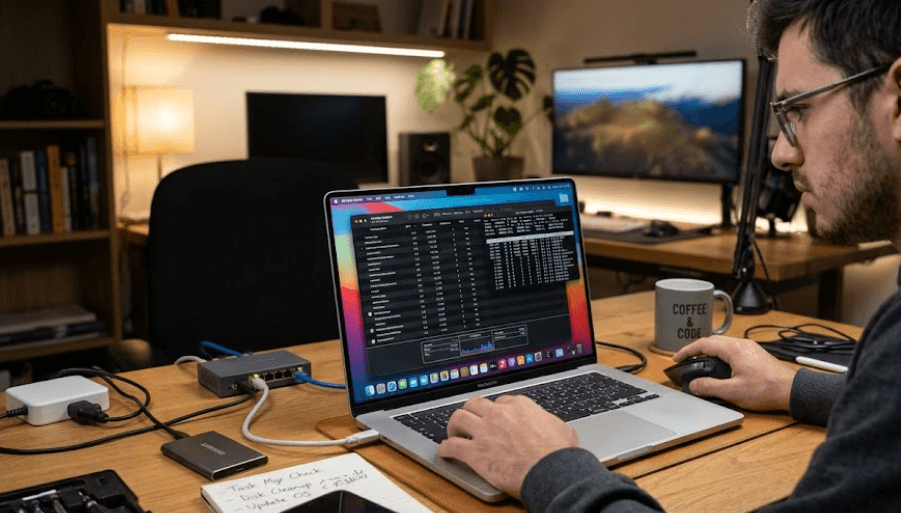
TL;DR: If your laptop is running slowly, you do not necessarily need a new device or an expensive upgrade. Too many startup apps, limited storage, unnecessary browser extensions, outdated software, malware, and overheating can all affect performance. Before spending money, restart your laptop, check which apps are consuming resources, free up storage, update your system, and try the other fixes in this guide. These steps can help Windows laptops run more smoothly, although the results depend on the cause of the slowdown and the age of your hardware.
Why Is Your Laptop Running Slowly?
A laptop that once opened applications quickly but now takes several minutes to start can make even simple tasks frustrating. Opening Chrome, joining a video call, switching between spreadsheets, or downloading files may suddenly take longer than expected. In many cases, the slowdown develops gradually as more applications, browser extensions, temporary files, and background processes accumulate. However, a laptop can also become sluggish because of insufficient memory, a nearly full drive, an outdated operating system, or a hardware problem. Identifying what changed is more useful than immediately assuming that the laptop has become too old.
Another important distinction is whether the entire laptop is slow or only one activity. If the desktop, File Explorer, and multiple applications respond slowly, the problem may involve system resources, storage, or background processes. If only websites take a long time to load while offline applications work normally, your internet connection, browser, or the website itself could be responsible. Similarly, a laptop that becomes slow only during gaming or video editing may be struggling with demanding workloads, heat, or power limits rather than everyday performance.
Before changing settings, save your work and restart the laptop. Then observe whether the problem returns immediately or develops after several applications have been opened. This simple check can help distinguish a temporary issue from a recurring one. Microsoft recommends checking several possible causes of poor performance instead of relying on a single fix, particularly when an older computer may have hardware limitations.
12 Free Fixes to Try Before Spending Anything
1. Restart Your Laptop
Restarting is a sensible first step when your laptop suddenly becomes slow. Leaving a computer running for long periods can allow temporary processes, applications, and resource-intensive tasks to accumulate. A restart closes running applications and starts a fresh Windows session, which can resolve some temporary performance problems without requiring any technical changes.
Save your open documents, close applications, and select Start > Power > Restart. Once the laptop starts again, open only the applications you need and check whether performance improves. If the laptop becomes slow again after a few minutes, move on to checking resource usage rather than repeatedly restarting it.
2. Check Task Manager for Resource-Hungry Apps
Windows Task Manager shows which applications and processes are using your laptop's CPU, memory, and disk resources. Press Ctrl + Shift + Esc to open it, then select the Processes tab. If an application is consuming unusually high resources while you are not using it, close it normally before considering the End Task option.
Look at the overall CPU, Memory, and Disk usage figures, especially when the laptop feels unresponsive. High usage is not automatically a problem because updates, scans, and demanding applications can temporarily require substantial resources. The useful clue is whether one process continues consuming resources without a clear reason. Avoid ending unfamiliar system processes, as doing so can disrupt Windows or other applications.
3. Disable Unnecessary Start-up Apps
Some applications automatically launch when Windows starts, even when you do not need them immediately. Messaging tools, gaming launchers, cloud utilities, and other background applications can extend start-up time and consume memory throughout the day. Disabling unnecessary start-up entries is particularly helpful if your laptop takes a long time to become usable after you sign in.
Open Task Manager with Ctrl + Shift + Esc, select Startup apps, and review the listed applications. Disable programs you recognize and do not need to launch automatically. Keep essential security software and important device utilities enabled unless you understand the consequences of disabling them. You can still open most disabled applications manually whenever you need them.
4. Free Up Storage Space
A nearly full system drive can contribute to poor performance and leave less room for temporary files and updates. Start by opening Settings > System > Storage and checking which categories use the most space. Windows Storage Sense and the Temporary Files section can help remove unnecessary files without requiring a paid cleaning application.
Review the files selected for deletion before confirming the cleanup. Your Downloads folder may contain important documents, and some cleanup options can remove files you intended to keep. You can also uninstall applications you no longer use or move large personal files to an external drive. Freeing space will not make every laptop faster, but it can help when low storage is part of the problem.
5. Close Unused Browser Tabs and Extensions
A browser with dozens of open tabs can consume considerable memory, especially when several pages contain videos, interactive content, or web applications. If your laptop slows down while using Chrome, close tabs you no longer need and check whether performance improves. You do not have to close every tab, but reducing unnecessary activity can help systems with limited memory.
Extensions can also run background processes or interfere with browsing. In Chrome, open the Extensions menu and select Manage Extensions to disable or remove extensions you no longer use. Update Chrome as well, because browser updates can include performance improvements. If only browsing feels slow, these steps are worth trying before assuming that your entire laptop needs an upgrade.
6. Update Windows and Your Applications
An outdated operating system or application may contain bugs that affect stability, compatibility, or performance. Open Settings > Windows Update and check for available updates. Install relevant updates and restart the laptop if required. You can also update applications through their official update settings or the Microsoft Store, depending on where they were installed.
Do not expect every update to make your laptop faster. Updates can take time, temporarily increase CPU or disk activity, and occasionally introduce compatibility issues. If your laptop is already struggling, connect it to power and allow an update to finish before judging performance. Windows 10 also reached the end of standard support on October 14, 2025, so users still running it should consider their security and support options rather than relying on outdated software indefinitely.
7. Run a Malware Scan
Malware can consume system resources, display unwanted advertisements, or run processes in the background. If your laptop has become unusually slow alongside unfamiliar pop-ups, unexpected applications, or browser redirects, a security scan is a sensible precaution. These symptoms do not prove an infection, but they justify checking the system.
On Windows, open Windows Security > Virus & threat protection > Quick scan. Follow any recommended actions if a threat is detected. Avoid downloading unknown PC optimizers or antivirus tools advertised through pop-ups, as some may introduce further unwanted software. A scan can identify certain threats, but it cannot guarantee that every performance problem is caused by or will be resolved through malware removal.
8. Adjust the Power Mode
Your laptop may prioritize battery life over performance when it is unplugged or configured for energy savings. On Windows 11, open Settings > System > Power & battery and check the Power mode setting. Choosing Best performance can improve responsiveness for some demanding tasks, although the difference depends on the laptop and workload.
Use this setting selectively if you need more performance while editing, multitasking, or running demanding applications. It can increase power consumption and heat, so it is not necessarily the best choice for everyday browsing on battery power. If the laptop becomes slow only when unplugged, comparing its behavior on battery and while connected to power can also help identify a power-related limitation.
9. Reduce Unnecessary Visual Effects
Windows animations, transparency, and other visual effects can use system resources. On older or lower-powered laptops, reducing these effects may make navigation feel more responsive, although it will not solve every cause of slow performance.
Search Windows for Adjust the appearance and performance of Windows and open the corresponding settings. Under Visual Effects, you can select Adjust for best performance or disable individual effects. The first option can make Windows look less polished, so consider turning off only the effects you do not need. If the laptop is already running smoothly during everyday tasks, this adjustment may produce little noticeable improvement.
10. Remove Applications You No Longer Use
Unused software can occupy valuable storage, install background services, or add start-up processes. Open Settings > Apps > Installed apps, review the list, and uninstall applications you recognize but no longer need. Removing software you do not use can free space and reduce unnecessary background activity.
Be selective rather than deleting everything unfamiliar. Drivers, manufacturer utilities, security components, and shared software packages may support hardware or other applications. If you are unsure what a program does, research its official name before removing it. Uninstalling unused applications is most helpful when they consume significant storage or run background processes; removing a small application will not automatically transform an underpowered laptop.
11. Check for Overheating and Blocked Vents
If your laptop starts quickly but slows down during gaming, video calls, or demanding applications, heat may be a factor. Processors can reduce their operating speed when temperatures become too high, a protective behavior known as thermal throttling. Dust-blocked vents, soft surfaces, and restricted airflow can contribute to overheating.
Place the laptop on a firm, flat surface and ensure its ventilation openings are unobstructed. Avoid using it on bedding or cushions that block airflow. If the device becomes unusually hot, shuts down unexpectedly, or makes persistent loud fan noise, investigate further instead of pushing it harder. Do not open the laptop or attempt internal cleaning unless you are comfortable with the procedure and understand the warranty implications.
12. Optimize the Drive and Check Its Health
The type and condition of your storage drive can influence how quickly a laptop starts and opens applications. If your laptop uses a traditional hard disk drive (HDD), optimizing it may help with some disk-related performance issues. Windows includes a built-in Defragment and Optimize Drives utility that identifies the drive type and applies the appropriate optimization.
Open the utility through Windows Search, select the drive, and review the available status before proceeding. Windows generally handles solid-state drive (SSD) optimization differently from HDD defragmentation, so avoid repeatedly running third-party defragmentation tools. If the drive reports errors, makes unusual clicking noises, or the laptop freezes while accessing files, back up important data promptly and investigate drive health. A failing drive may require repair or replacement rather than routine optimization.
Which Free Fix Should You Try First?
The most useful fix depends on when the slowdown occurs. If start-up is the main problem, review start-up apps. If browsing is sluggish, close unnecessary tabs and inspect extensions. If the laptop becomes slow during demanding tasks, check resource usage and temperatures. This approach helps you avoid changing settings that have little connection to the actual problem.
The following table matches common symptoms with reasonable first steps. It is a troubleshooting guide rather than a guarantee, since several causes can produce similar symptoms. If one change makes no difference, move to the next relevant check instead of repeating the same action.
| Laptop Symptom | First Fix to Try | What It May Address |
|---|---|---|
| Slow startup | Disable unnecessary startup apps | Background activity at login |
| Slow browsing | Close tabs and disable unused extensions | Browser memory and processing load |
| Almost-full drive | Remove temporary files and unused apps | Limited storage space |
| Sudden slowdown | Restart and check Task Manager | Temporary processes or heavy apps |
| Slow during gaming | Check temperatures and power mode | Heat or power restrictions |
| Frequent freezing | Back up files and check drive health | Potential storage or hardware issues |
When Should You Consider Spending Money?
Free troubleshooting can resolve many everyday performance issues, but it cannot overcome every hardware limitation. A laptop with insufficient RAM for your workload may continue struggling even after unnecessary applications are closed. Similarly, an older processor may take longer to handle modern software, while a failing battery, damaged storage drive, or faulty cooling system may require professional attention.
Before buying anything, check whether your laptop supports a RAM or SSD upgrade and whether the existing component is actually the bottleneck. Some laptops have soldered memory that cannot be upgraded, while others offer removable RAM or replaceable storage. Check the manufacturer's specifications for your exact model before purchasing parts. If the laptop contains important files and shows signs of drive failure, prioritize backing up your data rather than running repeated optimization utilities.
A repair or upgrade becomes more reasonable when you have tried relevant free fixes and the same limitation persists. For example, replacing a slow HDD with a compatible SSD can significantly improve startup and application loading on supported older laptops. A RAM upgrade may help when memory usage consistently reaches its limit. However, if the laptop has several aging components or no longer supports the software you need, comparing repair costs against replacement value may be the more practical decision.
Frequently Asked Questions
Q. Why is my laptop so slow all of a sudden?
A. Sudden slowdowns can result from a demanding background process, a Windows update, limited storage, a browser issue, malware, or overheating. Restart the laptop, check Task Manager, and identify whether the slowdown affects all applications or just one.
Q. How can I make my laptop faster for free?
A. Restart it, disable unnecessary startup apps, close unused browser tabs, free up storage, update software, and scan for malware. Start with the steps that match your symptoms instead of changing every setting at once.
Q. Does restarting a laptop improve its speed?
A. It can resolve temporary slowdowns by closing running applications and starting a fresh session. If the same problem returns, investigate background processes, storage, memory usage, and other possible causes.
Q. Can too many Chrome tabs slow down my laptop?
A. Yes. Multiple tabs and extensions can consume memory and processing resources, particularly on laptops with limited RAM. Close tabs you do not need and disable extensions that are no longer useful.
Q. Does deleting temporary files make a laptop faster?
A. It can help when low storage is contributing to the problem. However, deleting temporary files will not necessarily improve performance if the real issue is a slow processor, overheating, or a demanding application.
Q. Can malware cause a laptop to run slowly?
A. Yes. Some malicious programs consume CPU, memory, or disk resources. Run a scan using Windows Security and follow its recommendations if a threat is detected.
Q. Should I use a PC cleaner to speed up my laptop?
A. You generally do not need to pay for a cleaning application to perform basic maintenance. Windows already includes tools for storage cleanup, startup management, updates, and security scans. Avoid unfamiliar utilities that promise unrealistic performance gains.
Q. Can overheating make my laptop slow?
A. Yes. A laptop may reduce processor performance to control excessive heat. Keep vents unobstructed, use a firm surface, and seek professional help if overheating continues or the device shuts down unexpectedly.
Q. Will upgrading RAM make my laptop faster?
A. It can help if your laptop regularly runs out of available memory while multitasking. First, check Task Manager and your laptop's upgrade specifications. If memory usage is not the bottleneck, another upgrade may offer little benefit.
Q. When should I replace my slow laptop?
A. Consider replacement when relevant free fixes and reasonable repairs cannot meet your needs, the hardware is failing, or the laptop no longer supports essential software. Compare repair costs, upgrade compatibility, security support, and the price of a suitable replacement before deciding.
Final Recommendation
If your laptop is slow, start with the free fixes that address the symptoms you actually experience. Restart the device, check Task Manager, disable unnecessary startup apps, free up storage, and update your software before spending money on upgrades or repairs. If the slowdown occurs mainly in a browser, investigate tabs and extensions; if it appears during demanding tasks, check memory usage, temperatures, and power settings.
Give each relevant change a chance to make a difference, and avoid installing multiple PC optimization tools that promise instant results. If the laptop remains consistently slow, use the evidence you have gathered to decide whether the problem calls for a RAM upgrade, an SSD replacement, a repair, or a new device. The smartest way to fix a slow laptop is to identify the cause first, try the appropriate free solution, and spend money only when there is a clear reason to do so.
Ready to upgrade your tech?
Browse our collection of quality refurbished products at unbeatable prices.






