
Using Your DSLR or Mirrorless Camera as a Webcam: Setup Guide
Turn your DSLR or mirrorless camera into a webcam for professional-looking livestreams and videos. Learn USB and HDMI setup, OBS Studio configuration, autofocus, lighting, audio, and tips for reliable long streaming sessions.

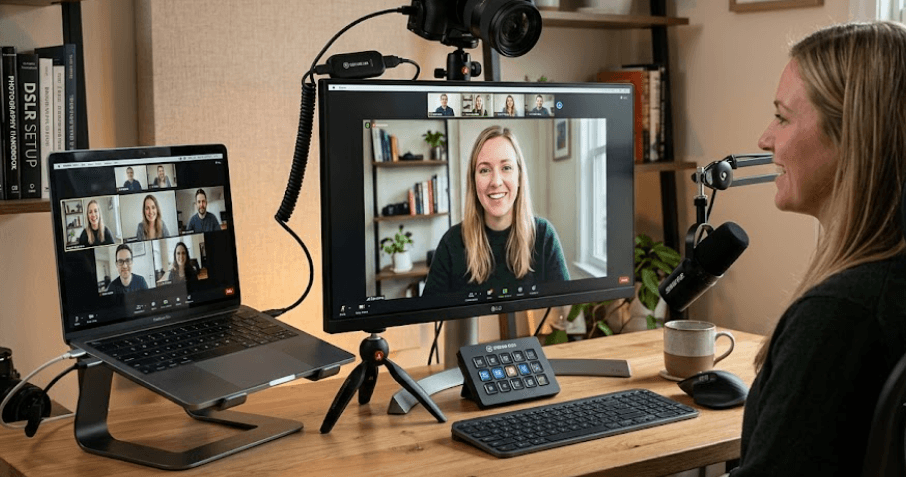
TL;DR: Your DSLR or mirrorless camera can deliver a more professional look for livestreams, YouTube videos, online tutorials, and creator meetings than a typical built-in webcam. Depending on your camera model, you can connect it directly through USB using the manufacturer's webcam software or use an HDMI capture card for a more flexible streaming setup. For creators using OBS Studio, the HDMI method is particularly useful when the camera supports clean HDMI output. Before going live, configure autofocus, exposure, lighting, and audio, and check the camera's power and overheating limitations to ensure a reliable streaming experience.
Why Use A DSLR Or Mirrorless Camera As A Webcam?
If you create YouTube videos, stream games, host live sessions, or record online courses, video quality can make a noticeable difference to your content. A DSLR or mirrorless camera can provide greater control over exposure, focus, and background separation than many built-in webcams. The result can be a sharper-looking image with more natural colours and a professional appearance, provided the camera, lens, lighting, and settings are suitable.
One major advantage is lens flexibility. A suitable lens can help you frame your face, showcase products, or create a blurred background that separates you from your surroundings. Larger sensors can also offer advantages in low-light situations, although the final result depends on the specific camera, lens aperture, lighting conditions, and image settings. These features are especially useful for talking-head videos, livestreams, podcasts, and product demonstrations.
However, a dedicated camera is not automatically the best choice for every creator. It requires additional setup, and some models need specific software or a capture card to work with a computer. You should also consider battery life, heat management, autofocus performance, and audio equipment. If you already own a compatible camera, using it as a webcam can be a practical way to improve your production quality without immediately investing in a separate streaming camera.
What You Need Before Starting
Before connecting your camera, check the manufacturer's compatibility information for your exact model and computer operating system. Some cameras support direct USB webcam functionality, while others require manufacturer software. Certain models also offer USB streaming directly, which may provide different video and audio capabilities from older webcam applications. Compatibility should always be verified before purchasing additional equipment.
Your setup will generally require a camera, a suitable USB or HDMI cable, and a computer capable of running your streaming or recording software. If you choose HDMI, you will also need a compatible capture card. A stable tripod or camera mount helps maintain consistent framing, while a continuous light source and an external microphone can improve the overall production quality.
Use the following table to identify the equipment required for each connection method. You do not necessarily need to purchase everything listed; the requirements depend on your camera's supported features and the type of content you produce.
| Equipment | USB Method | HDMI Method |
|---|---|---|
| DSLR or mirrorless camera | Required | Required |
| Compatible USB cable | Required | Optional for this connection |
| Manufacturer webcam software | Sometimes required | Usually not required for video capture |
| HDMI cable | Not required | Required |
| HDMI capture card | Not required | Required |
| Tripod or camera mount | Recommended | Recommended |
| External microphone | Recommended | Recommended |
| Continuous power solution | Recommended for long sessions | Recommended for long sessions |
Choose The Right Connection Method
USB Webcam Connection
The USB method is generally the easiest starting point. If your camera supports direct USB streaming or is compatible with the manufacturer's webcam utility, you may be able to connect it to your computer with a USB cable and select it as the video source in a supported application. This approach reduces the number of accessories required and is suitable for creators who want a straightforward setup for livestreams, meetings, or recordings.
Different manufacturers implement USB webcam functionality differently. For example, Nikon provides Webcam Utility for compatible cameras, while Sony offers Imaging Edge Webcam for supported models. Some newer Sony cameras also support a separate USB streaming function. Video resolution, audio support, operating-system compatibility, and available camera controls can vary, so do not assume that all USB connections provide the same results.
HDMI Capture Card Connection
The HDMI method is worth considering if you want greater flexibility in a streaming setup. A compatible camera sends its video output through HDMI to a capture card, which connects to your computer over USB. The computer can then recognize the capture card as a video source in supported software. This approach is useful for creators who want to build more elaborate scenes in OBS Studio.
Before choosing this method, verify that your camera provides clean HDMI output, meaning that it can display the video feed without unwanted menus, focus boxes, or other overlays. Check the camera's supported output resolution, frame rate, and continuous-operation behavior. Some cameras impose recording or live-view time limits, while others may require specific settings to prevent the display from switching off.
Step 1: Connect Your Camera Through USB
Start by visiting your camera manufacturer's official support website and locating the webcam utility or USB streaming instructions for your model. Download the appropriate software if the camera requires it, then install it according to the manufacturer's instructions. Do not assume that a generic webcam utility will work with every DSLR or mirrorless camera.
Next, connect the camera to your computer using a compatible USB cable. Depending on the model, you may need to select a particular USB connection mode or switch the camera to movie mode. Follow the instructions for your specific camera rather than changing settings at random. If the software requires a restart, complete that step before opening your streaming application.
Open your chosen application and look for the camera in its video-device settings. Select the appropriate webcam device and check whether a live image appears. If the camera is not detected, verify the cable, USB mode, software installation, and compatibility list. A USB connection does not guarantee that every camera will deliver its maximum recording resolution as a webcam.
Step 2: Set Up An HDMI Capture Card
If you prefer the HDMI method, begin by checking the camera's HDMI output specifications and the capture card's supported resolutions and frame rates. You will need a suitable cable for the camera's HDMI port, which may be full-size, mini-HDMI, or micro-HDMI, depending on the model. The other end must connect to the capture card's HDMI input.
Connect the camera to the capture card, then connect the capture card to your computer using the required USB port and cable. Switch on the camera and open its HDMI display settings. If supported, disable information overlays so the capture card receives a clean video feed. You may also need to adjust the HDMI output resolution or display settings to match the capture card's capabilities.
Once everything is connected, open your streaming software and select the capture card as the video source. Confirm that the image appears and that the resolution and frame rate are appropriate for your planned stream. If the feed is blank, check the cable connections, camera output settings, capture card compatibility, and software device selection before replacing any equipment.
Step 3: Configure OBS Studio For Streaming
OBS Studio is a popular option for creators who want to combine camera footage with gameplay, screen recordings, graphics, and other content. After connecting your camera, open OBS Studio and create a scene for your stream. Under Sources, add a Video Capture Device and select your camera or HDMI capture card from the device list. The exact device name depends on your hardware and drivers.
Open the source properties and select a supported resolution and frame rate. For a typical talking-head stream, 1080p at 30 frames per second can be a sensible starting point if your camera and capture card support it. Creators who produce fast-moving content may prefer 60 frames per second when the complete setup supports that rate. Higher settings require more processing power and bandwidth, so choose them according to your content and computer.
Adjust the camera feed's size and position within the OBS canvas. You can add overlays, text, gameplay footage, and other sources without changing the camera's physical connection. Before streaming publicly, make a short local recording and review the picture, audio, and synchronization. This gives you an opportunity to correct framing, exposure, or sound problems before viewers see them.
Step 4: Optimize Focus, Exposure, And Lighting
For talking-head content, start with a comfortable camera angle near eye level. Position yourself at a suitable distance from the lens and leave enough room around your head and shoulders for natural framing. If your lens supports autofocus with face or eye detection, enable the appropriate feature and test it while moving slightly in your seat. Manual focus can also work well when your position remains fixed.
Exposure settings determine how bright and natural the image looks. If your camera supports manual video exposure, choose a shutter speed appropriate for your frame rate, then adjust aperture and ISO to achieve a balanced image. For example, a shutter speed near 1/60 second is a common starting point for 30 fps footage, although regional lighting conditions and creative requirements may call for adjustments. Avoid pushing ISO unnecessarily high because that can introduce visible image noise.
Lighting is just as important as the camera itself. A soft light positioned in front of you can illuminate your face more evenly than a bright light behind you. A window can provide useful natural light, but changing daylight may cause inconsistent exposure during longer sessions. Test the image with your actual room lighting, and make sure the background and subject are balanced before starting the stream.
Step 5: Improve Audio And Prepare For Long Sessions
Good video will not compensate for poor audio. Many creators use a dedicated USB microphone or an audio interface with an external microphone to achieve clearer speech and better control over sound levels. Connect your microphone to the computer, then select it as the audio input in OBS Studio or your preferred application. Monitor the audio while speaking at your normal recording volume.
Check the camera's power options before planning a long livestream. Depending on the model, you may be able to use a compatible AC adapter, a dummy battery, or supported USB power delivery. Some cameras can also receive power through a computer connection, but USB power and battery charging behavior vary. Confirm the manufacturer's guidance and use accessories designed for your camera.
Finally, check the camera's temperature and continuous-operation limits. A camera that works well for a short recording may behave differently during a long livestream, particularly at higher resolutions or in a warm room. Keep ventilation unobstructed, avoid direct sunlight, and test your full setup for the expected duration. If the camera overheats, shuts down, or loses focus repeatedly, investigate the cause before relying on it for an important broadcast.
Troubleshooting Common Webcam Problems
If your camera does not appear in your streaming software, start by checking whether your model supports the connection method you selected. For USB, verify the webcam utility, cable, connection mode, and operating-system compatibility. For HDMI, confirm that the camera is outputting a supported signal and that the capture card is recognized by the computer. Close other applications that may be using the camera if the manufacturer identifies them as a source of connection conflicts.
If the image appears blurry, check the lens, focus mode, subject distance, and lighting. Autofocus may struggle when the room is dark or when objects repeatedly move between the camera and your face. If the picture freezes or stutters, reduce the output resolution or frame rate and check the USB port, cable, computer load, and capture card specifications. A higher advertised resolution does not guarantee smooth performance across the entire setup.
Audio and power problems also deserve attention. If the microphone is silent, confirm that the correct input device is selected and that its volume is not muted. Remember that some USB webcam utilities do not transmit audio from the camera, so you may need a separate microphone. If the camera disconnects during long sessions, check its power supply, standby settings, temperature, and cable connections.
Final Recommendation And Decision Framework
Using a DSLR or mirrorless camera as a webcam can be a worthwhile upgrade for streamers and content creators who already own compatible equipment. It offers greater control over framing, focus, and the visual style of a stream, while allowing you to build a more polished setup for YouTube videos, tutorials, podcasts, and live broadcasts.
For beginners, start with the manufacturer's USB webcam software or built-in USB streaming function if your camera supports it. This is usually the simplest route because it may eliminate the need for a capture card. If you need a more flexible streaming workflow, your camera supports clean HDMI output, and you want to combine several video sources in OBS Studio, an HDMI capture card may be the better option.
Before spending money, confirm compatibility, test the image and audio, and check how the camera handles power and heat during extended use. Prioritize reliable autofocus, good lighting, clear audio, and stable operation over simply chasing the highest resolution. A well-configured 1080p stream can look excellent, and a dependable setup is ultimately more valuable than specifications you cannot use consistently.
Frequently Asked Questions
Q. Can I use any DSLR or mirrorless camera as a webcam?
No. Compatibility depends on the camera model, connection method, computer, and operating system. Check the manufacturer's supported-device list before purchasing accessories.
Q. Do I need a capture card to use my camera as a webcam?
Not always. Compatible cameras can often connect through USB using manufacturer software or a built-in USB streaming function. A capture card is generally needed for the HDMI method.
Q. Can I use my DSLR with OBS Studio?
Yes, if the camera is available to your computer through compatible webcam software or a capture card. You can then add it as a video source in OBS Studio.
Q. Is USB or HDMI better for streaming?
USB is usually simpler and may require less equipment. HDMI can offer greater flexibility, but the result depends on the camera's output capabilities and the capture card you choose.
Q. Can I stream in 1080p or 4K using my camera?
Potentially, but the supported resolution depends on the camera, connection method, capture hardware, and streaming application. Some webcam utilities provide lower resolutions than the camera's recording mode.
Q. Will my camera's built-in microphone work when connected by USB?
Not necessarily. Some webcam utilities do not transmit camera audio, while certain USB streaming implementations support it. A separate microphone is a reliable option for creators who prioritize clear speech.
Q. Can I use autofocus while livestreaming?
Yes, if your camera supports autofocus during live output and the selected mode allows it. Face or eye detection can be useful for talking-head videos, but test its performance before going live.
Q. How can I prevent my camera from overheating during a livestream?
Use a suitable power solution, keep ventilation clear, avoid direct sunlight, and check the manufacturer's operating guidance. Test the setup for the expected stream duration before relying on it.
Q. Do I need an expensive lens for professional-looking streams?
No. A suitable lens you already own may be sufficient. Good lighting, correct focus, appropriate framing, and controlled exposure often make a bigger practical difference than buying an expensive lens immediately.
Q. Is a DSLR better than a regular webcam for content creation?
A compatible DSLR or mirrorless camera can offer more control over image quality, lenses, and background separation. However, a regular webcam may be easier to set up and more convenient for everyday streaming.
Ready to upgrade your tech?
Browse our collection of quality refurbished products at unbeatable prices.






