
Time-Lapse Photography With a DSLR or Mirrorless Camera: Beginner's Guide
Learn how to create time-lapse videos with a DSLR or mirrorless camera. This beginner's guide covers equipment, interval calculations, exposure settings, focus, shooting techniques, editing, and common mistakes.

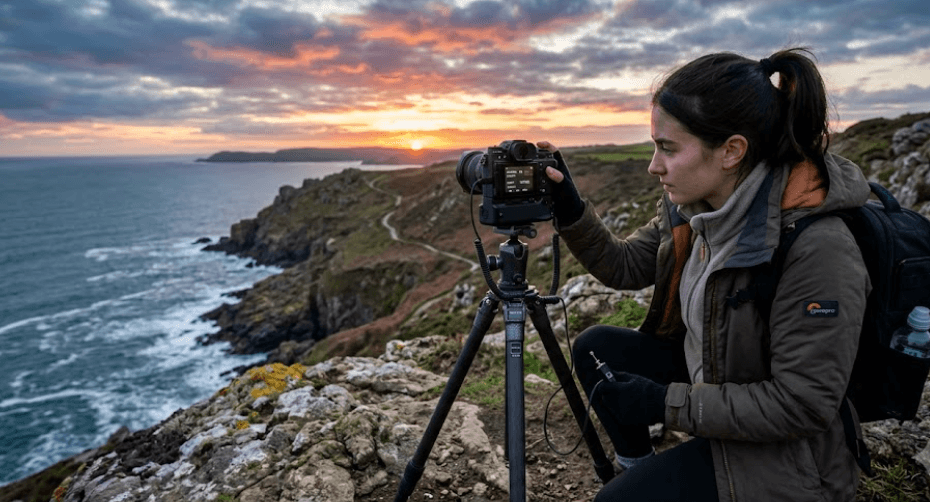
TL;DR: Time-lapse photography lets you capture gradual changes, such as moving clouds, busy streets, sunsets, and blooming flowers, in a short, engaging video. With a DSLR or mirrorless camera, you can achieve this by taking photographs at regular intervals and combining them into a video. You will need a stable tripod, a compatible interval timer, suitable exposure settings, and enough battery power and storage. Start with a short test shoot, use manual focus and consistent exposure settings where practical, and calculate your intervals and frame count before recording. With the right preparation, even beginners can create smooth time-lapse videos without investing in expensive equipment.
What Is Time-Lapse Photography?
Time-lapse photography is a technique that captures a series of photographs at predetermined intervals and plays them back as a video. Because the photographs are displayed much faster than the original events occurred, gradual changes become visible within seconds. For example, a 30-minute sunset can become a short video showing the sky changing colours and the sun disappearing below the horizon.
This technique works particularly well for subjects that change slowly over time. You can capture clouds moving across a landscape, traffic flowing through an intersection, stars appearing in the night sky, or a construction project progressing over several days. It is also useful for travel videos, product demonstrations, creative projects, and social media content.
Most DSLR and mirrorless cameras can support time-lapse photography through a built-in interval timer, a dedicated time-lapse movie mode, or a compatible external intervalometer. The exact options depend on your camera model. Some cameras automatically combine the captured frames into a video, while others save individual photographs that you must edit into a finished sequence.
What Equipment Do You Need?
Camera, Lens, And Tripod
Start with a DSLR or mirrorless camera that supports interval shooting. You do not necessarily need a high-end model, particularly when learning the basics. A standard kit lens is sufficient for many scenes, including landscapes, sunsets, and city views. A wide-angle lens can help capture expansive skies, while a longer focal length can isolate specific details or distant subjects.
A sturdy tripod is one of the most important pieces of equipment for time-lapse photography. Even small movements between photographs can create distracting jumps in the final video. Mount the camera securely, check that the tripod stands on stable ground, and avoid adjusting the composition once shooting begins. In windy conditions, secure the tripod and use a lens hood when appropriate to reduce unwanted light.
You will also need a fully charged battery, a memory card with enough free space, and a compatible remote shutter release or intervalometer if your camera does not have built-in interval shooting. For longer sessions, check whether your camera supports an approved external power supply. A spare battery and additional memory card can also be helpful when recording events that cannot easily be repeated.
| Equipment | Purpose |
|---|---|
| DSLR or mirrorless camera | Captures individual frames |
| Suitable lens | Determines the field of view and composition |
| Sturdy tripod | Keeps framing consistent |
| Built-in interval timer or external intervalometer | Automates shooting at set intervals |
| Battery or compatible external power supply | Keeps the camera running |
| Memory card | Stores captured photographs |
| Editing software | Combines images when the camera does not create a finished video |
Step 1: Choose Your Subject And Plan The Shoot
Before adjusting camera settings, decide what you want your time-lapse to communicate. The subject determines how frequently you should take photographs and how long the session needs to last. Fast-moving traffic usually requires shorter intervals than slowly changing clouds, while plant growth may require photographs separated by much longer periods.
Look for a scene with noticeable movement or gradual change. A sunrise, passing clouds, a crowded pedestrian area, or a busy workspace can be a good starting point. Think about the composition, lighting, and background before setting up the camera. Including a stationary foreground element, such as a building or tree, can make movement in the rest of the frame easier to appreciate.
Check the weather, available light, shooting location, and expected duration. If you are photographing outdoors, consider changing light conditions, wind, rain, and condensation. For a sunrise or sunset, the exposure may change considerably throughout the shoot. Planning ahead helps you choose the right exposure strategy and reduces the likelihood of ending up with inconsistent footage.
Step 2: Calculate The Interval And Number Of Shots
The interval is the time between successive photographs. A shorter interval captures movement more frequently, while a longer interval compresses a greater amount of real-world time into the finished video. There is no single interval that works for every subject, so use the speed of the action and your desired visual effect as a guide.
For a basic calculation, multiply your intended video duration by the playback frame rate to determine how many photographs you need. Then multiply the number of photographs by the shooting interval to estimate the total capture time. This gives you a useful planning estimate, although the exact duration can vary slightly depending on how the camera defines its interval and when the first photograph is taken.
For example, suppose you want a 10-second video at 24 frames per second. You need 240 frames. If you take one photograph every five seconds, capturing those 240 photographs will take approximately 20 minutes. If you choose a 10-second interval instead, the same number of photographs will require approximately 40 minutes.
| Subject | Suggested Starting Interval | Typical Use |
|---|---|---|
| Fast-moving traffic | 1–2 seconds | Roads and moving vehicles |
| Pedestrian activity | 1–3 seconds | Busy streets and public spaces |
| Moving clouds | 3–10 seconds | Landscapes and changing skies |
| Sunrise or sunset | 5–15 seconds | Gradual changes in daylight |
| Stars and night skies | 5–30 seconds or longer | Depends on exposure time and desired motion |
| Plant growth | Several minutes or longer | Long-duration growth sequences |
These intervals are starting points, not universal rules. For night photography, the interval must accommodate the exposure time and any additional processing time. For subjects that move quickly, take a few test photographs to check whether the chosen interval captures enough movement.
Step 3: Set Up Your Camera Correctly
Exposure, Aperture, And ISO
For consistent results, consider using manual exposure mode. Set the aperture, shutter speed, and ISO before starting the sequence, then take a test photograph to check the brightness and detail. Fixed settings help prevent unwanted variations between frames when the lighting remains reasonably consistent.
Your aperture controls how much light enters through the lens and affects depth of field. A mid-range aperture, such as f/5.6 to f/8, can be a useful starting point for many daytime scenes, although the best choice depends on your lens, lighting, and subject. Use the lowest practical ISO for the conditions to help control image noise. If the scene becomes too dark, adjust the exposure rather than relying on a fixed setting that no longer suits the available light.
Choose your shutter speed according to the movement you want to capture. Faster shutter speeds can make individual moving subjects appear sharper, while longer exposures can create smoother motion in clouds, traffic lights, or water. For example, a shutter speed of 1/30 second may work for a daytime street scene, whereas a longer exposure may suit a landscape with moving water. These are examples rather than fixed recommendations.
Focus And White Balance
Focus the camera on your subject and switch to manual focus when the scene allows it. This prevents the lens from repeatedly searching for focus or shifting focus between photographs. Autofocus may still be appropriate when the subject moves unpredictably, but it should be tested carefully before a long sequence.
Set a fixed white balance when consistent color is important. Automatic white balance can change between frames as the camera interprets the scene differently, producing visible color shifts in the finished video. A preset such as daylight can work well in stable outdoor lighting, while a suitable custom setting may be more appropriate under mixed lighting.
Before shooting, check the image on the camera's display and examine the histogram if available. Confirm that important highlights are not clipped and that shadows retain the detail you need. Once the sequence begins, avoid changing the focus, zoom, framing, or exposure settings unless the shoot specifically requires adjustments.
Step 4: Start Shooting With The Interval Timer
Look for a menu option called Interval Timer Shooting, Interval Shooting, or Time-Lapse Movie. The exact name varies by manufacturer and camera model. If your camera supports a dedicated time-lapse movie mode, you may be able to set the interval, number of frames, playback frame rate, and other options directly in the menu.
If your camera only captures individual photographs at set intervals, use its built-in interval timer or a compatible external intervalometer. Enter the interval and the number of shots you calculated earlier. Make sure the interval is long enough for the selected shutter speed and the camera's processing and writing time. Long exposures may require longer intervals to prevent missed frames.
Take a few test photographs before committing to the full sequence. Confirm that the camera is stable, the exposure looks right, the subject remains in frame, and the memory card has enough capacity. Once everything is ready, start the interval timer and avoid touching the camera during the shoot. Check the setup periodically when it is safe and practical to do so, especially during long outdoor sessions.
Step 5: Turn Your Photographs Into A Time-Lapse Video
Use Your Camera's Built-In Time-Lapse Mode
Some DSLR and mirrorless cameras automatically compile the captured photographs into a time-lapse movie. If yours supports this feature, select the desired video resolution and playback frame rate before recording. Follow your camera's manual because available settings, recording limits, and menu options vary by model.
An in-camera time-lapse mode can simplify the workflow because you do not need to assemble every frame yourself. However, the camera may save a finished video rather than a full set of editable photographs, depending on the mode you select. Check whether the feature also preserves the original still images if you want to edit them later.
If your camera records only individual photographs, transfer the images to a computer and import them into compatible video-editing software. Arrange the sequence in chronological order, set the playback frame rate, and export the video in your desired resolution. Keeping the original files allows you to correct exposure or color, remove unwanted frames, and re-create the sequence if needed.
Edit For Smooth Playback
Review the finished sequence for flicker, sudden changes in brightness, camera movement, and distracting objects. Exposure flicker can occur when brightness varies between photographs, often because of changing light or small differences in exposure. Consistent manual settings can help, although scenes with changing daylight may require exposure smoothing or post-production correction.
You can also make simple adjustments to contrast, color, cropping, and stabilization where needed. Avoid excessive editing that makes the scene look unnatural. If the final video is intended for social media, choose the aspect ratio and resolution before exporting so the footage fits the intended platform without unnecessary cropping.
Time-lapse videos are often most effective when they communicate one clear change. A short, well-framed sequence with smooth movement can be more engaging than a much longer clip with inconsistent exposure. Watch the entire video before publishing it and confirm that the exported file plays correctly.
Common Time-Lapse Photography Mistakes To Avoid
One common mistake is moving the camera during the shoot. Even slight changes in tripod position can make the finished video appear shaky. Another is choosing an interval without considering the subject's movement or exposure time. If photographs are taken too far apart, fast movement may appear jumpy; if they are taken too frequently, you may capture many frames without adding meaningful visual information.
Inconsistent exposure and focus can also reduce the quality of a time-lapse. Automatic settings may adjust brightness, color, or focus between frames, producing visible changes during playback. Manual settings are often a good choice when conditions remain stable, but changing daylight may require a carefully tested exposure strategy. Check the camera's exposure-smoothing options if available.
Finally, do not underestimate battery life, storage, or weather conditions. A long shoot can end early if the battery runs out or the memory card fills up. Wind, rain, and condensation can also affect outdoor equipment. Use appropriate protection without obstructing ventilation, and avoid leaving equipment exposed to conditions beyond its operating limits.
| Mistake | How To Prevent It |
|---|---|
| Shaky footage | Use a stable tripod and avoid touching the camera |
| Exposure flicker | Use consistent settings or suitable exposure smoothing |
| Missed frames | Allow enough time for exposure and image processing |
| Blurry images | Check focus and use an appropriate shutter speed |
| Interrupted recording | Check battery life, storage, and power options |
| Unexpected color shifts | Use a fixed white balance when appropriate |
Frequently Asked Questions
Q. Can I shoot time-lapse photography with any DSLR or mirrorless camera?
Many models support time-lapse photography through a built-in interval timer, a dedicated movie mode, or a compatible external intervalometer. Check your camera's manual for the available options.
Q. Do I need an intervalometer for time-lapse photography?
Not always. If your camera has built-in interval shooting, you can use that feature. An external intervalometer is useful when the camera lacks the required function and supports a compatible accessory.
Q. What is the best interval for time-lapse photography?
It depends on the subject. Moving traffic may need intervals of one or two seconds, while clouds may work well with intervals of several seconds. Test different settings to find the desired motion.
Q. How many photographs do I need for a 10-second time-lapse video?
At 24 frames per second, you need 240 frames for a 10-second video. At 30 frames per second, you need 300 frames.
Q. Should I use manual or automatic exposure?
Manual exposure is often preferable when lighting remains consistent because it helps maintain uniform brightness. Changing daylight may require a different approach or exposure-smoothing features.
Q. Should I use manual focus for time-lapse photography?
Manual focus is a good starting point for stationary scenes because it prevents unnecessary focus changes. For moving subjects, autofocus may be suitable if it works reliably throughout the sequence.
Q. Can I create a time-lapse video without editing software?
Yes, if your camera has a time-lapse movie mode that generates the finished video. Otherwise, you will need compatible software to combine the photographs.
Q. How much memory card space does time-lapse photography require?
It depends on the number of photographs, their resolution, and whether you shoot JPEG or RAW. RAW files generally require more storage, so estimate your needs before starting a long session.
Q. Why does my time-lapse video flicker?
Flicker can result from changing exposure, automatic white balance, aperture variation, or changing lighting conditions. Consistent settings and suitable post-production tools can help reduce it.
Q. Can I shoot time-lapse photography at night?
Yes. You can photograph stars, clouds, and city lights, but you need to account for longer exposures, battery consumption, and low-light focusing. The interval must be long enough for each exposure and the camera's processing time.
Final Recommendation
If you are new to time-lapse photography, start with a DSLR or mirrorless camera, a stable tripod, and a scene that changes visibly within 15 to 30 minutes. Moving clouds or a sunset are useful practice subjects because they let you experiment with intervals, exposure, and composition without committing to an all-day shoot. Begin with a short sequence and review the result before attempting more demanding projects.
For a reliable workflow, calculate the required frame count, test your exposure, lock focus where appropriate, and confirm that the battery and memory card can handle the session. If your camera offers a dedicated time-lapse movie mode, it can simplify the process; otherwise, an interval timer and editing software will give you greater control over the final result.
Ultimately, good time-lapse photography depends more on planning and consistency than on expensive equipment. Once you understand how intervals, exposure, and playback frame rates work together, you can apply the same principles to landscapes, travel videos, city scenes, and long-term projects.
Ready to upgrade your tech?
Browse our collection of quality refurbished products at unbeatable prices.






