ThinkPad P1 Gen 2 vs Gen 3 vs Gen 4: Which Slim Workstation Should You Buy?
Compare the ThinkPad P1 Gen 2, Gen 3, and Gen 4 to find the right slim workstation for your needs. Explore processor performance, graphics, display quality, memory, battery life, and value for money before buying.

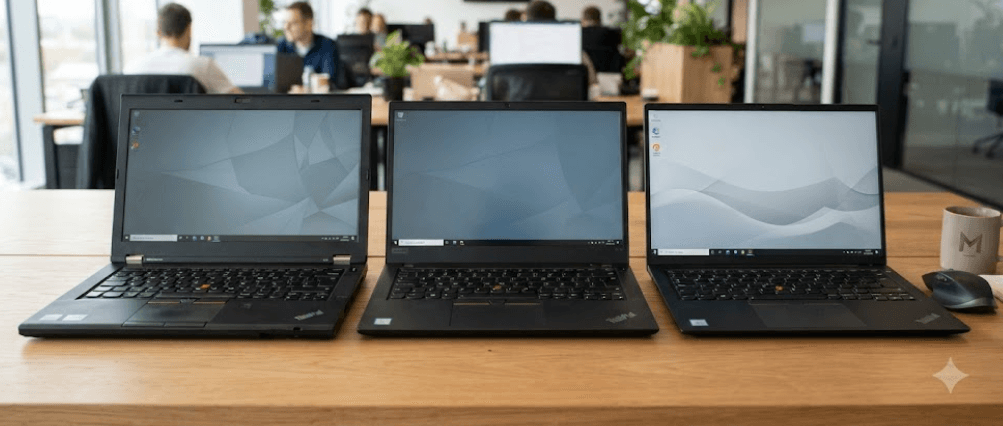
TL;DR: The Lenovo ThinkPad P1 Gen 2, Gen 3, and Gen 4 are slim mobile workstations designed for professionals who need more performance than a typical business laptop can offer. The Gen 2 is the budget-friendly option for everyday professional work and moderate creative tasks, while the Gen 3 offers newer processors and improved graphics configurations. The Gen 4 is the most capable overall, with 11th-generation Intel processors, newer NVIDIA graphics options, and a larger 16-inch display with a 16:10 aspect ratio. For most buyers choosing between these three used workstations, the Gen 4 is the strongest all-round choice if the price and condition are right. However, the Gen 2 or Gen 3 can offer better value for lighter workloads, provided the specific configuration meets your needs.
ThinkPad P1 Gen 2 vs Gen 3 vs Gen 4: At A Glance
The ThinkPad P1 series combines workstation-class hardware with a relatively portable design. These laptops are intended for professionals working with applications such as CAD software, 3D modeling tools, photo-editing programs, and demanding multitasking workflows. Their slim designs make them easier to carry than many traditional desktop-replacement workstations.
The three generations differ in processor architecture, graphics capabilities, display dimensions, and memory speed. The Gen 2 uses 9th-generation Intel processors, the Gen 3 moves to 10th-generation hardware, and the Gen 4 introduces 11th-generation processors alongside more recent NVIDIA GPU options. These changes matter most when running demanding applications rather than everyday office software.
Before comparing individual features, remember that the ThinkPad P1 was sold in several configurations. A Gen 4 with an entry-level GPU will not necessarily outperform every Gen 3 configuration in every task. The processor, graphics card, RAM, display, cooling system, and overall condition should all influence your decision.
| Feature | ThinkPad P1 Gen 2 | ThinkPad P1 Gen 3 | ThinkPad P1 Gen 4 |
|---|---|---|---|
| Processor generation | 9th-gen Intel Core or Xeon | 10th-gen Intel Core or Xeon | 11th-gen Intel Core or Xeon |
| Maximum listed CPU tier | Core i9-9880H or Xeon E-2276M | Core i9-10885H or Xeon W-10855M | Core i9-11950H or Xeon W-11855M |
| Graphics options | Quadro T1000 or T2000, depending on configuration | Quadro T1000 or T2000, depending on configuration | NVIDIA T1200, RTX A-series, or selected GeForce RTX GPUs |
| Display size | 15.6 inches | 15.6 inches | 16 inches |
| Display aspect ratio | 16:9 | 16:9 | 16:10 |
| Maximum supported memory | 64GB DDR4-2666 | 64GB DDR4-2933 | 64GB DDR4-3200 |
| Storage | Up to two M.2 SSDs | Up to two M.2 SSDs | Up to two M.2 SSDs on supported configurations |
Specifications represent available configurations, not every retail unit. Regional availability and exact hardware combinations may vary.
Design And Build Quality
ThinkPad P1 Gen 2
The ThinkPad P1 Gen 2 follows the familiar ThinkPad design, with a black finish, a durable chassis, and a keyboard designed for extended typing sessions. Its approximately 1.7 kg starting weight makes it reasonably portable for a workstation, although the power adapter adds to the weight of your everyday carry. The 15.6-inch screen also provides a familiar format for users upgrading from a conventional business laptop.
ThinkPad P1 Gen 3
The Gen 3 retains the same general design philosophy, so the overall experience feels familiar rather than radically different. Its chassis remains relatively slim, and the keyboard, TrackPoint, and touchpad preserve the productivity-focused approach associated with the ThinkPad family. For users who travel frequently between an office, home, and client locations, this balance of portability and workstation hardware remains practical.
ThinkPad P1 Gen 4
The Gen 4 introduces a larger 16-inch display in a 16:10 format, giving the screen a taller working area than the previous generations' 15.6-inch, 16:9 panels. This is particularly useful when reviewing documents, navigating long spreadsheets, or working with software interfaces that contain multiple toolbars. The chassis remains portable for its class, but the exact weight depends on the configuration.
Which Is Better? The Gen 4 offers the most modern screen layout, while the Gen 2 and Gen 3 remain attractive if you prefer the traditional 15.6-inch format. Build quality and wear vary between individual used laptops, so inspect the hinges, keyboard, ports, and chassis before purchasing.
Processor Performance And Everyday Work
ThinkPad P1 Gen 2
The Gen 2 offers 9th-generation Intel Core processors, including options such as the Core i7-9750H and Core i9-9880H, as well as a Xeon E-2276M configuration. These processors remain capable of handling office applications, web browsing, programming, and moderate creative workloads. A well-maintained model with sufficient RAM and an SSD can still feel responsive for general productivity.
However, these processors belong to an older platform. Tasks that depend heavily on CPU performance, such as large code builds, complex simulations, and lengthy exports, may take longer than on a newer workstation. The difference will depend on the exact processor, cooling condition, and software being used.
ThinkPad P1 Gen 3
The Gen 3 upgrades to 10th-generation Intel processors, including the Core i7-10850H, Core i7-10875H, Core i9-10885H, and Xeon W-10855M. The eight-core Core i7 and Core i9 options can be useful for demanding multitasking and workloads that benefit from multiple CPU cores. However, not every Gen 3 model has an eight-core processor, so check the exact CPU before buying.
For professionals who regularly work with large spreadsheets, development environments, multiple browser tabs, and creative applications, the Gen 3 can be a sensible middle ground. It offers a newer processor platform than the Gen 2 without requiring the buyer to pay for the Gen 4's newer features.
ThinkPad P1 Gen 4
The Gen 4 uses 11th-generation Intel processors, including options such as the Core i7-11800H, Core i9-11950H, and Xeon W-11855M. The Core i7-11800H has eight cores and 16 threads, making it a strong option for multitasking and many CPU-intensive professional applications. The generation also brings a newer platform, although real-world performance depends on the specific configuration and thermal limits.
Which Is Better? The Gen 4 is generally the strongest choice for CPU-intensive workloads, followed by the Gen 3 and Gen 2 as a broad generational comparison. Nevertheless, a high-end configuration from an older generation may outperform a lower-tier configuration in particular tasks. Compare actual processor models rather than relying on the generation name alone.
Graphics Performance For Design And Creative Work
ThinkPad P1 Gen 2
The Gen 2 can be configured with NVIDIA Quadro T1000 or Quadro T2000 graphics, alongside integrated Intel UHD Graphics 630 in configurations without a discrete GPU. These options are suitable for many general professional applications, photo editing, and moderate 3D workloads, depending on the software's requirements. The Quadro branding also reflects the workstation-oriented positioning of the graphics options available at the time.
However, these are older GPUs with limited graphics memory compared with many newer workstation options. They may struggle with complex 3D scenes, larger models, demanding effects, or workloads that rely heavily on GPU acceleration. Buyers should check the software's minimum GPU requirements before selecting an older configuration.
ThinkPad P1 Gen 3
The Gen 3 also offers NVIDIA Quadro T1000 and T2000 graphics options, with GDDR6 memory on its discrete GPUs. Although the GPU names resemble those available in the Gen 2, differences in implementation and the rest of the system can influence performance. It is important not to assume that the Gen 3 automatically provides a dramatic graphics upgrade simply because it is a newer generation.
For users working mainly with 2D design, image editing, light video production, and moderate CAD projects, a well-configured Gen 3 can still be a reasonable option. For demanding 3D rendering or GPU-intensive workloads, though, it is worth considering the newer graphics options available in the Gen 4.
ThinkPad P1 Gen 4
The Gen 4 provides a wider range of graphics options, including the NVIDIA T1200 and RTX A2000, A3000, A4000, and A5000 laptop GPUs. Selected configurations also offer GeForce RTX 3070 or RTX 3080 laptop graphics. This gives buyers more flexibility, from moderate professional workloads to more demanding rendering and visualization tasks.
The actual GPU makes a significant difference. An RTX A2000 configuration is not equivalent to an RTX A5000 configuration, and a professional RTX A-series card is not automatically faster than every GeForce option in every application. Consider GPU memory, application compatibility, performance requirements, and the laptop's cooling configuration before choosing.
Which Is Better? The Gen 4 is the clear choice for buyers who need access to newer and more powerful graphics configurations. The Gen 2 and Gen 3 remain suitable for lighter professional work, especially when purchased at a significantly lower price.
Display Quality And Visual Experience
ThinkPad P1 Gen 2
The Gen 2 offers several 15.6-inch display options, ranging from Full HD IPS panels to 4K IPS and OLED configurations. Higher-end panels can provide excellent detail and color reproduction, making them useful for photography, design, and media work. However, the quality of the screen depends on the installed panel, not simply the model name.
ThinkPad P1 Gen 3
The Gen 3 retains the 15.6-inch format and offers Full HD, 4K IPS, and 4K OLED options, depending on configuration. Its OLED panel can deliver deep blacks and high contrast, which is appealing for viewing media and working with suitable creative applications. Professionals who need accurate colors should still verify the panel specification and calibration rather than assuming every display is equally suitable.
ThinkPad P1 Gen 4
The Gen 4 moves to a 16-inch, 16:10 display, with options that include a 2560 × 1600 IPS panel and 3840 × 2400 IPS panels. Selected 4K configurations offer high brightness and wide color coverage, making them attractive for professional visual work. The taller aspect ratio also provides more vertical workspace for coding, spreadsheets, and document editing.
Which Is Better? The Gen 4 offers the most modern screen format and a strong selection of high-resolution panels. However, a high-quality 4K or OLED panel on the Gen 2 or Gen 3 can still be preferable for particular creative needs. Always verify the installed display, brightness, resolution, and color coverage before buying.
RAM, Storage, And Upgradeability
Memory And Storage Options
All three generations support up to 64GB of memory in Lenovo's published specifications and use two SO-DIMM memory slots. The Gen 2 supports DDR4-2666, the Gen 3 supports DDR4-2933, and the Gen 4 supports DDR4-3200. The exact memory speed available depends on the installed processor and configuration, so the maximum listed speed should not be treated as a guarantee for every unit.
Each generation can support up to two M.2 SSDs in compatible configurations, making storage expansion a useful consideration when buying a refurbished workstation. However, drive support can vary with the installed graphics configuration and system design. Check the exact model's specifications before assuming that a second SSD can be installed.
For everyday productivity, 16GB of RAM and a 512GB SSD can be a workable starting point. If you use virtual machines, large design files, development tools, or several demanding applications at once, 32GB or more may be a better choice. Additional storage can also help if your projects involve large media files or local datasets.
| Component | Gen 2 | Gen 3 | Gen 4 |
|---|---|---|---|
| Maximum listed RAM | 64GB | 64GB | 64GB |
| Memory type | DDR4-2666 | DDR4-2933 | DDR4-3200 |
| Memory slots | 2 SO-DIMM | 2 SO-DIMM | 2 SO-DIMM |
| M.2 SSD expansion | Up to 2 drives on supported configurations | Up to 2 drives on supported configurations | Up to 2 drives on supported configurations |
Which Is Better? The Gen 4 has the fastest officially listed memory speed, but all three generations offer useful upgrade options. For a used purchase, the installed RAM, SSD capacity, battery condition, and cost of any required upgrades may matter more than the small differences in memory speed.
Battery Life, Ports, And Connectivity
Battery Life In Everyday Use
The Gen 2 and Gen 3 feature an 80Wh battery, while the Gen 4 uses a 90Wh battery. A larger battery does not automatically guarantee longer runtime, since power consumption also depends on the processor, graphics card, screen, brightness, and workload. High-resolution displays and demanding graphics tasks can consume considerably more power than light office work.
Because these models are now older machines, battery health is especially important when buying used. A laptop that originally offered respectable runtime may deliver substantially less after years of use. Ask for a battery health report and test the machine away from the charger if portability matters to you.
Ports And Wireless Connectivity
The three generations provide useful connectivity for workstation users, including USB-A ports, USB-C with Thunderbolt support, HDMI, and an SD card reader. The Gen 2 and Gen 3 use Thunderbolt 3, while the Gen 4 upgrades to Thunderbolt 4. Exact port availability and functionality can vary by model, so check the relevant specification sheet if you need particular display or docking support.
For professionals using external monitors, docks, storage drives, and other peripherals, the port selection can affect everyday convenience. Before purchasing, verify that the laptop supports your intended monitor resolution, refresh rate, docking setup, and charging requirements. Do not assume that every USB-C port supports every feature offered by newer laptops.
Which Is Better? The Gen 4 offers the larger battery and newer connectivity standard, but its real-world battery life still depends on configuration and battery health. If you mostly work at a desk, prioritize overall condition and performance. If you travel frequently, battery testing should be part of your buying decision.
Price And Value For Money
When The ThinkPad P1 Gen 2 Makes Sense
The Gen 2 is worth considering if it is considerably cheaper than the newer models and your workload is relatively light. Office work, web browsing, programming, and moderate creative applications do not always require the newest workstation hardware. A clean unit with a healthy battery, a capable processor, sufficient RAM, and an SSD may provide good value.
However, do not buy an older workstation solely because it carries a premium product name. A worn battery, overheating, damaged ports, or an outdated operating system can make an inexpensive laptop less attractive over time. The price should reflect its age and condition.
Why The ThinkPad P1 Gen 3 Can Be The Middle Ground
The Gen 3 offers newer processors than the Gen 2 while retaining a similar overall design. It may be a good choice if you find a well-maintained configuration with a strong CPU, discrete graphics, and enough memory at a competitive price. For many professional workloads, this combination can offer a sensible balance between cost and capability.
The key is to compare actual configurations. A Gen 3 with a better processor, more RAM, and a healthier battery may be a better purchase than a poorly configured Gen 4. Refurbished pricing, warranty coverage, and the cost of upgrades should all be considered together.
Is The ThinkPad P1 Gen 4 Worth Paying More For?
The Gen 4 is generally the most attractive option for users who need newer graphics, an updated processor platform, or the larger 16:10 screen. Its higher-end configurations can handle more demanding workloads, although the exact GPU and cooling design determine how much performance you get. A model with an entry-level GPU should not be priced like a top-tier workstation.
When shopping, compare the total value rather than just the purchase price. A slightly more expensive Gen 4 with a healthy battery, sufficient RAM, a good display, and a warranty may be worth the difference. On the other hand, if you only need basic productivity, paying extra for hardware you will rarely use may not make financial sense.
Final Recommendation And Decision Framework
The ThinkPad P1 Gen 2, Gen 3, and Gen 4 each make sense for different buyers. The Gen 2 is the budget option for everyday productivity and moderate professional workloads. The Gen 3 offers a useful step up in processor generation and can be an appealing middle ground when priced well. The Gen 4 provides the most modern overall hardware of the three, with newer processor and graphics options, a larger display, and Thunderbolt 4.
For CAD, 3D visualization, GPU-accelerated editing, or demanding multitasking, prioritize the Gen 4 with a suitable discrete GPU and enough RAM. For office work, coding, and general productivity, a well-maintained Gen 2 or Gen 3 may be sufficient. If colour-sensitive creative work is your priority, compare the actual display panel rather than choosing by generation alone.
Before making a purchase, check the exact processor and GPU, installed RAM, SSD capacity, display resolution, battery health, thermal performance, and warranty. Test the keyboard, ports, webcam, speakers, Wi-Fi, and charger. Also confirm that the installed operating system receives security updates and supports your required applications. Overall, the ThinkPad P1 Gen 4 is the best all-round choice when its price and condition are competitive, while the Gen 3 may deliver better value and the Gen 2 is best reserved for tighter budgets and lighter workloads.
Frequently Asked Questions
Q. Is the ThinkPad P1 Gen 4 better than the Gen 3?
Generally, yes. The Gen 4 offers 11th-generation Intel processors, newer NVIDIA graphics options, a 16-inch 16:10 display, and Thunderbolt 4. However, the exact GPU and overall condition still matter.
Q. Is the ThinkPad P1 Gen 2 still worth buying?
It can be, especially if you find a well-maintained unit at a significantly lower price. It remains suitable for everyday productivity, programming, and moderate creative work.
Q. Which ThinkPad P1 generation is best for CAD?
The Gen 4 is generally the strongest option because it offers newer workstation GPUs. Choose a configuration that meets the requirements of your specific CAD software.
Q. Which model is best for video editing?
The Gen 4 is usually the best starting point because of its newer processor and graphics options. RAM, GPU memory, display quality, and the editing software you use also influence performance.
Q. Can the ThinkPad P1 Gen 2 run Windows 11?
Compatibility depends on the exact processor and hardware configuration. Check Microsoft's supported processor list and the device's TPM and Secure Boot status before upgrading.
Q. How much RAM do I need in a ThinkPad P1?
Sixteen gigabytes can be enough for everyday work, while 32GB is a sensible target for heavier multitasking, development, and creative workloads. Large professional projects may benefit from more memory, subject to the model's 64GB listed limit.
Q. Can I upgrade the SSD in these laptops?
Yes. All three generations support M.2 SSD storage, with configurations supporting up to two drives. Confirm the exact model's storage layout before purchasing a second SSD.
Q. Does the ThinkPad P1 Gen 4 have better battery life?
It has a larger 90Wh battery compared with the 80Wh batteries in the Gen 2 and Gen 3. Actual runtime depends on the display, GPU, workload, settings, and battery condition.
Q. Are these ThinkPad P1 models good for gaming?
They can run many games, particularly configurations with discrete NVIDIA graphics, but they are primarily workstation laptops. Gaming performance varies by GPU, cooling, power limits, and game requirements.
Q. Which ThinkPad P1 should I buy used?
Choose the Gen 4 for newer hardware, the Gen 3 for a balance of cost and performance, or the Gen 2 for a tighter budget. Compare the exact specifications, battery health, physical condition, warranty, and asking price before deciding.
Ready to upgrade your tech?
Browse our collection of quality refurbished products at unbeatable prices.