PS5 SSD Expansion: Can You Add M.2 Storage and Which One to Buy?
Running out of PS5 storage? Learn how to install a compatible M.2 SSD, understand Sony's speed and heatsink requirements, compare popular SSD options, and choose the right capacity for your gaming library.

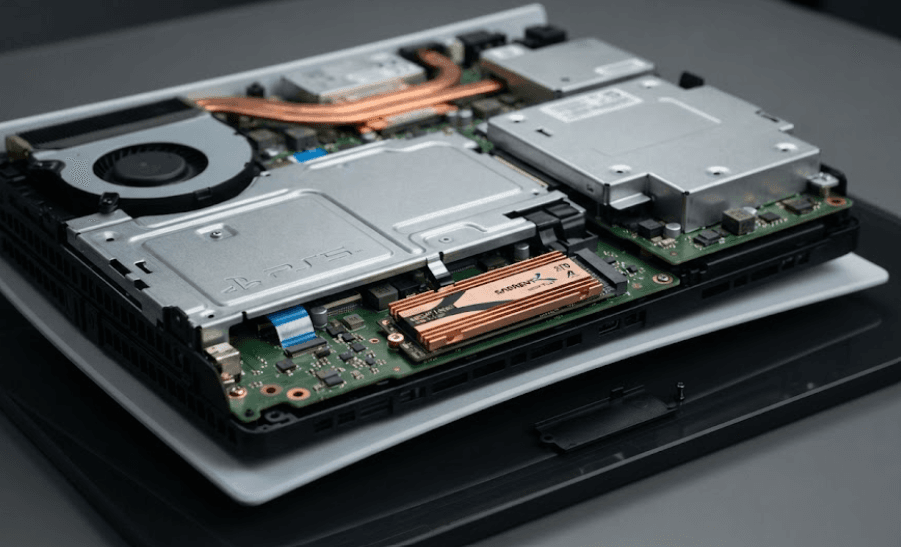
TL;DR: Yes, you can expand your PlayStation 5 storage by installing a compatible M.2 NVMe SSD in the console's internal expansion slot. Sony supports drives with capacities between 250GB and 8TB, using the PCIe Gen4 x4 interface, with a sequential read speed of 5,500MB/s or faster recommended. A compatible heatsink is also essential for effective cooling. For most gamers, a 1TB or 2TB SSD offers a practical balance between capacity and cost. The Samsung 990 PRO with Heatsink, WD_BLACK SN850X with Heatsink, and Seagate FireCuda 530R with Heatsink are options worth comparing, provided the exact model and dimensions meet Sony's requirements. Always verify compatibility before buying.
Can You Add An SSD To Your PS5?
Yes. The PS5 includes an internal M.2 expansion slot that allows you to add a compatible solid-state drive without replacing the console's original storage. This is particularly useful if your game library includes large titles that quickly consume available space. Instead of repeatedly deleting games to make room for new downloads, you can install additional storage and keep more titles ready to play.
An internal M.2 SSD is different from an external USB drive. Once installed and formatted, a compatible M.2 SSD can store and run PS5 games, PS4 games, and supported media apps. External USB storage can hold PS5 games, but you must transfer those games back to the console's internal storage or an installed M.2 SSD before playing them. Compatible PS4 games, however, can run directly from external USB storage.
The upgrade is available for supported PS5 console models, including the original PS5 and PS5 Digital Edition, as well as newer Slim models. However, the physical design and cover-removal process vary between console generations. Before purchasing a drive or following an installation tutorial, identify your exact model and consult the corresponding official instructions.
PS5 SSD Expansion Requirements
Which SSD Specifications Should You Check?
Not every M.2 SSD is compatible with the PS5. Sony specifies a PCIe Gen4 x4 NVMe SSD with an M.2 Key M interface. The commonly recommended 2280 form factor is 22mm wide and 80mm long, although Sony supports other listed sizes if the complete drive and cooling structure fit within the console's dimensions.
Sony recommends a sequential read speed of at least 5,500MB/s. This is a recommendation rather than a guarantee that every drive advertising a higher speed will deliver identical performance to the console's built-in SSD. Actual results can vary by game and drive. An SSD with a much higher advertised speed is not automatically the best purchase if a less expensive compatible model meets your requirements.
Cooling is equally important. Sony requires an effective heat-dissipation structure, such as a heatsink and heat-transfer sheet. The complete assembly must fit within the expansion bay's size limits. Check the manufacturer's dimensions, including the heatsink, instead of relying solely on the SSD's product name or advertised performance.
| Requirement | Sony's Specification |
|---|---|
| Interface | PCIe Gen4 x4 NVMe, M.2 Key M |
| Capacity | 250GB to 8TB |
| Recommended sequential read speed | 5,500MB/s or faster |
| Supported form factors | 2230, 2242, 2260, 2280, 22110 |
| Maximum width, including cooling | 25mm |
| Maximum thickness, including cooling | 11.25mm overall, with additional above-board and below-board limits |
| Cooling | Effective heatsink or compatible cooling structure |
Which SSD Should You Buy For Your PS5?
Choosing an SSD comes down to three things: capacity, cooling, and value for money. A 1TB drive is a sensible starting point if you want more room without paying for storage you may not use. A 2TB drive suits players who regularly install several large games, while a 4TB drive can make sense for extensive libraries. Sony supports compatible drives up to 8TB, although the largest capacities may cost considerably more.
When comparing products, look for a model supplied with a PS5-compatible heatsink. This reduces the risk of buying an SSD that requires a separate cooling accessory. If you purchase a drive without a heatsink, you must select a suitable one that fits Sony's dimensional limits and follow the manufacturer's installation instructions. Do not add another heatsink over a model that already has an integrated cooling structure.
The following options are worth considering. Their advertised speeds are manufacturer specifications, not guarantees of identical real-world gaming performance. Availability, prices, warranty terms, and exact model configurations vary by region, so check the manufacturer's specifications and the seller's listing before ordering.
SSD Comparison Table
| SSD Model | Advertised Sequential Read Speed | Capacities To Consider | Best For |
|---|---|---|---|
| Samsung 990 PRO with Heatsink | Up to 7,450MB/s | 1TB, 2TB, 4TB | Premium performance and established brand support |
| WD_BLACK SN850X with Heatsink | Up to 7,300MB/s | 1TB, 2TB, 4TB | Gamers seeking a dedicated gaming SSD |
| Seagate FireCuda 530R with Heatsink | Up to 7,400MB/s, depending on capacity and model | 1TB, 2TB, 4TB | High-performance storage and sustained workloads |
Samsung 990 PRO With Heatsink
The Samsung 990 PRO with Heatsink is a strong option for gamers who want a premium PCIe Gen4 SSD. Samsung lists sequential read speeds of up to 7,450MB/s and explicitly identifies the heatsink version as compatible with the PS5. It is available in multiple capacities, including 1TB, 2TB, and 4TB, depending on the market.
Its integrated heatsink makes it convenient for a console installation because you do not need to source a separate cooling accessory. However, confirm the exact model number and dimensions, particularly if you encounter listings for the standard 990 PRO without a heatsink. The standard and heatsink-equipped versions should not be treated as identical products.
This drive is worth considering if you want a premium option and find it at a competitive price. However, the higher advertised speed does not necessarily mean that games will load noticeably faster than they would on every other compatible Gen4 SSD.
WD_BLACK SN850X With Heatsink
The WD_BLACK SN850X is another well-known gaming SSD family. The heatsink-equipped version is designed for installations where effective cooling is important, and the drive's advertised sequential read speed reaches up to 7,300MB/s for applicable capacities and configurations.
Before purchasing, verify that the listing specifically identifies the heatsink-equipped model and that its complete dimensions comply with Sony's requirements. Product listings can mix standard and heatsink versions, which may lead to confusion if you order based on the model family alone.
The SN850X is worth comparing against the Samsung 990 PRO when prices are close. Rather than paying extra based on small differences in advertised read speed, consider the capacity, warranty, seller reliability, and exact heatsink configuration.
Seagate FireCuda 530R With Heatsink
The Seagate FireCuda 530R is a high-performance PCIe Gen4 SSD family with capacities that include 1TB, 2TB, and 4TB. Seagate's published specifications list sequential read speeds of up to 7,400MB/s for the relevant models. Check the exact heatsink-equipped version before buying, as product configurations can differ.
This drive is worth considering if its capacity and warranty offer good value compared with competing models. Seagate also provides product support and warranty information through its official website, making it easier to verify the exact drive you are purchasing.
As with the other options, do not assume that every product bearing the FireCuda name includes a PS5-compatible heatsink. Confirm the model number, cooling dimensions, and specifications before placing an order.
How To Install An M.2 SSD In Your PS5
Step 1: Prepare The Console
Before installation, update your PS5 system software and consult Sony's instructions for your particular console model. Turn the console off completely, disconnect the power cable and other connected devices, and allow it to cool. Place it on a clean, flat surface with a soft protective covering to avoid scratching the exterior.
You will need a suitable Phillips screwdriver and enough light to see the expansion slot and its small screws. Handle the SSD by its edges, avoid touching its connector contacts, and discharge static electricity by touching a grounded metal object before beginning. If you are not comfortable opening the console's cover, consider asking a qualified technician for assistance.
Step 2: Open The Expansion Slot
Remove the appropriate console cover according to the official instructions. Locate the rectangular expansion-slot cover, remove its screw, and lift the cover away. You should see the SSD connector and the mounting screw and spacer used to secure the drive.
Remove the mounting screw and position the spacer in the groove corresponding to your SSD's length. The most common 2280 drive uses the matching 80mm position. Do not force the spacer, bend the drive, or attempt to fit a heatsink that obstructs the mounting point.
Step 3: Insert And Secure The SSD
Hold the SSD by its edges, align its connector with the slot, and insert it diagonally upward until it is fully seated. Lower the drive gently onto the spacer and secure it using the appropriate screw. The SSD should sit correctly without being bent or obstructed by its cooling structure.
Replace the expansion-slot cover and the console's exterior cover, ensuring that both are properly secured before reconnecting power. Sony warns that operating the console without the covers correctly installed can cause overheating. Never power on or play the console while the expansion bay is open.
Step 4: Format And Test The Drive
Reconnect the console and switch it on. If the SSD is being used for the first time, the PS5 should display instructions to format it. Follow the on-screen process and remember that formatting erases existing data on the drive, so back up anything important before proceeding.
After formatting, the console displays a performance test. Review the result and check that the drive appears under Settings > Storage. You can then download games to the new storage or move compatible games from the console's existing storage.
M.2 SSD Vs External USB Storage
An internal M.2 SSD is generally the better choice when your main goal is to install and play more PS5 games without repeatedly moving them between drives. It integrates with the console's storage system and allows supported games to be downloaded, updated, and launched directly from the expansion drive.
External USB storage is useful if you want a simpler, portable option. It can store PS5 games for later transfer back to playable storage and can run compatible PS4 games directly. It may be a sensible choice if you already own a suitable external drive and do not want to open the console.
Your choice depends on how you play. If you regularly switch between several large PS5 titles, an internal M.2 SSD is more convenient. If you mainly play PS4 games or want to archive titles you do not currently use, external USB storage may be sufficient.
| Feature | Internal M.2 SSD | External USB Storage |
|---|---|---|
| Play PS5 games directly | Yes, when compatible | No; transfer them back first |
| Play compatible PS4 games | Yes | Yes |
| Installation | Requires opening the expansion bay | Usually plug-and-format |
| Cooling requirements | Must meet Sony's M.2 specifications | Depends on the external drive |
| Best use | Expanding playable game storage | Archiving games and storing PS4 titles |
Final Recommendation And Decision Framework
For most PS5 owners, a compatible 2TB M.2 NVMe SSD with an integrated heatsink is a sensible long-term upgrade. It provides considerably more room for a growing game library without requiring the expense of a 4TB or 8TB model. If you play only a handful of titles at a time, a 1TB SSD may be enough; if you regularly keep a large collection installed, compare 4TB options.
Among the models discussed, the Samsung 990 PRO with Heatsink and WD_BLACK SN850X with Heatsink are good starting points for comparison. The Seagate FireCuda 530R with Heatsink is another option worth evaluating. The best purchase is not necessarily the SSD with the highest advertised speed. It is the one that meets Sony's requirements, includes suitable cooling, offers enough capacity, and comes from a reliable seller at a competitive price.
Before ordering, verify the exact model number, heatsink dimensions, capacity, warranty, and return policy. Once installed, format the drive using the PS5's on-screen instructions and confirm that it appears in Storage settings. A compatible M.2 SSD can make managing a large game library much easier, provided you prioritize fit, cooling, and value over marketing claims.
Frequently Asked Questions
Q. Can you add an SSD to a PS5?
Yes. Supported PS5 consoles have an internal M.2 expansion slot for compatible PCIe Gen4 x4 NVMe SSDs.
Q. What is the maximum SSD capacity supported by the PS5?
Sony specifies compatible M.2 SSD capacities from 250GB to 8TB.
Q. Does a PS5 SSD need a heatsink?
Yes, the SSD needs an effective cooling structure. You can buy a compatible drive with an integrated heatsink or add a suitable one separately.
Q. Can I use a Gen5 SSD in my PS5?
Sony specifies a PCIe Gen4 x4 M.2 NVMe SSD. Do not assume a Gen5 drive is compatible simply because it is faster; verify the interface and all physical and technical requirements before buying.
Q. Is a 1TB SSD enough for a PS5?
It can be sufficient if you play a limited number of games at a time. A 2TB drive offers more flexibility for larger game libraries.
Q. Which SSD is best for the PS5?
The Samsung 990 PRO with Heatsink, WD_BLACK SN850X with Heatsink, and Seagate FireCuda 530R with Heatsink are options worth comparing. Check the exact model, capacity, price, and compatibility before buying.
Q. Can I play PS5 games directly from an external SSD?
Not from a standard external USB drive. You can store PS5 games there, but you must move them to the console's internal storage or a compatible installed M.2 SSD to play them.
Q. Will installing an SSD make PS5 games load faster?
It primarily expands storage. Although a compatible SSD can deliver fast performance, it does not guarantee shorter loading times than the built-in drive in every game.
Q. Do I need to format a new SSD before using it in the PS5?
Yes. When using an M.2 SSD for the first time, follow the console's formatting instructions. Formatting erases data already stored on the drive.
Q. Can I install a PS5 SSD myself?
Yes, if you are comfortable following Sony's instructions and handling small components carefully. Turn off and unplug the console, use the correct tools, and ensure all covers are properly secured before powering it on.
Ready to upgrade your tech?
Browse our collection of quality refurbished products at unbeatable prices.