
Laptop Won't Connect to Wi-Fi? 10 Fixes That Actually Work
Is your laptop refusing to connect to Wi-Fi? Discover 10 practical fixes for Windows laptops and MacBooks, including router restarts, network troubleshooting, driver updates, and network resets.

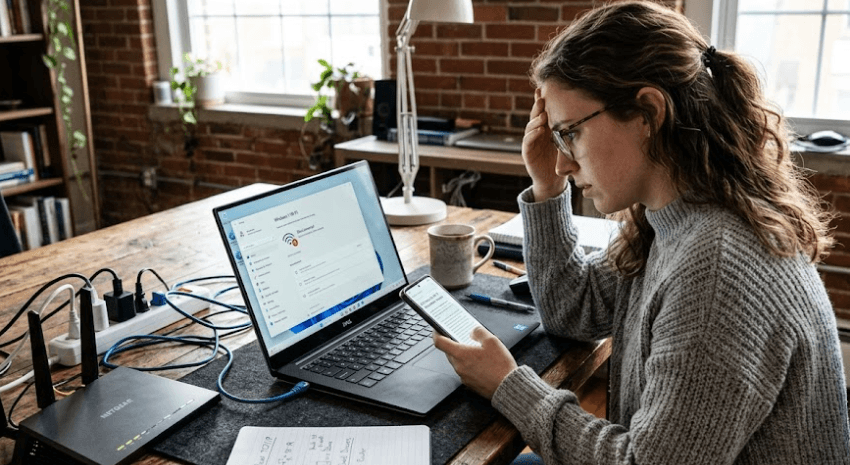
TL;DR: If your laptop won't connect to Wi-Fi, start by checking whether other devices can access the internet. Turn off Airplane Mode, reconnect to your network, restart your laptop and router, and try another Wi-Fi band if available. If these basic fixes do not work, run your device's network troubleshooter, check the Wi-Fi adapter and its drivers, and reset network settings as a last resort. These steps cover common Wi-Fi problems on Windows laptops and MacBooks, helping you identify whether the issue comes from your laptop, router, or internet service provider.
Why Won't Your Laptop Connect To Wi-Fi?
A laptop can lose its Wi-Fi connection for several reasons, and the right solution depends on what you see on the screen. Sometimes Wi-Fi is switched off accidentally. In other cases, the laptop detects the network but rejects the password, connects without internet access, or disconnects repeatedly. Identifying the exact symptom can save time and prevent unnecessary changes to your system.
The problem may also originate outside your laptop. A router that needs restarting, an internet service outage, weak wireless coverage, or interference from nearby devices can affect connectivity. If your phone and other devices also cannot access the internet through the same Wi-Fi network, the router or internet connection is a more likely starting point than your laptop's settings.
Software-related issues are another possibility. An outdated or malfunctioning network driver, an incorrect network configuration, or a VPN conflict can prevent a laptop from connecting properly. Before reinstalling drivers or resetting network settings, work through the following fixes in order, testing the connection after each step.
1. Check Wi-Fi And Airplane Mode
What To Do
Start with the simplest possibility: your laptop's Wi-Fi may be switched off. On Windows, select the network icon on the taskbar and check that Wi-Fi is enabled. On a MacBook, open the Wi-Fi menu in the menu bar or Control Center and confirm that Wi-Fi is turned on. Some laptops also have a physical wireless switch or a keyboard shortcut for controlling wireless connectivity.
Next, check Airplane Mode. On Windows, open Settings, select Network & internet, and locate Airplane mode. Make sure it is turned off. If your laptop has a dedicated wireless function key, check the manufacturer's instructions before using it, as keyboard shortcuts vary between models.
If Wi-Fi is enabled but your network still does not appear, move closer to the router and refresh the available network list. If no wireless networks appear at all, the issue may involve the wireless adapter, its driver, or the router's broadcasting settings. Continue to the later fixes if the problem persists.
2. Restart Your Laptop
Restarting your laptop is a simple way to resolve temporary software and network problems. Applications, background services, and network processes can occasionally stop behaving as expected. A restart allows the operating system to reload these components and establish a fresh network connection.
Save your open documents and close any applications before restarting. On Windows, select Start, then Power, and choose Restart. On a MacBook, open the Apple menu and select Restart. Once the laptop has started again, enable Wi-Fi and try connecting to your usual network.
If the connection works after restarting, test it by opening a few websites and using the applications you normally rely on. If the problem returns frequently, a temporary glitch may not be the only cause. Pay attention to whether the disconnections occur after waking the laptop from sleep, installing updates, or switching between networks, as these patterns can help narrow down the cause.
3. Restart Your Wi-Fi Router
If multiple devices cannot access the internet through the same network, restarting the router is a sensible next step. Routers can occasionally encounter temporary connectivity problems that affect every connected device. Restarting the equipment can help restore a working connection, although it will not resolve an internet service outage or a hardware fault.
First, save any ongoing online work and let other household members know that the connection will be interrupted. If you have separate modem and router units, switch off or unplug their power supplies. Wait approximately 30 seconds, reconnect the modem first, and allow it to finish starting up. Then reconnect the router and wait for its status lights to stabilize. If you use a combined modem-router unit, follow the manufacturer's restart instructions for that device.
Reconnect your laptop and check whether the internet works. If other devices remain offline, check your internet service provider's outage information or contact its support team. Avoid pressing the router's factory-reset button during routine troubleshooting, because a factory reset can erase network names, passwords, and other configuration settings.
4. Forget The Wi-Fi Network And Reconnect
Your laptop may have trouble reconnecting because of an outdated or incorrect saved network profile. Forgetting the network and joining it again creates a fresh connection profile and can resolve certain authentication or configuration problems. Before proceeding, make sure you know the correct Wi-Fi password.
On Windows 11, open Settings, select Network & internet, and then Wi-Fi. Open Manage known networks, select your network, and choose Forget. On a MacBook, open System Settings, select Wi-Fi, and locate the saved network options. Depending on your macOS version, you can remove the network from the known networks list or choose the option to forget it.
After removing the saved network, select it from the available networks and enter the password again. Check for typing errors, especially if the password contains uppercase letters, numbers, or special characters. If the laptop connects successfully, open a browser to verify internet access. If it still rejects the connection, confirm that the router is working and that the password has not changed.
5. Check Your Wi-Fi Signal And Frequency Band
Weak Wi-Fi signals can cause failed connections, slow speeds, and frequent disconnections. Thick walls, floors, furniture, and distance from the router can weaken the signal. Other wireless devices and nearby networks may also contribute to interference, depending on the environment and router configuration.
Move closer to the router and try connecting again. If the connection improves significantly, wireless coverage may be part of the problem. You could reposition the router in a more central, open location or consider a compatible Wi-Fi extender or mesh system if certain rooms consistently receive weak signals.
If your router offers both 2.4 GHz and 5 GHz networks, try the other band if it is available. The 2.4 GHz band generally offers better range, while 5 GHz can provide higher speeds over shorter distances under suitable conditions. Your laptop must support the selected band, and the router must broadcast it. The 6 GHz band is another option on compatible Wi-Fi 6E or Wi-Fi 7 equipment, but not every laptop or router supports it.
6. Run The Network Troubleshooter
If basic checks have not helped, use the diagnostic tools built into your operating system. These tools can identify certain configuration problems and suggest or apply corrections. They are especially useful when the laptop detects Wi-Fi but cannot connect or access the internet.
On Windows 11, open the Get Help app and run the Network and Internet troubleshooter. Follow the prompts and apply any recommended fixes. On a MacBook, hold the Option key while selecting the Wi-Fi menu, if supported by your macOS version, and look for Wireless Diagnostics. You can also check whether macOS displays Wi-Fi Recommendations.
Once the diagnostic process finishes, reconnect to the network and test a website. If the tool reports that the Wi-Fi connection is working but the internet remains unavailable, the issue may involve DNS, the router, a VPN, or your internet provider. Diagnostic tools cannot identify or fix every possible networking problem, so continue with the relevant steps if the connection remains unreliable.
7. Update Or Reinstall The Wi-Fi Driver
A network driver allows your operating system to communicate with the laptop's wireless hardware. If the driver becomes outdated, corrupted, or incompatible after an update, Wi-Fi may stop working correctly. This is particularly worth investigating if the problem began after a Windows update or if the Wi-Fi adapter has disappeared from the available network settings.
On Windows, right-click Start and open Device Manager. Expand Network adapters and look for your wireless adapter. Check its status and available driver options. You can look for driver updates through Windows Update or download the appropriate driver from your laptop manufacturer's official support website. Make sure the driver matches your exact laptop model and Windows version.
If updating does not help, reinstalling the adapter driver may resolve the issue. However, do not uninstall it without first checking that a suitable replacement driver is available, particularly if you have no alternative internet connection. After reinstalling or updating the driver, restart the laptop and test Wi-Fi again. Mac users should generally install available macOS and manufacturer-recommended updates rather than attempting to install Windows-style wireless drivers.
8. Disable VPN Or Check Proxy Settings
VPN applications and proxy configurations can sometimes interfere with internet access. For example, a VPN connection may fail to establish correctly, or a proxy setting may direct traffic through a server that is unavailable. In these situations, the laptop might connect to Wi-Fi while websites remain inaccessible.
If you use a VPN, disconnect it temporarily and test your connection. On Windows, open Settings and navigate to Network & internet, then VPN. You can also review the Proxy settings in the same section. On macOS, check the VPN application's controls and the relevant network settings. Change only settings you recognize and understand.
If disabling the VPN restores access, check the VPN application's status, configuration, and available updates. If the problem appears to involve a proxy, confirm whether the settings were configured intentionally by your workplace, school, or network administrator. Do not remove managed security settings on a work laptop without permission, as doing so may violate organizational requirements or interrupt access to internal services.
9. Reset Network Settings
If the previous fixes have failed, a network reset may help resolve persistent configuration problems. Windows network reset removes and reinstalls network adapters and restores certain networking settings to their defaults. Because this can affect saved connections and other network configurations, it is best treated as a later troubleshooting step rather than the first solution.
On Windows 11, open Settings, select Network & internet, then Advanced network settings, and choose Network reset. On Windows 10, the option is generally available under Settings, Network & Internet, and Status. Review the on-screen information before proceeding, then restart the computer if prompted. You may need to reconnect to Wi-Fi and reconfigure VPN clients or virtual network software afterward.
On a MacBook, avoid looking for a Windows-style network reset button. Instead, use the built-in diagnostics and check the relevant network settings. If the problem persists, consult Apple's troubleshooting guidance or your network administrator before removing network configurations. In either operating system, record important connection settings before making major changes.
10. Check For Updates And Contact Your Internet Provider
If your laptop still will not connect, check for operating system updates and known compatibility issues. On Windows, open Settings and select Windows Update. On macOS, open System Settings and select General, then Software Update. Install relevant updates when possible, particularly if the issue began after a recent software or driver change.
Next, test another device on the same Wi-Fi network and, if available, connect your laptop to a different trusted network. If the laptop connects elsewhere, the original router or network configuration may be responsible. If no devices can access the internet through your home network, contact your internet service provider to check for an outage or account-related issue.
If Wi-Fi is missing entirely, the adapter repeatedly disappears, or the laptop cannot connect to any network despite troubleshooting, hardware or operating-system problems may require professional attention. A technician can check the wireless adapter, antenna connections, and related components. Avoid opening the laptop yourself unless you have the necessary skills and the work will not affect your warranty.
Quick Troubleshooting Reference
Use this table to match the symptom with the most relevant starting point. It can help you avoid trying every fix when the problem already points toward a particular cause.
| Problem | First Fix To Try | If It Continues |
|---|---|---|
| Wi-Fi option is missing | Check Airplane Mode and wireless controls | Inspect the adapter and driver |
| Laptop cannot find the network | Move closer to the router | Check router settings and supported bands |
| Incorrect password error | Forget and reconnect | Verify the password and router security settings |
| Connected but no internet | Test another device and restart the router | Check VPN, DNS, or ISP status |
| Wi-Fi disconnects frequently | Restart the laptop and router | Investigate signal strength and drivers |
| Problem started after an update | Check driver and operating system updates | Consider driver rollback or manufacturer support |
Final Recommendation
When your laptop will not connect to Wi-Fi, start by identifying whether the issue affects only your laptop or every device on the network. Check Wi-Fi and Airplane Mode, restart the laptop and router, and reconnect to the saved network before making more complicated changes. These steps address several common causes without altering important system settings.
If the basic fixes do not work, move on to signal checks, network diagnostics, driver troubleshooting, and VPN or proxy settings. Use network reset only after the simpler options have failed, since it can remove network configurations that you may need to restore.
Finally, test your laptop on another trusted network and check the router with another device. These two checks can help distinguish a laptop-specific problem from a router or internet service issue. If the wireless adapter is missing or the connection repeatedly fails despite the recommended steps, seek help from the laptop manufacturer or a qualified technician rather than repeatedly changing settings without a clear diagnosis.
Frequently Asked Questions
Q. Why won't my laptop connect to Wi-Fi even with the correct password?
The problem may involve a saved network profile, router configuration, wireless driver, or authentication issue. Forget the network, reconnect, and check whether other devices can join the same network.
Q. Why does my laptop say connected to Wi-Fi but have no internet?
Your laptop may be connected to the router while the router itself has lost internet access. Test another device, restart the router, and check for an outage with your internet provider.
Q. Why is the Wi-Fi option missing from my laptop?
Wi-Fi may be disabled, the wireless adapter may be disabled in Device Manager, or its driver may have a problem. Check the wireless controls and adapter status before considering hardware repairs.
Q. Should I restart my router or laptop first?
Start with the laptop's Wi-Fi settings and a restart if necessary. If multiple devices have the same problem, restart the router and modem according to the manufacturer's instructions.
Q. Can an outdated Wi-Fi driver stop my laptop from connecting?
Yes. An outdated, corrupted, or incompatible driver can cause connection failures. Check for appropriate updates through Windows Update or your laptop manufacturer's official support website.
Q. Why does my laptop keep disconnecting from Wi-Fi?
Weak signals, wireless interference, router issues, driver problems, or power-management settings may contribute. Test closer to the router and check for updates if the problem continues.
Q. Does forgetting a Wi-Fi network delete the internet connection permanently?
No. It removes the saved network profile from the laptop. You can reconnect by selecting the network and entering the correct password.
Q. Can a VPN stop my laptop from accessing the internet?
Yes, certain VPN or proxy problems can interfere with internet access. Temporarily disconnect the VPN to test the connection, while preserving any settings required by your workplace or school.
Q. Will resetting network settings delete my personal files?
A Windows network reset is intended to reset networking components, not personal documents. However, it can remove network configurations and require you to reconnect to Wi-Fi or reconfigure VPN software.
Q. When should I get my laptop's Wi-Fi checked professionally?
Consider professional support if the Wi-Fi adapter repeatedly disappears, the laptop cannot detect any networks, or the connection fails across multiple trusted networks after troubleshooting.
Ready to upgrade your tech?
Browse our collection of quality refurbished products at unbeatable prices.






