Laptop Touchpad Not Working: 9 Fixes That Work
Is your laptop touchpad not working? Try these 9 practical fixes, including checking touchpad settings, restarting Windows, updating drivers, and identifying possible hardware problems.

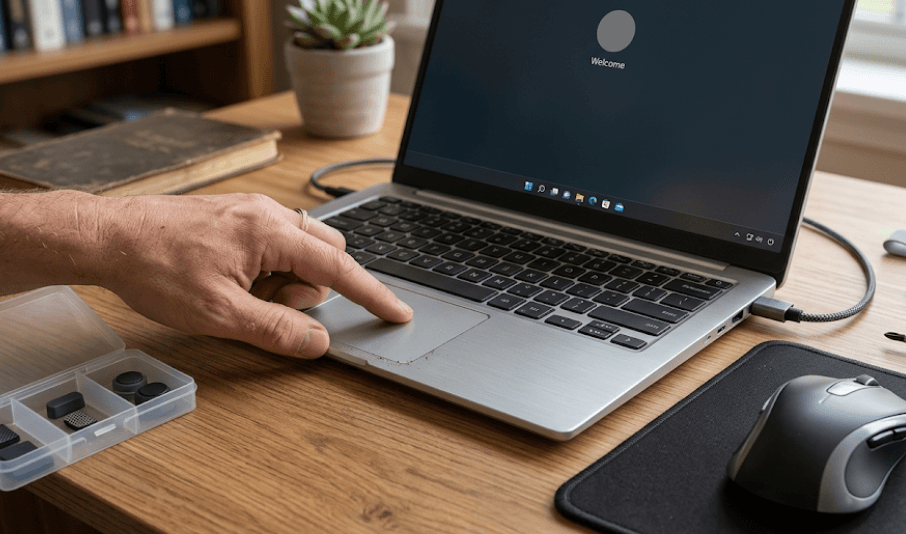
TL;DR: If your laptop touchpad is not working, do not assume that it has failed. In many cases, the problem comes from a disabled touchpad setting, an accidental keyboard shortcut, a connected mouse, a Windows or driver issue, or a temporary system glitch. Start with the simple fixes first: restart the laptop, check Settings > Bluetooth & devices > Touchpad in Windows 11, make sure the touchpad is enabled, and disconnect external mice or docking accessories. If that does not help, update or reinstall the touchpad driver through Windows Update or Device Manager. You can then check manufacturer-specific software, BIOS or UEFI settings, and hardware diagnostics. If the touchpad is physically raised, the laptop body is separating, or the pad fails hardware diagnostics, stop troubleshooting it as a software problem and contact the manufacturer or an authorized service center.
Why Is Your Laptop Touchpad Not Working?
A laptop touchpad can stop responding for several different reasons, and the symptom does not always tell you what caused it. Sometimes the touchpad has simply been disabled through Windows settings or a keyboard shortcut. On some laptops, connecting an external mouse can also change how the touchpad behaves. A temporary Windows glitch, driver problem, or failed update can create similar symptoms, making it look like the touchpad itself has stopped working when the hardware is actually fine. Microsoft specifically notes that missing or outdated touchpad drivers can cause problems, while manufacturers such as Dell also identify incorrect settings and hardware failure as possible causes.
The first useful distinction is whether the cursor is completely dead or whether only certain functions have stopped working. If the cursor does not move at all, start with the touchpad switch, keyboard shortcut, restart, and driver checks. If the cursor moves but clicking, scrolling, or gestures do not work, the problem may be limited to settings or gesture controls. Windows also supports different touchpad capabilities depending on the hardware, so not every laptop will show exactly the same options under Touchpad settings. Microsoft notes that some gestures are available only on Precision Touchpads.
It is also worth checking the physical condition of the laptop before spending time changing software settings. A touchpad that feels raised, does not click normally, or appears to be pushed upward by the chassis can indicate a physical problem. Dell specifically warns that a distorted or raised touchpad, case separation, or a laptop that wobbles can be signs of a swollen battery. That is not something you should try to fix by reinstalling drivers. If you notice those symptoms, stop using the laptop and have it inspected by the manufacturer or a qualified technician.
9 Fixes For A Laptop Touchpad Not Working
The safest approach is to work through the fixes from easiest to more involved. There is little point in reinstalling drivers or changing BIOS settings if the touchpad was accidentally disabled by a keyboard shortcut five minutes ago. These fixes are primarily written for Windows 11 laptops because that is the current Windows version most users will encounter in 2026. Windows 10 has similar troubleshooting options, but Microsoft ended support for Windows 10 on October 14, 2025.
Before starting, connect a USB or Bluetooth mouse if you have one. It gives you an easier way to navigate Windows while the touchpad is unavailable. If you do not have a mouse, many of these steps can still be completed using the keyboard, including opening Settings, navigating with Tab and arrow keys, and confirming options with the Spacebar or Enter key. This is particularly useful when the touchpad is completely unresponsive rather than merely behaving erratically.
Do not jump straight to downloading random touchpad drivers from third-party websites. Driver packages can vary by laptop model, touchpad hardware, chipset, and operating system. Microsoft recommends Windows Update as the preferred method for obtaining driver updates, while laptop manufacturers may provide additional model-specific packages when necessary. If the standard Windows driver does not resolve the problem, use the support page for your exact laptop model rather than installing a driver intended for a similar-looking machine.
1. Check If The Touchpad Is Turned On
Open Settings > Bluetooth & devices > Touchpad in Windows 11 and check whether the main Touchpad switch is enabled. If it is off, turn it on and test the cursor immediately. This is one of the simplest explanations for a touchpad that appears to have suddenly died, especially after using keyboard shortcuts, changing settings, or connecting another pointing device.
2. Try The Laptop's Touchpad Shortcut
Many laptops have a dedicated function key or keyboard shortcut that can enable or disable the touchpad. Look across the function-row keys for a symbol resembling a touchpad or trackpad. The exact shortcut varies by manufacturer and model, so do not assume the same key works on every laptop. If the key has an Fn requirement, try it with the Fn key and then check whether the cursor responds.
3. Restart The Laptop
A proper restart can clear temporary Windows processes or driver glitches that may have left the touchpad unresponsive. Save your work, choose Start > Power > Restart, and let Windows boot normally. If the touchpad is working after the restart, you may not need to change any drivers or settings at all. Dell also recommends restarting as one of its initial touchpad troubleshooting steps.
4. Disconnect External Mice And Accessories
Disconnect USB mice, wireless mouse receivers, hubs, docking stations, and other unnecessary peripherals, then restart and test the touchpad again. Some laptops can be configured to disable the touchpad while an external mouse is connected, while a peripheral or dock can occasionally complicate input-device behavior. If the touchpad starts working after you remove the accessories, reconnect them one at a time to identify what changed.
5. Update The Touchpad Driver
Open Device Manager and look under categories such as Human Interface Devices or Mice and other pointing devices for the touchpad device. You can then select the device and choose the option to update its driver. Microsoft recommends Windows Update as the preferred route for driver updates, but Device Manager can also be used. If Windows cannot find a newer driver, check Windows Update and the laptop manufacturer's support page for your exact model.
6. Reinstall The Touchpad Driver
If updating does not help, reinstalling the touchpad driver can be useful when the installed driver has become corrupted. In Device Manager, locate the relevant touchpad device, choose Uninstall device, and then restart the laptop. Windows can reinstall the required driver after the restart. Microsoft specifically lists driver reinstallation as a troubleshooting step for touchpad problems.
7. Check Manufacturer Software And BIOS
Some laptops have additional touchpad controls through manufacturer software or firmware. If Windows recognizes the touchpad but it remains disabled, check your laptop manufacturer's support tools and BIOS or UEFI settings for touchpad-related controls. Dell, for example, recommends keeping BIOS and chipset drivers updated as part of broader touchpad troubleshooting. The exact menus vary significantly between manufacturers, so use documentation for your specific model rather than changing unrelated firmware settings.
8. Check Windows Updates And Recent Driver Changes
If the touchpad stopped working immediately after a Windows or driver update, the update may be relevant. First install any available updates, particularly if Microsoft or the laptop manufacturer has released a newer driver. If a specific driver update clearly caused the problem, Windows Device Manager may allow you to roll the driver back to a previous version. Microsoft documents driver rollback as an option when a problem begins after a recent driver installation.
9. Run Hardware Diagnostics
If software troubleshooting does not restore the touchpad, use the diagnostic tools supplied by your laptop manufacturer. Dell, for example, provides a hardware test that can check the touchpad, while other manufacturers have their own diagnostic environments. A failed hardware test is a strong reason to stop repeatedly reinstalling drivers and arrange professional service. If the touchpad is physically raised or the chassis is separating, seek service promptly because the problem may involve the battery rather than the touchpad itself.
Quick Troubleshooting Guide
The easiest way to avoid wasting time is to match the symptom with the most likely starting point. A completely dead touchpad should send you toward settings, shortcuts, restart, and driver checks first. A touchpad that moves the cursor but does not click or scroll points more toward individual settings or gesture controls. Windows allows you to customize taps, scrolling, and three- or four-finger gestures through its Touchpad settings, although available features depend on the laptop's hardware.
An external mouse is also a useful diagnostic tool. If the USB or Bluetooth mouse works normally while the touchpad does not, you have narrowed the problem to the built-in pointing device or its software configuration. If other input devices are also failing, the problem may be broader than the touchpad itself. This distinction can save time because you do not want to spend an hour reinstalling a touchpad driver when Windows is actually experiencing a wider input or system problem.
The table below provides a practical starting point. It is not a guarantee of the underlying cause, because the same symptom can have multiple explanations, but it helps you decide which fix to try first.
| Touchpad Problem | Likely Area To Check First | Recommended Action |
|---|---|---|
| Touchpad completely dead | Settings or shortcut | Turn it on and try the laptop's touchpad key |
| Touchpad stopped after restart/update | Driver or Windows | Check Windows Update and Device Manager |
| Cursor works but scrolling fails | Touchpad settings | Check Scroll & zoom settings |
| Touchpad works until mouse is connected | Mouse-related setting | Check touchpad behavior with an external mouse |
| Touchpad missing from Settings | Driver or hardware detection | Check Device Manager and manufacturer drivers |
| Touchpad still fails after driver reinstall | Firmware or hardware | Check BIOS/UEFI and diagnostics |
| Touchpad is physically raised | Possible hardware or battery issue | Stop using it and seek professional inspection |
When The Touchpad Is A Hardware Problem
Software troubleshooting is useful, but it has limits. If Windows cannot detect the touchpad even after appropriate driver and firmware checks, or if the device fails the manufacturer's hardware diagnostic, the problem may be physical. The touchpad itself, its connection to the motherboard, or another internal component could be damaged. A laptop that has suffered a drop, liquid exposure, or significant physical pressure may also develop touchpad problems that a Windows setting cannot fix.
Physical changes are particularly important. If the touchpad suddenly feels higher than usual, clicking becomes difficult, the laptop's bottom panel is separating, or the chassis appears distorted, do not keep pressing the touchpad or attempt to open the battery compartment yourself. Dell specifically identifies a raised or distorted touchpad and case separation as possible warning signs of a swollen battery. A swollen lithium-ion battery should be handled by an appropriate service professional rather than treated as a normal touchpad fault.
If the laptop is still under warranty, this is also the point where manufacturer support makes more sense than experimenting with unofficial repairs. Keep your data backed up if possible and document what you have already tried, including driver updates, restarts, and hardware diagnostics. That gives the technician a clearer starting point. For an older laptop outside warranty, compare the expected repair cost with the machine's age and overall condition before paying for a touchpad or internal-component replacement.
How To Prevent Touchpad Problems
Most touchpad problems do not require complicated maintenance, but a few habits can reduce avoidable issues. Keep the touchpad surface clean and dry, particularly if you regularly use the laptop while eating or drinking. Dirt, grease, moisture, or food residue can interfere with accurate finger contact. Dell specifically recommends ensuring both the touchpad and your finger are free from substances that could affect contact.
Keep Windows and the laptop manufacturer's drivers reasonably up to date, but avoid downloading drivers from questionable websites just because a search result promises a "universal" touchpad fix. Windows Update is Microsoft's recommended route for driver updates, while the manufacturer's support page is the better place to look for model-specific drivers, BIOS updates, or diagnostic tools. Keeping those components current can also help avoid compatibility problems following operating-system updates.
Finally, pay attention to changes rather than waiting for a complete failure. If the cursor begins freezing occasionally, gestures stop working, clicks become inconsistent, or the touchpad behaves differently after an update, troubleshoot it early. Small software problems are generally easier to address than a touchpad that has already developed a physical fault. If you notice swelling or physical deformation, however, skip the software troubleshooting and prioritize safety and professional inspection.
Frequently Asked Questions
Q. Why is my laptop touchpad not working in Windows 11?
A laptop touchpad can stop working because it is disabled in Windows, switched off through a keyboard shortcut, affected by a driver problem, or experiencing a hardware issue. Start by checking Settings > Bluetooth & devices > Touchpad, then restart the laptop and check the touchpad driver.
Q. How do I turn on my laptop touchpad without a mouse?
You can use the keyboard to open Windows Settings and navigate to Bluetooth & devices > Touchpad. You can also try the laptop's touchpad function key if it has one. The exact keyboard shortcut varies by manufacturer and model.
Q. Can a Windows update cause the touchpad to stop working?
A Windows or driver update can coincide with touchpad problems, particularly if there is a driver compatibility issue. Check Windows Update and Device Manager, and consider rolling back a recently installed driver if the problem clearly began immediately afterward.
Q. Why does my touchpad work only after restarting my laptop?
A restart can temporarily clear a Windows or driver process that has stopped responding correctly. If the problem keeps returning after every restart, check for Windows updates and touchpad driver updates instead of treating the restart as a permanent solution.
Q. Why is my touchpad cursor moving but not clicking?
If the cursor moves but clicks do not work, check the touchpad's tap and click settings first. A driver issue or physical problem with the click mechanism can also cause the symptom. If the touchpad feels physically unusual, have the laptop inspected.
Q. Why did my touchpad stop working when I connected a mouse?
Some laptops have settings that change touchpad behavior when an external mouse is connected. Disconnect the mouse and test the touchpad again, then check the Touchpad settings in Windows for options controlling touchpad behavior with an external mouse.
Q. Where is the touchpad driver in Device Manager?
Depending on the laptop, the touchpad may appear under Human Interface Devices or Mice and other pointing devices. Microsoft specifically identifies both categories as places where users may find touchpad devices.
Q. Should I uninstall the touchpad driver if updating it does not work?
Reinstalling the driver can help if the installed driver is corrupted. Microsoft recommends reinstalling the touchpad driver through Device Manager when updating it does not resolve the problem. Restart the laptop afterward so Windows can reinstall the driver.
Q. What should I do if my laptop touchpad is physically raised?
Do not treat a raised or distorted touchpad as a normal driver problem. A raised touchpad or separating chassis can indicate a swollen battery. Stop using the laptop and contact the manufacturer or a qualified service professional for inspection.
Q. When should I get my laptop touchpad repaired?
Consider professional repair when the touchpad remains unavailable after settings, restart, driver, update, and manufacturer diagnostic checks, or when there is visible physical damage. If hardware diagnostics fail or the touchpad is physically raised, professional service is the safer choice.
Final Recommendation
When your laptop touchpad is not working, start with the simplest explanation instead of assuming the hardware is broken. Check the Windows Touchpad setting, try the manufacturer's keyboard shortcut, restart the laptop, and disconnect external mice or other peripherals. These steps can resolve surprisingly many cases without requiring a repair or driver download.
If those checks fail, move systematically through Windows Update, Device Manager, driver reinstallation, manufacturer software, and BIOS or UEFI checks. Microsoft recommends Windows Update for touchpad driver updates and identifies driver reinstallation as a useful next step when updating does not solve the problem. Avoid installing random drivers from unofficial websites, because the correct driver can depend on your exact laptop and touchpad hardware.
The most important exception is a physical warning sign. If the touchpad is raised, the laptop chassis is separating, the click mechanism has changed noticeably, or hardware diagnostics report a failure, stop treating the problem as a software glitch. Get the laptop professionally inspected, especially if you suspect battery swelling. For everyone else, work through these nine fixes in order, and there is a good chance your laptop touchpad can be brought back without replacing the entire device.
Ready to upgrade your tech?
Browse our collection of quality refurbished products at unbeatable prices.