Laptop Specs for Lightroom and Photoshop: RAM, Screen and Storage Explained
Choosing a laptop for Lightroom and Photoshop? Learn how RAM, processor performance, display resolution, color accuracy, SSD storage, and graphics affect photo editing, with practical specifications for beginners and professionals.

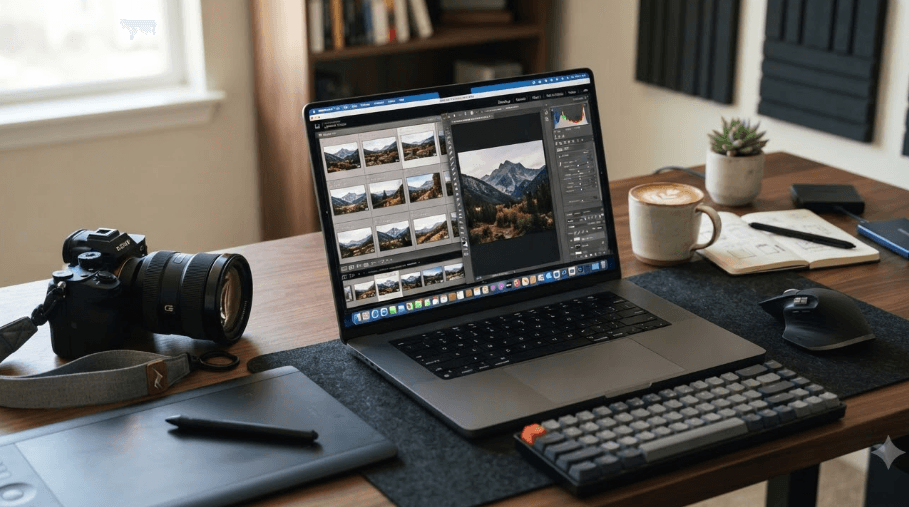
TL;DR: Choosing a laptop for Adobe Lightroom and Photoshop comes down to more than processor speed. For most photographers and creative professionals, 16GB of RAM, a fast SSD with at least 512GB of storage, and a Full HD or higher-resolution display with good colour accuracy provide a sensible starting point. If you regularly edit RAW images, work with multiple Photoshop layers, or use AI-powered editing tools, consider 32GB of RAM, a 1TB SSD, and a capable graphics processor. A quality display is equally important because inaccurate colours can affect the final image, even when the laptop performs well.
Understanding Laptop Requirements For Photo Editing
Adobe Lightroom and Photoshop serve different purposes, and your laptop should be able to handle the way you use them. Lightroom is designed primarily for organizing photographs, processing RAW files, applying presets, and making adjustments across large photo collections. Photoshop focuses more on detailed image manipulation, layers, compositing, retouching, and advanced editing.
Both applications benefit from a balanced combination of RAM, processing power, storage, and graphics performance. A laptop with a powerful processor but insufficient memory may struggle when several applications are open. Similarly, plenty of RAM cannot compensate for an outdated processor or a slow storage drive when handling demanding projects.
Your ideal specifications also depend on your budget and workload. Someone editing occasional JPEG photographs for social media does not need the same hardware as a professional photographer working with high-resolution RAW files. Understanding the specifications that matter most helps you avoid paying for features you may never use while ensuring that your laptop remains useful as your editing needs grow.
How Much RAM Do You Need For Lightroom And Photoshop?
8GB, 16GB, Or 32GB RAM?
RAM, or random-access memory, temporarily stores the information your laptop needs while applications are running. Lightroom uses it to manage image previews and editing operations, while Photoshop relies on it to handle image data, layers, masks, and other active elements.
Adobe lists 8GB of RAM as the minimum for current desktop versions of Lightroom and Photoshop, with 16GB or more recommended. However, minimum requirements indicate whether software can run, not necessarily whether it will provide a comfortable experience. For a new laptop intended for regular photo editing, 16GB is a more practical starting point.
If you regularly edit large RAW files, create complex Photoshop compositions, or keep Lightroom, Photoshop, and other applications open simultaneously, 32GB is worth considering. More memory can reduce reliance on slower disk-based scratch space when your workload exceeds available RAM, although performance still depends on the processor, storage, and specific editing tasks.
| RAM Capacity | Best Suited For | Recommendation |
|---|---|---|
| 8GB | Basic editing and occasional use | Minimum; limited headroom |
| 16GB | Everyday photo editing and moderate projects | Best starting point |
| 32GB | Large RAW files, multiple layers, and demanding workflows | Recommended for heavier workloads |
| 64GB | Very large projects and intensive professional workflows | Useful for specialized needs |
Can You Upgrade RAM Later?
Before purchasing a laptop, check whether its RAM is upgradeable. Some models use removable memory modules, while others have memory soldered directly onto the motherboard. This distinction matters because a laptop with 8GB of soldered RAM may remain restrictive throughout its useful life.
If your budget allows, buying 16GB or 32GB upfront is often a better decision than choosing an underpowered model and hoping to upgrade later. Also, check the manufacturer's supported memory configuration rather than assuming that every laptop accepts larger RAM modules.
Which Processor Is Best For Photo Editing?
Intel, AMD, Or Apple Silicon?
The processor, also called the CPU, handles many of the calculations involved in editing, exporting, and processing images. Lightroom can benefit from strong CPU performance during operations such as importing photographs, generating previews, and exporting batches. Photoshop also depends on the processor for many editing operations and general application responsiveness.
When comparing laptops, look beyond the processor brand. Newer processor generations, core configuration, sustained performance, and cooling all influence the actual experience. An Intel Core, AMD Ryzen, or Apple Silicon processor can be suitable, provided the specific model meets the application's requirements and offers enough performance for your workload.
For a new Windows laptop, consider a recent midrange or higher processor rather than choosing solely by its advertised clock speed. On a Mac, Apple Silicon models are suitable options for photo editing, but compare the particular chip, memory configuration, and storage capacity. Older processors may still handle basic editing, although compatibility and performance can become limitations.
Why Sustained Performance Matters
Photo editing can involve repeated bursts of processing, particularly when applying complex adjustments or exporting multiple images. A laptop that initially performs well but becomes hot may reduce its speed to manage temperatures. This is why cooling design matters alongside the processor's specifications.
For most users, a balanced modern processor and sufficient RAM are more useful than spending the entire budget on the highest-end CPU. Unless your workload involves particularly demanding processing, allocating some of that budget to a better display and larger SSD can improve the overall editing experience.
What Screen Specifications Matter Most?
Resolution And Display Size
The laptop display is one of the most important components for photo editing because it determines how clearly you can inspect images, assess fine details, and work with editing panels. Adobe lists 1920 × 1080 resolution or higher among its recommended display specifications for current desktop versions of Lightroom and Photoshop.
A Full HD display is adequate for many beginners and everyday editors. However, a higher-resolution screen can provide a sharper view of photographs and more workspace, depending on the screen size and operating-system scaling. A 14-inch laptop is easier to carry, while a 15- or 16-inch model offers more comfortable viewing space for long editing sessions.
Resolution alone does not determine image quality. Two laptops with the same resolution can display noticeably different colors, contrast, and brightness. Consider the display as a complete package rather than assuming that a higher pixel count automatically makes one screen better for editing.
Color Accuracy And Color Gamut
Color accuracy matters when you edit product photographs, portraits, landscapes, or images intended for publication. A screen that displays colors inaccurately can lead you to make adjustments that look correct on your laptop but appear different on other displays or in print.
Look for a display with good measured color accuracy and broad color coverage. Around 100% sRGB coverage is a useful target for general web-oriented photography and digital content. If your work involves wider-gamut photography or professional print preparation, a display with strong Adobe RGB coverage may be more appropriate. Color coverage and color accuracy are related but different, so check both when reliable specifications are available.
An IPS display can be a sensible choice because it generally offers good viewing angles, although panel quality varies. OLED displays can provide excellent contrast and rich colors, but you should still verify color accuracy and gamut rather than choosing by display technology alone. For color-critical work, monitor calibration and a consistent color-managed workflow can improve reliability.
| Display Specification | What To Look For |
|---|---|
| Resolution | Full HD minimum practical target; higher resolution for extra detail |
| Screen size | 14 inches for portability; 15–16 inches for more workspace |
| Color coverage | Around 100% sRGB for general digital editing |
| Color accuracy | Reliable factory calibration or calibration support |
| Panel type | Quality IPS or OLED, depending on measured performance |
| Brightness | Sufficient for your working environment, with consistent brightness |
How Much Storage Do Lightroom And Photoshop Need?
Why An SSD Is Essential
Storage affects how quickly your laptop launches applications, opens files, loads previews, and accesses project data. A solid-state drive (SSD) is preferable to a traditional mechanical hard drive for the main system drive because it offers much faster access to files and generally makes everyday use feel more responsive.
Adobe's current requirements specify available installation space, but the space needed for a practical editing setup is considerably greater than the installation minimum. Your operating system, applications, catalogs, previews, caches, scratch files, and original photographs all compete for storage. Keeping the SSD almost full can also make file management difficult and leave insufficient room for temporary work.
For most users buying a new photo-editing laptop, a 512GB SSD is a reasonable starting point. A 1TB SSD is a better long-term choice if you shoot regularly, work with RAW files, or maintain a substantial collection of active projects. The right capacity depends on how many images you retain locally and whether you use external storage.
Internal Storage Versus External Drives
Lightroom catalogs, current projects, and frequently accessed files benefit from being stored on a fast local SSD. Photoshop also uses scratch disks when additional working space is needed, so maintaining adequate free space is important. Adobe recommends fast SSD storage for Photoshop and discusses separate storage arrangements for scratch-disk workflows.
External SSDs can be useful for photo archives, project transfers, and backups. They let you expand capacity without paying for the largest internal drive configuration. However, an external drive adds another device to carry and connect, so consider your working environment before relying on one.
Remember that storage capacity is not the same as backup protection. Keeping your only copy of a photograph on a laptop or external drive leaves it vulnerable to loss if that device fails. Maintain a separate backup, and consider an additional off-site or cloud copy for important work.
| Storage Capacity | Best Suited For |
|---|---|
| 256GB SSD | Basic use with limited local photo storage |
| 512GB SSD | Beginners and moderate editing workloads |
| 1TB SSD | Regular photography and larger project libraries |
| 2TB SSD or more | Extensive local archives and demanding workflows |
Do You Need A Dedicated Graphics Card?
Integrated Graphics Versus Dedicated GPUs
The graphics processing unit (GPU) helps render the editing interface and accelerate supported image-processing features. Lightroom and Photoshop can use compatible graphics hardware for specific operations, so the GPU can make a meaningful difference when working with demanding displays and supported tools.
Integrated graphics share system memory and are built into the processor or system-on-chip. They can be sufficient for everyday photo editing when the laptop otherwise has suitable specifications. A dedicated GPU has its own graphics memory and can offer more performance for supported GPU-intensive features, but it is not automatically necessary for every photographer.
Adobe's recommendations vary by application, operating system, display resolution, and feature. Current requirements identify higher graphics-memory recommendations for some demanding features, including AI-assisted operations and high-resolution displays. Check the requirements for the exact version and features you intend to use rather than buying a laptop based only on a GPU model name.
When Is A Dedicated GPU Worth It?
A dedicated GPU becomes more attractive when you regularly work with large files, high-resolution displays, or supported AI-powered editing tools. It can also be useful if photo editing is part of a wider creative workflow that includes video editing or 3D applications.
However, a GPU upgrade should not come at the expense of insufficient RAM or storage. For many photographers, a laptop with 32GB of RAM, a capable modern processor, and a high-quality display can be a better overall investment than a model with a powerful GPU but compromises elsewhere.
Recommended Laptop Specifications By User Type
Match The Laptop To Your Workflow
There is no single specification combination that suits every Lightroom and Photoshop user. A student editing occasional photographs has different needs from a professional managing commercial shoots. The best approach is to identify the type of images you work with, how frequently you edit, and whether you use advanced features.
For beginners and casual editors, prioritize a compatible processor, 16GB of RAM, a quality Full HD display, and an SSD. These specifications offer a practical balance for learning the software and handling everyday projects without paying for hardware that may go unused.
For regular and professional work, consider 32GB of RAM, a 1TB SSD, a strong modern processor, and a display with dependable colour reproduction. If you rely heavily on GPU-accelerated or AI-assisted features, verify the relevant graphics requirements before making your purchase.
| User Type | RAM | Storage | Display | Graphics |
|---|---|---|---|---|
| Beginner | 16GB | 512GB SSD | Full HD, good color accuracy | Compatible integrated graphics |
| Regular photographer | 16–32GB | 1TB SSD preferred | Full HD or higher, around 100% sRGB | Capable integrated or dedicated GPU |
| Professional editor | 32GB or more | 1TB SSD or larger | High-resolution, color-accurate display | Strong compatible GPU where needed |
| AI-heavy workflow | 32GB or more | 1TB SSD or larger | High-resolution, color-accurate display | GPU meeting the exact feature requirements |
Final Recommendation
If you are buying a laptop specifically for Lightroom and Photoshop, start by looking for 16GB of RAM, a modern compatible processor, a 512GB SSD, and a Full HD display with good colour accuracy. This is a sensible baseline for students, beginners, and people who edit photographs regularly without handling especially demanding projects.
If your budget allows, consider moving to 32GB of RAM and a 1TB SSD. These upgrades provide more room for large files, multitasking, catalogs, and future projects. Prioritize a color-accurate display if your work involves product photography, portraits, branding, or other tasks where the appearance of colours matters.
Before purchasing, verify the exact laptop configuration, including whether the RAM can be upgraded, the display's measured color coverage, and the GPU's compatibility with the features you plan to use. Check Adobe's current system requirements as well, since software updates can change supported operating systems and hardware recommendations.
The best photo-editing laptop is not necessarily the most expensive one. It is the model that balances performance, memory, storage, display quality, and portability around the work you actually do.
Frequently Asked Questions
Q. How much RAM is enough for Lightroom and Photoshop?
16GB is a practical starting point for everyday editing. Choose 32GB if you regularly work with large RAW files, complex Photoshop layers, or several applications at once.
Q. Can I run Lightroom and Photoshop on an 8GB RAM laptop?
Yes, if the laptop meets the software's other requirements. However, 8GB is the minimum rather than the preferred configuration, and multitasking or demanding projects may feel restrictive.
Q. Is a dedicated graphics card necessary for photo editing?
No. Compatible integrated graphics can handle many everyday editing tasks. A dedicated GPU is more useful for supported GPU-intensive and AI-assisted features.
Q. Is a Full HD display good enough for Photoshop?
Yes. A Full HD display meets Adobe's recommended resolution threshold, although higher-resolution screens can provide additional detail and workspace.
Q. How important is color accuracy when buying a laptop?
It is very important for reliable photo editing. A display with good color accuracy and around 100% sRGB coverage is a useful starting point for digital photography and web content.
Q. Is 512GB SSD storage enough for Lightroom?
It can be enough for beginners and moderate workloads. If you maintain a large photo library or regularly import RAW files, a 1TB SSD offers more flexibility.
Q. Does Lightroom work better with Intel or AMD processors?
Both can be suitable. Compare the specific processor generation, performance, cooling, memory, and compatibility instead of choosing by brand alone.
Q. Are MacBooks good for Lightroom and Photoshop?
Yes. Compatible MacBooks with Apple Silicon can provide strong photo-editing performance. Check the memory, storage, display, and operating-system requirements of the software you intend to use.
Q. Do I need an external SSD for photo editing?
Not necessarily. An external SSD is useful for expanding storage, archiving projects, and transferring large files, but it is optional if your internal storage meets your needs.
Q. What is the best overall laptop configuration for photo editing?
For most regular users, 16GB of RAM, a modern compatible processor, a 512GB or 1TB SSD, and a color-accurate Full HD or higher-resolution display are a sensible combination. Choose 32GB of RAM for heavier workloads.
Ready to upgrade your tech?
Browse our collection of quality refurbished products at unbeatable prices.