Laptop Screen Flickering or Going Black: Causes and Fixes
Laptop screen flickering or going black can result from drivers, apps, display settings, power issues, or hardware faults. Learn how to identify the cause and troubleshoot it safely.

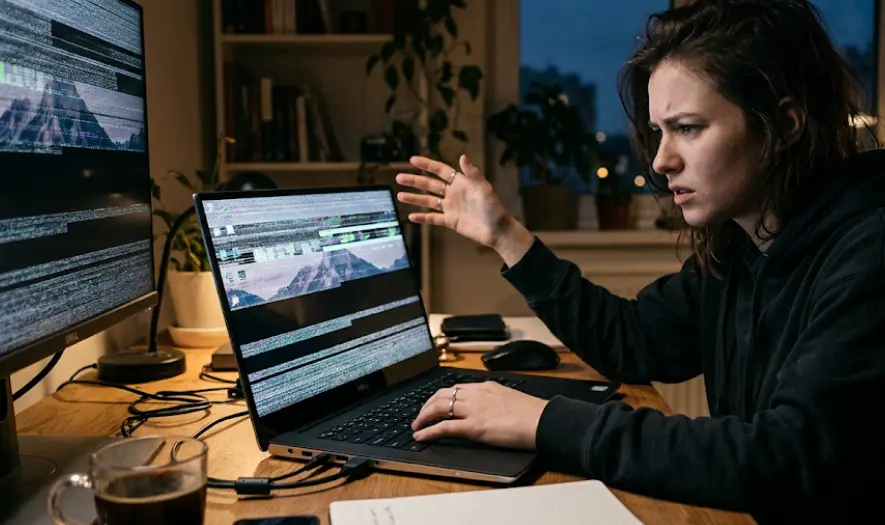
TL;DR: A laptop screen that flickers, flashes, dims, or suddenly goes black can have several causes, from an outdated or incompatible graphics driver to an incorrect refresh rate, problematic application, loose display connection, overheating, power issues, or failing screen hardware. Start with simple checks such as restarting the laptop, resetting the graphics driver, checking display settings, and testing whether the problem appears outside Windows. If the issue continues or changes when the laptop lid moves, hardware such as the display panel or internal display connection may need professional inspection.
Why Is Your Laptop Screen Flickering Or Going Black?
Screen flickering does not always mean that your laptop display is physically damaged. In Windows, Microsoft identifies display-driver problems and incompatible applications as common causes of flickering. A problem may appear as rapid flashing, intermittent black frames, brightness changes, horizontal lines, or a screen that repeatedly turns off and comes back on.
A completely black screen is slightly different. The laptop may still be running even though the display is not showing an image. A stalled Windows process, graphics-driver problem, incorrect display-output setting, low battery, or an issue with an external display can all produce a blank screen. On a Mac, Apple also notes that a black display can occur when the computer or display has gone to sleep or when the laptop has run out of power.
The most useful first step is therefore to identify when and how the problem occurs. Does it happen only inside Windows? Does it appear during startup? Does moving the lid trigger it? Does an external monitor work normally? These clues can help separate a software problem from a display-hardware problem before you spend money on repairs.
Common Causes Of Screen Flickering
Display Driver Or Software Problems
Graphics drivers control how your laptop communicates with its display. If a driver becomes incompatible, corrupted, or problematic after an update, the screen may flicker, flash, or become distorted. Microsoft specifically recommends checking whether Task Manager flickers as a way to distinguish between a display-driver issue and an incompatible application.
The application itself can also be responsible. If Task Manager remains stable while the rest of the screen flickers, Microsoft says an incompatible application is a likely cause. This can happen when a particular program interacts poorly with the graphics system, rather than because the laptop's physical display is failing.
Recent updates can also provide an important clue. If the flickering started immediately after a graphics-driver or Windows update, rolling the driver back may help. If there was no recent update, installing the correct driver from Windows Update or the laptop manufacturer's support page may be the better approach.
Refresh Rate And Display Settings
The refresh rate determines how frequently the display updates the image. For example, a 60Hz display refreshes 60 times per second. Windows allows supported laptops and monitors to use different refresh rates, while some newer systems can dynamically adjust the rate.
An unsuitable refresh-rate configuration can contribute to display problems, particularly when using external monitors or displays with specific resolution and refresh-rate limits. Apple also notes that an external display can become black when configured beyond its supported refresh rate.
Display resolution and scaling settings can also be worth checking. If you recently changed resolution, connected another display, or altered advanced display settings, returning to the recommended settings can help determine whether the configuration is responsible. Avoid selecting unsupported refresh rates simply because they are available in a menu.
Hardware, Power, Or Connection Problems
Hardware problems become more likely when flickering occurs before Windows loads, after physical impact, or when moving the laptop lid changes the behavior. A damaged display panel, internal display connection, or other display hardware can cause intermittent image problems. Dell, for example, provides an LCD built-in self-test specifically to help isolate certain display hardware issues.
Power can also play a role in a black screen. A severely depleted battery, faulty charger, or power-related problem may make the laptop appear unresponsive. On a Mac laptop, Apple recommends connecting the power adapter and disconnecting unnecessary accessories when dealing with a black screen.
If the laptop was recently dropped, exposed to liquid, or subjected to pressure around the display, do not assume that a driver update will solve the problem. Physical damage can require component-level diagnosis. Repeatedly opening and closing a laptop with a suspected damaged display connection can potentially make an intermittent hardware problem worse.
Quick Checks Before Trying Advanced Fixes
Start with the simplest possibilities. Connect the laptop to its charger, increase the brightness, and restart it. Disconnect unnecessary USB devices, docks, and external displays. A peripheral or display connection can sometimes complicate troubleshooting, and removing those variables makes it easier to identify the actual problem.
Next, observe whether the laptop itself is still functioning when the screen goes black. Listen for system sounds, check whether the keyboard responds, or see whether an external monitor displays an image. On Windows, Microsoft recommends using Windows + Ctrl + Shift + B to reset the graphics driver. A successful reset may produce a short beep or screen flash.
Also note exactly when the problem occurs. If the screen works normally during startup but begins flickering after you sign into Windows, software or drivers become more likely. If it flickers on the manufacturer's logo or in a hardware diagnostic screen, the problem is more likely to involve the display hardware or another low-level component.
| What You Notice | What It May Point To |
|---|---|
| Flickers only inside Windows | Driver or application |
| Task Manager flickers too | Display driver is more likely |
| Only one application flickers | App compatibility issue |
| Started after a driver update | Driver compatibility |
| Changes when the lid moves | Possible display connection or panel issue |
| Black screen but laptop remains active | Display, driver, output, or power issue |
| Flickers before Windows loads | Hardware or low-level issue |
| External monitor works normally | Possible laptop display-side hardware issue |
How To Fix A Flickering Windows Laptop Screen
Reset Or Update The Graphics Driver
The quickest software fix is to press Windows + Ctrl + Shift + B. This tells Windows to reset the graphics driver without requiring a complete restart. Microsoft recommends this shortcut as one of the initial troubleshooting steps for flickering or blank-screen problems.
If the problem returns, check the graphics driver through Device Manager. Open Device Manager > Display adapters, right-click the graphics adapter, and select Update driver. If the problem began immediately after a driver update, the Roll Back Driver option may be more appropriate when it is available. Microsoft recommends updating, rolling back, or uninstalling the display driver depending on the circumstances.
For laptops, it is often sensible to check the manufacturer's support page as well. Laptop manufacturers sometimes provide customized graphics drivers or firmware intended for a specific model. Avoid downloading drivers from random third-party websites simply because they appear in search results.
Check For An Incompatible App
Windows provides a useful diagnostic clue through Task Manager. Press Ctrl + Shift + Esc to open it and observe whether the Task Manager window flickers along with the rest of the display. If Task Manager flickers too, the display driver is more likely to be responsible. If Task Manager remains stable while other content flickers, an incompatible application becomes more likely.
If one particular program triggers the problem, update that application first. If an update does not help, temporarily uninstalling the application can help confirm whether it is responsible. Microsoft recommends updating or uninstalling incompatible applications when they are suspected of causing screen flickering.
Do not immediately uninstall multiple programs at once. Test one suspected application at a time so you know which change actually affected the problem. This is especially useful if the flickering happens during video playback, gaming, browsing, or when using graphics-intensive software.
Check Refresh Rate And Resolution
Go to Settings > System > Display > Advanced display in Windows and check the refresh rate available for your screen. Select a refresh rate supported by the laptop's display rather than choosing an unusually high setting simply because it appears in the list. Windows shows the refresh rates supported by the selected display.
If the problem started after changing display settings, try returning to the recommended resolution and a standard supported refresh rate. On compatible Windows 11 systems, Dynamic Refresh Rate can automatically adjust the display refresh rate. If a particular application or workload behaves poorly with dynamic refresh, testing with a fixed supported rate can help isolate the issue.
When using multiple displays, check the settings for each screen. Microsoft notes that different refresh rates across multiple monitors can sometimes cause video-display problems in certain situations.
What To Do If The Screen Goes Completely Black
Try The Graphics Reset First
If the laptop appears to be running but the screen suddenly goes black, try Windows + Ctrl + Shift + B. This resets the graphics driver and may restore the display without forcing a shutdown. If the screen returns, save your work and investigate the driver or application that may have triggered the problem.
If that does not work, press Ctrl + Alt + Delete. If the security screen appears, Windows is still responding. From there, you may be able to open Task Manager and restart Windows Explorer if the desktop process has stalled. Microsoft includes restarting Windows Explorer among its troubleshooting steps for certain blank-screen situations.
If nothing appears and the laptop does not respond, a forced restart may be necessary. Microsoft recommends holding the power button for about 20 seconds in its blank-screen troubleshooting guidance. Use a forced shutdown only when normal recovery options are unavailable because unsaved work may be lost.
Check Power And External Connections
Make sure the charger is connected properly and the laptop has adequate battery power. Disconnect unnecessary peripherals, docking stations, and external displays before restarting. If an external monitor is connected, test the laptop without it to determine whether the problem is related to the external display setup.
If you are using an external monitor, inspect the cable and adapter as well. Apple notes that an incompatible or insufficient video cable or adapter can result in a dark display or prevent the display from operating at its intended resolution or refresh rate.
If an external display works while the laptop's built-in screen remains black, that is a useful diagnostic clue. It does not automatically prove that the laptop panel is faulty, but it makes the built-in display path worth investigating. A technician can then test the panel and internal display connections rather than replacing unrelated components.
How To Tell If It Is A Hardware Problem
One of the strongest clues is whether the flickering happens outside the operating system. If the screen shows flickering, lines, distortion, or other abnormalities during startup or a manufacturer's hardware diagnostic test, software becomes less likely to be the sole cause. Dell's LCD built-in self-test, for example, displays test patterns specifically to help assess the screen hardware.
Another clue is movement. If opening or closing the laptop lid changes the flickering, temporarily restores the picture, or causes the screen to go black, stop repeatedly moving the lid to reproduce the problem. The behavior can indicate a problem in the display assembly or its internal connection, although only a proper inspection can confirm the exact cause.
For a Dell laptop, an LCD built-in self-test can help separate screen hardware from Windows-related problems. Other manufacturers may provide their own diagnostic tools. If the screen continues to fail during hardware diagnostics, professional service is usually more appropriate than repeatedly reinstalling drivers.
MacBook Screen Flickering Or Going Black
Mac users should begin with the same basic logic: determine whether the Mac is actually running and whether the issue is limited to the display. If the screen goes black and returns when you press a key or click the trackpad, it may simply have entered sleep. If the Mac has run out of power, connect the power adapter and allow it to charge.
If the Mac starts but remains on a blank screen, Apple recommends shutting it down and starting it again. For persistent startup blank-screen problems, macOS Recovery can provide additional troubleshooting options. Depending on the situation, Apple recommends using Disk Utility or reinstalling macOS through Recovery, while hardware-related issues may require service.
Apple Diagnostics can also help identify certain internal hardware problems. It is designed to check components such as the logic board, memory, and wireless hardware, although it does not diagnose every software or external-hardware problem. If diagnostics indicate a hardware fault, professional service is the safer next step.
When Should You Get Professional Repair?
Consider professional repair when the screen remains black after basic software troubleshooting, flickers during startup, shows persistent lines or distortion, or changes when the laptop lid is moved. These symptoms can indicate a physical display problem that cannot be reliably fixed through Windows or macOS settings.
Professional help is also appropriate after a drop, liquid exposure, cracked display, or other physical incident. Continuing to use a laptop after liquid exposure can cause additional damage, so power it down and seek appropriate service rather than repeatedly testing it.
Before paying for a screen replacement, ask the technician to diagnose the problem first. A faulty display panel, cable or connector, graphics hardware, motherboard, or software issue can produce similar symptoms. Replacing the screen without identifying the actual cause can turn a relatively simple repair into an unnecessary expense.
Final Recommendation
If your laptop screen is flickering or suddenly going black, do not assume the display needs replacement immediately. Start with the least invasive checks: connect the charger, disconnect unnecessary accessories, restart the laptop, reset the graphics driver, check Task Manager, and review the display driver and refresh-rate settings. These steps can resolve many software-related problems without opening the laptop.
If the issue started after a software or driver change, focus on the software side first. If it appears before the operating system loads, changes when the lid moves, follows physical damage, or persists during hardware diagnostics, shift your attention toward hardware. This approach is more reliable than repeatedly reinstalling drivers when the actual problem may be physical.
For an occasional flicker, troubleshooting at home is reasonable. For a screen that repeatedly goes black, shows lines, or stops working altogether, back up important data as soon as possible and arrange a professional diagnosis. A careful diagnosis can determine whether the problem is a driver, display setting, cable, panel, or motherboard issue and help you avoid paying for the wrong repair.
Frequently Asked Questions
Q. Why is my laptop screen flickering randomly?
Screen flickering can be caused by a display driver, incompatible application, refresh-rate setting, or hardware problem. On Windows, checking whether Task Manager flickers can help distinguish between a driver and application issue.
Q. Why does my laptop screen keep going black but the laptop stays on?
The graphics driver, display-output configuration, Windows process, power state, or display hardware could be responsible. Try Windows + Ctrl + Shift + B first if you are using Windows.
Q. Can an outdated graphics driver cause screen flickering?
Yes. Microsoft identifies display-driver problems as a common cause of Windows screen flickering and recommends updating, rolling back, or reinstalling the driver depending on when the problem started.
Q. Can changing the refresh rate fix a flickering screen?
It can help when the selected refresh rate is unsuitable for the display, but it is not a universal fix. Always select a refresh rate supported by your laptop's display.
Q. Why does my screen flicker when I move the laptop lid?
A change in behavior when the lid moves can point toward a problem within the display assembly or its internal connection. It should be professionally inspected rather than repeatedly flexing the lid to test it.
Q. How do I reset my graphics driver in Windows?
Press Windows + Ctrl + Shift + B. Windows will attempt to reset the graphics driver, and you may hear a beep or see a brief screen flash.
Q. Can an application cause my laptop screen to flicker?
Yes. Microsoft specifically notes that incompatible applications can cause Windows screen flickering. If Task Manager does not flicker while the rest of the screen does, an application may be responsible.
Q. Why is my MacBook screen suddenly black?
The Mac may have gone to sleep, run out of power, encountered a startup problem, or developed a hardware or software issue. Connect the power adapter and try restarting it before moving to more advanced troubleshooting.
Q. Should I replace my laptop screen if it keeps flickering?
Not immediately. First determine whether the cause is software, drivers, settings, or hardware. If the problem continues during startup or hardware diagnostics, professional inspection is a better next step.
Q. When should I take my laptop to a technician?
Seek professional help if the screen remains black, flickers during startup, changes when the lid moves, shows persistent lines or distortion, or the laptop has suffered physical or liquid damage.
Ready to upgrade your tech?
Browse our collection of quality refurbished products at unbeatable prices.