
Laptop BIOS Explained
Learn everything about laptop BIOS, including how it works, BIOS vs UEFI, common settings, updates, and whether you should change BIOS settings before buying or troubleshooting a laptop.

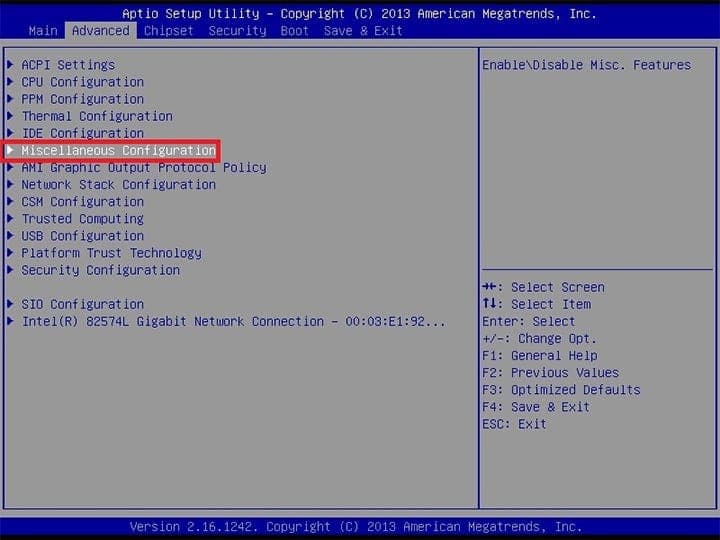
TL;DR Your laptop BIOS is the firmware that starts your computer before Windows or any other operating system loads. It checks whether your hardware is working, initializes essential components, and tells the system where to boot from. While most modern laptops now use UEFI firmware instead of the older Legacy BIOS, people still commonly refer to it as the BIOS. Understanding your laptop BIOS helps you troubleshoot start-up issues, configure hardware settings, enable virtualization, and decide whether a BIOS update is necessary. For most users, there's no need to modify BIOS settings unless you're following a trusted guide or resolving a specific issue.
What Is Laptop BIOS and Why Does It Matter?
The laptop BIOS (Basic Input/Output System) is the firmware stored on your laptop's motherboard. It is the very first software that runs when you press the power button. Before Windows, Linux, or any other operating system starts, the BIOS checks whether essential hardware such as the processor, memory, storage drive, keyboard, and cooling system are functioning correctly. Once these checks are complete, it hands control over to the operating system so your laptop can boot normally.
Although the term BIOS is still widely used, most laptops released over the past decade actually use UEFI (Unified Extensible Firmware Interface). UEFI is the modern replacement for the traditional BIOS and offers faster boot times, improved security features, support for larger storage drives, and a more user-friendly interface. However, because "BIOS" is a familiar term, manufacturers and users often continue to use it when referring to firmware settings, regardless of whether the laptop runs Legacy BIOS or UEFI.
Understanding your laptop BIOS is useful even if you never plan to change its settings. Many common troubleshooting steps, such as changing the boot order, enabling virtualization for virtual machines, turning Secure Boot on or off, or checking whether your SSD is detected, begin in the BIOS. Knowing what it does can save time when diagnosing start-up issues or preparing your laptop for operating system installation.
BIOS vs UEFI: What's the Difference?
While BIOS and UEFI serve the same fundamental purpose, they differ significantly in terms of features and capabilities. Legacy BIOS has been around since the 1980s and has several technical limitations, whereas UEFI is designed for modern hardware and operating systems.
| Feature | Legacy BIOS | UEFI |
|---|---|---|
| Full Form | Basic Input/Output System | Unified Extensible Firmware Interface |
| Interface | Keyboard-only, text-based | Graphical interface with mouse support (on many laptops) |
| Boot Speed | Slower | Faster |
| Maximum Drive Support | Up to 2 TB (MBR) | More than 2 TB (GPT) |
| Security | Limited | Supports Secure Boot |
| Current Status | Mostly obsolete | Standard on modern laptops |
Today, laptops such as the Dell XPS 13, HP Spectre x360 14, Lenovo Yoga 9i, ASUS Zenbook S 14, Acer Swift Go 14, and Apple MacBook models all use modern UEFI firmware, even though many support documents still refer to it as the BIOS.
What Does Laptop BIOS Actually Do?
Every time you switch on your laptop, the BIOS performs a sequence of tasks before the operating system loads. One of its first responsibilities is running the Power-On Self-Test (POST). During POST, the firmware checks critical hardware components, including the CPU, RAM, storage drive, graphics hardware, cooling fans, and input devices. If a major problem is detected, the system may display an error message, emit beep codes, or refuse to boot until the issue is resolved.
After verifying the hardware, the laptop BIOS initializes all connected devices and determines where the operating system is installed. It follows a predefined boot order, looking for a bootable drive such as an SSD, HDD, or USB flash drive. If you're installing Windows from a USB drive, for example, you'll often need to change the boot priority inside the BIOS so the laptop starts from the USB device instead of the internal storage.
The BIOS also stores important hardware configuration settings that remain saved even when the laptop is powered off. These include the system date and time, Secure Boot status, virtualization settings (Intel VT-x or AMD-V), boot mode, storage configuration, and power management options. Although most users never need to change these settings, they become important when upgrading hardware, installing another operating system, or troubleshooting compatibility issues.
The Laptop Start-up Process
Understanding the start-up process helps explain why the BIOS is so important. Every successful boot follows the same basic sequence.
| Step | What Happens |
|---|---|
| 1 | You press the power button. |
| 2 | The laptop BIOS (or UEFI firmware) starts. |
| 3 | POST checks the CPU, RAM, storage, and other hardware. |
| 4 | Firmware initializes connected devices. |
| 5 | The BIOS identifies the boot device based on the configured boot order. |
| 6 | Windows, Linux, or another operating system begins loading. |
If any of these steps fail, the laptop may freeze on the manufacturer's logo, display a boot error, or repeatedly restart. In many cases, checking the BIOS settings is one of the first troubleshooting steps recommended by laptop manufacturers.
How to Access Laptop BIOS Safely?
Most users only enter the laptop BIOS when they need to change a hardware setting, install a new operating system, troubleshoot boot problems, or update firmware. Although the interface may look intimidating, accessing the BIOS is straightforward once you know the correct key for your laptop. The exact method varies depending on the manufacturer, and newer Windows laptops may also let you enter the BIOS through the Advanced Start-up menu.
On most laptops, you need to press a specific key repeatedly immediately after turning on the device. Common BIOS keys include F2, Delete, F10, F12, or Esc, but the correct key depends on the laptop model. For example, Dell Inspiron and Dell XPS laptops typically use F2, Lenovo ThinkPad and IdeaPad models often use F1, F2, or the Novo button. In contrast, HP Pavilion and HP EliteBook laptops usually use Esc followed by F10. ASUS Zenbook and VivoBook models commonly use F2, Acer Aspire laptops generally use F2, and MSI gaming laptops frequently use the Delete key. Because manufacturers occasionally change shortcuts, it's always a good idea to check your laptop's support page if you're unsure.
If you're using Windows 11 or Windows 10 with Fast Start-up enabled, pressing the BIOS key during boot can sometimes be difficult. In that case, Microsoft provides a built-in method to access the firmware. Go to Settings > System > Recovery > Advanced Startup > Restart Now, then choose Troubleshoot > Advanced Options > UEFI Firmware Settings. Your laptop will restart directly into the BIOS or UEFI firmware menu, making it a convenient option if the keyboard shortcut doesn't work.
Common BIOS Keys by Laptop Brand
| Laptop Brand | Popular Laptop Models | BIOS Key |
|---|---|---|
| Dell | Inspiron, XPS, Latitude, Precision | F2 |
| HP | Pavilion, EliteBook, ProBook, OMEN | Esc → F10 |
| Lenovo | ThinkPad, ThinkBook, IdeaPad, Legion | F1, F2, or Novo Button |
| ASUS | Zenbook, VivoBook, ROG, TUF Gaming | F2 |
| Acer | Aspire, Swift, Nitro, Predator | F2 |
| MSI | Katana, Raider, Stealth, Prestige | Delete |
| Samsung | Galaxy Book Series | F2 |
| Microsoft | Surface Laptop, Surface Pro | Via Windows UEFI Settings |
Common Laptop BIOS Settings You Should Know
Once inside the laptop BIOS, you'll see numerous settings that control how your laptop starts and communicates with its hardware. While many options are intended for advanced users, a handful of settings are useful for everyday troubleshooting and system management. Understanding what they do can help you make informed changes without accidentally affecting system stability.
One of the most important settings is the Boot Order, which determines the sequence in which your laptop checks storage devices for an operating system. If you're installing Windows from a USB drive or booting a Linux installer, you'll usually need to place the USB device ahead of the internal SSD. Once installation is complete, it's recommended to restore the internal drive as the primary boot device to reduce start-up delays.
Other commonly used settings include Secure Boot, Virtualization Technology (Intel VT-x or AMD-V), and TPM (Trusted Platform Module). Secure Boot helps prevent unauthorized software from loading during start-up and is required for Windows 11 on supported hardware. Virtualization is useful if you run virtual machines using software like Hyper-V or VMware. TPM enhances hardware-level security by storing encryption keys and supports features such as BitLocker device encryption and Windows Hello.
Frequently Used BIOS Settings
| BIOS Setting | Purpose | Typical Users |
|---|---|---|
| Boot Order | Selects which device boots first | Everyone |
| Secure Boot | Protects the boot process from malicious software | All Windows users |
| TPM | Enables hardware security features | Windows 11 users |
| Virtualization (VT-x/AMD-V) | Supports virtual machines | Developers and IT professionals |
| Fan Control (available on some laptops) | Adjusts cooling behavior | Power users |
| Date & Time | Sets the system clock | General users |
When Should You Update Your Laptop BIOS?
Updating the laptop BIOS can improve hardware compatibility, fix known bugs, patch security vulnerabilities, and enhance overall system stability. Laptop manufacturers such as Dell, HP, Lenovo, ASUS, and Acer periodically release BIOS updates to address issues discovered after a laptop reaches the market. However, unlike routine Windows updates, BIOS updates should only be installed when they solve a specific problem or are recommended by the manufacturer.
For example, a BIOS update may add support for a newer SSD, improve battery management, resolve random boot failures, or include important security patches for firmware vulnerabilities. Businesses and enterprise users often install BIOS updates to comply with IT security policies, while everyday users may only need an update if they're experiencing hardware issues or following official upgrade instructions.
Before updating the BIOS, ensure your laptop battery is sufficiently charged and keep the charger connected throughout the process. Interrupting a BIOS update due to power loss can corrupt the firmware, potentially preventing the laptop from booting. Most manufacturers now provide update utilities within Windows or through their support applications, making the process significantly safer than it was in the past.
Signs You May Need a BIOS Update
| Situation | Is a BIOS Update Recommended? |
|---|---|
| Random boot failures | Yes |
| Manufacturer recommends it | Yes |
| Hardware compatibility issues | Yes |
| Security vulnerability fix | Yes |
| Laptop is working perfectly with no issues | Usually No |
How to Access Laptop BIOS Safely?
Most users only enter the laptop BIOS when they need to change a hardware setting, install a new operating system, troubleshoot boot problems, or update firmware. Although the interface may look intimidating, accessing the BIOS is straightforward once you know the correct key for your laptop. The exact method varies depending on the manufacturer, and newer Windows laptops may also let you enter the BIOS through the Advanced Startup menu.
On most laptops, you need to press a specific key repeatedly immediately after turning on the device. Common BIOS keys include F2, Delete, F10, F12, or Esc, but the correct key depends on the laptop model. For example, Dell Inspiron and Dell XPS laptops typically use F2, Lenovo ThinkPad and IdeaPad models often use F1, F2, or the Novo button, while HP Pavilion and HP EliteBook laptops usually use Esc followed by F10. ASUS Zenbook and VivoBook models commonly use F2, Acer Aspire laptops generally use F2, and MSI gaming laptops frequently use the Delete key. Because manufacturers occasionally change shortcuts, it's always a good idea to check your laptop's support page if you're unsure.
If you're using Windows 11 or Windows 10 with Fast Startup enabled, pressing the BIOS key during boot can sometimes be difficult. In that case, Microsoft provides a built-in method to access the firmware. Go to Settings > System > Recovery > Advanced Startup > Restart Now, then choose Troubleshoot > Advanced Options > UEFI Firmware Settings. Your laptop will restart directly into the BIOS or UEFI firmware menu, making it a convenient option if the keyboard shortcut doesn't work.
Common BIOS Keys by Laptop Brand
| Laptop Brand | Popular Laptop Models | BIOS Key |
|---|---|---|
| Dell | Inspiron, XPS, Latitude, Precision | F2 |
| HP | Pavilion, EliteBook, ProBook, OMEN | Esc → F10 |
| Lenovo | ThinkPad, ThinkBook, IdeaPad, Legion | F1, F2, or Novo Button |
| ASUS | Zenbook, VivoBook, ROG, TUF Gaming | F2 |
| Acer | Aspire, Swift, Nitro, Predator | F2 |
| MSI | Katana, Raider, Stealth, Prestige | Delete |
| Samsung | Galaxy Book Series | F2 |
| Microsoft | Surface Laptop, Surface Pro | Via Windows UEFI Settings |
Common Laptop BIOS Settings You Should Know
Once inside the laptop BIOS, you'll see numerous settings that control how your laptop starts and communicates with its hardware. While many options are intended for advanced users, a handful of settings are useful for everyday troubleshooting and system management. Understanding what they do can help you make informed changes without accidentally affecting system stability.
One of the most important settings is the Boot Order, which determines the sequence in which your laptop checks storage devices for an operating system. If you're installing Windows from a USB drive or booting a Linux installer, you'll usually need to place the USB device ahead of the internal SSD. Once installation is complete, it's recommended to restore the internal drive as the primary boot device to reduce startup delays.
Other commonly used settings include Secure Boot, Virtualization Technology (Intel VT-x or AMD-V), and TPM (Trusted Platform Module). Secure Boot helps prevent unauthorized software from loading during startup and is required for Windows 11 on supported hardware. Virtualization is useful if you run virtual machines using software like Hyper-V or VMware. TPM enhances hardware-level security by storing encryption keys and supports features such as BitLocker device encryption and Windows Hello.
Frequently Used BIOS Settings
| BIOS Setting | Purpose | Typical Users |
|---|---|---|
| Boot Order | Selects which device boots first | Everyone |
| Secure Boot | Protects the boot process from malicious software | All Windows users |
| TPM | Enables hardware security features | Windows 11 users |
| Virtualization (VT-x/AMD-V) | Supports virtual machines | Developers and IT professionals |
| Fan Control (available on some laptops) | Adjusts cooling behavior | Power users |
| Date & Time | Sets the system clock | General users |
When Should You Update Your Laptop BIOS?
Updating the laptop BIOS can improve hardware compatibility, fix known bugs, patch security vulnerabilities, and enhance overall system stability. Laptop manufacturers such as Dell, HP, Lenovo, ASUS, and Acer periodically release BIOS updates to address issues discovered after a laptop reaches the market. However, unlike routine Windows updates, BIOS updates should only be installed when they solve a specific problem or are recommended by the manufacturer.
For example, a BIOS update may add support for a newer SSD, improve battery management, resolve random boot failures, or include important security patches for firmware vulnerabilities. Businesses and enterprise users often install BIOS updates to comply with IT security policies, while everyday users may only need an update if they're experiencing hardware issues or following official upgrade instructions.
Before updating the BIOS, ensure your laptop battery is sufficiently charged and keep the charger connected throughout the process. Interrupting a BIOS update due to power loss can corrupt the firmware, potentially preventing the laptop from booting. Most manufacturers now provide update utilities within Windows or through their support applications, making the process significantly safer than it was in the past.
Signs You May Need a BIOS Update
| Situation | Is a BIOS Update Recommended? |
|---|---|
| Random boot failures | Yes |
| Manufacturer recommends it | Yes |
| Hardware compatibility issues | Yes |
| Security vulnerability fix | Yes |
| Laptop is working perfectly with no issues | Usually No |
Common Myths About Laptop BIOS
The laptop BIOS is one of the least understood parts of a computer, so it's no surprise that several myths surround it. Many users avoid opening the BIOS because they believe they could permanently damage their laptop by simply entering the menu. In reality, opening the BIOS is completely safe. The firmware only displays configuration options, and nothing changes unless you manually save new settings before exiting.
Another common misconception is that BIOS updates should be installed as frequently as Windows updates. Unlike operating system updates, BIOS updates are firmware-level changes that are intended to address specific issues, such as improving hardware compatibility, fixing stability problems, or patching security vulnerabilities. If your laptop is functioning normally and the manufacturer does not recommend an update, there's usually no reason to install the latest BIOS version.
Many people also assume that BIOS settings are only useful for IT professionals. While advanced options should be handled carefully, everyday users often access the BIOS to change the boot device, enable Secure Boot, activate virtualization for virtual machines, or verify whether new hardware has been detected. Learning the basics of the laptop BIOS can help you troubleshoot common startup problems without requiring technical expertise.
Myth vs Fact
| Myth | Fact |
|---|---|
| Opening BIOS can damage your laptop. | Simply accessing the BIOS is completely safe. |
| BIOS should be updated regularly like Windows. | Update only when recommended or when fixing a specific issue. |
| BIOS is only for technicians. | Basic settings like boot order and Secure Boot are useful for many users. |
| BIOS and Windows are the same thing. | BIOS/UEFI starts before Windows and initializes the hardware. |
| Resetting BIOS deletes your files. | Resetting BIOS restores firmware settings only and does not erase data stored on your SSD or HDD. |
Frequently Asked Questions
Q. What is laptop BIOS?
A. Laptop BIOS (Basic Input/Output System) is firmware stored on the motherboard that initializes hardware and starts the boot process before the operating system loads. Most modern laptops now use UEFI firmware, although it is still commonly referred to as BIOS.
Q. Is BIOS the same as UEFI?
A. No. BIOS is the older firmware standard, while UEFI (Unified Extensible Firmware Interface) is its modern replacement. UEFI offers faster boot times, improved security features like Secure Boot, support for larger storage drives, and a more user-friendly interface.
Q. How do I open the BIOS on my laptop?
A. Restart your laptop and press the appropriate key during startup, such as F2, F10, Delete, Esc, or F1, depending on the manufacturer. You can also access UEFI firmware through Windows Advanced Startup settings on supported systems.
Q. Is it safe to change BIOS settings?
A. Yes, provided you understand what each setting does. Changing essential settings without proper knowledge can prevent the system from booting, so it's best to modify only settings you are familiar with or follow official instructions.
Q. Should I update my laptop BIOS?
A. Update your BIOS only if the manufacturer recommends it or if the update fixes a specific problem, improves hardware compatibility, or addresses an important security issue.
Q. Can resetting the BIOS delete my files?
A. No. Resetting BIOS restores firmware settings to their default values but does not delete files stored on your SSD or hard drive.
Q. What is Secure Boot in BIOS?
A. Secure Boot is a UEFI security feature that helps prevent unauthorized or malicious software from loading during startup. It is also one of the requirements for Windows 11 on supported hardware.
Q. Why can't I access the BIOS on my laptop?
A. Fast Startup, incorrect key timing, or manufacturer-specific boot methods can prevent BIOS access. You can alternatively use Windows Recovery settings to restart directly into the UEFI firmware menu.
Q. Can BIOS improve laptop performance?
A. BIOS updates may improve system stability, hardware compatibility, battery management, or thermal behavior, but they do not significantly increase everyday performance like upgrading RAM or installing a faster SSD.
Q. Does every laptop still have BIOS in 2026?
A. Yes, every laptop requires firmware to initialize hardware before booting. However, almost all modern laptops released in recent years use UEFI firmware instead of the legacy BIOS, even though the term "BIOS" is still widely used.
Final Recommendation
Understanding the laptop BIOS is valuable even if you never plan to change advanced firmware settings. Knowing how the BIOS works, how to access it, and when to update it can help you troubleshoot startup issues, install a new operating system, enable virtualization, or verify that newly installed hardware is detected correctly. While modern laptops use UEFI firmware instead of the traditional BIOS architecture, the purpose remains the same: preparing your hardware before Windows or another operating system starts.
For most users, there is no need to modify BIOS settings regularly. However, familiarizing yourself with essential features such as Boot Order, Secure Boot, TPM, and virtualization can save time when troubleshooting or upgrading your laptop. Likewise, BIOS updates should be installed only when recommended by the manufacturer or when they resolve a known issue, rather than as part of routine maintenance.
If you're buying a laptop in 2026, don't focus solely on the term laptop BIOS. Instead, look for a system with a modern UEFI firmware, regular firmware updates from the manufacturer, TPM 2.0 support, and Secure Boot compatibility. These features provide better security, faster startup, and improved compatibility with current and future operating systems, making your laptop more reliable over its lifespan.
Ready to upgrade your tech?
Browse our collection of quality refurbished products at unbeatable prices.






