How Touch Works on a Touchscreen MacBook: Will You Actually Use It?
Apple's first touchscreen MacBook Pro brings Touch to macOS through an OLED display. Here's how it works, what you can do with it, and whether the feature is worth paying for.

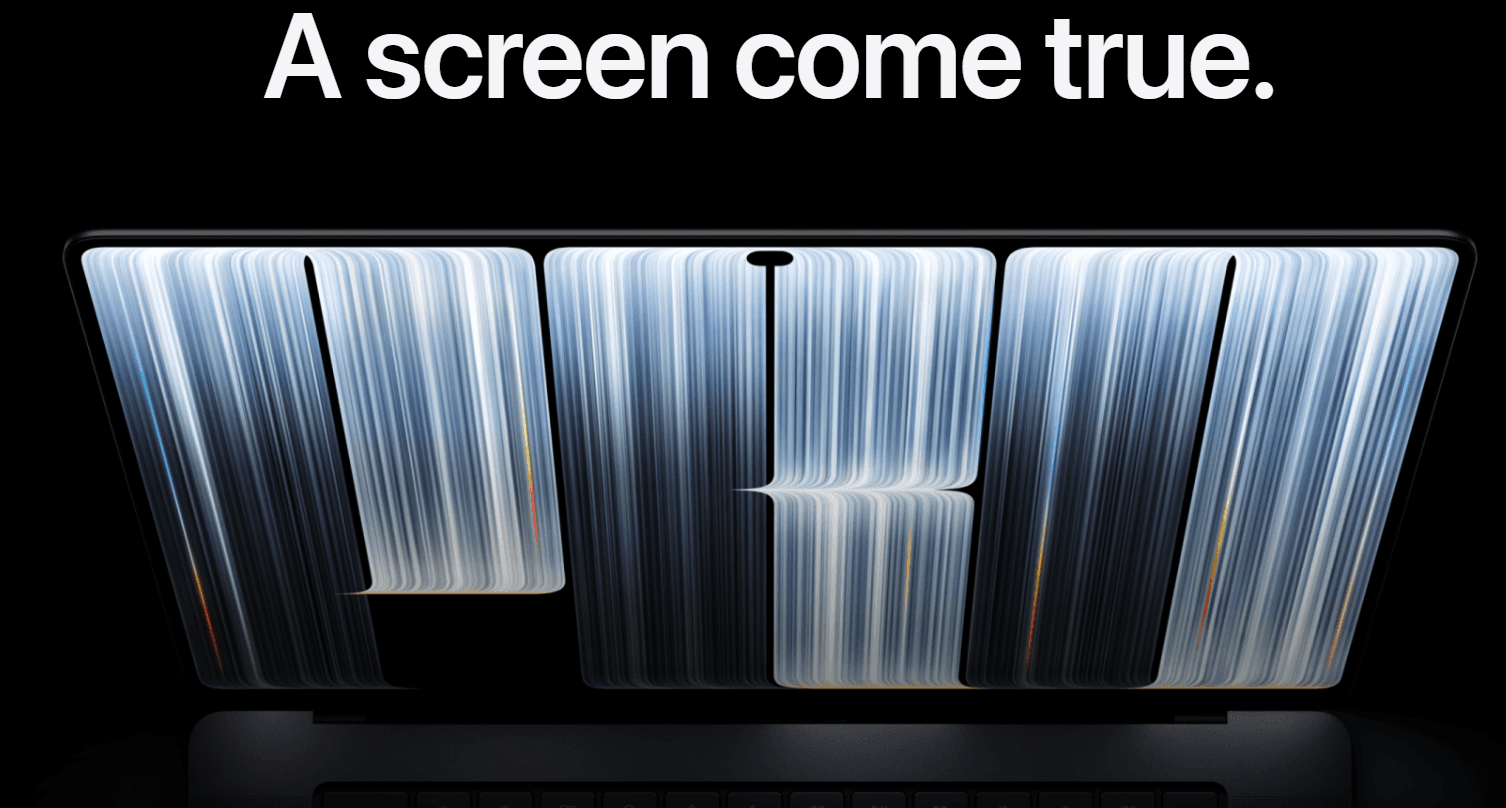
TL;DR: Apple's first touchscreen MacBook Pro is finally here in 2026, bringing Touch to the Mac through a 14-inch or 16-inch tandem OLED PROLED XDR display. Unlike a 2-in-1 Windows laptop, it remains a traditional MacBook Pro with a keyboard and trackpad, while Touch works as an additional input method. You can scroll, pinch to zoom, rotate objects, drag items, draw, and interact directly with supported on-screen controls. Apple has also designed Touch for professional workflows such as manipulating 3D objects and playing virtual instruments. The real question is not whether the touchscreen works, but whether reaching across the keyboard to use it is more convenient than using the trackpad. For most buyers, Touch is best treated as a useful secondary feature rather than the main reason to buy a MacBook Pro.
What Is The Touchscreen MacBook Pro?
For years, Apple kept the MacBook and iPad experiences deliberately separate. That changed in 2026 with the launch of the MacBook Pro with PROLED XDR Display, which introduces Touch to the Mac for the first time. Apple offers the touchscreen MacBook Pro in 14-inch and 16-inch sizes, with M5 Pro and M5 Max chips, rather than turning the MacBook into a detachable tablet or a 360-degree convertible laptop. The basic laptop design remains familiar, including the keyboard and trackpad, but the display can now respond directly to your fingers. That distinction matters because the touchscreen is designed to supplement the traditional Mac input methods rather than replace them.
The touch layer is integrated directly into the display panel rather than being placed as a separate layer over the screen. Apple says this design helps reduce latency, so interactions are intended to feel more direct when you touch, swipe, pinch, or manipulate something on screen. The display itself is also a major upgrade, using a tandem OLED panel with up to 2,000 nits peak brightness, a 10,000,000:1 contrast ratio, 120Hz variable refresh rate, and support for both P3 and Adobe RGB color gamuts. In other words, Touch is part of a much broader display redesign rather than an isolated feature added to an otherwise unchanged MacBook Pro.
The important point for buyers is that this is still macOS running on a professional laptop. You are not buying a giant iPad with a keyboard attached, and the MacBook Pro does not fold backward into a tablet mode. Early hands-on reports also found that Apple has not redesigned macOS around oversized touch controls. Instead, Touch works alongside the keyboard and trackpad, giving you another way to interact with compatible content when reaching for the screen makes sense. That makes the feature much more interesting for certain creative and visual tasks than for replacing every trackpad interaction.
How Does Touch Work On A MacBook?
Everyday Touch Gestures
The easiest way to understand Touch is to think of it as an additional input layer. You can swipe through webpages, pinch to zoom into photos, drag items around the screen, and interact directly with controls. Apple also highlights gestures such as rotating objects and using your finger to manipulate content. These are familiar actions if you regularly use an iPhone or iPad, so there is very little learning involved. The difference is that your hand now has to travel from the keyboard area toward the display instead of staying on the trackpad.
This can make some visual tasks feel more immediate. Imagine opening a photograph and wanting to zoom into a specific detail. With a trackpad, you move the cursor to the image and perform a gesture. With Touch, you can simply place two fingers on the image and pinch. The same idea applies when moving an object around a creative application or adjusting something directly on screen. Apple is also positioning Touch for activities such as manipulating 3D models and playing software instruments, where direct interaction can make more sense than moving a cursor around a large canvas.
However, Touch does not automatically make every Mac task easier. Typing a long document, managing dozens of browser tabs, navigating complicated menus, or working with spreadsheets can still feel more natural with the keyboard and trackpad. This is why Apple's implementation is important: you do not have to choose between touch and traditional controls. You can switch between them depending on the task. For many people, that will probably mean using the trackpad for most navigation and reaching for the screen only when direct manipulation feels faster.
Touch Compared With The Trackpad
The trackpad remains one of the strongest reasons people enjoy using a MacBook, so the touchscreen has an obvious usability challenge. When your hands are already resting near the keyboard, moving your arm forward to touch the display can be less efficient than moving one finger across the trackpad. This becomes particularly noticeable during long productivity sessions where you are constantly switching between applications, menus, documents, and browser windows. Touch can be convenient, but convenience depends heavily on what you are doing.
The touchscreen becomes more compelling when the content itself benefits from direct interaction. Photo editing, drawing, 3D manipulation, music applications, presentations, and certain visual interfaces can make better use of touch than text-heavy workflows. Apple specifically demonstrates Touch for manipulating 3D content, playing virtual instruments, and working directly with creative content. That gives the feature a more practical purpose than simply allowing you to tap icons that you could already click with a trackpad.
There is also a simple ergonomic question to consider. A laptop screen is positioned vertically rather than horizontally like a tablet, so constantly reaching forward can become tiring. Touch is therefore unlikely to replace the trackpad for an entire workday. Instead, the most realistic use case is occasional interaction when touching the screen is more intuitive than controlling the cursor. That makes the feature potentially useful without making it essential for every MacBook owner.
| Task | Touchscreen | Trackpad | More Practical Choice |
|---|---|---|---|
| Scrolling webpages | Very convenient | Very convenient | Personal preference |
| Pinch-to-zoom | Natural | Natural | Touch for direct content |
| Long-form typing | Not ideal | Good | Keyboard + trackpad |
| Photo navigation | Convenient | Convenient | Both |
| 3D object manipulation | Direct | Indirect | Touch |
| Drawing | Direct | Limited | Touch |
| Spreadsheet work | Possible | More precise | Trackpad |
| Window management | Convenient for some actions | Very precise | Trackpad |
| Playing virtual instruments | Direct | Indirect | Touch |
What Can You Actually Do With Touch?
One of the strongest arguments for the touchscreen MacBook Pro is that Touch is not limited to basic taps. Apple has designed it around multi-touch interaction, meaning users can scroll, pinch, rotate, draw, and manipulate content directly on the display. The company specifically highlights professional applications where direct manipulation can be useful, including working with 3D objects and playing virtual instruments. Developers can also use Touch to test how their iOS and iPadOS applications behave directly on the MacBook Pro display.
For creative professionals, that could make the feature more meaningful. A designer working with visual assets may prefer to move an object directly with a finger rather than positioning a cursor first. A musician can interact with virtual instruments directly on the display. Someone reviewing images can pinch to zoom without switching their hand position to the trackpad. These are relatively small interactions, but when repeated throughout a workflow, they can make certain applications feel more direct.
The feature could also become more useful as developers adapt applications to take advantage of it. This is an important distinction because a touchscreen is only as useful as the software supporting it. Apple's current demonstrations show that the hardware and operating system can handle touch-based interaction, but the long-term value will depend on how many professional and everyday Mac applications provide genuinely useful touch controls. Buyers should therefore avoid treating every Mac application as though it suddenly becomes an iPad-style touch app.
Touchscreen MacBook Vs iPad: What Is The Difference?
It is tempting to look at the touchscreen MacBook Pro and think Apple has finally created a MacBook that behaves like an iPad. That is not really what happened. The MacBook Pro remains a conventional laptop with a physical keyboard, trackpad, desktop operating system, and professional hardware. Touch simply adds another way to interact with the computer. Early hands-on testing has also emphasized that the machine does not suddenly feel like an iPad just because the display accepts touch.
The iPad remains better suited to situations where you want to hold the device, interact primarily through touch, or use it like a tablet. The MacBook Pro is designed around a desk-based workflow where the keyboard and trackpad remain central. That makes the two devices complementary rather than interchangeable. Someone who already owns an iPad should not automatically assume the touchscreen MacBook makes the tablet unnecessary.
There is also a difference in physical design. The touchscreen MacBook Pro is not a 2-in-1 convertible that folds completely backward into a tablet. Apple has retained the traditional notebook format. This means the display is always positioned like a laptop screen, which is excellent for viewing content and working at a desk but less comfortable for extended finger-first interaction. For most buyers, the question is therefore not "MacBook or iPad?" but "Would occasional direct touch improve my MacBook workflow?"
| Feature | Touchscreen MacBook Pro | iPad Pro |
|---|---|---|
| Touch input | Yes | Yes |
| Physical keyboard | Built in | Optional |
| Trackpad | Built in | Optional with Magic Keyboard |
| macOS | Yes | No |
| iPadOS | No | Yes |
| Tablet-style form factor | No | Yes |
| Professional desktop workflow | Strong | More limited |
| Direct touch interaction | Yes | Yes |
| Best suited to | Laptop-first workflows | Tablet-first workflows |
Is The Touchscreen MacBook Worth The Extra Cost?
Price is an important part of this discussion because the touchscreen MacBook Pro is positioned at the premium end of Apple's lineup. In India, the 14-inch MacBook Pro with M5 Pro and PROLED XDR Display starts at ₹3,49,900, while the 16-inch M5 Pro model starts at ₹4,09,900. M5 Max configurations begin at ₹5,49,900 for the 14-inch model and ₹5,89,900 for the 16-inch model. That makes this a professional purchase rather than an affordable experiment with laptop touchscreens.
It is also important to understand that you are not paying only for Touch. The new model brings a tandem OLED display, up to 2,000 nits peak brightness, 120Hz ProMotion, P3 and Adobe RGB color support, a redesigned lighter body, and M5 Pro or M5 Max performance. Apple also claims up to 24 hours of battery life. Therefore, calling the entire price premium a "touchscreen premium" would be misleading. The display and overall professional configuration are major parts of the product's positioning.
For someone who already needs a high-end MacBook Pro for video editing, 3D work, development, music production, photography, or other demanding workloads, Touch could be a useful bonus on top of the other upgrades. But if your current MacBook already handles your workload well and you are considering upgrading mainly because the screen now responds to your fingers, the value proposition becomes harder to justify. The feature is interesting, but it is not a reason by itself to spend several lakh rupees on a new laptop.
Who Should Buy A Touchscreen MacBook?
Best For Creative Professionals
Creative professionals are among the people most likely to get meaningful value from Touch. If your work involves visual manipulation, drawing, 3D objects, music interfaces, or frequent image interaction, touching the content directly can sometimes feel more natural than using a cursor. Apple itself is positioning Touch around professional workflows rather than presenting it simply as a replacement for trackpad navigation.
It can also make sense for people who frequently move between different input methods. You might use the keyboard for writing, the trackpad for navigation, and the touchscreen when working directly on visual content. That flexibility is arguably more useful than having a laptop where Touch is the only input method. The MacBook Pro gives you all three options without forcing you to commit to one.
On the other hand, ordinary office users should not assume they need Touch. If your day is mostly Gmail, Excel, Word, browser tabs, presentations, meetings, and messaging, the keyboard and trackpad already handle those tasks extremely well. Touch may be enjoyable, but it is unlikely to transform that workflow enough to justify buying the more expensive model.
| User Type | Likely Touch Benefit | Buying Advice |
|---|---|---|
| Graphic designer | High | Consider it |
| Video editor | Moderate | Useful bonus |
| 3D professional | High | Strong use case |
| Music producer | Moderate to high | Depends on software |
| Developer | Moderate | Useful for testing and some tools |
| Student | Low to moderate | Not essential |
| Office professional | Low | Trackpad is usually enough |
| Casual user | Low | Do not buy for Touch alone |
Frequently Asked Questions
Q. Is the 2026 MacBook Pro actually touchscreen?
Yes. Apple introduced Touch on the 2026 MacBook Pro with PROLED XDR Display, making it the first Mac with a touchscreen. The display supports multi-touch gestures including scrolling, pinching, rotating, and drawing.
Q. Can you use the touchscreen instead of the trackpad?
Yes, but the touchscreen is designed to work alongside the trackpad and keyboard rather than replace them. For many everyday laptop tasks, the trackpad remains more comfortable and precise.
Q. Does the touchscreen MacBook turn into a tablet?
No. The touchscreen MacBook Pro is still a conventional laptop and is not a 360-degree convertible or detachable tablet. The display accepts touch while the keyboard and trackpad remain part of the computer.
Q. What gestures does the touchscreen MacBook support?
Apple supports touch interactions such as scrolling, pinch-to-zoom, rotation, dragging, drawing, and other multi-touch actions. The exact usefulness depends on the application you are using.
Q. Is Touch useful for photo editing?
It can be. Direct interaction can be useful when zooming, moving or manipulating visual content, although the trackpad, keyboard shortcuts, mouse, or other professional input devices can still be better for precision-heavy editing.
Q. Is the touchscreen MacBook better than an iPad?
Neither is simply better. The MacBook Pro is designed for a laptop-first macOS workflow, while the iPad is designed around touch-first interaction. The MacBook's touchscreen adds touch to a traditional laptop rather than turning it into an iPad.
Q. Does the touchscreen MacBook have an OLED display?
Yes. The 2026 touchscreen MacBook Pro uses a tandem OLED display branded by Apple as PROLED XDR. It supports up to 2,000 nits peak brightness, a 120Hz variable refresh rate, and P3 and Adobe RGB color gamuts.
Q. What is the starting price of the touchscreen MacBook Pro in India?
The 14-inch MacBook Pro with PROLED XDR Display and M5 Pro starts at ₹3,49,900 in India. The 16-inch M5 Pro model starts at ₹4,09,900.
Q. Is the touchscreen MacBook worth buying just for Touch?
For most people, no. Touch is best viewed as an additional input method rather than the main reason to upgrade. The new display, performance, design, and professional features should also fit your requirements before you consider buying it.
Q. Who will benefit most from a touchscreen MacBook?
Creative professionals, 3D users, musicians, developers testing touch interfaces, and people whose workflows involve direct manipulation of visual content are likely to benefit most. For basic productivity, the keyboard and trackpad remain highly capable.
Final Recommendation
The 2026 touchscreen MacBook Pro is significant because Apple has finally brought direct touch interaction to macOS, but the feature is more practical than revolutionary. You can scroll, pinch, rotate, drag, draw, manipulate 3D content, and interact with supported applications directly on the display. The technology itself is well integrated, with the touch sensor built into the OLED panel to reduce latency, and Apple's demonstrations show that the feature has legitimate uses beyond simply tapping buttons.
However, you should not buy a touchscreen MacBook Pro simply because it has a touchscreen. The starting price of ₹3,49,900 in India makes this a serious professional purchase, and most everyday users will continue doing the majority of their work with the keyboard and trackpad. If your workflow involves creative applications, visual manipulation, 3D work, music interfaces, or other tasks where touching the content directly is genuinely useful, Touch can make the MacBook Pro more flexible.
For everyone else, treat Touch as a bonus rather than a must-have feature. The stronger reason to consider this MacBook Pro is the combination of its tandem OLED display, high-end M5 Pro or M5 Max performance, professional connectivity, lighter design, and long claimed battery life. If those upgrades already match your needs, Touch is a valuable extra. If Touch is the only feature you want, save your money and stick with a conventional MacBook.
Ready to upgrade your tech?
Browse our collection of quality refurbished products at unbeatable prices.