How to Transfer Saves and Games From PS4 to PS5
Moving from PS4 to PS5? Learn how to transfer games, save data, and account information using direct transfer, USB, cloud storage, or external drives.

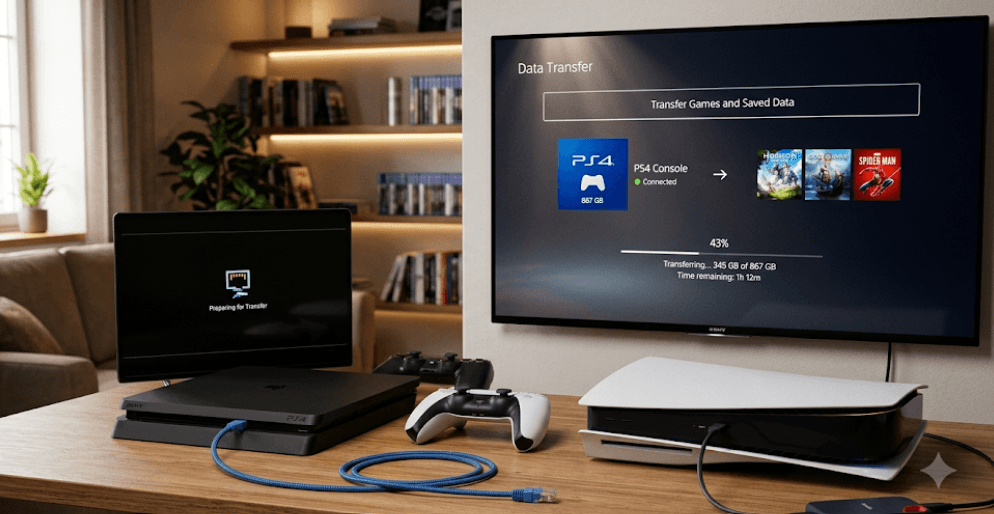
TL;DR: Moving from PS4 to PS5 does not mean starting every game from scratch. You can transfer compatible games, saved data, user information, screenshots, and other data directly between consoles over the same network. PS4 saves can also be moved using PlayStation Plus cloud storage or a compatible USB drive. Digital games can be redownloaded from your Game Library, while PS4 games stored on a compatible external USB drive can be accessed on PS5. The important catch is that transferring a PS4 save to a PS5 version of a game is not guaranteed for every title, as the developer decides whether cross-generation save transfer is supported.
What Can You Transfer From PS4 To PS5?
The PS5 gives you several ways to bring your PS4 gaming setup forward. During the console setup process, you can transfer compatible saved data, games, user information, screenshots, video clips, and certain console settings from your PS4. If the PS5 has already been set up, you can still transfer compatible PS4 saved data and games, although some categories of data have different restrictions after initial setup.
Your game progress is stored separately from the actual game installation. This distinction is important. A game might be 50 GB or more, while your save file could be only a small amount of data. You therefore do not always need to transfer the entire game just to keep your progress. Digital games can also be downloaded again from your Game Library, while PS4 games already stored on compatible USB extended storage can be accessed on the PS5.
There is another important distinction between a PS4 version of a game and a PS5 version of that game. A PS4 save can be transferred to the PS5, but that does not automatically guarantee that the PS5 version will recognize it. Sony states that the ability to transfer saves from a PS4 version to a PS5 version is determined by the individual game developer. Always check the specific game's instructions before assuming your progress will carry over.
| Data | Can It Move From PS4 To PS5? | Typical Method |
|---|---|---|
| Compatible PS4 saved data | Yes | Network, PS Plus cloud, or USB |
| PS4 digital games | Yes | Transfer or redownload |
| PS4 games on USB extended storage | Yes | Connect the drive to PS5 |
| User/account information | Yes | Direct data transfer |
| Screenshots and video clips | Yes | Direct transfer or USB |
| PS5 saved data | Not from PS4 | Not applicable |
Method 1: Transfer Directly Between PS4 And PS5
Direct console-to-console transfer is the most comprehensive option if you still have your PS4 available. Before starting, update both consoles to the latest available system software and connect them to the same network. A wired connection can be preferable when available because transferring large games over Wi-Fi can take considerable time.
Turn on both consoles and sign in using the account associated with your PS4 data. On the PS5, follow the setup instructions for transferring data. If the PS5 has already completed its initial setup, you can access the relevant transfer option through the system settings. The PS4 needs to remain switched on during the process, and you should avoid disconnecting either console while the transfer is running.
The amount of time required depends on how much data you are moving and the network connection. Large game installations can take much longer than saved data alone. Also remember that data already present on the PS5 is not transferred again. Once the process is complete, check your game library and saved data before deleting anything from the PS4.
How To Start A Direct Transfer
- Update both the PS4 and PS5.
- Connect both consoles to the same network.
- Sign in to the PS5 with the appropriate PlayStation account.
- Open the PS5's data-transfer settings.
- Select the PS4 when it is detected.
- Choose the compatible games, saved data, and other content you want to transfer.
- Start the transfer and leave both consoles connected until it finishes.
- Check your games and saved data on the PS5.
Method 2: Use PlayStation Plus Cloud Storage
If you have an active PlayStation Plus membership, cloud storage provides another convenient way to move compatible saved data. The basic idea is simple: upload your PS4 save to online storage, sign in to the same PlayStation account on your PS5, and download the save to the console.
On the PS4, go to Settings > Application Data Management > Saved Data in System Storage > Upload to Online Storage and select the game saves you want to upload. On the PS5, go to Settings > Saved Data and Game/App Settings > Saved Data (PS4) and use the cloud-storage options to download the relevant save to your console.
Make sure the save you are downloading is the one you actually want. If you have played the game more recently on another console, compare the timestamps before replacing local data. PlayStation Plus cloud storage is particularly useful if you are replacing a PS4 with a PS5 and do not want to keep both consoles connected during the transfer.
Important Cloud-Save Detail
PS4 and PS5 saved data are handled differently. For PS4 games on PS5, cloud saves can be downloaded to the PS5 manually. Automatic cloud-upload settings also work differently for PS4 and PS5 games, so do not assume that every save is synchronized in exactly the same way.
Method 3: Transfer PS4 Saves Using A USB Drive
A USB drive is useful if you do not want to transfer data directly between the consoles or use PlayStation Plus cloud storage. Sony supports copying PS4 saved data to a USB drive and then copying that data to the PS5. This method is specifically for PS4 saved data.
On your PS4, connect a compatible USB drive and go to Settings > Application Saved Data Management > Saved Data in System Storage > Copy to USB Storage Device. Select the games and save files you want to copy. Once the process finishes, safely remove the drive and connect it to the PS5.
On the PS5, go to Settings > Saved Data and Game/App Settings > Saved Data (PS4) > USB Drive and choose the saved data you want to copy to the console. If the same game's save already exists on the PS5, pay attention to which version you keep because copying the USB save can replace the existing local save.
USB Save Transfer Vs. USB Game Storage
Do not confuse a normal USB drive used for saved-data transfer with a USB extended-storage drive used to store games. PS4 saved data can be copied to a compatible USB drive, while PS4 games installed on a compatible USB extended-storage drive can be accessed directly by connecting that drive to the PS5.
How To Move Your PS4 Games To PS5
For digital PS4 games, you may not need to transfer the game files at all. Sign in to the same PlayStation account on your PS5, open your Game Library, and download the compatible games you own. This can be simpler than transferring a large installation from the PS4, especially if you have a fast internet connection.
If your PS4 games are stored on a compatible USB extended-storage drive, you can connect that drive to the PS5 and access supported PS4 games from it. Sony states that PS4 games can be played directly from compatible USB extended storage on PS5. This can save internal SSD space and avoid downloading the same large game again.
Physical games work differently. If you own a PS4 game disc and have a PS5 model with a disc drive, insert the disc to install or play the compatible PS4 version. However, a PS5 Digital Edition without a disc drive cannot use PS4 physical discs. If you own digital versions, your eligible purchases are associated with your account and can be downloaded again from the Game Library.
| Your PS4 Game | What To Do On PS5 |
|---|---|
| Digital PS4 game | Download from Game Library or transfer it |
| PS4 game on USB extended storage | Connect the drive to PS5 |
| Physical PS4 disc + PS5 with disc drive | Insert the disc |
| Physical PS4 disc + PS5 Digital Edition | Disc cannot be used |
| Game with PS5 version | Check the developer's save-transfer instructions |
Moving Saves To A PS5 Version Of A Game
This is where many PS4-to-PS5 guides become misleading. Having a PS4 save on your PS5 does not automatically mean that the PS5 version of the game will use it. Sony confirms that transferring progress from a PS4 version to a PS5 version is a developer decision and varies between games.
Some games provide a straightforward import process. Others may require you to launch the PS4 version first and use an in-game upload or migration feature. Some titles may support cross-generation progress differently depending on whether you are using a digital copy, disc copy, or a particular version of the game.
Before deleting the PS4 version or wiping your old console, check the official support page for the specific game. This is especially important if you have hundreds of hours invested in a campaign or multiplayer progression. If the developer provides a dedicated save-migration procedure, follow that process rather than assuming the standard PS4-to-PS5 data transfer will handle everything.
Do Not Delete Your PS4 Data Too Early
Keep the original PS4 save until you have successfully opened the game on PS5 and confirmed that your progress is available. This gives you a fallback if the PS5 version requires an additional import step or if you accidentally select the wrong save.
What Happens To Your PlayStation Account And Trophies?
You do not need to create an entirely new PlayStation account when moving from PS4 to PS5. Sign in with the account you used on your PS4. Your account is separate from the individual console, so your profile and digital purchases are associated with your account rather than being permanently tied to the old hardware.
Your trophy information is also associated with your PlayStation account. Once you sign in and connect the PS5 to the relevant account, your existing PlayStation ecosystem information can carry across. This is one reason it is important to use the correct account when setting up the new console.
However, account information and game save data are not exactly the same thing. Signing into your account does not magically recreate every local save file on the PS5. If a save is stored locally on the PS4, you still need to transfer it through the appropriate method unless it is available through cloud storage.
Troubleshooting PS4 To PS5 Transfers
If your PS5 cannot detect the PS4 during a direct transfer, start with the basics. Confirm that both consoles are powered on, connected to the same network, and running updated system software. Restarting both consoles and checking the network connection can also resolve temporary detection problems.
If your game appears on the PS5 but your progress is missing, check whether you transferred the save data rather than only the game installation. If you used cloud storage, verify that the correct save was uploaded before downloading it. If you are moving from a PS4 version to a separate PS5 version, check the game's specific migration process because the developer may require an in-game transfer.
If a physical PS4 game does not work, check the PS5 model first. A PS5 Digital Edition without a disc drive cannot read PS4 game discs. For digital games, confirm that you are signed into the account that purchased the game and check your Game Library. If the game is compatible, it can generally be downloaded again rather than transferred from the old console.
| Problem | Likely Solution |
|---|---|
| PS4 not detected | Check network connection and system software |
| Game transferred but save is missing | Transfer/download the correct saved data |
| PS5 version does not recognize save | Check the game's developer-specific migration process |
| Digital game missing | Check the correct PlayStation account and Game Library |
| PS4 disc does not work | Confirm the PS5 has a compatible disc drive |
| Transfer takes too long | Use a wired network where practical and avoid moving unnecessary data |
Final Recommendation And Decision Framework
For most people who still have their PS4, direct data transfer is the most convenient starting point because it can move compatible saves, games, and other information in one process. If you only care about game progress, PlayStation Plus cloud storage or a USB drive can be quicker and more focused. If your games are already on a compatible USB extended-storage drive, connecting that drive to the PS5 can save you from downloading large PS4 game installations again.
The most important step is to verify your saves before retiring or resetting the PS4. Open your most important games on the PS5, check that your progress is present, and confirm whether any PS5 upgrade requires a separate save-import process. This is particularly important for games where the PS4 and PS5 versions are treated as separate applications.
Overall, upgrading from PS4 to PS5 is relatively straightforward when you choose the transfer method based on the type of data you actually need. Use direct transfer for a complete move, cloud storage for convenient save transfers, USB for offline save backups, and your Game Library or external storage for reinstalling or accessing games. Most importantly, do not erase your PS4 until your saves and essential games have been verified on the PS5.
Frequently Asked Questions
Q. Can I transfer my PS4 games to PS5?
Yes. Compatible PS4 games can be transferred directly between consoles, downloaded again from your Game Library, or accessed from compatible USB extended storage.
Q. Can I transfer PS4 save data to PS5?
Yes. Compatible PS4 saved data can be transferred using a direct console transfer, PlayStation Plus cloud storage, or a compatible USB drive.
Q. Do I need PlayStation Plus to transfer PS4 saves?
No. PlayStation Plus is not required for direct PS4-to-PS5 transfer or USB save transfer. It is required for using PlayStation Plus cloud storage.
Q. Will my PS4 save automatically work with the PS5 version of a game?
Not always. Sony says this depends on the game developer. Some games support save migration, while others may require a specific in-game transfer process.
Q. Can I use my PS4 game disc on PS5?
Yes, if the PS5 has a compatible disc drive and the game is supported. A PS5 Digital Edition without a disc drive cannot read PS4 physical discs.
Q. Can I transfer PS4 games using an external hard drive?
Yes. A compatible USB extended-storage drive used with the PS4 can be connected to the PS5 to access supported PS4 games.
Q. Do I have to transfer digital PS4 games manually?
No. Digital games purchased through your PlayStation account can generally be downloaded again from your Game Library on the PS5.
Q. Will my PS4 trophies transfer to PS5?
Your trophy information is associated with your PlayStation account. Sign in to the PS5 using the same account you used on PS4.
Q. Should I keep my PS4 after transferring everything?
It is sensible to keep the PS4 and its data until you have verified that your important saves, games, and account information are available on the PS5.
Q. What is the easiest way to move from PS4 to PS5?
For a complete upgrade, direct console-to-console transfer is usually the most convenient. For saves alone, PlayStation Plus cloud storage or USB transfer can be simpler.
Ready to upgrade your tech?
Browse our collection of quality refurbished products at unbeatable prices.