
How to Transfer Photos From Canon, Nikon and Sony Cameras to Your Phone Wirelessly
Transfer photos from your Canon, Nikon, or Sony camera to your phone wirelessly using the right app. Learn the setup steps, image quality options, and fixes for common connection problems.

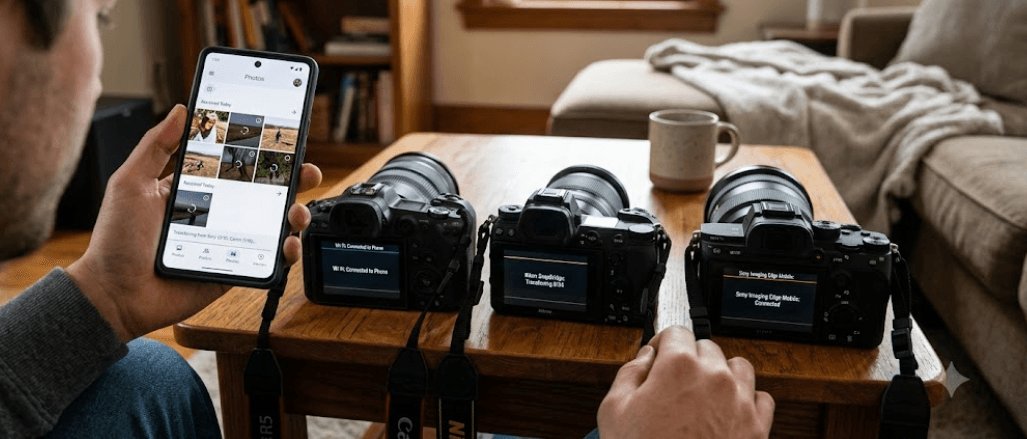
TL;DR: You can transfer photos from most Wi-Fi or Bluetooth-enabled Canon, Nikon, and Sony cameras to your phone without removing the memory card or connecting a cable. Canon uses the Camera Connect app, Nikon uses SnapBridge, and Sony cameras use Creators’ App or Imaging Edge Mobile, depending on the model. Install the compatible app, enable wireless connectivity on your camera, pair it with your phone, and select the photos you want to import. Remember that Bluetooth transfers, automatic syncing, and full-resolution downloads are not identical across all cameras, so check your model's supported features before choosing your transfer settings.
Why Transfer Camera Photos to Your Phone Wirelessly?
Wireless photo transfer makes it easier to move pictures from a dedicated camera to your phone without carrying a laptop or card reader. Imagine photographing a family event, a weekend trip, or a product shoot and wanting to share your favorite pictures immediately. Instead of waiting until you return home, you can import selected images, review them on your phone, and share them through messaging apps or social media. For photographers who regularly travel, this can make the gap between taking a picture and sharing it much shorter.
The process can also fit naturally into a mobile editing workflow. Once the images reach your phone, you can crop them, adjust colors, apply edits, or organize them in your preferred photo application. This is useful for travel photographers, content creators, and small business owners who need to publish images quickly. However, the quality of the imported file depends on the transfer settings and the capabilities of the camera and app. A smaller image intended for quick sharing may not contain the same detail as the original photograph.
Wireless connectivity does not mean every photo will transfer instantly or that every camera supports the same features. Large RAW files and high-resolution images can take longer to import than smaller JPEGs, and transferring a large batch can use significant battery power on both devices. Before starting, check your camera's wireless capabilities, install the correct companion app, and make sure your phone has enough free storage. A little preparation can prevent interrupted transfers and unnecessary duplicate downloads.
How to Transfer Canon Camera Photos to Your Phone
Canon provides the Camera Connect app for compatible cameras, allowing users to connect a camera to a smartphone, browse images, import selected photos, and use supported remote-shooting features. The exact menus vary by camera, so you may see a Wi-Fi icon, a smartphone connection option, or a dedicated mobile-device connection button. Before beginning, install Camera Connect from your phone's official app store and confirm that your Canon camera supports the app. Canon's official instructions describe the connection and image-saving process for compatible models.
Steps to Transfer Photos From Canon
Start by switching on your Canon camera and opening its wireless or smartphone connection settings. Choose the option for connecting to a smartphone and follow the on-screen instructions. Depending on the model, the camera may display a QR code, a network name, or a pairing prompt. Open Camera Connect on your phone and follow its instructions to establish the connection. You may need to approve the connection on the camera and allow the app to access your phone's photos or local network.
After connecting, open the camera's image list in Camera Connect and select the photographs you want to import. Tap the save or download option displayed by the app. If your camera offers an image-size setting, check it before transferring. Some models let you save a reduced-size copy for faster sharing, while others support original-size transfers. When the import finishes, open your phone's Photos or Gallery app to check that the images have been saved successfully.
What to Know Before Transferring
Canon's wireless features differ by model, so do not assume every EOS DSLR, mirrorless camera, or PowerShot supports the same connection method. Some older models may have different menus or limitations, while certain phones may require additional permissions before the connection works. If the camera does not appear in Camera Connect, check its compatibility list and confirm that the camera's wireless function is enabled. Canon's support instructions also note that button positions and menu labels can vary between camera models.
How to Transfer Nikon Camera Photos Using SnapBridge
Nikon's SnapBridge app connects compatible cameras with smartphones for image transfer and other supported functions. After the initial setup, Bluetooth can maintain the pairing and support automatic transfer on compatible configurations. Wi-Fi is used for certain higher-bandwidth functions, including image transfer or remote shooting on supported cameras. The exact capabilities depend on the camera model and app version, so SnapBridge should not be treated as offering identical features across the entire Nikon range.
Steps to Transfer Photos From Nikon
Install SnapBridge from the official app store and switch on your Nikon camera. Open the camera's setup or network menu and find the option for connecting to a smart device. Launch SnapBridge on your phone and follow the pairing instructions. The camera and phone may display matching authentication codes that you need to confirm. Keep both devices close together while completing the process, and allow the requested permissions on your phone. Once pairing is complete, the app should show the connected camera if your model and settings support the selected function.
To transfer photographs, open the image-transfer or download option in SnapBridge. Select the pictures you want to save, or enable automatic transfer if your camera supports it and that is what you prefer. Check the transfer-size settings before downloading important photographs. Nikon's automatic transfer options may use reduced-size images for convenience, while downloading original files can require a different procedure or connection mode on supported models. After the transfer, check your phone's photo library to confirm that the images are available.
Bluetooth Versus Wi-Fi on Nikon Cameras
Bluetooth is useful for maintaining a connection and supporting convenient automatic image transfer, but it is not interchangeable with Wi-Fi for every task. Wi-Fi can provide the bandwidth needed for functions that transfer larger files or support remote camera operations. Whether you can choose the original image size, transfer RAW files, or use a particular remote-shooting feature depends on the camera and its supported SnapBridge functions. If a full-resolution image is important for printing or detailed editing, verify the file size and format after importing rather than assuming the automatic transfer is the original.
How to Transfer Sony Camera Photos to Your Phone
Sony uses two main smartphone applications for wireless camera connections: Creators' App and Imaging Edge Mobile. Which one you need depends on your camera model and, in some cases, its firmware version. Sony explicitly distinguishes the two applications, so installing whichever app appears first in a search may not be enough. Check the official compatibility list for your camera before starting. Creators' App supports a range of newer and updated models, while Imaging Edge Mobile remains available for compatible cameras that are not supported by Creators' App.
Steps to Transfer Photos From Sony
First, identify your Sony camera model and install the appropriate app. On compatible newer cameras, open the smartphone connection settings and follow the Creators' App pairing instructions. Older compatible cameras may instead display a QR code or Wi-Fi network details for Imaging Edge Mobile. Depending on the camera, you may need to approve Bluetooth pairing, scan a code, or select the camera's network in your phone's Wi-Fi settings. Keep the camera and phone nearby, and follow the prompts rather than relying on a menu sequence designed for a different model.
Once connected, open the image-import function in the relevant app and select the photos you want to transfer. Confirm the available size and format options before downloading. Sony documents support for transferring still images and, on compatible combinations, certain video formats. However, not every file type or video recording mode is supported by every camera and phone. If you intend to edit RAW photographs or transfer high-bitrate footage, check the compatibility information first. When the transfer completes, open your phone's photo library or the destination specified by the app to verify the files.
Creators' App or Imaging Edge Mobile?
Creators' App is the correct choice for Sony cameras listed as compatible with that application, while Imaging Edge Mobile serves models that remain compatible with the older app. Some cameras have moved to Creators' App following firmware updates, which means the right application can change as camera software evolves. Sony also notes that the apps are not interchangeable across all models. If a connection that worked previously stops working after a firmware update, check Sony's current guidance before repeatedly resetting your phone or camera. <Cite refs={["turn344505search0","turn344505search3"]}/>
Canon vs Nikon vs Sony: Wireless Transfer Compared
The overall process is similar across all three brands: install the official app, establish a wireless connection, choose images, and import them to your phone. The main differences are the companion app, the pairing method, and the functions available on a particular camera. Canon Camera Connect, Nikon SnapBridge, and Sony's two-app approach all support wireless workflows on compatible devices, but their individual features should not be assumed to match exactly.
| Camera Brand | Official App | Common Connection Options | Important Consideration |
|---|---|---|---|
| Canon | Camera Connect | Wi-Fi and, on supported models, Bluetooth | Menus and image-size options vary by camera |
| Nikon | SnapBridge | Bluetooth and Wi-Fi, depending on function and model | Automatic transfer may use reduced-size images |
| Sony | Creators' App or Imaging Edge Mobile | Wi-Fi and Bluetooth, depending on model | Choose the app using Sony's compatibility list |
The most important distinction is not which brand has the shortest setup process, but which features your camera actually supports. A newer mirrorless model may offer a smoother pairing experience than an older DSLR, even within the same brand. Likewise, a feature such as background transfer may be available on one camera but absent from another. Check the official app listing and camera support page before troubleshooting a function that your model may not offer in the first place.
For occasional sharing, transferring a few JPEGs is generally the simplest workflow. For professional use, the decision deserves more attention because original-resolution photographs, RAW files, and video clips can take longer to transfer and may have format restrictions. If your phone is running low on storage or you need to preserve every original file, consider importing only selected images wirelessly and using a card reader or computer for larger batches. That approach gives you convenience without making wireless transfer responsible for every part of your backup workflow.
Common Problems When Transferring Camera Photos Wirelessly
A failed connection does not necessarily mean the camera or phone is faulty. The camera may be waiting for confirmation, the app may lack permission to access the local network or photo library, or the phone may have switched to a different Wi-Fi network. Start with the camera manufacturer's instructions, confirm that the correct app is installed, and check that wireless connectivity is enabled on both devices. On iPhone, permissions for Photos and Local Network can be particularly relevant to camera-app connections. Sony documents these permissions in its troubleshooting guidance.
Fix Slow or Interrupted Transfers
If transfers are slow, start by selecting a small batch of JPEG images rather than attempting to import hundreds of large files at once. Keep the camera and phone close together, make sure both batteries have sufficient charge, and avoid interrupting the connection while files are being saved. If the connection drops, close and reopen the companion app, then reconnect according to the camera's instructions. If the problem continues, check for app updates and consult the manufacturer's compatibility and troubleshooting pages before changing advanced network settings.
Check Image Quality and Storage
Another common issue is assuming that every imported image is a full-resolution original. Some transfer modes prioritize speed by saving smaller copies, and automatic transfer options may have size limits. Check the downloaded file's dimensions and format if you plan to crop heavily, print the photograph, or edit it professionally. Also confirm that your phone has enough free space, particularly when transferring RAW images or video. Wireless import is convenient, but it should not replace a separate backup of important original files.
Final Recommendation
The easiest way to transfer photos from a Canon, Nikon, or Sony camera to your phone wirelessly is to use the official app supported by your specific camera. Choose Camera Connect for compatible Canon models, SnapBridge for compatible Nikon cameras, and either Creators' App or Imaging Edge Mobile for Sony models according to Sony's current compatibility information. Once paired, select the images you need, check their size and format, and confirm that the files have reached your phone before disconnecting.
For everyday sharing, wireless transfer is convenient and usually requires little equipment beyond your camera and phone. For professional photography, large RAW collections, or high-resolution video, verify the supported formats and transfer settings before relying on it for your entire workflow. If wireless transfer is unreliable or you need to move many large files quickly, a compatible card reader or USB connection may be more practical. The best workflow is the one that preserves the image quality you need while making your photos easy to access, edit, and share.
Frequently Asked Questions
Q. Can I transfer photos from my camera to my phone without Wi-Fi?
Some cameras support Bluetooth-based functions, but transferring full-resolution files may require Wi-Fi or another supported connection. Check your camera's manual for the available options.
Q. Which app should I use to transfer Canon photos to my phone?
Use Canon Camera Connect if your camera is compatible with it. Install the app from your phone's official app store and follow the camera's smartphone connection instructions.
Q. How do I transfer Nikon photos to my phone automatically?
Pair a compatible camera with Nikon SnapBridge and enable automatic transfer if your model supports it. Check the image-size settings because automatic transfer may save reduced-size copies.
Q. Which Sony app is best for transferring photos?
Use Creators' App for supported models and Imaging Edge Mobile for compatible cameras that require it. Sony's official compatibility list identifies the correct app.
Q. Will wireless transfer reduce photo quality?
It can, depending on the transfer setting. Some options save smaller copies, while supported configurations allow original-size transfers. Check the imported file's dimensions before editing or printing.
Q. Can I transfer RAW photos to my phone?
Some camera and app combinations support RAW transfer, but compatibility varies by model and phone. Check the manufacturer's supported formats before starting.
Q. Why is my camera not connecting to my phone?
Confirm that the correct app is installed, wireless connectivity is enabled, pairing is complete, and the required phone permissions are granted. Restarting both devices may also help.
Q. Do I need an internet connection to transfer camera photos?
A direct camera-to-phone connection generally does not require internet access. However, downloading apps, updating software, or uploading photos to cloud services may require internet access.
Q. Why are my wireless photo transfers so slow?
Large files, weak wireless connections, low battery, and transferring many images at once can slow the process. Try importing a smaller batch while keeping the devices close together.
Q. Is wireless transfer better than using a card reader?
Wireless transfer is convenient for selected photos and quick sharing. A compatible card reader or USB connection may be faster for large collections, RAW files, or video footage.
Ready to upgrade your tech?
Browse our collection of quality refurbished products at unbeatable prices.






