How to Transfer Data From Android to iPhone (and Back), Including WhatsApp
Switching from Android to iPhone or back? Learn how to transfer contacts, photos, messages, apps and WhatsApp chats using official tools and safe, reliable methods.

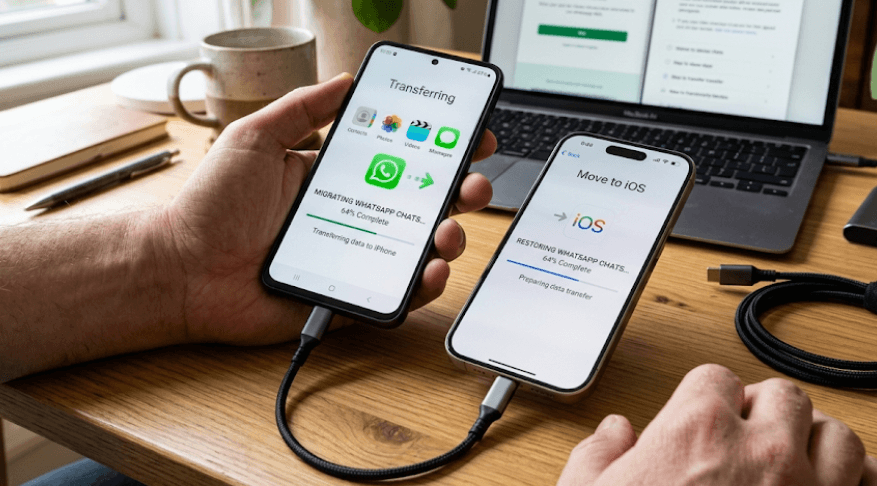
TL;DR: Moving from Android to iPhone, or switching back from iPhone to Android, is much easier than it used to be. The safest approach is to use Apple's Move to iOS for Android-to-iPhone transfers and the transfer options built into a compatible Android phone for iPhone-to-Android moves. Contacts, photos, videos, messages, calendars, and other supported data can move across, but not everything transfers automatically. WhatsApp chats can also be transferred between Android and iPhone, provided you meet the requirements, use the official transfer method, and complete the process before activating WhatsApp on the new phone.
What To Know Before Transferring Data?
Switching between Android and iPhone does not mean starting from scratch. Both platforms provide tools for moving common data such as contacts, photos, videos, calendars, messages, and other supported information. However, the exact data that transfers depends on the direction of the move, the phones involved, their software versions, and whether you use a cable or wireless method.
The most important thing is to keep your old phone untouched until you have checked the new one. Do not factory-reset the old device, delete your WhatsApp account, or remove important files immediately after the transfer. A successful transfer should be followed by a quick audit of your contacts, photos, videos, messages, documents, and WhatsApp chats.
Also, do not assume that transferring data means transferring every app exactly as it was. Android and iOS use different app ecosystems, so apps may need to be downloaded again from the App Store or Google Play. Paid apps, app-specific data, passwords, and some services may require separate setup. Apple and Google both provide transfer tools, but neither promises a perfect one-to-one copy of everything on the old phone.
Before You Start The Transfer
Start by charging both phones and making sure you can unlock the old device. A transfer can take considerably longer when you have a large photo library or many videos, so it is better to begin with both devices connected to power. Also check that the new phone has enough storage for the data you intend to move.
Create a backup of important information before starting. This does not replace the direct transfer process, but it gives you an additional safety net if something goes wrong. For WhatsApp in particular, keep the old phone available until you have confirmed that your conversations and media are visible on the new device.
Keep the two phones close together throughout the process unless the instructions specifically tell you otherwise. A reliable Wi-Fi connection is useful for wireless transfers, while a compatible cable can often make a direct transfer more dependable. Avoid opening unrelated apps, taking calls, or interrupting the transfer halfway through, especially when using Apple's Move to iOS process.
| Before You Begin | What To Check |
|---|---|
| Battery | Charge both phones or keep them connected to power |
| Storage | Make sure the new phone has enough free space |
| Software | Update both devices where possible |
| Wi-Fi | Use a stable connection for wireless transfers |
| Cable | Keep a compatible USB-C, Lightning, or adapter available |
| Keep the same phone number if transferring chat history | |
| Old phone | Do not reset or erase it until everything is verified |
Transfer Data From Android To iPhone
Use Apple's Move To iOS
For most Android-to-iPhone transfers, Apple's Move to iOS is the official starting point. Set up the new iPhone until you reach the Transfer Your Apps & Data screen, then choose From Android. On the Android phone, install and open Move to iOS and follow the instructions shown on both devices.
The iPhone will display a temporary code that you enter on the Android phone. Once the devices establish the connection, you can choose the information you want to transfer. Apple says supported data can include contacts, message history and SMS messages, photos and videos, photo albums, files and folders, calendars, call history, Voice Memos, web bookmarks, email accounts, accessibility and display settings, and WhatsApp messages and media. Some free apps may also be matched for download from the App Store.
You can also connect the Android phone and iPhone directly with a compatible USB-C cable for the transfer. If you have already completed iPhone setup, Apple's standard Move to iOS process requires you to erase the iPhone and start again. If you do not want to erase it, Apple recommends moving supported content manually instead. This is one reason it is better to plan the transfer before completing the new iPhone's setup.
What May Not Transfer Automatically
Not every Android app has an iOS equivalent, and app data can work differently between platforms. Music, books, and PDFs may also need to be moved manually depending on how they are stored. For example, if you have documents saved locally rather than in a cloud service, you may need to transfer them separately.
Your Google account itself can continue to be used on an iPhone. You can install Google apps such as Gmail, Google Photos, Google Drive, and Google Maps from the App Store and sign in normally. Contacts and calendars stored in your Google account can also be accessed by adding the relevant account to iOS.
Before deleting anything from the Android phone, open the iPhone and check the important categories individually. Look through your photo library, contacts, messages, calendars, files, and WhatsApp. It is much easier to fix a missing item while the old phone is still available than after it has been wiped.
Transfer WhatsApp From Android To iPhone
WhatsApp is one of the areas where the correct process matters most. For Android-to-iPhone transfers, WhatsApp officially supports moving account information, profile photo, individual and group chats, communities, chat history, media, and settings using the Move to iOS process. However, WhatsApp call history and some other categories are not transferred.
Before starting, make sure the Android phone is running Android 5 or later and the iPhone is running iOS 15.5 or later. WhatsApp also requires the latest available versions of its apps, the same phone number on both devices, and both phones connected to power. The iPhone needs to be new or factory-reset for this official WhatsApp migration method to work.
During the Move to iOS process, select WhatsApp when the transfer options appear. WhatsApp will prepare the data on the Android phone, after which Move to iOS transfers it to the iPhone. Once the iPhone setup is complete, install the latest WhatsApp from the App Store and sign in using the same phone number. When prompted, start the import and allow it to finish. WhatsApp specifically warns against using unsupported third-party migration apps because they can cause transfer problems or data loss.
Important WhatsApp Limitation
If you have already activated WhatsApp on the new iPhone and want to bring over your old Android chats afterward, the official Android-to-iPhone transfer cannot simply merge the two histories. WhatsApp states that the transfer must happen before WhatsApp is activated on the new iPhone. In that situation, the official solution is to reset the iPhone and repeat the migration process.
Transfer Data From iPhone To Android
Use Android's Transfer Tools
The process works in the opposite direction too. When setting up a new Android phone, choose the option to copy data from an iPhone or iPad. Depending on the Android device and software version, you may be offered a QR-code-based wireless transfer or a cable-based transfer.
Current Android guidance supports transferring information such as contacts, photos and videos, calendars, messages, music, downloaded files, notes, voice memos, and other supported data. However, the exact list varies by device and transfer method. Google also notes that newer Android 17 devices may offer an upgraded transfer experience with support for more data types than the classic transfer process.
For some newer compatible devices, Android can establish the connection by displaying a QR code that you scan with the iPhone. Google also supports the Android Switch app for wireless transfers on compatible setups, while a physical cable remains an option when wireless transfer is unavailable or unreliable. The iPhone should remain connected to the Android device until the transfer is complete.
What Happens To Your iPhone Data?
Photos, videos, contacts, calendars, and other supported information can generally be moved to Android. However, data stored only in iCloud may require an additional step. Google specifically notes that photos and videos stored in iCloud do not simply transfer through every standard iPhone-to-Android method.
Your Apple apps will also not simply appear as iOS versions on Android. Download Android versions from Google Play where they exist, then sign in to your accounts. If an app does not have an Android equivalent, you may need to find another way to access the service or export its data.
Messages require additional attention. If you are moving away from iPhone, make sure iMessage is disabled so that future messages are not incorrectly routed through Apple's messaging system. Google specifically recommends turning off iMessage when switching from iPhone to Android.
Transfer WhatsApp From iPhone To Android
WhatsApp also supports transferring chat history from iPhone to Android. The exact process depends on the Android phone and its setup method, but the official workflow generally involves connecting the old iPhone to the new Android phone and following the WhatsApp transfer instructions displayed during or after device setup.
Google's current Android guidance says an iPhone-to-Android WhatsApp transfer may require the old iPhone's charging cable and the same phone number on the new device. If the Android setup process uses a QR code, the iPhone can be used to scan it and initiate the WhatsApp transfer. On some Android devices, WhatsApp transfer can also be started after setup through the device's Android Switch settings.
The important rule is the same as with the reverse migration: do not start using WhatsApp extensively on the new phone before transferring the old history. WhatsApp histories are not designed to be casually merged between two devices. Keep the old iPhone intact until you have opened WhatsApp on the Android phone and confirmed that your important chats and media are present.
What Data Transfers Between Android And iPhone?
There is no universal "transfer everything" button because Android and iOS organize data differently. The table below provides a practical overview, but the exact result can vary by phone model, operating-system version, app, and transfer method.
| Data Type | Android → iPhone | iPhone → Android |
|---|---|---|
| Contacts | Usually supported | Usually supported |
| Photos & videos | Supported | Supported, with iCloud limitations |
| Calendars | Supported | Supported |
| SMS/messages | Supported | Supported on compatible methods |
| WhatsApp chats | Supported with Move to iOS | Supported with compatible Android transfer |
| Apps | Matching free apps may be downloaded | App availability varies |
| Paid apps | Not transferred as purchases | Not transferred as purchases |
| Music | May require manual transfer | Depends on source and method |
| Documents | Supported in many cases | Supported in many cases |
| App-specific data | Varies | Varies |
| Passwords/passkeys | Depends on device and method | Newer Android transfer methods support more |
The safest approach is to think of the process as migration rather than cloning. Your new phone will contain much of your important information, but some apps and settings will still need to be configured manually.
Cloud services can make the transition easier. If your photos are already stored in Google Photos, OneDrive, or another cross-platform service, you can simply install the corresponding app and sign in. Similarly, contacts stored in a Google or Microsoft account can be synchronized rather than manually copied.
Troubleshooting Common Transfer Problems
If the transfer keeps stopping, begin with the basics. Charge both devices, restart them, check storage, and make sure the software and transfer apps are updated. If a wireless connection is unreliable, use a compatible cable when the transfer method supports one. Google specifically recommends trying a cable when wireless transfer is slow or unavailable.
If WhatsApp is missing after the migration, do not immediately erase the old phone. First confirm that you used the official transfer method, the same phone number, and the correct device requirements. For Android-to-iPhone transfers, the iPhone must be new or factory-reset for the official WhatsApp migration process. If WhatsApp was already activated on the iPhone, the migration may need to be restarted from the beginning.
If only some photos or files are missing, check where the originals were stored. A photo saved locally on the old phone is different from a photo that exists only in a cloud service. Similarly, files stored in an app may not transfer if that app does not support cross-platform migration. Check the old phone and cloud accounts before assuming the data has been permanently lost.
How To Check Your New Phone After Transfer
Once the transfer finishes, resist the temptation to immediately wipe the old device. Spend a few minutes checking the categories that matter most to you. Open the Photos app, scroll through older albums, check your contacts, review recent messages, and open important documents.
WhatsApp deserves its own check. Open several recent individual chats and group conversations, look for older messages, and open a few photos or videos from different conversations. If you use WhatsApp for important work or personal records, verify that the conversations you rely on most are available before deleting anything from the old phone.
Finally, check accounts and security settings. Make sure your email accounts are signed in, two-factor authentication works, banking and payment apps are configured correctly, and your password manager is available. Only after you are confident that the new phone has what you need should you consider backing up and factory-resetting the old device.
Final Recommendation And Decision Framework
The easiest way to switch between Android and iPhone is to use the official transfer tools rather than relying on random third-party migration apps. For Android to iPhone, Apple's Move to iOS remains the key option, including support for WhatsApp migration when the requirements are met. For iPhone to Android, use the transfer workflow provided during Android setup, with the exact options depending on the Android phone and software version.
If WhatsApp matters to you, plan the migration before activating WhatsApp on the new device. Keep the same phone number where required, keep both phones charged, follow the official WhatsApp transfer instructions, and never erase the old phone before checking the result. This single precaution can save you from a very unpleasant "where did all my chats go?" moment.
For most users, the transfer itself is not the difficult part. The real trick is preparation and verification. Back up important data, check storage, keep both devices connected, use a cable when appropriate, and manually verify the information you cannot afford to lose. Once everything checks out, you can safely reset the old phone and enjoy the new one without leaving your digital life behind.
Frequently Asked Questions
Q. Can I transfer everything from Android to iPhone?
Not literally everything. Many important categories such as contacts, photos, videos, messages, calendars, files, and supported WhatsApp data can transfer, but app availability, app-specific data, paid apps, and some other content may require separate handling.
Q. Can I transfer WhatsApp from Android to iPhone?
Yes. WhatsApp officially supports Android-to-iPhone chat migration through Move to iOS when the device, software, phone-number, and setup requirements are met.
Q. Can I transfer WhatsApp from iPhone to Android?
Yes. WhatsApp supports iPhone-to-Android chat migration through compatible Android transfer methods. The exact process can vary by Android device and setup method.
Q. Do I need to factory-reset my iPhone to transfer Android data?
For Apple's standard Move to iOS process, yes, if the iPhone has already completed setup. If you do not want to erase it, you can move supported content manually.
Q. Will my WhatsApp chats merge with chats already on my new phone?
No. WhatsApp does not support simply merging an existing new chat history with the old history during these migrations. It is best to transfer the chats before activating WhatsApp on the new phone.
Q. Can I transfer data without a cable?
Often, yes. Wireless transfer is supported in several official workflows, although availability depends on the devices and software versions. A cable can be a useful alternative when wireless transfer is slow or unavailable.
Q. Will my apps transfer from Android to iPhone?
Some free apps available on both Google Play and the App Store may be matched for download, but the apps themselves are not copied as Android installations. You may need to download and sign in to apps again.
Q. Will my Google Photos transfer to my iPhone?
If your photos are already stored in Google Photos, you can install Google Photos on the iPhone and sign in to access them. Photos stored locally on the Android phone can also be included in the Move to iOS transfer.
Q. Should I erase my old phone immediately after transferring data?
No. Keep it until you have checked your important photos, contacts, messages, documents, accounts, and WhatsApp chats. Only erase it after confirming that the new phone has everything you need.
Q. What is the safest way to transfer data between Android and iPhone?
Use Apple's Move to iOS for Android-to-iPhone transfers and the official Android transfer workflow for iPhone-to-Android moves. For WhatsApp, use WhatsApp's supported migration process rather than unofficial third-party tools.
Ready to upgrade your tech?
Browse our collection of quality refurbished products at unbeatable prices.