
How to Recover Data From a Dead Laptop
A dead laptop does not always mean lost data. Learn how to recover important files using cloud backups, external storage, drive removal, recovery tools, and professional services.

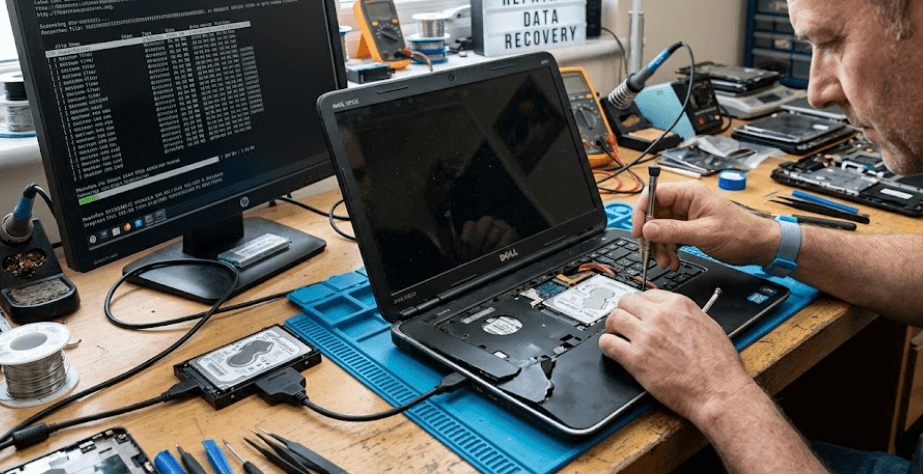
TL;DR Recovering data from a dead laptop depends mainly on whether the problem is with the laptop itself or its internal storage drive. If the laptop does not power on but the SSD or hard drive is still healthy, your files may be recoverable by connecting the storage to another compatible computer, using a supported recovery environment, or transferring data through manufacturer-specific tools. Before attempting repairs, check cloud backups such as OneDrive, Google Drive, iCloud, or Time Machine, because an existing backup is usually the safest recovery route. On Windows laptops, BitLocker encryption can also affect access because an encrypted drive may require its recovery key. On Macs, Apple provides methods such as Target Disk Mode for compatible Intel models and Share Disk through macOS Recovery on Apple silicon. If the storage itself is physically damaged, repeated attempts to access it can make the situation worse, so professional data recovery may be the safer option.
What Happens When A Laptop Dies?
A laptop that suddenly stops working does not necessarily mean that the files stored on it are gone. The failure could involve the charger, battery, motherboard, display, keyboard, power circuitry, operating system, or another component that prevents the computer from starting normally. If the internal SSD or hard drive remains functional, the data can often still be accessed even though the original laptop cannot boot. This distinction is important because replacing the faulty laptop hardware may be enough to regain access to your files without performing any complicated recovery procedure.
The situation becomes more serious when the storage device itself is failing. A damaged SSD or hard drive can show symptoms such as repeated errors, unusual noises in the case of mechanical hard drives, disappearing partitions, or a drive that is not detected by another computer. With a physically damaged drive, repeatedly powering it on or running repair operations may not be the best first move. The priority should be preserving the remaining data and avoiding actions that could overwrite or further damage the storage. If the files are particularly important, professional data recovery is worth considering before experimenting with multiple recovery methods.
Encryption can also change the recovery process. Modern Windows systems may use Device Encryption or BitLocker, and an encrypted drive cannot simply be read by another computer without the necessary credentials or recovery key. Microsoft states that a BitLocker recovery key is a unique 48-digit number used to unlock an encrypted drive when Windows cannot automatically unlock it. The key may be associated with a Microsoft account or an organization account, depending on how the device was configured.
Check The Type Of Failure First
Before opening the laptop or removing its storage, determine what exactly has failed. If the laptop powers on but the screen stays blank, the storage may still be completely healthy. If the machine reaches a recovery screen or login screen, the problem could be related to Windows or macOS rather than the physical drive. If there is absolutely no power, the charger, battery, motherboard, or power circuitry may be responsible. Understanding this distinction helps you choose a recovery method without unnecessarily disturbing the storage.
Check Backups Before Recovering The Drive
The safest way to recover data from a dead laptop is often to avoid the dead laptop altogether and check whether your important files already exist somewhere else. Cloud services can automatically synchronize documents, photos, and other folders, depending on the settings you previously enabled. Microsoft recommends checking OneDrive through its website when files appear to be missing because the online account contains the synchronized version of files across devices. OneDrive also provides a recycle bin and, for Microsoft 365 subscribers, a Restore Your OneDrive feature that can roll files and folders back to an earlier point.
Apple users should also check whether the Mac was backed up with Time Machine or whether important documents were stored in iCloud. Apple says Migration Assistant can transfer documents, apps, user accounts, and settings from another Mac, a Time Machine backup, or a start-up disk. This can make a backup particularly valuable when the original Mac is no longer working normally. A backup also avoids unnecessary interaction with a potentially failing internal drive, which is especially important when the data is irreplaceable.
Cloud storage is not the only backup worth checking. An external hard drive, USB SSD, network storage device, or another computer may contain copies of the files. Chromebook users, for example, can store files in Google Drive or on external storage, and Google specifically recommends backing up important local files before performing a factory reset or recovery. This matters because ChromeOS recovery permanently erases data stored on the Chromebook's internal drive. If a backup exists, restoring or replacing the laptop becomes much easier because the original storage does not have to be recovered first.
Backup Sources To Check
| Backup Location | What To Check | Recovery Difficulty |
|---|---|---|
| OneDrive | Synced files and recycle bin | Low |
| Google Drive | Documents, photos, and synced folders | Low |
| iCloud | Photos, documents, and synced data | Low |
| Time Machine | Previous Mac backup | Low |
| External Drive | Manually backed-up files | Low |
| Internal SSD/HDD | Original laptop storage | Moderate to High |
Recover Data From The Internal Drive
If no usable backup exists and the laptop itself has failed, the next option is to access the internal storage from another compatible computer. This can sometimes be done by removing the SSD or hard drive and placing it in an appropriate external enclosure or adapter. The exact process depends on the laptop and storage type, so compatibility matters. An M.2 NVMe SSD, SATA SSD, and 2.5-inch hard drive do not all use the same enclosure or connection. If the laptop is still under warranty or has a sealed design, opening it may also affect warranty or service considerations.
Windows users should be particularly careful if the drive is protected by BitLocker. Connecting the storage to another computer does not automatically bypass encryption. Microsoft explains that the BitLocker recovery key is required when BitLocker cannot automatically unlock the drive, and the key can sometimes be found through the Microsoft account associated with the device. If the laptop belonged to a workplace or school, the recovery key may instead be controlled by the organization's IT administrator. Without the necessary recovery key, resetting the Windows device can remove the files, so resetting should not be treated as a data-recovery shortcut.
Mac recovery depends on the Mac generation. Apple provides Target Disk Mode for compatible Intel-based Macs, allowing one Mac to appear as an external disk on another Mac. For Macs with Apple silicon, Apple provides Share Disk through macOS Recovery, allowing the storage volume to be shared with another Mac over a suitable USB, USB-C, or Thunderbolt connection. Apple also provides Migration Assistant for transferring data from a start-up disk or backup. These options are preferable to randomly reinstalling macOS when the goal is to preserve files.
Windows And Mac Recovery Options
| Platform | Potential Recovery Method | Important Consideration |
| Windows | Connect internal drive to another PC | BitLocker may require recovery key |
| Intel Mac | Target Disk Mode | Compatible Intel Macs only |
| Apple Silicon Mac | Share Disk in macOS Recovery | Requires another Mac and suitable connection |
| Mac With Backup | Migration Assistant | Time Machine or startup disk can be used |
| Chromebook | Google Drive or external backup | ChromeOS recovery can erase local data |
When Professional Data Recovery Makes Sense?
Professional data recovery becomes more appropriate when the storage device itself is damaged, cannot be detected, contains irreplaceable files, or produces signs of physical failure. A professional service may have specialized hardware and techniques for dealing with damaged storage that are not available through normal consumer software. This is particularly relevant for business documents, original photographs, research data, financial records, or other files that cannot easily be recreated. The more valuable the information is, the more important it becomes to avoid risky trial-and-error recovery attempts.
You should also be cautious about repeatedly formatting, initializing, reinstalling the operating system, or running aggressive repair tools when the original data has not been backed up. These actions can change the contents of the drive or make an already complicated recovery situation harder. If the drive is detected but files are missing, create a recovery plan before making changes. If the drive is physically damaged or completely undetected, professional assessment is usually more sensible than repeatedly reconnecting it and hoping it suddenly works.
The same principle applies when the laptop contains encrypted data. Encryption is designed to prevent unauthorized access, so having the physical drive is not automatically enough to read its contents. For BitLocker-protected Windows storage, Microsoft explicitly states that without the decryption or recovery key, the encrypted data remains inaccessible. If the laptop belongs to an organization, the IT department may hold the required recovery key. For Macs, security features such as FileVault can also require authentication to unlock the disk. The correct approach is therefore to locate the appropriate credentials or recovery key before assuming the data is permanently lost.
Signs You Should Stop DIY Recovery
If the storage device is making unusual mechanical noises, repeatedly disconnecting, becoming extremely hot, or failing to appear consistently, stop experimenting with it. Mechanical hard drives are particularly sensitive to physical damage because they contain moving components. SSDs do not have moving parts, but an SSD can still fail because of controller, NAND, firmware, electrical, or other hardware problems. When the information is important enough that losing it would cause serious consequences, professional recovery is generally a better decision than using multiple unverified recovery methods.
Common Mistakes To Avoid
One of the biggest mistakes is immediately reinstalling Windows or macOS because the laptop will not boot. A laptop that cannot start does not automatically have a problem with the personal files. The operating system may be corrupted while the underlying storage remains readable. Reinstalling an operating system can introduce unnecessary risk when the first priority should be recovering or preserving the original data. Similarly, Chromebook recovery should not be treated as a data-recovery method because Google's documentation clearly warns that recovery permanently erases data on the Chromebook's internal drive.
Another mistake is assuming that every storage device can simply be plugged into another computer. Compatibility, encryption, file systems, physical condition, and the laptop's design can all affect the result. Some modern laptops use storage that is difficult or impossible for an ordinary user to remove, while some systems use security features that prevent straightforward access. Even when the drive is removable, the correct adapter or enclosure is necessary. If the drive is encrypted, you will also need the appropriate credentials or recovery key rather than relying on a physical connection alone.
A final mistake is treating data recovery software as a guaranteed solution. Software can help when a drive is accessible but files have been accidentally deleted or the file system has problems, but it cannot magically repair a physically failed storage device. If the drive is not detected at all or is showing signs of physical failure, installing multiple recovery applications and repeatedly scanning it may not be appropriate. Start with backups, determine whether the storage is accessible, protect the original data, and escalate to a professional when the situation warrants it.
Recovery Method Comparison
| Situation | Best First Option | Risk Level |
| Laptop won't power on, drive is healthy | Access drive from another computer | Moderate |
| Files are already synced | Restore from cloud | Low |
| BitLocker screen appears | Locate recovery key | Low |
| Mac won't boot | Use Recovery, Target Disk Mode, or Share Disk where supported | Low to Moderate |
| Drive is physically damaged | Professional recovery | Low for the original drive |
| No backup and irreplaceable data | Professional assessment first | Lowest-risk approach |
Frequently Asked Questions
Q. Can I recover data from a laptop that will not turn on?
Yes, potentially. If the laptop's internal SSD or hard drive is still healthy, the data may be accessible even when the laptop itself cannot power on. The exact method depends on the laptop, storage type, encryption, and operating system.
Q. Can I remove the hard drive from a dead laptop?
Some laptops allow the internal storage to be removed, while others use designs that make access difficult or use soldered storage. Before opening the laptop, check the manufacturer's service documentation and consider warranty implications.
Q. Can I recover files without turning the laptop on?
Yes, if the internal storage can be safely accessed from another compatible computer or the files already exist in a cloud or external backup. If the storage itself has failed, professional recovery may be necessary.
Q. What if my Windows laptop uses BitLocker?
You may need the BitLocker recovery key to unlock the drive. Microsoft says the key is a 48-digit number and may be stored in your Microsoft account, work or school account, a printout, or another backup location, depending on how BitLocker was configured.
Q. Can I recover data from a dead MacBook?
Potentially. Apple supports Target Disk Mode on compatible Intel-based Macs and Share Disk through macOS Recovery on Apple silicon Macs. A Time Machine backup can also be used with Migration Assistant to transfer information to another Mac.
Q. Does reinstalling Windows delete my personal files?
It can, depending on the recovery or installation option used. If the files are important and you do not have a backup, prioritize data recovery before resetting or reinstalling the operating system.
Q. Can data recovery software recover files from a dead laptop?
It can help in some situations where the storage device is accessible but files have been deleted or the file system has problems. It is not a guaranteed solution for a physically failed or completely undetected drive.
Q. Should I try to repair the laptop before recovering the data?
Not necessarily. If the laptop has important files that are not backed up, preserving access to the storage should take priority. A technician may be able to repair the laptop without affecting the data, but unnecessary repairs or resets should be avoided until the files are protected.
Q. Can cloud storage recover files from a dead laptop?
Yes, if the relevant files were synchronized before the laptop failed. OneDrive, for example, allows users to search their files online and recover eligible deleted files through its recycle bin.
Q. When should I use a professional data recovery service?
Consider professional recovery when the drive is physically damaged, repeatedly disconnects, is not detected, contains irreplaceable files, or DIY attempts could put important data at risk. Professional recovery is especially sensible when there is no usable backup.
Final Recommendation
Recovering data from a dead laptop is usually less about finding one magical recovery tool and more about identifying what actually failed. Start by checking OneDrive, Google Drive, iCloud, Time Machine, external drives, and other backups before touching the original storage. If no backup exists, determine whether the laptop has failed while the SSD or hard drive remains healthy. A compatible external enclosure or another manufacturer-supported transfer method may then provide access to the files. For Windows devices, always account for BitLocker and locate the recovery key before attempting to access an encrypted drive. For Macs, use Apple's supported recovery and transfer options rather than immediately reinstalling macOS.
If the internal storage itself appears physically damaged or contains extremely important data, stop experimenting and consider professional data recovery. The safest recovery method is the one that protects the original data rather than repeatedly modifying the drive. Once your files are recovered, create at least one additional backup so the next laptop failure does not become a data-loss emergency. A dead laptop does not automatically mean dead data, but the sooner you protect the original storage and choose the right recovery path, the better your chances of getting your important files back.






