

How to Maintain and Clean Your Dell Precision for a Longer Lifespan
Keep your Dell Precision workstation running reliably with practical cleaning, cooling, battery care, software maintenance, and handling tips that help protect your investment.

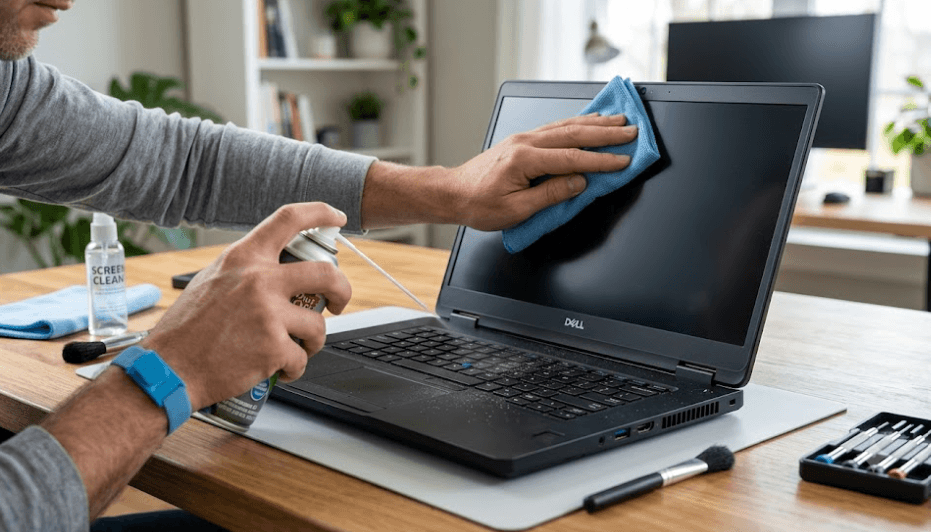
TL;DR Maintaining your Dell Precision workstation does not require complicated tools or frequent repairs. Regularly clean its screen, keyboard, chassis, and air vents, use the laptop on a firm surface, install appropriate BIOS and driver updates, and monitor battery health and system temperatures. These simple habits help prevent dust build-up, restricted airflow, avoidable wear, and performance issues during demanding workloads. Always shut down and disconnect the workstation before cleaning it, use a soft microfiber cloth, and keep liquids away from openings. Because Dell Precision models vary in design, battery configuration, and cooling systems, consult the service manual for your exact model before attempting internal cleaning or hardware repairs.
Why Regular Dell Precision Maintenance Matters
Dell Precision workstations are designed for demanding professional workloads, including engineering applications, 3D modelling, computer-aided design (CAD), video editing, and data-intensive tasks. These activities can place sustained demands on the processor, graphics hardware, memory, and cooling system. Over time, dust can collect around air vents and cooling components, restricting airflow and making it harder for the system to manage heat. Dell identifies blocked vents and accumulated dust as potential causes of overheating, increased fan activity, and reduced performance. Regular maintenance helps address these problems before they interfere with everyday work. <sup>[1][2]</sup>
Physical cleanliness is only one part of keeping a workstation in good condition. Battery wear, outdated drivers, software problems, and accidental damage can also affect its reliability. A workstation used daily for rendering or technical simulations may experience a different workload from one used primarily for spreadsheets and documentation. Both benefit from sensible care, but the frequency of maintenance should reflect the working environment, usage patterns, and condition of the device rather than an arbitrary schedule.
A well-maintained workstation can remain useful for longer, although cleaning alone cannot guarantee a particular lifespan. Components naturally age, batteries gradually lose capacity, and demanding software may eventually require newer hardware. The goal is to reduce preventable wear, identify developing problems early, and preserve reliable performance for as long as the workstation meets your needs.
Signs Your Workstation Needs Attention
Watch for fans running loudly for extended periods, unusually hot surfaces, unexpected performance slowdowns, or visible dust around ventilation openings. These symptoms do not automatically mean the laptop needs internal cleaning; software activity, room temperature, and hardware faults can produce similar effects. However, if the symptoms persist during ordinary workloads, inspect the vents and run Dell's available diagnostic tools before deciding on the next step.
How to Clean Your Dell Precision Safely
Before cleaning, shut down the workstation, disconnect the AC adapter, and unplug connected peripherals. Let the machine cool, then work on a clean, stable surface. Gather a soft microfiber cloth and, if needed, a cleaning product explicitly suitable for your particular display. Dell's guidance emphasizes disconnecting power before cleaning and avoiding direct application of liquids to the computer. These precautions reduce the risk of electrical damage and moisture entering the keyboard, ports, or internal components. <sup>[1][2]</sup>
Begin with the exterior. Wipe the lid, palm rest, keyboard surface, and chassis gently with a clean microfiber cloth. For stubborn marks, follow the cleaning instructions applicable to your exact model and surface material. Never pour or spray cleaning liquid directly onto the workstation. A cloth should not be wet enough to drip, and you should keep moisture away from openings, seams, and connectors. Avoid abrasive materials that could scratch the finish or damage delicate surfaces.
The display deserves extra care because its coating can be damaged by unsuitable cleaning products or excessive pressure. Start with a dry microfiber cloth to remove loose dust. If marks remain, follow the display manufacturer's instructions and use a suitable screen-cleaning method. Do not assume that household glass cleaner, ammonia-based products, or alcohol is safe for every panel. Let all cleaned surfaces dry completely before reconnecting power and turning the workstation on.
Cleaning Checklist
| Component | Recommended approach | What to avoid |
|---|---|---|
| Display | Soft microfiber cloth; suitable screen cleaner if permitted | Abrasive cloths and direct spraying |
| Keyboard | Gentle wiping with a clean cloth | Pouring liquid between keys |
| Chassis | Light wiping with a microfiber cloth | Harsh chemicals that damage the finish |
| Ports | Inspect visually and keep dry | Inserting metal objects |
| AC adapter | Wipe exterior after disconnecting it | Cleaning while connected to power |
Keep Air Vents and Cooling Components Clear
Cooling is particularly important on a Dell Precision workstation because professional applications can keep the processor and graphics hardware busy for extended periods. The cooling system moves heat away from internal components, and blocked vents can interfere with that process. Dust buildup may contribute to louder fans, thermal throttling, and lower performance under sustained workloads. Dell recommends checking ventilation openings and using compressed air appropriately to remove dust and debris. <sup>[2][3]</sup>
For routine external care, power down the workstation and disconnect its power adapter. Inspect the vents for visible dust, then follow Dell's instructions for your model when using canned compressed air. Use short, controlled bursts as directed on the can, and keep the can in the required position to avoid discharging liquid propellant. Do not blow into the vents with your mouth, and do not use a household vacuum or blower where Dell advises against them because static electricity can damage electronic components. Never insert tools into the vents.
Internal fan and heatsink cleaning may require removing the bottom cover, disconnecting components, or handling delicate cables. The process differs across Precision generations, so a generic cleaning tutorial is not a safe substitute for the exact service manual. If the fan remains unusually loud, the workstation overheats, or dust is packed inside the cooling assembly, consider a qualified technician rather than opening the machine without the necessary experience.
Improve Airflow During Daily Use
Use the workstation on a firm, level surface instead of a bed, blanket, or sofa. Soft surfaces can obstruct underside vents, while cramped spaces can limit airflow around the chassis. Keep the ventilation openings clear of papers and other objects, and avoid using the laptop in excessively dusty environments whenever possible. If the workstation regularly performs long renders or simulations, monitor its behavior during those tasks and investigate persistent heat or fan problems rather than assuming that high temperatures are always normal.
Maintain the Battery and Power Adapter
The battery is one of the components most likely to show noticeable wear as a laptop ages. If your Dell Precision spends most of its working day running demanding applications, pay attention to battery runtime, charging behavior, and any unexpected shutdowns. Battery capacity naturally declines with use and age, so a shorter runtime does not necessarily indicate a fault. However, sudden changes in battery performance, unusual heat around the battery, or a swollen battery require attention. If you notice swelling, stop using the device and seek professional assistance rather than pressing the case closed or attempting an improvised repair.
Use a Dell-approved or otherwise compatible AC adapter that meets the requirements of your exact Precision model. Workstation configurations can have different power demands, particularly when dedicated graphics hardware is involved. An unsuitable adapter may charge slowly, fail to supply sufficient power under load, or trigger a warning. Keep the adapter uncovered while in use, avoid sharply bending the cable, and disconnect it by holding the plug rather than pulling the cord. Dell also recommends protecting equipment from electrical fluctuations with an appropriate surge protector or UPS where practical. <sup>[1]</sup>
You can check battery condition through the BIOS or Dell's available support utilities, depending on your model and software version. Some systems also provide battery health information in Windows. If your workstation is frequently connected to power, check whether its BIOS or Dell power-management software offers battery charge limits or charging modes. Availability varies by model. A suitable charge limit may help manage long-term battery wear, but there is no single charging percentage or routine that guarantees a longer battery lifespan for every Precision system.
Battery Care at a Glance
| Habit | Why it helps |
|---|---|
| Use a compatible adapter | Supports the workstation's power requirements |
| Keep the adapter ventilated | Prevents unnecessary heat buildup |
| Inspect cables and connectors | Helps identify wear before failure |
| Monitor battery health | Makes gradual capacity loss easier to track |
| Follow model-specific charging options | Avoids relying on unsuitable universal advice |
Keep Windows, Drivers, and BIOS Updated
Cleaning the outside of a Dell Precision is only part of maintenance. Software updates help address security vulnerabilities, improve compatibility, and resolve certain stability issues. Windows Update is a sensible starting point, while Dell's official support website can provide drivers, firmware, and BIOS updates for your particular Service Tag or model. Keeping these components current can help the workstation work reliably with its hardware and professional applications. <sup>[2]</sup>
Before installing a BIOS update, confirm that it applies to your exact model and read Dell's instructions carefully. Save your work, back up important files, connect the appropriate power adapter, and make sure the battery has adequate charge if the instructions require it. Do not interrupt a BIOS update once it has started, as doing so can leave the system unable to start normally. If the workstation is managed by your employer's IT department, check with that team before changing firmware or driver settings.
You should also remove applications you no longer use, review unnecessary startup programs, and keep security software updated. These steps can reduce background activity and help make troubleshooting easier when the workstation becomes slow. Restarting periodically can resolve some temporary software problems, but it is not a substitute for diagnosing repeated crashes or persistent performance drops. Avoid installing unofficial driver packages or registry-cleaning utilities that promise dramatic performance improvements without clear evidence.
A Practical Software Maintenance Routine
| Task | Suggested approach |
|---|---|
| Windows updates | Check regularly and restart when required |
| Dell drivers | Use official downloads for the exact model |
| BIOS updates | Install when appropriate, following Dell's instructions |
| Security scans | Keep protection enabled and updated |
| Unused applications | Remove software you no longer need |
| Important files | Maintain a separate, current backup |
Protect the Workstation During Everyday Use
A Dell Precision may be built for professional work, but it still needs careful handling. Carry it in a padded laptop sleeve or backpack, shut it down before transporting it when practical, and disconnect external devices so they do not put pressure on the ports. Avoid lifting the laptop by its screen or one corner of the palm rest. When closing the lid, check that no pen, cable, or other object has been left on the keyboard. Small habits like these help prevent cracked displays, damaged hinges, and loose connectors. <sup>[1]</sup>
Your working environment also affects the machine's condition. Keep drinks away from the keyboard, avoid leaving the workstation in a hot car, and protect it from rain and excessive dust. If you regularly travel between air-conditioned offices and hot outdoor environments, allow the device to reach the surrounding temperature and any condensation to evaporate before powering it on. This is especially important when moving between environments with substantial temperature differences. Dell specifically cautions against exposing laptops to extreme temperatures and moisture. <sup>[1]</sup>
Cable management matters when your workstation stays on a desk for most of the day. Arrange charging cables and dock connections so they do not get pulled accidentally or place strain on their connectors. If you use an external monitor, docking station, and several USB devices, keep the setup organized and ensure the workstation's vents remain unobstructed. A clean workspace is not just about appearance; it also makes it easier to spot damaged cables, dust buildup, and other problems before they interrupt your work.
Habits That Help Prevent Physical Damage
| Situation | Better practice |
|---|---|
| Commuting or travel | Use a padded sleeve or laptop compartment |
| Closing the lid | Check for objects on the keyboard |
| Desk setup | Keep cables organized and ports free from strain |
| Hot or dusty environments | Limit exposure and provide adequate ventilation |
| Moving between temperature extremes | Allow the laptop to acclimate before powering on |
Monitor Performance and Recognize Early Warning Signs
A workstation that suddenly becomes slow may not need a hardware upgrade. High CPU or GPU usage, background processes, low available storage, driver conflicts, and restricted cooling can all affect performance. If an application starts taking longer to render or the fans remain unusually loud, check Task Manager to see whether a process is consuming substantial resources. Compare the behavior with your normal workload, because demanding CAD projects and 3D renders naturally generate more heat and fan noise than light office tasks.
Dell provides hardware diagnostic options that can help identify component problems. Depending on the model, you may be able to run SupportAssist tests from Windows or access pre-boot diagnostics through the F12 one-time boot menu. Record any error or validation codes and share them with Dell Support if a test fails. Diagnostics cannot identify every possible software or thermal issue, but they provide a useful starting point when a workstation freezes, fails to start, or behaves unpredictably. <sup>[2]</sup>
Back up important project files regularly, especially if you work with large design files, video projects, simulations, or client data. A workstation's continued operation is not a substitute for a reliable backup. Keep another copy of essential files on an external drive or trusted cloud service, following your organization's security requirements where applicable. If the laptop repeatedly overheats, shuts down unexpectedly, develops battery swelling, or makes new mechanical noises, arrange a professional inspection instead of relying on cleaning alone.
When to Investigate a Problem
| Symptom | Sensible next step |
|---|---|
| Persistent loud fan noise | Check airflow, workload, and dust around vents |
| Repeated slowdowns | Review resource usage and available storage |
| Failed hardware diagnostic | Record the error code and contact support |
| Unexpected shutdowns | Check temperatures, power, and diagnostic results |
| Swollen battery | Stop using the device and seek professional service |
How Often Should You Clean a Dell Precision?
There is no single cleaning schedule that suits every Dell Precision workstation. A laptop used in a clean office may collect dust much more slowly than one used in a workshop, studio, or environment with pets. A light exterior wipe and display check can be part of your regular desk routine, while a closer inspection of the vents can be done periodically and whenever cooling behavior changes. The purpose is to prevent visible buildup without repeatedly opening the chassis or using cleaning products the manufacturer does not recommend.
For a workstation used every day, a practical starting point is to wipe fingerprints and surface dust as needed, inspect the vents every few weeks, and review software updates and backups regularly. These are suggested habits, not official Dell-mandated intervals. If you work in a dusty environment or run sustained graphics workloads, you may need to inspect the cooling system more frequently. Follow the maintenance instructions for your exact model, especially if it has removable dust filters or other model-specific features.
Internal cleaning, fan replacement, thermal-interface maintenance, and battery replacement should be treated differently from ordinary surface cleaning. These tasks may require specific tools, procedures, and electrical safety precautions. Check the official Dell service manual and warranty conditions before attempting them. If you are unsure how to remove the base cover or handle internal components, a qualified technician is the safer choice.
Suggested Maintenance Schedule
| Frequency | Maintenance task |
|---|---|
| As needed | Wipe the screen, keyboard, and chassis |
| Every few weeks | Inspect vents, cables, and the charging adapter |
| Monthly | Review updates, storage space, and backup status |
| Every few months | Check battery health and investigate unusual fan behavior |
| When symptoms appear | Run diagnostics or arrange professional inspection |
Frequently Asked Questions
Q. How often should you clean a Dell Precision workstation?
Clean the exterior whenever dust or fingerprints accumulate, and inspect the air vents periodically. If you work in a dusty environment or frequently run demanding applications, check the cooling system more often. Internal cleaning should follow the service instructions for your specific model.
Q. Can dust make a Dell Precision run slower?
Yes. Dust that restricts airflow can contribute to overheating, causing the processor or graphics hardware to reduce performance to manage temperatures. However, software issues and heavy workloads can also cause slowdowns, so investigate persistent problems rather than assuming dust is the only cause.
Q. What is the safest way to clean a Dell Precision screen?
Shut down the workstation and disconnect its power adapter. Gently wipe the display with a clean microfiber cloth, following the instructions for your particular panel. If additional cleaning is needed, use only a suitable product and never spray liquid directly onto the screen.
Q. Can you use compressed air to clean Dell Precision vents?
Yes, Dell recommends compressed air for removing dust from ventilation openings. Follow the instructions supplied with the can and your model's maintenance guidance. Avoid household vacuums and blowers where Dell advises against them, and do not insert tools into the vents.
Q. Should you open a Dell Precision to clean its fans?
Not necessarily. External vent cleaning may be sufficient for routine maintenance, but internal cleaning can require removing the bottom cover and handling delicate components. Consult the official service manual for your exact model or use a qualified technician if you are unfamiliar with the process.
Q. How can you extend the battery life of a Dell Precision?
Avoid excessive heat, use a compatible power adapter, monitor battery health, and check whether your model supports battery charge limits. Battery capacity naturally declines with age and use, so no charging routine can prevent all battery degradation.
Q. Should you update the BIOS on a Dell Precision workstation?
Install appropriate BIOS updates when recommended for your model, particularly when they address relevant security, compatibility, or stability issues. Download updates from Dell's official support resources, follow the instructions carefully, and never interrupt the update process.
Q. Why does my Dell Precision fan keep running loudly?
High processor or graphics usage, restricted airflow, dust accumulation, and certain software or hardware issues can increase fan activity. Check running applications and ventilation first. If the noise persists during light workloads or accompanies overheating and shutdowns, run diagnostics or contact Dell Support.
Q. Is it safe to leave a Dell Precision plugged in all day?
Using the workstation while connected to its approved adapter is normal, but battery behavior and available charging features vary by model. Check the BIOS or Dell power-management software for supported charge-limit options, particularly if the workstation remains connected to power for extended periods.
Q. When should you get professional maintenance for a Dell Precision?
Seek professional help for persistent overheating, repeated unexpected shutdowns, failed hardware diagnostics, damaged charging ports, or battery swelling. Internal repairs should follow the correct service procedures, especially when they involve the battery, cooling assembly, or motherboard.
Final Recommendation
A Dell Precision workstation can remain a reliable tool for professional work when you combine regular cleaning with sensible software maintenance and careful handling. Start with the basics: keep the screen and chassis clean, maintain clear ventilation, use the workstation on a firm surface, protect the battery from excessive heat, and install appropriate Windows and Dell updates. Back up important project files and investigate changes in fan noise, temperatures, or performance before they become disruptive.
Most importantly, do not confuse routine maintenance with internal repair. External cleaning is straightforward, but opening the workstation, replacing its battery, or servicing the cooling assembly requires model-specific instructions and appropriate precautions. Use Dell's official documentation for your exact Precision model, and contact a qualified technician when a problem cannot be resolved safely through routine care. These habits cannot prevent every component failure, but they can help reduce avoidable damage and keep your workstation useful for longer.
Ready to upgrade your tech?
Browse our collection of quality refurbished products at unbeatable prices.






