How to Factory Reset and Wipe Your Phone and Laptop Safely Before Selling
Selling your old phone or laptop? Learn how to back up your data, remove accounts, factory reset Android, iPhone, Windows, and Mac devices, and verify that your personal information is gone.

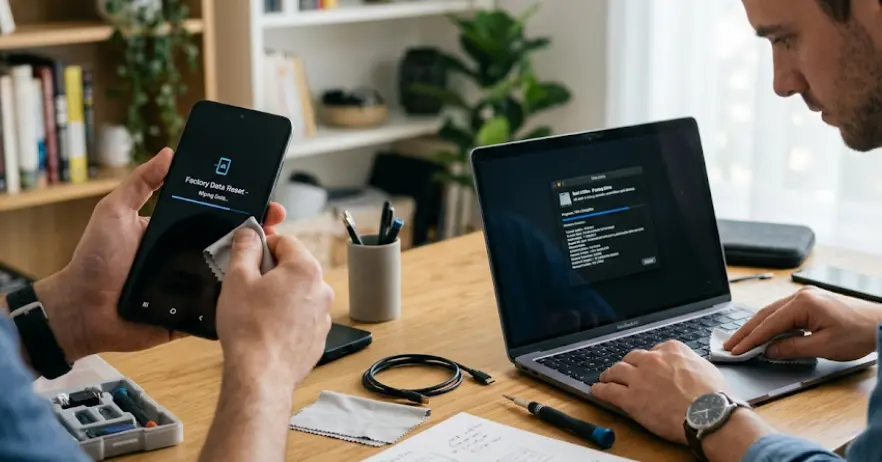
TL;DR: Selling an old phone or laptop involves more than deleting photos and signing out of a few apps. Your device may still contain personal files, saved passwords, payment information, browser data, and account connections. Before handing it over, back up everything you need, sign out of your accounts, remove SIM and memory cards, disable device-tracking features where required, and then perform the correct factory reset or erase procedure. The exact steps differ between Android, iPhone, Windows PCs, and Macs, so using the right method is important.
Why You Should Wipe Your Device Before Selling
A phone or laptop can contain far more personal information than you may realize. Photos and documents are the obvious examples, but browsers can also store passwords, addresses, payment details, browsing history, and active sessions. Messaging apps, email accounts, cloud storage, and productivity tools may also remain connected until you properly sign out or erase the device.
Simply deleting files is not the same as preparing a device for another person. You might delete a folder, empty the Recycle Bin, or remove individual photos, but accounts and system settings can remain behind. On some devices, security features such as Apple's Activation Lock or Android's Factory Reset Protection can also affect whether the next owner can activate the device.
A proper reset gives the next owner a clean starting point and reduces the risk of exposing your information. It also makes the device easier to sell or trade in because the buyer should receive it in a setup-ready state. The important part is to complete the preparation in the right order rather than immediately pressing the reset button.
What To Do Before You Reset
Back Up Everything You Need
Start by making a complete backup of information you want to keep. On a phone, this can include photos, videos, contacts, messages, notes, documents, authenticator information, and app-specific data. On a laptop, check your Desktop, Downloads, Documents, Pictures, Videos, and any other folders where you regularly save files.
Do not assume that everything is automatically backed up to the cloud. Services such as iCloud, Google, OneDrive, or other cloud platforms may synchronize only selected folders or data types. Open the service on another device or through its website and confirm that important files are actually available before wiping the old device.
Also check applications that require special transfer steps. Password managers, authenticator apps, messaging services, game saves, and locally stored media may have their own migration requirements. If you use an authentication app for two-factor authentication, make sure you have transferred or recovered your accounts before removing the old device.
Check The Physical Device
Before resetting, remove anything you are not selling with the device. This usually means taking out a physical SIM card and, where applicable, a microSD card. If you plan to reuse a memory card, back it up and erase it separately rather than assuming that resetting the phone will wipe every removable storage device.
For a laptop, disconnect external drives, USB flash drives, SD cards, and other accessories. Check whether you have downloaded files to external storage rather than the laptop itself. It is much easier to find a missing file before the reset than after the device has been erased.
Finally, make sure you know the passwords and recovery details for the accounts connected to the device. You may need your Apple Account, Google Account, Samsung account, Microsoft account, device passcode, or administrator credentials during the process. If you cannot authenticate when prompted, the reset or activation process may not go as expected.
| Before Resetting | What To Check |
|---|---|
| Personal files | Photos, videos, documents and downloads |
| Cloud backups | Confirm files are accessible from another device |
| Accounts | Apple, Google, Microsoft, Samsung and other accounts |
| Authentication | Transfer authenticator apps and recovery methods |
| SIM | Remove physical SIM or review eSIM transfer requirements |
| Memory cards | Back up and erase separately if reusing |
| Accessories | Disconnect external drives and storage |
How To Factory Reset An Android Phone
Android menus can vary between manufacturers and software versions, so the exact wording may not look identical on every phone. Google confirms that a factory reset removes the data from the phone, while Samsung's current Galaxy guidance places the reset under Settings > General management > Reset > Factory data reset. The safest approach is to use the manufacturer's current instructions for your particular model.
Before starting, make sure your backup is complete and that you know the Google Account credentials previously used on the phone. Google recommends checking your account information and screen-lock credentials before a factory reset. It also notes that if you recently changed your Google Account password, you should wait 24 hours before performing the reset.
On a Samsung Galaxy, for example, open Settings > General management > Reset > Factory data reset, review what will be removed, then confirm the reset. Samsung notes that a Samsung account password may be required. Other Android phones may use slightly different menus, so search the manufacturer's official support page if the option is not in the expected location.
Remove Your Accounts Before Selling
Removing your Google or manufacturer account before handing over the phone is an important part of preparing it for a new owner. On Samsung Galaxy devices, Samsung provides an option under Settings > Accounts and backup > Manage accounts to remove Google and Samsung accounts from the device. Menu names can vary by software version.
This is particularly important because Android devices can use Factory Reset Protection, commonly known as FRP. It is designed to help protect a lost or stolen device and may require verification of an account that was previously associated with the phone after certain types of resets. Following the manufacturer's recommended account-removal and reset process helps avoid leaving the next owner with an activation problem.
Once the reset is complete, let the phone reach its initial setup screen. Do not sign back into your accounts just to check whether everything is gone. Seeing the welcome or setup screen is generally the point at which you can stop and hand the device over, provided you have completed the other preparation steps.
How To Erase An iPhone Before Selling
Apple provides a dedicated process for preparing an iPhone for sale, trade-in, or gifting. First, back up the iPhone and transfer anything you want to keep. If you use an Apple Watch with the iPhone, Apple also recommends unpairing it before selling the phone.
After your data is safely backed up, go to Settings > [your name] > Sign Out and follow the instructions. Then go to Settings > General > Transfer or Reset iPhone > Erase All Content and Settings. Apple may ask for your device passcode and Apple Account password during the process.
If the iPhone uses an eSIM, pay close attention to the option presented during the erase process. If you are transferring the cellular plan to another device, follow your carrier's instructions before deleting the eSIM. Apple also explains that erasing the iPhone turns off services such as Find My and removes Activation Lock, allowing the device to be prepared for a new owner.
Do Not Confuse Reset All Settings With Erasing The iPhone
Apple has two very different options that are easy to confuse. Reset All Settings returns system settings to their defaults but does not delete personal data such as photos, messages, apps, documents, or other media. It is intended for troubleshooting rather than preparing a device for sale.
For selling, trading in, or giving away an iPhone, use Erase All Content and Settings instead. This is the option that removes the personal content and restores the device to a factory-ready state.
Once the process finishes and the iPhone displays the initial setup screen, stop there. Do not complete the setup with your own Apple Account. The new owner should be able to begin the setup process from that screen.
How To Reset A Windows Laptop
Windows 11 and Windows 10 include a built-in Reset this PC feature. For a laptop you are selling, Microsoft recommends backing up your information and choosing the option that removes everything rather than keeping your personal files. In Windows 11, the recovery settings can generally be accessed through Settings > System > Recovery > Reset PC. Windows 10 uses Settings > Update & Security > Recovery.
When prompted, choose Remove everything. Windows may then offer options such as a cloud download or local reinstall. Cloud download obtains a fresh copy of Windows, while local reinstall uses files already available on the computer. Either option can reinstall Windows, but the appropriate choice can depend on your connection and the condition of the existing installation.
For a device you are selling or giving away, Microsoft provides a Clean data option within the reset process. It is intended to make removed files harder for another person to recover. However, Microsoft specifically states that this consumer data-erasure functionality does not meet government or industry data-erasure standards, so businesses handling highly sensitive information may need a more rigorous sanitization process.
Remove The Laptop From Your Microsoft Account
After backing up and resetting the Windows laptop, Microsoft recommends removing the device from your Microsoft account. Sign in to your Microsoft account's device page, find the old computer, and choose the option to remove it. Microsoft also provides an unlink option for devices associated with Microsoft Store content.
This step does not replace the Windows reset. Think of it as account housekeeping after the device has been wiped. Removing the computer from your account helps ensure that a device you no longer own is no longer unnecessarily associated with your Microsoft account.
Once Windows finishes resetting, leave the laptop at the initial setup stage. Avoid signing in again with your Microsoft account. If you are shipping the laptop to a buyer or trade-in service, shut it down after confirming that the reset has completed.
How To Erase A MacBook Before Selling
MacBooks have a particularly straightforward option on supported versions of macOS. Apple says Erase All Content and Settings is available on Macs running macOS Monterey 12 or later when the Mac has Apple silicon or the Apple T2 Security Chip. The feature erases data, settings, and apps while keeping the installed operating system.
On a supported Mac, open Apple menu > System Settings > General > Transfer or Reset > Erase All Content and Settings. Follow the onscreen instructions and enter the requested administrator and Apple Account credentials. The Mac will erase the data and restart into the setup process.
If your Mac does not support this feature, Apple provides a separate preparation process that includes signing out of Apple services and erasing the Mac using the appropriate method for its hardware and macOS version. Older Intel Macs may require Disk Utility and a macOS reinstallation rather than the newer Erase All Content and Settings option.
Make Sure Find My And Activation Lock Are Handled
Before selling an Apple device, Find My deserves special attention. Apple explains that turning off Find My on a Mac automatically removes Activation Lock. On supported Macs, the erase process handles the necessary account and security steps, but if you are using an older Mac or a different erase method, make sure Find My and your Apple Account are properly disconnected.
Activation Lock is designed to prevent someone else from using an Apple device that remains associated with its previous owner. A buyer who sees an ownership or activation lock screen may not be able to use the Mac normally until the previous owner removes the device from their account.
After erasing the Mac, stop when the Setup Assistant appears. Apple specifically advises sellers who want the Mac to remain in an out-of-box state not to proceed through the Setup Assistant.
What About Data Security After A Factory Reset?
A factory reset is designed to remove your personal information and return the device to a clean state, but the exact security properties vary by device, operating system, storage technology, and reset method. For everyday consumer sales, using the manufacturer's recommended erase process is preferable to manually deleting individual files.
Modern smartphones and many newer computers use encryption and hardware-backed security features, which can make deleted data substantially harder to recover. However, it is inaccurate to promise that every factory reset makes every byte of previous information mathematically or forensically unrecoverable. The appropriate level of sanitization depends on how sensitive the information was and who will receive the device.
If the device previously contained highly confidential business, financial, medical, government, or other sensitive information, a normal consumer reset may not be enough. Microsoft explicitly says its consumer Clean data option does not satisfy government or industry data-erasure standards. In such cases, follow your organization's approved data-destruction policy or use a professional data-sanitization service.
| Device | Recommended Consumer Erase Method | Important Extra Step |
|---|---|---|
| Android phone | Factory data reset | Remove Google/manufacturer accounts as appropriate |
| iPhone | Erase All Content and Settings | Sign out and handle Find My/eSIM correctly |
| Windows laptop | Reset this PC > Remove everything | Use Clean data and remove device from Microsoft account |
| MacBook | Erase All Content and Settings, if supported | Ensure Apple Account/Find My and Activation Lock are handled |
Final Checklist Before Handing Over The Device
Do one final check before the device leaves your hands. Confirm that the backup is accessible from another device, your accounts have been removed, and any physical SIM or memory card you want to keep has been taken out. If the device supports an eSIM, make sure your cellular plan has been transferred or handled according to your carrier's instructions.
Turn the device on after the reset and check what a new owner would see. You should be looking for the initial setup or welcome screen rather than your old home screen, desktop, files, or account information. Do not complete the setup yourself after reaching this point.
Finally, remove the device from relevant online account dashboards where applicable. Microsoft specifically recommends removing a sold or gifted Windows device from your Microsoft account. Apple provides similar account-management options for devices, while Android manufacturers may provide their own account and device-management controls. This final clean-up is easy to overlook but helps close the loop.
Final Recommendation And Decision Framework
The safest way to prepare a phone or laptop for resale is to think of the process as backup, disconnect, erase, verify. Do not start with the factory reset. First make sure every important file and account can be recovered elsewhere, then remove the accounts and services that need to be disconnected, perform the manufacturer's recommended erase procedure, and finally verify that the device has returned to its initial setup screen.
For most consumers, the built-in tools are the best option. Android's Factory Data Reset, Apple's Erase All Content and Settings, Windows' Reset this PC, and macOS's Erase All Content and Settings are designed specifically for these situations. Using the official process also reduces the chance of accidentally leaving behind an account lock or making the device difficult for its next owner to activate.
If the device has handled highly sensitive professional or confidential information, don't rely on a consumer factory reset just because the screen says the process is complete. Check the relevant data-sanitization requirements first. For an ordinary personal phone or laptop, however, a verified backup followed by the correct account-removal and factory-erase procedure is a practical and responsible way to prepare the device for its next owner.
Frequently Asked Questions
Q. Does a factory reset delete everything from a phone?
A factory reset erases the data stored on the phone and returns it to its factory state. However, data already synchronized to cloud services is not normally deleted from those accounts simply because the device is reset.
Q. Should I remove my Google Account before resetting an Android phone?
Yes. Removing accounts as part of the preparation process can help prevent account-verification or activation issues for the next owner. The exact steps vary by manufacturer and Android version.
Q. Does resetting an iPhone remove Activation Lock?
When an iPhone is properly erased using Apple's recommended process, Find My and Activation Lock are turned off as part of the process. This allows the device to be prepared for a new owner.
Q. Is deleting files enough before selling a laptop?
No. Manually deleting files is not the recommended way to prepare a Windows or Mac laptop for resale. Use the operating system's appropriate reset or erase function instead.
Q. Should I remove my SIM card before selling my phone?
Yes, if you are keeping the physical SIM. Remove it before handing over the phone. If you use an eSIM, follow your carrier's instructions for transferring or removing the cellular plan.
Q. What is the difference between Reset All Settings and Erase All Content and Settings on an iPhone?
Reset All Settings changes system settings but leaves personal data and media intact. Erase All Content and Settings is the option intended for removing personal information before selling or giving away the iPhone.
Q. Should I choose Remove Everything when resetting a Windows laptop for sale?
Yes. Microsoft's Remove everything option is intended for situations such as selling or giving away a PC. Microsoft also provides a Clean data option that makes removed files harder to recover.
Q. How do I know whether my MacBook has been properly erased?
After a successful erase, the Mac should restart into the setup process. If you are selling it, do not continue through the Setup Assistant with your own account.
Q. Can deleted data still be recovered after a factory reset?
The answer depends on the device, storage technology, encryption, and erase method. A consumer factory reset is appropriate for ordinary resale preparation, but highly sensitive data may require a stronger sanitization process.
Q. Should I remove a sold laptop from my Microsoft account after resetting it?
Yes. Microsoft recommends removing a Windows device you no longer own or use from your Microsoft account after it has been backed up and reset.
Ready to upgrade your tech?
Browse our collection of quality refurbished products at unbeatable prices.