
How to Check a Refurbished Dell Precision Before Buying
Learn how to inspect a refurbished Dell Precision before buying. Check the Service Tag, display, battery, RAM, storage, ports, diagnostics, and overall condition.

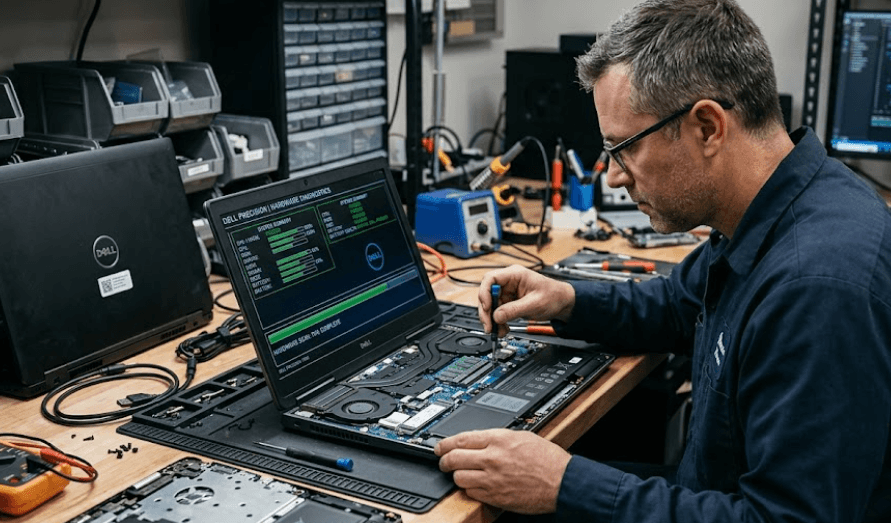
TL;DR A refurbished Dell Precision can be a practical way to get workstation-class hardware without paying the price of a new model, but the condition of the individual machine matters more than the model name alone. Before buying, verify the Dell Service Tag and configuration, check the warranty and product details, inspect the display and chassis, test the keyboard, touchpad, ports, webcam and speakers, and run Dell's built-in hardware diagnostics. Battery condition deserves particular attention because batteries are consumable components and their capacity declines with age and use. You should also confirm the installed RAM, SSD, processor and graphics hardware against the seller's listing rather than assuming the advertised configuration is correct. A careful inspection can help you separate a well-maintained refurbished Precision from a machine that needs expensive repairs soon after purchase.
Verify The Dell Precision First
The first step when buying a refurbished Dell Precision is confirming exactly which machine you are looking at. Precision is a workstation family rather than one specific laptop, and different generations can have very different processors, displays, graphics options, memory configurations, ports and upgrade paths. Start by asking the seller for the Service Tag and use Dell Support to identify the device. Dell uses the Service Tag to identify individual products and provide product-specific support information, making it more useful than relying only on a seller's model name.
Once the Service Tag identifies the machine, compare the information with the listing. Check the processor, installed memory, storage, display configuration and graphics hardware where the information is available. This step is particularly important with refurbished workstations because a seller may advertise a model family while the actual configuration is different. A Precision laptop with integrated graphics is a very different proposition from one equipped with a professional discrete GPU, even if both share a similar model number.
You should also check the warranty and available support before paying. Dell's support system allows customers to enter a Service Tag and review warranty information and available service options. A refurbished laptop may be outside its original warranty, so do not assume that the presence of a Dell logo or a Precision badge means the machine still has active coverage. If the seller makes a specific claim about remaining warranty, verify it through Dell rather than treating the listing as the final authority.
Check The Configuration
| What To Check | Why It Matters |
|---|---|
| Service Tag | Confirms the individual Dell system |
| Processor | Determines performance and generation |
| RAM | Affects multitasking and upgrade potential |
| SSD | Determines storage capacity and responsiveness |
| GPU | Important for workstation and creative workloads |
| Display | Confirms resolution and panel configuration |
| Warranty | Helps establish remaining support coverage |
Inspect The Exterior And Display
Physical condition is one of the easiest ways to understand how a refurbished Dell Precision has been treated. Look closely at the lid, palm rest, hinges, bottom cover and corners for cracks, deep dents or signs that the laptop has been dropped. Minor cosmetic marks are normal for many refurbished systems, but structural damage is different. Pay particular attention to the hinge area because a loose or damaged hinge can affect the display assembly and become an expensive repair. Also check whether the bottom cover sits evenly and whether screws appear damaged or missing.
The display deserves its own inspection because problems can be difficult to notice from a product photograph. Open a plain white page and a dark page, then look carefully across the entire panel for unusual spots, lines, flickering or areas that appear significantly darker. Dell provides an LCD Built-In Self-Test for compatible laptops that cycles through solid colours, including black, white, red, green and blue. Dell says the test can help identify issues such as lines, flickering, abnormal pixels and areas that fail to display correctly.
Do not automatically reject a laptop because you notice a tiny pixel defect without checking the relevant Dell policy and the seller's return terms. Dell's published pixel guidelines vary according to display category and resolution, so the presence of a defect does not automatically tell you whether the panel qualifies for replacement under Dell's policy. For a refurbished purchase, however, the practical concern is whether the screen is acceptable to you and whether the seller's return policy covers a display problem discovered after delivery.
Physical Inspection At A Glance
| Area | What To Inspect |
|---|---|
| Lid | Scratches, dents and cracks |
| Hinges | Excessive movement or looseness |
| Palm rest | Cracks, swelling or heavy wear |
| Keyboard | Missing, loose or damaged keys |
| Display | Lines, flickering, spots and uneven areas |
| Bottom cover | Damage, gaps or missing screws |
Test The Battery And Charger
Battery condition is one of the most important checks when buying a refurbished Dell Precision because battery capacity naturally declines over time. Dell describes laptop batteries as consumable components and provides several methods for checking battery health. Depending on the model, you may be able to view battery information through the BIOS, Dell diagnostics or other supported Dell tools. The important point is to check the actual condition of the battery rather than judging it solely by how long the seller says it lasts.
When inspecting the laptop, make sure it charges correctly and that the battery percentage increases while the correct AC adapter is connected. If possible, use the laptop on battery power for a practical period and watch whether the percentage falls unusually quickly. A refurbished Precision with a weak battery can still function correctly, but you should account for the cost of replacement when comparing its price with another machine. Dell notes that significant runtime reduction, battery health showing Fair or Poor, diagnostic errors, unexpected shutdowns and physical swelling can indicate that a battery needs attention.
The charger should also be checked rather than treated as an accessory that does not matter. Confirm that the adapter is compatible with the laptop and that charging remains stable when the cable is moved gently. Look for damaged insulation, bent connectors or excessive heat. If the battery appears swollen or the chassis is lifting around the battery area, do not continue using the machine normally. Dell specifically advises stopping use of a swollen lithium-ion battery and avoiding attempts to puncture, compress or disassemble it.
Battery Checks
| Check | What You Want To See |
|---|---|
| Battery health | Healthy condition without warning indicators |
| Charging | Battery percentage increases normally |
| Runtime | Reasonable for the battery's age and capacity |
| Adapter | Correct and undamaged charger |
| Physical battery | No swelling or deformation |
| Diagnostics | No battery-related error codes |
Test Performance And Hardware
After checking the exterior, test the hardware that actually determines how the refurbished Precision performs. Dell provides built-in preboot diagnostics that can test hardware before the operating system loads. Dell's current documentation describes both quick and advanced diagnostic options, with the diagnostic environment providing information about system configuration and health as well as previous diagnostic logs. This makes the test useful when you are buying a machine second-hand or refurbished because it gives you a hardware check beyond simply opening Windows and seeing whether the laptop boots.
Pay particular attention to the processor, RAM, SSD and graphics configuration. Open the system information in Windows or use Dell's diagnostic environment to confirm that the hardware matches the listing. If the seller says the Precision has 32GB of RAM and a 1TB SSD but the system reports 16GB and 512GB, stop and resolve the discrepancy before buying. The same applies to graphics hardware. Workstation buyers may specifically need professional graphics performance, so a configuration mismatch can change whether the laptop is suitable for CAD, 3D applications, engineering software or content creation.
Storage health is also worth checking because an SSD that is already heavily worn can create problems even if Windows currently runs normally. Look for unusual slowdowns, failed storage tests or other warnings during diagnostics. Then test everyday responsiveness by opening several applications, moving files and waking the laptop from sleep. You are not trying to recreate a laboratory benchmark. The purpose is to make sure the machine behaves consistently and does not show obvious instability under normal use.
Hardware Verification
| Component | What To Confirm |
|---|---|
| CPU | Exact processor matches the listing |
| RAM | Capacity and configuration are correct |
| SSD | Capacity and drive are correctly identified |
| GPU | Exact graphics hardware is present |
| Diagnostics | No critical hardware errors |
| Windows | System operates without obvious instability |
Check Ports, Keyboard And Connectivity
A workstation laptop can have an excellent processor and still become frustrating if its ports or input devices do not work properly. Test every important port before completing the purchase. Connect a USB device, test USB-C where available, check the headphone jack and test HDMI or other display outputs if you have suitable equipment. The exact port selection differs between Precision generations, so compare the physical machine with the official documentation for that specific model instead of assuming every Precision has the same connectivity.
The keyboard and touchpad should be tested one key at a time. Open a text editor and type through the alphabet, numbers, punctuation and commonly used function keys. Check whether any key requires excessive pressure or produces an inconsistent response. Move your finger across the entire touchpad and test clicking in different areas. Also check the webcam, microphone and speakers because these components can be overlooked when buyers focus heavily on processor and GPU specifications.
Wireless connectivity should receive the same treatment. Connect the laptop to Wi-Fi and test Bluetooth with a compatible device if possible. If the Precision is intended for office or professional work, these small checks matter because replacing a laptop's major internal hardware may be possible, while a persistent motherboard, port or connectivity problem can be much harder to resolve. The goal is not to find a completely flawless cosmetic machine, but to identify problems that affect everyday usability before money changes hands.
Everyday Function Check
| Component | Simple Test |
|---|---|
| Keyboard | Test every key |
| Touchpad | Move, click and scroll |
| Webcam | Open the camera app |
| Microphone | Record a short sample |
| Speakers | Play audio at different levels |
| Wi-Fi | Connect and browse |
| Bluetooth | Pair a compatible device |
| USB ports | Test with a known-working device |
Compare The Price With Repair Risk
The final check is not performed on the laptop itself. It is performed on the deal. A refurbished Dell Precision should be evaluated based on its actual configuration and condition, not simply the original price of the model. A machine with a newer processor, healthy battery, clean display and sufficient RAM can justify a different price from an older Precision with worn components, even if both carry the same family name.
Think about the cost of fixing anything you discover before deciding whether the price makes sense. A battery replacement, additional RAM, SSD upgrade or charger may be manageable depending on the model, while display, motherboard or GPU problems can be considerably more important to the overall value. Dell provides documentation and parts information for supported devices, but compatibility and availability vary by model, region and configuration.
The seller's return policy should be part of the calculation too. A refurbished laptop bought with a clear inspection or return window gives you an opportunity to run your own tests after delivery. Keep the invoice, configuration details and any written warranty or return terms. If the seller refuses to provide the Service Tag, avoids confirming the exact specifications or does not offer a reasonable way to verify the machine, treat that uncertainty as part of the purchase decision rather than ignoring it.
Refurbished Precision Value Check
| Condition | Buying Consideration |
|---|---|
| Healthy battery and clean display | Lower immediate replacement risk |
| Minor cosmetic wear | Usually manageable if reflected in price |
| Low RAM or storage | Check upgrade compatibility and cost |
| Weak battery | Factor replacement cost into the price |
| Display or motherboard fault | Requires much more caution |
| Missing Service Tag | Avoid relying solely on seller claims |
Common Mistakes To Avoid
One common mistake is buying based only on the Precision model number. Workstation families can include multiple configurations, and the same model can be sold with different processors, memory, storage, display and graphics options. Another mistake is assuming that refurbished means factory-refurbished by Dell. The word can be used by different sellers to describe different refurbishment processes, so check who performed the refurbishment and what warranty or return protection comes with the machine.
Another mistake is ignoring the battery because the laptop works while connected to the charger. That can hide a significant weakness in an older machine. Battery condition matters particularly for buyers who expect to carry the Precision between offices, classrooms, meetings or client locations. Dell's own battery guidance recommends checking battery health and identifying signs such as poor health status, reduced runtime, diagnostic errors, unexpected shutdowns and swelling.
The final mistake is skipping diagnostics because Windows appears to start normally. A successful boot does not prove that every hardware component is healthy. Dell's preboot diagnostic tools exist specifically to test hardware and identify errors before or outside normal Windows use. Spending a few minutes checking the machine can reveal issues that are difficult to spot from a quick visual inspection or a seller's product photographs.
Final Recommendation
A refurbished Dell Precision can make sense when you evaluate the individual machine rather than buying purely on the reputation of the Precision name. Start with the Service Tag, verify the configuration through Dell, check the warranty information, and then inspect the physical condition. From there, test the display, battery, charger, keyboard, touchpad, ports, webcam, speakers and wireless connectivity. Finally, run Dell's built-in diagnostics and compare the actual hardware with the seller's listing.
The most important part of the process is identifying expensive problems before purchase. Cosmetic wear is generally easier to accept than a failing display, damaged hinge, unhealthy battery or hardware diagnostic error. Similarly, a lower RAM or storage configuration is not necessarily a deal-breaker if the model supports the upgrade you need and the total cost remains reasonable. Dell's own documentation confirms that supported systems can have service, maintenance and upgrade options, but those possibilities depend on the exact device.
If the Service Tag matches the listing, the hardware configuration is correct, the display and chassis are in acceptable condition, the battery is healthy enough for your needs, the ports and input devices work properly and Dell diagnostics show no significant errors, you have much stronger evidence that the refurbished Precision is worth considering. The safest approach is therefore not to look for a perfect-looking refurbished workstation, but to verify the parts that matter most and make sure the price reflects the machine's actual age, condition and configuration.
Frequently Asked Questions
Q. What should I check first on a refurbished Dell Precision?
Start with the Service Tag and verify the exact model and configuration through Dell Support. Then compare the processor, RAM, storage, graphics and display with the seller's listing before checking the physical condition. Dell uses the Service Tag to identify individual systems and provide product-specific support information.
Q. How do I check the Service Tag on a Dell Precision?
The Service Tag is normally found on the laptop itself, commonly on the bottom or another product label depending on the model. You can enter it on Dell Support to identify the system and access product-specific support information. If a seller refuses to provide or show the Service Tag, ask why before proceeding.
Q. How can I test a refurbished Dell Precision for hardware problems?
Dell provides preboot diagnostics that allow you to test hardware before the operating system loads. The diagnostics include quick and advanced testing options and can provide information about system health and previous diagnostic results. Run these tests before completing the purchase whenever possible.
Q. How do I check the battery health of a refurbished Dell Precision?
Dell provides several methods for checking battery health, depending on the laptop model. You can use supported Dell diagnostics or check battery information through the system's available hardware or BIOS tools. Look for poor health indicators, unusually short runtime, unexpected shutdowns and diagnostic errors.
Q. Should I buy a refurbished Dell Precision with a weak battery?
It depends on the price and whether you are prepared to replace the battery. A weak battery does not necessarily mean the rest of the laptop is defective, but the replacement cost should be included when comparing the machine with another refurbished Precision. A swollen or physically damaged battery requires much greater caution.
Q. How do I check the display on a refurbished Dell Precision?
Look for lines, flickering, unusual spots, dark areas and inconsistent colours. Dell also provides an LCD Built-In Self-Test on compatible laptops. The test displays solid colours that make common display problems easier to identify.
Q. How can I check whether the RAM and SSD match the listing?
Open the system information in Windows or use Dell's available diagnostic and configuration information to confirm the installed hardware. Compare the reported RAM and storage capacity with the seller's listing. Do not rely solely on the model name because Precision systems can have different configurations.
Q. What physical damage should I avoid on a refurbished Dell Precision?
Pay particular attention to cracked chassis sections, damaged hinges, severe dents, gaps in the bottom cover and signs of swelling around the battery area. Minor scratches can be normal on refurbished equipment, but structural damage can indicate a more serious problem.
Q. Is a refurbished Dell Precision good for professional work?
It can be, provided the specific configuration matches the workload. Precision systems are Dell's workstation line, but individual models have different processors, graphics options, memory configurations and displays. Check the exact specifications rather than assuming every Precision is suitable for every professional application.
Q. What should I do if the refurbished Dell Precision fails a diagnostic test?
Record the error code and determine which component is affected before buying. Dell's diagnostic documentation provides guidance for interpreting hardware errors and contacting support. If you are inspecting a machine before purchase, a significant unresolved diagnostic error is a reason to ask the seller for an explanation or choose a different unit.






