

External GPU Support on Dell Precision: When Do You Actually Need One?
Dell Precision laptops can offer powerful built-in graphics, but some users may consider an external GPU. Here is when an eGPU makes sense, what Thunderbolt 4 changes, and what to check before buying.

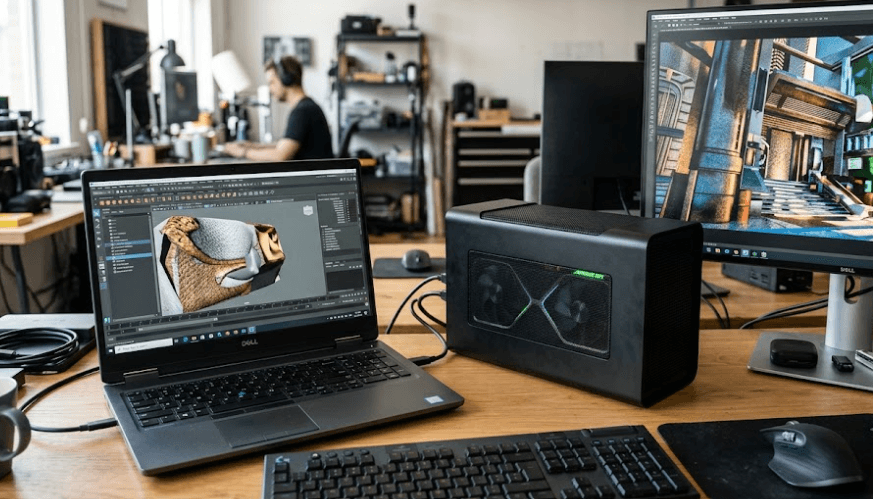
TL;DR External GPU support on Dell Precision laptops can be useful when the built-in graphics hardware is not enough for a specific workload, but an eGPU is not automatically necessary just because a Precision has Thunderbolt 4. Several Precision mobile workstations, including models such as the Precision 5680 and 5690, offer Thunderbolt 4 connectivity, while Dell documentation also exposes PCIe tunnelling settings on supported systems. However, an eGPU requires more than a USB-C-shaped port. You need a compatible Thunderbolt connection, suitable enclosure, supported graphics card, appropriate drivers, and a workload that can actually benefit from the additional GPU. For many Precision owners who already have a capable NVIDIA RTX professional GPU, upgrading or choosing the internal GPU configuration is usually a more straightforward approach than adding an external graphics enclosure.
What Is An External GPU On A Dell Precision?
An external GPU, or eGPU, is a graphics card housed outside the laptop and connected through a high-speed external interface. Instead of relying entirely on the GPU installed inside the Dell Precision, the laptop sends graphics-related workloads through the connection to the external graphics enclosure. The enclosure normally provides its own power supply for the desktop-class graphics card, while the laptop handles the connection and software side.
Thunderbolt technology is one of the interfaces that can make this type of setup possible. Intel specifically describes Thunderbolt as supporting external graphics use cases, while Microsoft notes that Windows laptops can connect to external GPUs through Thunderbolt or faster ports. That does not mean every Thunderbolt-equipped laptop is guaranteed to work with every eGPU, however. The laptop, firmware, operating system, enclosure, graphics card, drivers, and application all need to work together properly.
The distinction is particularly important with Dell Precision workstations. Precision systems are designed around professional workloads and can already be configured with discrete NVIDIA graphics. For example, Dell lists NVIDIA RTX 1000 Ada, RTX 2000 Ada, RTX 3500 Ada, RTX 4000 Ada, and RTX 5000 Ada options for the Precision 5690. In that situation, an eGPU is not automatically an upgrade. You first need to determine whether the internal GPU is actually the performance limitation in your workload.
Thunderbolt 4 Is The Important Connection
Thunderbolt 4 uses the USB-C connector but provides capabilities beyond ordinary USB-C. Intel lists PCIe connectivity among the standards supported by Thunderbolt 4 and describes Thunderbolt technology as a way to connect external graphics devices. Dell's Precision 5680 and 5690 documentation confirms the presence of Thunderbolt 4 ports on those systems.
| Component | What It Does |
|---|---|
| Dell Precision laptop | Runs the operating system and applications |
| Thunderbolt 4 port | Provides the high-speed external connection |
| eGPU enclosure | Houses and powers the external graphics card |
| Desktop GPU | Performs graphics or compute workloads |
| Driver | Allows Windows and applications to communicate with the GPU |
| External display | Can provide a direct display path for the eGPU |
When Do You Actually Need An eGPU?
The main reason to consider an eGPU is a genuine graphics-performance requirement. If your Dell Precision struggles with GPU-heavy rendering, certain 3D applications, GPU-accelerated workloads, or demanding games, additional graphics hardware can potentially provide more performance. The important word is "potentially," because an external connection does not provide the same environment as installing a graphics card directly into a desktop motherboard.
An eGPU can make more sense when portability is important but you also maintain a permanent desk setup. You might use the Precision as a mobile workstation during the day and connect it to an external GPU, monitor, keyboard, storage, and other peripherals at your desk. This creates a flexible arrangement where the laptop remains portable without requiring a separate desktop for every graphics-heavy task.
However, an eGPU is difficult to justify if your workload is primarily office productivity, web browsing, video conferencing, coding, document work, or light photo editing. A Precision with integrated graphics can already handle many everyday workloads, while models with internal discrete GPUs are designed for considerably heavier graphics tasks. Microsoft also distinguishes integrated graphics, which are generally more power-efficient, from discrete GPUs designed for heavier gaming, editing, design, and similar workloads.
Workloads That Can Benefit
Professional 3D applications, GPU-accelerated rendering, certain scientific and engineering workloads, and graphics-intensive applications are the types of tasks where an additional GPU may be worth investigating. The exact benefit depends heavily on whether the application supports the GPU technology and how efficiently it can use an external GPU.
Gaming is another possible use case, particularly if the Precision has a relatively modest internal GPU but is connected to a high-performance external graphics card. Intel explicitly identifies gaming, professional applications, and VR among potential eGPU use cases. Still, performance can vary depending on the connection and whether the display is connected directly to the external GPU.
| Workload | eGPU Need |
|---|---|
| Microsoft Office and web browsing | Usually unnecessary |
| Video conferencing | Usually unnecessary |
| Basic photo editing | Usually unnecessary |
| Professional 3D work | Potentially useful |
| GPU-accelerated rendering | Potentially useful |
| Heavy gaming | Potentially useful |
| AI or compute workloads | Depends on software and GPU support |
| Multi-monitor productivity | Usually a dock or direct display connection is sufficient |
Which Dell Precision Models Make The Most Sense?
There is no single eGPU rule that applies to every Dell Precision because the product family includes many generations and configurations. The exact ports, graphics options, firmware settings, and internal GPU configuration can differ considerably. This is why checking the specific service manual and configuration of your Precision is more reliable than assuming that every USB-C port behaves the same way.
The Precision 5680, for example, includes two Thunderbolt 4 ports and integrated motherboard memory that Dell identifies as non-replaceable or non-upgradable. Dell's documentation also lists discrete NVIDIA graphics configurations for the model. The Precision 5690 similarly provides two Thunderbolt 4 ports rated at 40 Gbps and can be configured with several NVIDIA RTX Ada Generation Laptop GPUs.
The Precision 7680 provides another example of why the exact configuration matters. Dell lists two Thunderbolt 4 ports with USB-C, USB4 support, DisplayPort 1.4, and Thunderbolt 4, while its documentation also provides specific external-display configurations. These capabilities are useful for external displays and high-speed peripherals, but they should not be interpreted as a blanket guarantee that every eGPU enclosure and graphics card will work without compatibility considerations.
Check The Exact Port And BIOS Configuration
Dell's Precision documentation can expose settings that are relevant to PCIe devices connected through Thunderbolt. For example, the Precision 5680 system setup includes an option for enabling Thunderbolt support and a setting called "Enable Thunderbolt (and PCIe behind TBT) pre-boot modules." It also includes a USB4 PCIe tunneling setting. These options demonstrate why firmware configuration matters when evaluating an external PCIe device.
Before purchasing an enclosure, identify the exact Precision model, processor, internal GPU, Thunderbolt version, BIOS version, and operating system. Then check Dell's current documentation for that exact configuration. Do not assume that a generic USB-C port provides the same functionality as Thunderbolt 4.
| Check Before Buying | Why It Matters |
|---|---|
| Exact Precision model | Port and firmware capabilities vary |
| Thunderbolt version | Determines available connectivity |
| PCIe tunneling settings | Important for PCIe devices |
| Internal GPU | Determines whether an eGPU is actually needed |
| BIOS and drivers | Can affect device detection and stability |
| eGPU enclosure | Must support the intended GPU and connection |
| External monitor | Can influence the graphics path |
What Are The Advantages Of Using An eGPU?
The biggest advantage of an eGPU is flexibility. A laptop can remain relatively portable while gaining access to a more powerful graphics setup when it is connected to a desk. Instead of carrying a desktop system between locations, you can potentially use the Precision on its own while travelling and connect the external GPU when you return to a fixed workstation.
An eGPU can also make sense when you already own a suitable graphics card. Rather than replacing the entire laptop immediately, an external enclosure can provide a way to use that graphics hardware with a compatible laptop. This can be particularly interesting for users who have different performance requirements at home and while travelling.
Another advantage is that Thunderbolt can carry more than graphics data. Intel describes Thunderbolt as a connectivity technology capable of handling PCIe devices, displays, storage, and other peripherals. That makes a Thunderbolt-based workstation setup convenient because one high-speed connection can form part of a broader desk configuration.
The Setup Can Be Flexible
For example, a professional who travels with a Precision may not need maximum GPU performance every day. At the office, an eGPU could potentially provide additional graphics capability for a demanding workload, while the laptop can be used independently when travelling.
This approach is particularly attractive when the internal hardware is otherwise suitable. If the processor, memory, storage, display, keyboard, and portability of the Precision are exactly what you need, adding external graphics can be less disruptive than replacing the entire system.
However, the enclosure itself takes up desk space and requires its own power connection. It is therefore not a replacement for the portability of the laptop. It is an additional component designed primarily for a stationary setup.
What Are The Limitations Of An eGPU?
The biggest limitation is bandwidth. An external GPU connected through Thunderbolt does not have the same direct PCIe connection as a graphics card installed inside a desktop PC. Intel's documentation describes Thunderbolt 4 as offering up to 40 Gbps of bidirectional bandwidth, but that figure should not be interpreted as equivalent to the bandwidth of a high-end internal desktop PCIe connection.
The second limitation is compatibility. A USB-C connector by itself is not enough. Microsoft notes that Thunderbolt functionality depends on the PC, connected device, cable, and correct port supporting the required features. Dell also maintains support documentation for issues involving external Thunderbolt graphics processors, including situations where an eGPU may not be detected after sleep or hibernation.
The third limitation is cost. An eGPU setup can require an enclosure, graphics card, cable, and potentially a suitable external monitor. If your Precision can already be configured with an internal professional GPU that meets your workload requirements, buying an eGPU may add cost and complexity without solving a real problem.
External Does Not Always Mean Faster
A powerful graphics card in an eGPU enclosure does not guarantee that every application will scale proportionally. Software support, connection bandwidth, CPU performance, thermal conditions, display routing, and driver compatibility all influence the final result.
This is particularly relevant for professional applications. Before spending money, check whether the specific application you use supports the external GPU and whether its workload benefits substantially from additional GPU resources. A benchmark from another application does not automatically predict your own results.
Dell's support documentation also shows that external Thunderbolt graphics processors can encounter detection issues around sleep and hibernation. That does not mean an eGPU is unusable, but it reinforces the need to treat compatibility and software configuration as part of the purchase decision.
| Limitation | Practical Impact |
|---|---|
| Thunderbolt bandwidth | Can limit maximum GPU performance |
| Compatibility | Not every Precision and enclosure combination is guaranteed |
| Cost | Enclosure and GPU add significant expense |
| Desk footprint | Requires a separate external enclosure |
| Power | eGPU enclosure normally needs its own power supply |
| Drivers | GPU and Thunderbolt drivers may need attention |
| Sleep or wake behaviour | External GPU detection can occasionally require troubleshooting |
Should You Buy An eGPU For Your Dell Precision?
The answer depends more on your workload than on the name "Precision." If you have a Precision with integrated graphics and regularly perform GPU-intensive work, an eGPU may be worth investigating. If you already have a Precision with a capable NVIDIA RTX professional GPU, the case is much weaker unless your particular workload has outgrown the internal graphics hardware.
For a user who spends most of the day in Excel, browser applications, Microsoft Office, coding environments, presentations, and video meetings, an eGPU is difficult to justify. The additional graphics hardware would not materially improve those everyday tasks. Money may be better spent on RAM, SSD capacity, a better monitor, or other components that directly affect the workflow.
For a creator, engineer, designer, developer, or technical professional with a clearly GPU-limited workload, the calculation changes. An eGPU can provide a way to add graphics capability while keeping the same Precision laptop. The key is to verify the exact model and configuration first, because Dell's documentation varies across Precision generations and configurations.
A Simple Buying Decision
If your internal GPU is constantly reaching its limits and your applications support external GPU acceleration, investigate an eGPU. If the GPU is rarely the bottleneck, do not buy one simply because the Precision has Thunderbolt 4.
The same principle applies to gaming. If you occasionally play games but primarily use the Precision for professional work, an eGPU can be an interesting desk-based option. If gaming is your main priority, a purpose-built gaming desktop or laptop may provide a more straightforward performance-per-dollar solution.
The most important step is therefore not choosing an enclosure first. Start by identifying the workload, checking GPU utilization, confirming the exact Precision port and firmware capabilities, and then comparing the cost of an eGPU against a system with the internal GPU performance you actually need.
Common eGPU Buying Mistakes To Avoid
One common mistake is assuming that every USB-C port supports an eGPU. USB-C describes the connector shape, not the complete set of capabilities. Dell Precision models can include USB-C ports with different functions, while Thunderbolt 4 ports provide a broader feature set. Microsoft similarly recommends connecting Thunderbolt devices to the specific USB-C port that supports Thunderbolt functionality.
Another mistake is assuming that Thunderbolt 4 automatically means official eGPU certification from Dell. Dell's documentation confirms Thunderbolt capabilities and provides support material relating to external graphics processors, but compatibility still needs to be checked for the specific system and eGPU combination. Community reports can also show successful configurations, but those reports should not be treated as equivalent to Dell's official compatibility guarantee.
A third mistake is spending on a very powerful GPU without checking the workload. If the application is CPU-bound, memory-bound, or limited by another component, a faster external GPU may deliver little practical improvement. A good eGPU purchase starts with the actual bottleneck rather than the most powerful graphics card you can afford.
Check These Before Buying
| Question | What To Verify |
|---|---|
| Does the Precision have Thunderbolt? | Check the exact model specifications |
| Is PCIe tunneling available? | Check BIOS and Dell documentation |
| What GPU is already installed? | Check Windows Device Manager or Dell SupportAssist |
| Is the workload GPU-limited? | Monitor GPU utilization during the task |
| Does the application support the GPU? | Check the software developer's requirements |
| Does the enclosure support the GPU? | Check enclosure manufacturer specifications |
| Is the cable appropriate? | Use the required Thunderbolt-certified connection |
| Is the price justified? | Compare against replacing or upgrading the laptop |
Final Recommendation
An external GPU can be useful with a Dell Precision, but it should be treated as a targeted solution rather than a default upgrade. Thunderbolt 4 provides the type of high-speed connectivity that can make external graphics possible, and Dell Precision models such as the 5680, 5690, and 7680 demonstrate the kind of Thunderbolt connectivity available in the workstation range. However, Dell's documentation also makes clear that Precision configurations differ, so eGPU compatibility should be checked against the exact model rather than assumed from the presence of a USB-C port.
If your Precision already has a discrete NVIDIA RTX professional GPU that handles your applications comfortably, an eGPU is unlikely to be the first upgrade to consider. If your workload is genuinely GPU-limited and you want to keep the same portable workstation while adding more graphics capability at a desk, an eGPU becomes a more reasonable option. The additional enclosure, GPU, power requirements, bandwidth limitations, and compatibility checks should all be included in the decision.
The practical rule is simple: do not buy an eGPU because your Dell Precision has Thunderbolt 4. Buy one only when your workload demonstrates a need for additional graphics performance and your exact Precision configuration is compatible with the proposed setup. That approach keeps the purchase focused on measurable performance needs instead of treating external graphics as an upgrade that every workstation automatically needs.
Frequently Asked Questions
Q. Does every Dell Precision laptop support an external GPU?
No. A Dell Precision may have Thunderbolt or another high-speed port without Dell guaranteeing compatibility with every external GPU enclosure. Check the exact model's specifications, BIOS options, drivers, and Dell support documentation before purchasing an eGPU.
Q. Does Thunderbolt 4 support external GPUs?
Thunderbolt technology supports external graphics use cases, and Intel specifically identifies eGPU connectivity as one of its applications. However, the presence of Thunderbolt 4 on a Dell Precision should not be treated as a blanket guarantee for every eGPU combination.
Q. Is an eGPU faster than the built-in GPU on a Dell Precision?
Not automatically. An external GPU can provide substantially more graphics hardware, but its performance is affected by the Thunderbolt connection, software, drivers, display configuration, and the application workload. A powerful external card does not guarantee proportional performance gains.
Q. Can I connect an eGPU through any USB-C port on a Dell Precision?
No. USB-C is the connector type, while Thunderbolt is a connectivity standard with additional capabilities. Dell Precision systems can have different USB-C ports, so you should use the port specified for Thunderbolt and verify the capabilities of the exact model.
Q. Do Dell Precision laptops already have dedicated GPUs?
Some Precision configurations do. For example, Dell lists NVIDIA RTX Ada Generation Laptop GPU options for the Precision 5690, including RTX 1000 Ada through RTX 5000 Ada configurations. Other configurations may use integrated graphics, so the exact model and configuration matter.
Q. Is an eGPU useful for everyday office work?
Usually not. Tasks such as web browsing, email, documents, spreadsheets, and video meetings generally do not require the additional graphics performance provided by a powerful external GPU. An eGPU makes more sense when a specific application is limited by GPU performance.
Q. Can an eGPU improve gaming on a Dell Precision?
It can, provided the Precision, enclosure, graphics card, drivers, and game work correctly together. Intel identifies gaming as one potential eGPU use case, but actual performance depends on the complete configuration rather than the external GPU alone.
Q. Does an eGPU need its own power supply?
Most desktop graphics cards used in eGPU enclosures require the enclosure to provide dedicated power. The exact power requirements depend on the enclosure and graphics card, so both specifications should be checked before buying.
Q. Can an eGPU have compatibility problems after sleep or hibernation?
Yes. Dell maintains support documentation for situations where an external Thunderbolt 3 graphics processor may not be detected after the system wakes from sleep or hibernation. This is one reason firmware, drivers, and the exact hardware combination matter.
Q. Should I buy an eGPU or a Dell Precision with a better internal GPU?
If you are buying a new workstation and know that you need sustained GPU performance, choosing a Precision configuration with the appropriate internal GPU can be the simpler approach. An eGPU is more relevant when you already own a suitable Precision and need additional graphics performance specifically at a desk.
Ready to upgrade your tech?
Browse our collection of quality refurbished products at unbeatable prices.






