

Dell Precision Multi-Monitor Support: How Many Displays Can You Run?
Dell Precision workstations can support multiple external displays, but the exact limit depends on the model, graphics configuration, ports, resolution, and dock.

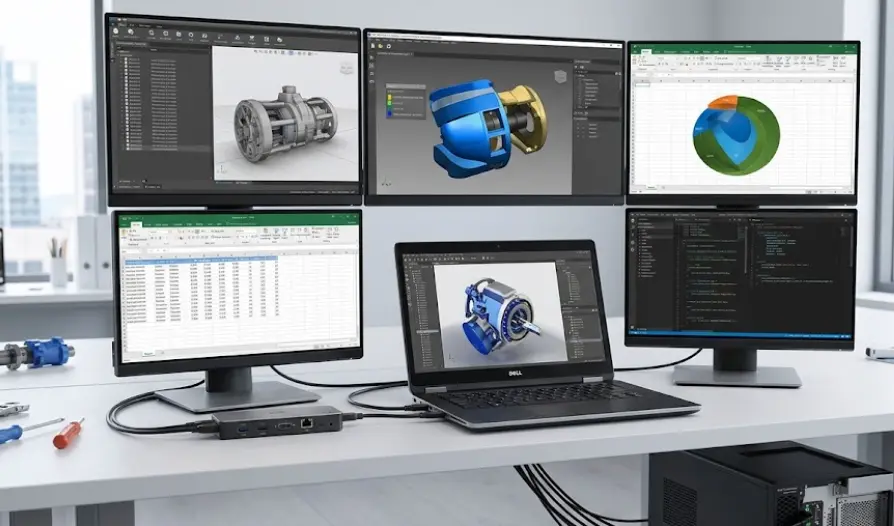
TL;DR Dell Precision workstations are designed for demanding professional workflows, and many Precision laptops can run up to four external displays, although the exact limit depends on the model, graphics configuration, connection method, display resolution, and whether the laptop's internal screen is active. Dell's documentation for models such as the Precision 3591, 5490, 5680, 5690, 7680, and 7780 shows support for multiple external displays, with some configurations reaching four external screens. A docking station can simplify a multi-monitor desk, but it does not automatically increase the computer's graphics capability, so you still need to check the dock's display limits. For professionals using CAD, engineering software, financial dashboards, video editing, or large data sets, the right Precision configuration can provide a practical multi-display workstation without requiring a separate desktop computer.
How Many Monitors Can A Dell Precision Run?
The short answer is that many Dell Precision laptops can support up to four external displays, but you should not treat four as a universal limit for every Precision machine. Dell's official documentation shows that the supported number varies by model and configuration. For example, Dell lists up to four external displays for the Precision 3591, while the Precision 5490 can also reach four external displays when its internal screen is turned off. The Precision 5680 and 5690 documentation similarly provides four-display configurations under supported graphics and connection modes.
The important detail is that the number of monitors is only one part of the equation. Resolution also affects what you can connect and how the displays must be connected. Dell's Precision 5680 documentation, for example, shows configurations ranging from a single 7680 x 4320 display to four external displays at lower supported resolutions. The Precision 7680 documentation also shows different combinations depending on whether the system uses UMA, hybrid, hybrid with Direct Output, or discrete graphics modes.
This means a buyer should avoid assuming that a laptop with four video-capable ports will automatically run four high-resolution monitors at their maximum refresh rates. The graphics hardware, port implementation, dock, cables, resolution, and display mode all have to work together. For a professional workstation, checking the exact Dell display connection guide for your Precision model is therefore more reliable than judging support from the number of physical ports alone.
Dell Precision Display Support At A Glance
| Precision Model | Maximum External Displays Documented | Important Condition |
|---|---|---|
| Precision 3591 | Up to 4 | Configuration and internal-display state matter |
| Precision 5490 | Up to 4 | Four direct displays with internal display off |
| Precision 5680 | Up to 4 | Supported combinations vary by graphics mode |
| Precision 5690 | Up to 4 | Graphics configuration affects display support |
| Precision 7680 | Up to 4 | Some four-display modes require internal display off |
| Precision 7780 | Up to 4 | Dell lists up to four depending on graphics mode |
Dell's documentation supports these model-specific limits, but the exact resolutions and connection combinations should always be checked for the particular configuration.
What Determines Multi-Monitor Support?
The graphics configuration is one of the biggest factors affecting Dell Precision multi-monitor support. Precision laptops can be configured with integrated graphics or professional NVIDIA GPUs, and Dell's display guides show different supported combinations depending on the graphics mode. On the Precision 7780, for example, Dell states that both integrated and discrete graphics configurations can support a maximum of four displays. However, the number available while the internal display remains active can differ from the number available when it is turned off.
The physical ports also matter. A Precision system may use Thunderbolt 4, USB-C with DisplayPort functionality, HDMI, or a combination of these connections. The Precision 7680, for example, includes two Thunderbolt 4 USB-C ports, another USB-C port with DisplayPort Alt Mode, and HDMI, although the exact HDMI specification varies by graphics configuration. These ports provide several ways to connect displays, but their capabilities are not necessarily identical.
Resolution is another major consideration. Running four Full HD monitors is a different workload from running four 4K monitors. Dell's documentation frequently specifies supported resolutions alongside the number of displays. On the Precision 7680, for example, Dell documents four-display configurations with different resolution combinations depending on graphics mode. This is why a multi-monitor setup should be planned around both the number of screens and the resolution you actually intend to use.
Key Factors To Check
| Factor | Why It Matters |
|---|---|
| Graphics hardware | Determines available display outputs and supported combinations |
| Thunderbolt 4 | Provides high-bandwidth display connectivity on supported systems |
| USB-C DisplayPort | Can carry display output on compatible ports |
| HDMI | Provides direct display connectivity, with limits based on the system |
| Resolution | Higher resolutions consume more display bandwidth |
| Internal display | Some Precision configurations support more external displays when it is off |
| Docking station | Adds convenient display connections but has its own limitations |
| Display mode | UMA, hybrid, and discrete modes can change supported combinations |
Dell specifically notes that the number of supported displays can depend on graphics configuration and whether the internal display is enabled.
Connecting Multiple Displays Directly
Direct connections are the simplest option when your Precision has enough compatible ports and you do not need a single-cable desk setup. You can connect monitors directly through supported HDMI, USB-C, or Thunderbolt ports, depending on the Precision model. Dell recommends checking the ports available on both the computer and the external displays before choosing the connection method.
Thunderbolt 4 is particularly useful for professional multi-monitor setups because it can carry display signals alongside data and other peripherals. Dell's Precision 5490 documentation, for example, describes configurations using direct Thunderbolt 4 or USB-C connections and shows that up to four external displays can be connected directly when the internal display is turned off.
Direct connections also make troubleshooting easier because every monitor has a clear connection to the computer. The trade-off is cable management. If you have three or four monitors plus Ethernet, storage, a keyboard, and other accessories, a desk can quickly become cluttered. For that type of setup, a compatible docking station can make the workstation easier to manage without changing the fundamental graphics limitations of the Precision.
Direct Connection Vs Docking
| Setup | Main Advantage | Main Limitation |
|---|---|---|
| Direct HDMI | Simple connection | Uses a dedicated video port |
| Direct USB-C | Flexible and compact | Port must support display output |
| Thunderbolt 4 | High-bandwidth connectivity | Requires compatible hardware |
| USB-C dock | One-cable workstation setup | Dock has its own display limits |
| Thunderbolt dock | Convenient for several peripherals | Requires compatible Thunderbolt configuration |
Dell recommends connecting displays to the dock first when using an indirect connection through a docking station.
Using A Dock For Three Or Four Monitors
A docking station is often the most convenient solution for a professional who moves between a laptop and a fixed desk. Instead of connecting every monitor and peripheral individually, you can route compatible displays through the dock and connect the dock to the Precision through a supported USB-C or Thunderbolt connection. Dell's own multi-monitor guidance identifies docking stations as one of the main methods for connecting several displays to a laptop.
However, a dock does not automatically mean that any number of monitors will work. Dell states that docking stations can limit the number of supported external displays, and its Precision display guides provide specific dock configurations. For example, the Precision 5680 and 5690 documentation describes Thunderbolt dock configurations supporting combinations such as DisplayPort, HDMI, and USB-C display connections, with the number of active external displays depending on whether the internal display is on or off.
This is especially important if you plan to run high-resolution displays. A dock may support several Full HD screens but have a different limit for 4K or higher-resolution displays. Before purchasing a dock, check the exact Precision model, graphics configuration, dock model, display resolution, and intended number of screens. This avoids a common situation where the laptop itself supports several displays but the chosen dock does not support the desired combination.
What To Check Before Buying A Dock
| Check | Question To Ask |
|---|---|
| Dock type | Is it USB-C or Thunderbolt? |
| Display outputs | Does it have enough HDMI/DisplayPort outputs? |
| Resolution | Can it support your intended resolution on each screen? |
| Graphics mode | Does the Precision configuration support the required arrangement? |
| Internal display | Does keeping the laptop screen on reduce the external-display limit? |
| Cable requirements | Are the required DisplayPort, HDMI, or USB-C cables included or compatible? |
Dell explicitly notes that docking-station support can affect the number of external displays available.
Can Dell Precision Run Four 4K Monitors?
Four 4K monitors are possible on some Precision configurations, but the answer depends heavily on the exact model and connection method. Dell's Precision documentation does not treat "four displays" as meaning four displays at every possible resolution. Instead, it provides specific resolution combinations for individual graphics and connection modes. The Precision 3591, for example, is documented as supporting up to four 4K external displays or one 8K display through its supported Thunderbolt 4 and HDMI connections.
The Precision 7680 provides another example of why model-specific checking matters. Dell documents configurations involving multiple 8K-capable connections under certain modes, while other combinations use 4K displays. When a docking station is involved, Dell again specifies different limits depending on the dock and graphics mode. In other words, four 4K monitors may be possible in a supported configuration, but the exact connection arrangement matters.
For most office, productivity, and professional workflows, four 4K screens are also more demanding than four 1080p screens. If your work involves CAD, 3D applications, video editing, engineering tools, or large datasets, you should check the graphics configuration rather than relying only on the Precision name. The workstation's GPU and display-output configuration are ultimately what determine whether your intended monitor setup is practical.
Multi-Monitor Setup For Professional Work
A multi-monitor Dell Precision workstation can be particularly useful when your work involves several applications at once. An engineer may keep a CAD application on one screen, technical documentation on another, and email or project-management software on a third. A financial analyst might use separate displays for spreadsheets, dashboards, research, and communication. The advantage is not simply having more pixels, but having more workspace available without constantly switching between windows.
Creative professionals can also benefit from multiple displays. One monitor can show a timeline or editing interface while another displays a preview, and a third can hold reference material or communication tools. The exact usefulness depends on the software and workflow, but the Precision platform is designed around professional workloads where additional screen space can make a practical difference.
The most important thing is to build the setup around your workflow rather than simply maximizing the number of monitors. Two high-quality 4K displays may be more useful than four smaller screens for some users. For others, four displays may make sense because each screen has a dedicated purpose. Dell's support documentation gives you the technical limits, but your software, desk space, resolution requirements, and daily workflow should determine how you use that capacity.
Example Workstation Layouts
| User Type | Practical Setup |
|---|---|
| Office professional | 2 external displays |
| Financial analyst | 3 to 4 displays |
| Engineer | 2 to 4 displays depending on software |
| Video editor | 2 to 3 high-resolution displays |
| CAD professional | 2 to 3 high-resolution displays |
| Data analyst | 2 to 4 displays |
Common Multi-Monitor Mistakes
One common mistake is buying a Precision laptop based only on the number of USB-C or HDMI ports. A port being physically present does not tell you the complete display capability of the system. Dell's documentation shows that graphics mode, port type, resolution, internal-display state, and docking configuration can all affect the supported arrangement.
Another mistake is assuming that a docking station increases the graphics capability of the computer. A dock primarily changes how devices connect to the system. Its own display capabilities can introduce additional limits, so you should check both the Precision's display guide and the dock's specifications. Dell specifically advises checking docking-station documentation because the dock can limit the number of supported external displays.
A third mistake is ignoring the internal laptop screen. Some Precision models support more external displays when the internal display is disabled. The Precision 5490, for example, documents up to four external displays directly when the internal display is turned off, while other configurations support fewer external displays with the laptop panel active. If you need four external monitors, this setting can therefore be an important part of the configuration.
Frequently Asked Questions
Q. How many monitors can a Dell Precision laptop support?
Many Dell Precision laptop configurations can support up to four external displays, but the exact limit depends on the model, graphics configuration, ports, resolution, and whether the internal display is enabled. Dell documents four-display configurations for models including the Precision 3591, 5490, 5680, 5690, 7680, and 7780.
Q. Can a Dell Precision run four external monitors?
Yes, supported Precision configurations can run four external monitors. However, Dell specifies particular connection and resolution combinations, so four displays are not automatically supported at every resolution or refresh rate.
Q. Can Dell Precision run four 4K monitors?
Some Precision configurations support four 4K external displays, but the exact arrangement depends on the model, graphics hardware, ports, and connection method. Dell's documentation should be checked for the exact Precision configuration before buying four 4K monitors.
Q. Does Thunderbolt 4 support multiple monitors on Dell Precision?
Yes. Supported Precision models use Thunderbolt 4 for external displays, including multi-monitor configurations. Dell documents Thunderbolt-based display arrangements on models such as the Precision 5490, 5680, 5690, and 7680.
Q. Can I use a docking station for multiple monitors with Dell Precision?
Yes. Compatible USB-C and Thunderbolt docking stations can simplify multi-monitor setups. However, the dock itself can limit the number and resolution of supported displays, so its specifications should be checked alongside the Precision model's display guide.
Q. Does turning off the laptop display allow more monitors?
On some Dell Precision models, yes. Dell documents configurations where more external displays are supported when the internal display is turned off. The Precision 5490, for example, can support up to four external displays directly with the internal display disabled.
Q. Can I connect monitors through USB-C on a Dell Precision?
Yes, when the particular USB-C port supports DisplayPort output or Thunderbolt. Dell's Precision documentation identifies USB-C and Thunderbolt ports as display connections on several models, but not every USB-C port necessarily has identical capabilities.
Q. Does the graphics card affect Dell Precision monitor support?
Yes. Dell explicitly states that supported external-display configurations depend on the graphics options installed in the Precision. Integrated, hybrid, and discrete graphics modes can have different display combinations and limits.
Q. Can I use HDMI and Thunderbolt monitors at the same time?
On supported Precision configurations, different display outputs can be used together, but the exact combinations depend on the model and graphics mode. Dell provides model-specific connection tables showing which ports can be used simultaneously.
Q. What should I check before buying a Dell Precision for multiple monitors?
Check the exact Precision model, installed GPU, available display outputs, intended monitor resolution, whether you need the internal screen active, and the display limits of your chosen docking station. These factors determine whether your planned multi-monitor setup will work as expected.
Final Recommendation
Dell Precision workstations are well suited to multi-monitor professional setups, but the right answer is not simply "four monitors." The documented maximum can reach four external displays on several Precision laptop models, yet the practical configuration depends on the exact machine, graphics hardware, ports, display resolution, graphics mode, and docking station. Dell's documentation for the Precision 3591, 5490, 5680, 5690, 7680, and 7780 demonstrates why model-specific specifications matter when planning a workstation.
If you need two monitors for everyday office work, direct HDMI, USB-C, or Thunderbolt connections can keep the setup simple. For three or four displays, a compatible Thunderbolt or USB-C dock can make cable management much easier, but you should verify its display limits before purchasing. If your workflow involves four high-resolution monitors, check the exact Dell display connection guide rather than assuming that every Precision configuration supports the same resolution combination.
For buyers choosing a Precision specifically for a multi-monitor workstation, the safest approach is to start with the displays you want to run and work backward. Decide whether you need two, three, or four screens, determine their resolution and refresh rate, check the Precision's graphics configuration and ports, and then select a compatible dock if required. That approach gives you a workstation that matches your actual workflow instead of paying for display capability you may never use.
Ready to upgrade your tech?
Browse our collection of quality refurbished products at unbeatable prices.






