
Dell Precision Keyboard and Trackpad: Built for Long Work Sessions?
The Dell Precision 5690 combines a backlit keyboard with a large haptic touchpad for professional workloads. Here is how its input system performs during long typing, spreadsheet, coding, and creative sessions.

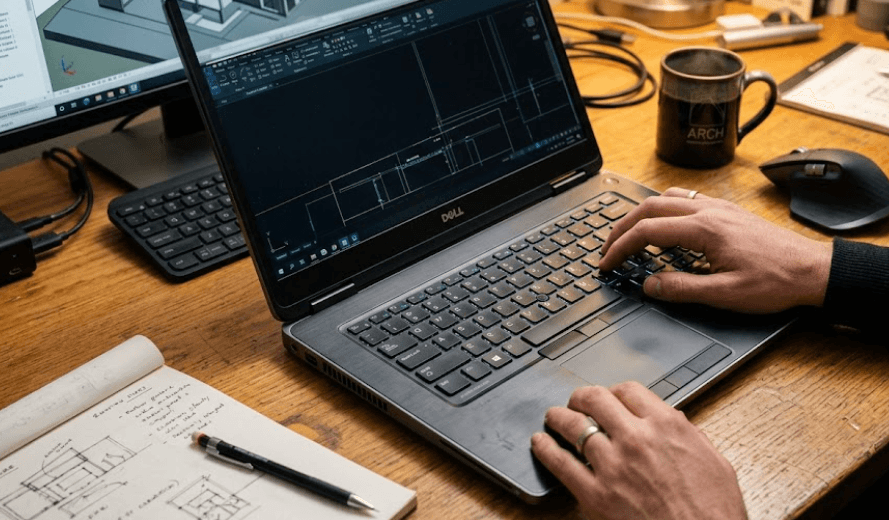
TL;DR Dell Precision workstations are designed for professional workloads, so the keyboard and trackpad need to handle more than occasional typing. The Precision 5690 is a useful example, combining a backlit QWERTY keyboard with a large 136 x 85 mm haptic touchpad. Its keyboard has a standard 19.05 mm key pitch, while the touchpad provides a spacious surface for gestures, cursor control, and everyday navigation. Independent reviews generally praise the touchpad for its size and smooth haptic response, while opinions on the keyboard are more mixed because some users find the keys heavier than expected and the compact arrow-key arrangement less comfortable. For long work sessions, the input experience is capable and polished, but professionals who rely heavily on a number pad or prefer a lighter keyboard should consider these limitations before buying.
Why The Keyboard Matters On A Workstation
A workstation laptop is often used differently from a typical consumer laptop. Instead of spending an hour browsing the web and watching videos, you may spend several hours writing reports, working through spreadsheets, reviewing designs, editing documents, responding to email, or entering commands into professional software. That makes the keyboard one of the most important parts of the machine. A powerful processor can shorten rendering times, but it cannot compensate for an uncomfortable keyboard when you are typing thousands of words or using keyboard shortcuts throughout the day. The Dell Precision 5690 takes a professional approach with a backlit QWERTY keyboard and a full-size layout designed around a 19.05 mm key pitch.
The spacing is important because cramped keys can make long typing sessions feel tiring even when the switches themselves are responsive. On the Precision 5690, the standard key pitch gives the main typing area enough room for regular office work, coding, documentation, and communication. The backlighting is also useful when working in low-light environments, particularly for professionals who move between offices, meeting rooms, aircraft, or home workspaces. Reviews of the Precision 5690 generally describe the keyboard as comfortable and responsive, although the experience is not universally positive. Some testers have specifically noted that the keys can feel somewhat heavy during extended typing.
The keyboard layout also shows why specifications alone do not tell the whole story. The Precision 5690 does not include a dedicated numeric keypad, which may matter to professionals who spend much of their day entering numbers. Reviewers have also pointed out that the up and down arrow keys are smaller than the left and right keys. That arrangement can take some adjustment if you frequently use arrow-key navigation in spreadsheets, code editors, CAD applications, or other software. In other words, the Precision 5690 provides a solid general-purpose workstation keyboard, but its layout is not necessarily ideal for every professional workflow.
Keyboard Specifications At A Glance
| Feature | Dell Precision 5690 |
|---|---|
| Keyboard Type | Backlit QWERTY |
| Key Pitch | 19.05 mm |
| Backlighting | Yes |
| Dedicated Numpad | No |
| Function Keys | Fn-based secondary functions |
| Fingerprint Reader | Integrated into power button |
| Primary Use | Professional productivity and workstation workloads |
How The Precision Keyboard Feels During Long Sessions
The feel of a keyboard becomes much more noticeable after several hours of continuous use. A keyboard that feels impressive for ten minutes can become tiring during a full workday if the keys require too much force or the layout causes repeated mistakes. Reviews of the Precision 5690 provide a reasonably balanced picture. StorageReview found the keyboard pleasant for long typing sessions and described its feel as direct, while RTINGS noted that the keys can feel heavy and may become fatiguing for some users. These observations are not contradictory because keyboard comfort is partly subjective and depends on typing style, pressure, and the type of work being performed.
For writers, students, developers, and office professionals, the keyboard offers a conventional layout that should feel familiar after a short adjustment period. The backlighting is particularly useful when working late, and the sturdy chassis helps keep the typing area stable. The Precision 5690 also includes a Microsoft Copilot key as part of its keyboard layout, reflecting the way newer Windows laptops have incorporated dedicated AI-access keys. The power button doubles as a fingerprint reader on configurations that include that feature, which keeps biometric login integrated into the main deck rather than adding another separate component.
The bigger question is whether the keyboard is comfortable enough for eight-hour workdays. The evidence suggests that it can be, but users should pay attention to the key feel and layout. If you prefer a lighter, softer keyboard, the Precision 5690 may feel firmer than expected. If you frequently enter numerical data, the lack of a dedicated number pad can also become inconvenient. For general typing, email, documents, browsing, coding, and shortcuts, the keyboard is well equipped. For heavy spreadsheet entry or users who strongly prefer a ThinkPad-style typing experience, testing the keyboard before purchase is still worthwhile.
Why The Trackpad Is A Strong Part Of The Design
The trackpad is one area where the Precision 5690 receives consistently positive attention. Dell officially specifies a haptic touchpad measuring 136 mm horizontally and 85 mm vertically, giving it a large surface compared with many conventional business laptops. The additional space makes cursor movement easier and provides more room for Windows gestures. Instead of constantly repositioning your finger, you can move around the screen with broader, more controlled gestures. This becomes particularly useful when you are working without an external mouse while travelling or moving between meetings.
Haptic feedback also changes how the trackpad feels compared with a traditional mechanical clickpad. Rather than relying entirely on a physical mechanism underneath the surface, the haptic system provides feedback when you press or click. This gives the touchpad a consistent feel across its surface and makes actions such as selecting text, opening links, or manipulating objects more predictable. Independent testing has described the Precision 5690's touchpad as large, responsive, smooth, and accurate, which makes it one of the more convincing parts of the overall input experience.
That does not mean the trackpad replaces a professional mouse for every task. CAD work, detailed 3D modelling, video editing, and precision design can still benefit from a dedicated mouse or drawing device. However, for everyday professional work, the large haptic surface is practical. You can move between applications, scroll through documents, use Windows gestures, and control the cursor without constantly reaching for an external accessory. For a workstation that may spend significant time away from a desk, that convenience matters.
Trackpad Specifications
| Feature | Precision 5690 |
|---|---|
| Touchpad Type | Haptic |
| Width | 136 mm |
| Height | 85 mm |
| Resolution | 300 dpi |
| Gesture Support | Windows touchpad gestures |
| Best Suited For | Navigation, multitasking, everyday productivity |
Keyboard And Trackpad For Different Workloads
The input system makes the most sense when you look at the type of work you actually perform. For documentation, email, web research, presentations, and general office work, the Precision 5690's keyboard and touchpad form a practical combination. The conventional key spacing makes extended typing manageable, while the large haptic surface reduces the need to carry a mouse for everyday navigation. Someone who spends the day moving between Microsoft Word, Teams, Chrome, Excel, and PDF documents should have little difficulty adapting to the layout.
Developers and technical professionals have a slightly different set of priorities. Keyboard shortcuts, arrow-key navigation, function keys, and repeated command entry can make small layout differences much more noticeable. The Precision 5690's compact arrow-key arrangement may take some adjustment, particularly for users who rely heavily on the up and down keys. At the same time, the full-size main typing area and backlighting remain useful for coding and documentation. The touchpad is adequate for general navigation, although developers who work with multiple monitors or spend hours in an IDE will probably prefer an external mouse.
Creative and engineering professionals should think about the keyboard and touchpad as complementary tools rather than replacements for dedicated accessories. The large trackpad is useful for travelling, quick edits, timeline navigation, and general interface control, but detailed CAD and 3D work usually benefits from a mouse. Similarly, the keyboard is well suited to written work and shortcuts, but the lack of a number pad can be inconvenient for workflows involving frequent numerical entry. The Precision 5690 therefore works best when its input devices match the way you actually work.
Input Experience By Workload
| Workload | Keyboard | Trackpad | External Accessory |
|---|---|---|---|
| Writing And Documents | Strong fit | Strong fit | Usually unnecessary |
| Email And Office Work | Strong fit | Strong fit | Optional |
| Coding | Good fit | Good fit | Mouse often useful |
| Spreadsheet Work | Good fit | Good fit | Numpad may be preferred |
| CAD And 3D Work | Good for shortcuts | Good for navigation | Mouse recommended |
| Photo And Video Editing | Good for shortcuts | Good for basic control | Mouse or tablet useful |
What Could Be Better For Long Work Sessions
No laptop input system is perfect, and the Precision 5690 has a few limitations worth understanding before purchase. The most obvious is the keyboard layout. The absence of a dedicated number pad may not matter to a writer or developer, but it can become a daily inconvenience for accountants, financial analysts, data-entry professionals, and engineers who frequently enter numerical values. The smaller up and down arrow keys are another consideration for people who use keyboard navigation extensively.
The key feel is another area where opinions differ. Some reviewers describe the keyboard as pleasant and direct, while RTINGS found the keys somewhat heavy and potentially fatiguing over long sessions. This is a useful reminder that a good workstation keyboard does not have to be universally comfortable. Typing pressure, preferred travel, and previous keyboard experience all influence how the Precision feels. Someone moving from a very light laptop keyboard may need time to adjust, while someone who prefers firmer feedback may appreciate the more deliberate key response.
The touchpad also has a limitation that is common across premium workstation laptops: size and quality do not turn it into a specialist input device. It is excellent for everyday cursor control and Windows gestures, but professional CAD, 3D modelling, and detailed editing can still benefit from a dedicated mouse or tablet. The good news is that the Precision 5690 gives you a large, high-quality built-in option for situations where carrying accessories is inconvenient. The keyboard and trackpad are therefore best understood as a strong mobile input system rather than a complete replacement for every professional peripheral.
Is The Dell Precision Built For Long Work Sessions?
The answer depends on what you mean by long work sessions. If you mean spending several hours each day typing reports, replying to messages, browsing research, working on spreadsheets, or moving between professional applications, the Precision 5690 is designed around that kind of usage. Its backlit keyboard, standard key spacing, large haptic touchpad, and solid chassis create an input experience that is much more suitable for sustained productivity than a laptop designed primarily around occasional consumer use.
The trackpad is particularly well suited to mobile work. Its 136 x 85 mm surface provides enough room for precise cursor movement, while haptic feedback gives it a more consistent feel. This matters when you are working from an airport lounge, client office, classroom, or meeting room and do not want to unpack a mouse. The keyboard also benefits from backlighting and conventional spacing, although the lack of a number pad and the smaller arrow keys may matter depending on your workflow.
The biggest takeaway is that the Precision 5690 is not trying to imitate a desktop mechanical keyboard or a dedicated workstation control surface. It is trying to give professionals a dependable built-in input system that works across different environments. For most writing, office, coding, research, and general workstation tasks, it achieves that goal. For specialised numerical entry or precision design work, an external keyboard, mouse, or other input device can still make sense.
Frequently Asked Questions
Q. Is the Dell Precision 5690 keyboard good for long typing sessions?
The Precision 5690 has a backlit QWERTY keyboard with 19.05 mm key pitch, making it suitable for extended typing. However, some reviewers found the keys somewhat heavy, so comfort can vary by typing style.
Q. Does the Dell Precision 5690 have a number pad?
No. The Precision 5690 does not have a dedicated numeric keypad. This may be important for users who regularly work with financial models, numerical data, or extensive spreadsheet entry.
Q. Is the Precision 5690 trackpad haptic?
Yes. Dell specifies a haptic touchpad on the Precision 5690. It measures 136 x 85 mm and supports Windows touchpad gestures.
Q. How large is the Dell Precision 5690 trackpad?
The Precision 5690 touchpad measures 136 mm wide and 85 mm deep. Its large surface provides more room for cursor movement and multi-finger gestures.
Q. Is the Precision 5690 good for office work?
Yes. Its keyboard and large haptic touchpad are well suited to documents, email, spreadsheets, web research, presentations, and general Windows productivity.
Q. Is the Precision 5690 keyboard backlit?
Yes. Dell lists an AI hotkey backlit keyboard for the Precision 5690, allowing the keys to remain visible in low-light environments.
Q. Does the Precision 5690 have a comfortable trackpad?
Independent reviews generally describe the large haptic trackpad as smooth, responsive, and accurate. Its size is one of the stronger aspects of the laptop's input experience.
Q. Is the Precision 5690 good for coding?
The keyboard provides conventional spacing and backlighting, which works well for coding and documentation. However, users who rely heavily on arrow-key navigation may need some adjustment to the keyboard layout.
Q. Can the Precision 5690 replace an external mouse?
For everyday work, the large haptic touchpad can reduce the need for an external mouse. For CAD, 3D modelling, detailed editing, or other precision-heavy tasks, a dedicated mouse can still be more practical.
Q. Is the Dell Precision 5690 suitable for eight-hour workdays?
It can be suitable for long professional workdays, particularly for office, coding, writing, and general workstation tasks. Keyboard comfort is subjective, though, and users who prefer lighter keys or a dedicated number pad should consider those factors before buying.
Final Recommendation
The Dell Precision 5690 shows that a professional workstation does not have to treat the keyboard and trackpad as secondary features. Its backlit keyboard provides conventional spacing for everyday typing, while the large haptic touchpad gives professionals a spacious way to navigate Windows without carrying a mouse everywhere. These qualities make the input system well suited to long sessions involving documents, email, coding, research, presentations, and general workstation applications.
The main limitations are equally clear. The lack of a dedicated number pad can be inconvenient for heavy numerical work, while the smaller arrow keys may take some adjustment. The keyboard can also feel heavier than some users expect, particularly during very long typing sessions. These are not deal-breakers for every professional, but they are important considerations because input comfort depends directly on how you use the laptop.
For professionals who spend most of their day typing, navigating applications, reviewing documents, and working away from a permanent desk, the Precision 5690 offers a well-rounded built-in input experience. If your work involves extensive numeric entry, CAD precision, or specialised editing, plan for an external keyboard, mouse, or other input device. Overall, the Dell Precision 5690's keyboard and haptic trackpad are strong enough for long work sessions, but the right choice ultimately depends on whether its specific layout matches your workflow.
Ready to upgrade your tech?
Browse our collection of quality refurbished products at unbeatable prices.






