
Can You Use a 43-inch 4K TV as a Computer Monitor? Pros, Cons and Settings
Discover whether a 43-inch 4K TV makes a good computer monitor. Learn about text clarity, viewing distance, gaming performance, HDMI setup, PC mode, and the best settings for work and entertainment.

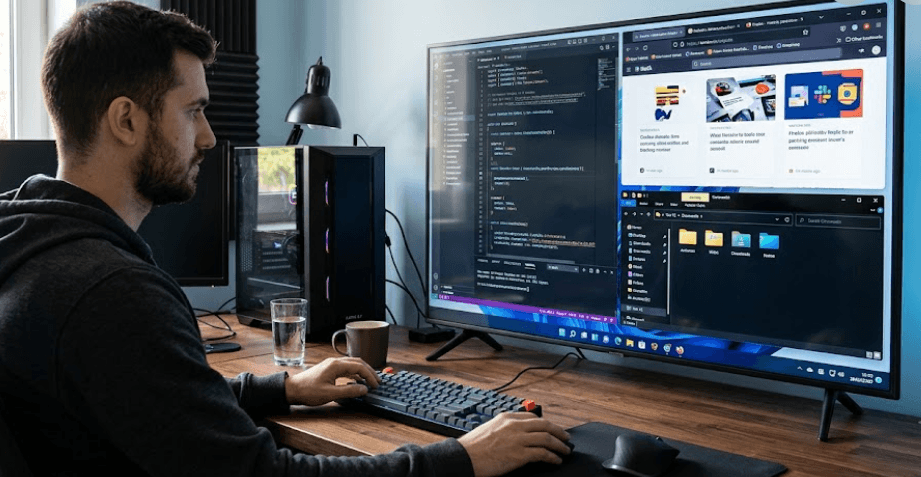
TL;DR: Yes, you can use a 43-inch 4K TV as a computer monitor by connecting your desktop or laptop through HDMI. Its 3840 × 2160 resolution provides a large workspace for multitasking, spreadsheets, entertainment, and casual gaming. However, the experience depends on pixel density, viewing distance, input lag, refresh rate, and text clarity. For the best results, enable PC mode if available, use the TV's native 4K resolution, configure appropriate display scaling, and disable unnecessary picture processing. A 43-inch TV can be a practical alternative to a monitor, but it may not be ideal for every desk setup or professional workflow.
Is A 43-Inch 4K TV Suitable For Computer Use?
A 43-inch 4K TV can work well as a computer display if you want a large screen without buying a separate monitor. With a resolution of 3840 × 2160 pixels, it provides four times as many pixels as a Full HD 1920 × 1080 display. This makes it possible to arrange multiple windows side by side, view large spreadsheets, edit documents, and keep reference material visible while working.
The main difference between a television and a computer monitor is not simply screen size. TVs are generally designed for watching content from a distance, whereas monitors are commonly used at a desk, where text and interface elements need to remain comfortable to read at close range. Features such as chroma 4:4:4 support, low input lag, and suitable scaling settings can therefore make a noticeable difference when using a TV for computer work.
Whether a 43-inch TV is a good choice depends on your daily routine. It can be useful for office work, entertainment, presentations, and casual gaming. However, if your work involves long hours of reading, precise colour grading, or competitive gaming, you should evaluate the particular TV's panel, refresh rate, colour performance, and input handling before making a decision.
Understanding 4K Resolution And Pixel Density
What Does 4K Mean On A 43-Inch Screen?
A 43-inch 4K TV has a native resolution of 3840 × 2160 pixels. At this size, its pixel density is approximately 102 pixels per inch (PPI), assuming a standard 16:9 screen. This provides a useful balance between screen size and image detail, although the perceived sharpness depends on viewing distance, panel characteristics, and how the computer renders text.
Pixel density describes how closely packed the pixels are on a display. A smaller 4K monitor can have a higher PPI than a 43-inch 4K TV because the same number of pixels is spread across a smaller physical area. This can make small text and fine interface details look sharper on a monitor viewed from close range.
That does not mean a 43-inch TV will necessarily look blurry. At a suitable distance, the individual pixels are less noticeable, and the larger display can make it easier to manage several applications simultaneously. The key is to match the TV's size, resolution, and viewing distance to the way you work.
Recommended Viewing Distance
A 43-inch TV can occupy a substantial portion of your field of view when placed on a desk. Sitting too close may force you to move your eyes or head frequently to follow content near the screen's edges. Moving the TV farther away can make the overall layout more comfortable, although the ideal distance varies with eyesight, text size, desk depth, and personal preference.
For mixed use, a viewing distance of roughly 4 to 6 feet can be a reasonable starting point for a 43-inch 4K TV. However, this is not a strict rule. Some users prefer sitting closer for computer work, while others find a greater distance more comfortable. Adjust your seating position so you can read text clearly without leaning forward or constantly turning your head.
| Display Characteristic | 43-Inch 4K TV |
|---|---|
| Native resolution | 3840 × 2160 pixels |
| Approximate pixel density | 102 PPI |
| Screen aspect ratio | Usually 16:9 |
| Suggested starting viewing distance | Approximately 4–6 feet |
| Best use cases | Multitasking, entertainment, casual gaming |
| Important compatibility check | PC input support and chroma 4:4:4 |
Pros Of Using A 43-Inch 4K TV As A Monitor
More Screen Space For Multitasking
One of the biggest advantages of a 43-inch TV is the amount of workspace it provides. You can keep a spreadsheet open alongside a browser, reference document, or communication app without constantly switching between windows. This can be useful for students, professionals, analysts, and anyone who regularly works with several applications at once.
The 4K resolution also allows you to display detailed content across the large screen. You can review presentations, examine timelines, manage dashboards, and work with wide documents more comfortably than you might on a smaller display. The actual benefit depends on how well your operating system and applications handle scaling.
A large screen can also be useful beyond traditional office tasks. You can switch from working on documents to watching videos, attending online meetings, or playing games without moving to another display. For users who want a combined work and entertainment setup, this flexibility can make a 43-inch TV an appealing option.
Better Value If You Already Own One
If you already have a compatible 43-inch 4K TV, using it as a monitor may save you from purchasing another display. You generally need a suitable HDMI cable and a computer capable of outputting the required resolution and refresh rate. Depending on your existing setup, you may not need any additional hardware.
This can be especially practical in smaller homes, shared rooms, or multipurpose workspaces where one display serves several functions. Instead of maintaining separate screens for a computer and television, you can use a single device for both, provided its connections and picture settings suit your needs.
However, do not assume that every TV is cheaper than every monitor. The overall value depends on what you already own, electricity consumption, desk space, and whether you need accessories such as a stand or wall mount. If you are buying a new display specifically for computer work, compare the TV's features and total cost with those of dedicated monitors.
Cons Of Using A 43-Inch 4K TV As A Monitor
Text Clarity Can Be Less Consistent
Although 4K provides plenty of pixels, text clarity depends on more than resolution alone. Some TVs require specific input settings to display computer text correctly, and certain panel subpixel arrangements can affect how fine text appears. If the TV does not handle chroma 4:4:4 correctly, coloured edges around letters may appear, making text less comfortable to read.
TV picture processing can also affect how computer content looks. Sharpening, noise reduction, motion smoothing, and other processing features are designed primarily for video and may not improve desktop text. Enabling PC mode, when available, can reduce unnecessary processing and improve the way the TV handles computer signals.
For everyday browsing and general office tasks, these limitations may be manageable. However, if your work requires reading small text throughout the day, compare the TV with a dedicated monitor before committing to it. Check fine text at your intended viewing distance rather than judging the display only by how sharp movies look.
Desk Space And Eye Comfort
A 43-inch TV is considerably larger than many conventional desktop monitors. Its width can make it difficult to place on a shallow desk, and the screen may extend beyond your natural viewing area. If you sit too close, you may find yourself moving your head frequently to follow information across the display.
The TV's brightness and reflective screen finish can also affect comfort. A bright panel in a dim room or reflections from windows and overhead lights may make long work sessions less pleasant. Adjusting brightness and improving room lighting can help, but the result depends on the panel and your surroundings.
Finally, a large display does not automatically reduce eye strain. Comfort depends on viewing distance, font size, glare, posture, and how long you spend looking at the screen. Take regular breaks and arrange the screen so that you can work without leaning forward or looking upward for extended periods.
How To Connect A 43-Inch 4K TV To Your Computer
Step 1: Check Your Computer And TV Connections
Start by checking the HDMI ports on both devices. Look at the specifications for your TV, laptop, desktop graphics card, and any adapters you plan to use. The maximum resolution and refresh rate depend on the capabilities of the entire connection, not just the TV's advertised specifications.
Connect the computer to the TV using a suitable HDMI cable and select the corresponding HDMI input on the television. If you are using a laptop, you may need to configure whether the TV duplicates your existing display or extends your desktop. On Windows, you can access the display options with the Windows key + P shortcut.
If the computer does not offer 4K at the desired refresh rate, check the graphics hardware, HDMI port specifications, cable, and TV input settings. Some televisions also require an enhanced HDMI signal setting to accept higher-bandwidth formats. The exact setting name varies by manufacturer and model.
Step 2: Select The Correct Display Settings
On Windows 11, open Settings, select System, and then choose Display. Select the TV and set its resolution to 3840 × 2160 if that option is supported. Choose a suitable scaling percentage so that text, icons, and application controls remain readable without sacrificing the benefits of the native resolution.
Next, open Advanced display settings and check the available refresh rates. A 60 Hz refresh rate is a practical starting point for general computer use if your TV and computer both support 4K at 60 Hz. Some TVs support higher refresh rates, but this depends on the model, input, and graphics hardware.
If you are using a Mac, open System Settings and select Displays to review the available resolution and scaling options. The exact interface can vary by macOS version and connected hardware. After configuring the display, open a document or webpage and check whether text appears clear and comfortable to read.
Best TV Settings For Computer Use
Enable PC Mode And Chroma 4:4:4
If your TV offers PC mode, enable it for the HDMI input connected to your computer. Some models automatically recognize a computer, while others require you to change the input label or select a specific picture mode. Consult the TV's manual because the available options and their effects vary.
Chroma 4:4:4 is particularly important for displaying fine computer text. It preserves full colour information for each pixel rather than reducing colour resolution through chroma subsampling. Many modern TVs can display a suitable 4:4:4 signal, but the supported resolution and refresh rate depend on the model and input settings.
To check the result, open a webpage or document containing small black text on a white background. Look for coloured fringes around letters or unusual softness. If text appears unclear, verify the computer's output format, TV picture mode, HDMI input settings, and graphics driver before assuming the panel itself is the problem.
Adjust Brightness, HDR, And Motion Processing
Set brightness according to your room rather than automatically choosing the highest level. A bright room may require a brighter display, while a dim room usually calls for a lower setting. If the TV has a light sensor or automatic brightness feature, test whether it produces consistent results for your working environment.
HDR can improve supported content by providing a wider brightness range, but it is not automatically better for everyday desktop use. The experience depends on the TV's HDR capabilities, peak brightness, local dimming, and operating-system configuration. If desktop colours look washed out or too bright, test HDR off and compare the result before deciding which setting works best.
For everyday computer use, disable motion smoothing and unnecessary image enhancements if they cause unwanted effects. For gaming, enable Game Mode if available to reduce input lag. These adjustments can improve responsiveness and prevent TV processing from interfering with the computer's output.
| Setting | Recommended Starting Point |
|---|---|
| Resolution | 3840 × 2160 |
| Refresh rate | 60 Hz, if supported |
| Picture mode | PC mode, if available |
| Chroma format | 4:4:4 for clear computer text |
| Scaling | Start with 125% or 150%, then adjust |
| Motion smoothing | Off for desktop use |
| Game Mode | On when prioritizing gaming responsiveness |
| HDR | Enable when supported content and display performance justify it |
Is A 43-Inch 4K TV Good For Gaming And Professional Work?
For casual gaming, a 43-inch 4K TV can provide an immersive experience with a large picture and detailed graphics. The result depends on the panel's response behaviour, supported refresh rates, and input lag. Game Mode can help reduce processing delays, but its effectiveness varies between TVs, so check independent measurements or model-specific reviews if gaming performance is important.
Competitive gamers should pay particular attention to refresh rate and input lag. A TV limited to 60 Hz may be perfectly adequate for many games, but it will not provide the same motion presentation as a compatible 120 Hz or higher display. Higher refresh rates require support from the TV, graphics hardware, connection, and game. A 4K label alone does not guarantee smooth high-refresh-rate gaming.
For professional work, consider the type of content you handle. A 43-inch 4K TV can be useful for spreadsheets, presentations, video playback, and general productivity. However, colour-critical work such as photo editing or design requires careful evaluation of colour accuracy, uniformity, and calibration options. If your workflow depends on precise colours or sharp text at close range, a dedicated monitor designed for that purpose may be the more suitable choice.
Final Recommendation And Decision Framework
A 43-inch 4K TV can serve as a computer monitor if you have enough desk space and the TV supports the resolution, refresh rate, and text-rendering features you need. It offers a large workspace, works well for entertainment, and can be a cost-effective option when you already own a compatible model.
For the best experience, use the TV's native 4K resolution, enable PC mode when available, confirm chroma 4:4:4 support, and choose comfortable scaling and brightness settings. Keep the screen at a suitable distance, reduce unnecessary image processing, and enable Game Mode when low input lag matters. These adjustments can improve usability, but they cannot change the TV's physical panel characteristics or add unsupported features.
Ultimately, choose the display according to your work habits. A 43-inch 4K TV is worth considering for multitasking, casual gaming, and mixed work-and-entertainment use. If you spend most of your day reading small text at a desk, need consistent colour accuracy, or play competitive games, compare it with a dedicated monitor before making the final decision.
Frequently Asked Questions
Q. Can I use a 43-inch 4K TV as a computer monitor?
Yes. Connect your computer through a compatible HDMI port and configure the TV to use its native 4K resolution. The experience depends on text clarity, viewing distance, refresh rate, and input lag.
Q. Is a 43-inch 4K TV too big for a desk?
Not necessarily. It depends on your desk depth, seating position, and available space. Measure your desk and test a comfortable viewing distance before setting it up permanently.
Q. Will text look sharp on a 43-inch 4K TV?
It can, provided the TV handles computer signals correctly. Native 4K resolution, PC mode, and chroma 4:4:4 support can help improve text clarity.
Q. What refresh rate should I use?
Use 60 Hz as a starting point for general work if your equipment supports 4K at that rate. Higher refresh rates can improve motion smoothness, but both the TV and computer must support them.
Q. Does a 43-inch 4K TV have the same pixel density as a 27-inch 4K monitor?
No. A 43-inch 4K screen has approximately 102 PPI, while a 27-inch 4K screen has approximately 163 PPI. The smaller display packs the same number of pixels into a smaller area.
Q. Should I enable PC mode on my TV?
Yes, if the TV offers a suitable PC mode. It can reduce image processing and help with text clarity, although the exact benefits depend on the model.
Q. Is HDMI 2.1 necessary for using a 4K TV as a monitor?
No. HDMI 2.0 can support 4K at 60 Hz under suitable conditions. HDMI 2.1 is useful for higher-bandwidth formats such as 4K at 120 Hz, provided the complete setup supports them.
Q. Is a 43-inch 4K TV good for PC gaming?
It can be excellent for casual gaming and immersive visuals. Competitive gaming performance depends on input lag, response behavior, refresh rate, and support for features such as variable refresh rate.
Q. Should I enable HDR when using my TV as a monitor?
Only if it improves your experience with the content you use. HDR performance depends on the TV's capabilities and computer settings, so compare the picture with HDR enabled and disabled.
Q. Is a 43-inch 4K TV better than a dedicated monitor?
Neither is universally better. A TV can provide a larger screen for multitasking and entertainment, while a monitor may offer higher pixel density, more suitable ergonomics, and features designed for close-range computer use.
Ready to upgrade your tech?
Browse our collection of quality refurbished products at unbeatable prices.






