10 Smart Ways to Reuse an Old Laptop
An old laptop can do more than collect dust. Explore 10 practical ways to reuse it for studying, streaming, file storage, gaming, technical projects, and more, with tips on performance, security, upgrades, and responsible recycling.

TL;DR: An old laptop can still be useful even if it struggles with demanding software or modern games. You can repurpose it as a dedicated study computer, media center, home server, lightweight Linux machine, security monitor, or retro gaming device. Other options include using it for writing, managing backups, learning technical skills, or donating it to someone who needs a computer. Before choosing a new purpose, check the laptop's hardware, battery condition, storage, and software support. With the right approach, you can extend its useful life, save money, and reduce electronic waste.
1. Turn It Into A Dedicated Study Or Work Laptop
An older laptop does not need powerful hardware to handle everyday productivity tasks. If the keyboard, display, and basic functions still work, you can use it for writing documents, attending online classes, preparing presentations, or managing spreadsheets. This is particularly useful if your primary computer is shared with family members or reserved for demanding work.
Start by removing unnecessary applications and files that consume storage or run in the background. Install lightweight productivity tools that are compatible with the laptop, and use browser-based alternatives when appropriate. However, check that the operating system and browser still receive security updates before using the device for sensitive online activities.
You can also create a dedicated workspace for a specific purpose. For example, keep your study materials, notes, and assignments on this laptop rather than mixing them with personal files on your primary device. If it has limited memory, avoid keeping too many browser tabs open simultaneously.
Best For
Students, remote workers, and anyone who needs a secondary computer for everyday tasks.
2. Use It As A Home Media Center
If your old laptop can still play videos smoothly, consider turning it into a media center for your television. Connect it to a compatible TV using HDMI, then use supported streaming services, locally stored movies, or music applications. This can be a practical way to enjoy your existing media library without purchasing another streaming device.
For a smoother experience, uninstall unnecessary programs, close background applications, and connect to a reliable internet network. If your laptop supports wireless display technology, you may also be able to stream content wirelessly, although compatibility depends on the laptop, television, and operating system.
Keep in mind that streaming performance depends on more than the laptop's age. An outdated browser, unsupported operating system, limited memory, or incompatible video formats can cause problems. Check whether your preferred streaming services still support the device before making it your primary entertainment setup.
Best For
Households that want an affordable way to stream compatible online content or play locally stored videos on a larger screen.
3. Build A Simple Home Server
A laptop with a working processor, sufficient storage, and a stable network connection can serve as a basic home server. You could use it to store shared files, organize documents, or make selected media accessible to other devices on your home network. This is especially helpful if several people need access to the same files.
Start by identifying what you want the server to do. A simple shared folder may be enough for household documents, while more advanced setups can involve self-hosted applications or media libraries. Depending on your technical skills, you may be able to use existing operating-system sharing features or install a suitable server operating system.
Security and reliability are important considerations. Use strong passwords, install available security updates, and restrict access to trusted users. Avoid exposing services directly to the internet without understanding the risks. Also, remember that an old laptop is not a substitute for a proper backup system: a failed drive could destroy the only copy of your files.
Best For
Technically curious users who want to experiment with file sharing, home networking, or self-hosted applications.
4. Install A Lightweight Operating System
Sometimes an old laptop feels slow because its hardware struggles with the software installed on it. If the device is compatible, installing a different operating system may make it more useful. Linux distributions, including suitable Ubuntu variants, can provide a fresh environment for browsing, writing, programming, and other everyday activities.
Before installing anything, check the laptop's processor architecture, available memory, storage capacity, and hardware compatibility. For example, the current Ubuntu Desktop requirements are more demanding than those of some lightweight Linux distributions, so an older laptop may need a less resource-intensive option.
Another possibility is Google's ChromeOS Flex, which provides a cloud-focused computing experience on compatible PCs and Macs. Google specifies minimum hardware requirements and warns that functionality and stability are not guaranteed on non-certified models. Back up your files before installing a new operating system, because installation can erase existing data.
Best For
Users who want to revive a slow laptop and are comfortable learning a new operating system.
5. Create A Dedicated Writing And Learning Device
An old laptop can make a useful distraction-free space for writing, reading, and learning new skills. Instead of keeping social media, games, and entertainment applications open on your main computer, you can reserve the older device for journaling, research notes, assignments, or long-form writing.
Install a compatible text editor, note-taking application, or office suite. You can also use it to read downloaded documents, organize research materials, practice typing, or work through online courses. If you are learning programming, a suitable laptop can provide an environment for basic coding exercises and small projects.
To make the experience more comfortable, organize files into clearly labeled folders and remove applications you do not need. If the battery no longer lasts long, use the laptop at a desk with a reliable power supply, provided the battery and charger are safe. A simple, organized setup can be more useful than a powerful machine cluttered with distractions.
Best For
Students, writers, researchers, and people developing new professional or technical skills.
6. Repurpose It As A Security Monitoring Station
If the laptop has a working webcam and microphone, you can use it as a monitoring station for a compatible security camera system. For example, it may display a live feed from an existing network camera or help you monitor a room through supported security software.
The exact setup depends on the camera system and software. Some applications support viewing feeds through a browser, while others require a dedicated program. Check compatibility, system requirements, and whether remote viewing requires an account or subscription before installing anything.
A laptop should not automatically be treated as a complete CCTV system. Its webcam may offer a limited viewing angle, and the device may not have the infrared hardware needed for effective night vision. Keep the laptop ventilated, secure its account, and avoid recording people in private spaces without appropriate consent. If you need dependable round-the-clock surveillance, a purpose-built security camera is generally a better choice.
Best For
People who already own compatible security cameras and need an additional screen for monitoring them.
7. Turn It Into A Retro Gaming Machine
An older laptop may not handle modern games, but it can still run many lightweight or older titles. Depending on its hardware and operating system, you could use it for classic PC games, simple indie games, or other software that does not demand a powerful graphics processor.
Begin by checking the requirements of the games you want to play. Older processors and integrated graphics may be perfectly adequate for some titles but struggle with others. Use legitimate game stores, your existing game library, or authorized sources for compatible games.
You can improve the experience by connecting a compatible controller, using headphones, or connecting the laptop to a larger display. If the laptop becomes hot or noisy during gameplay, clean its vents and ensure adequate airflow. Avoid installing untrusted game downloads, particularly on systems that no longer receive security updates.
Best For
Casual gamers who enjoy older titles and want to reuse existing hardware rather than buy another gaming device.
8. Use It For Backups And File Management
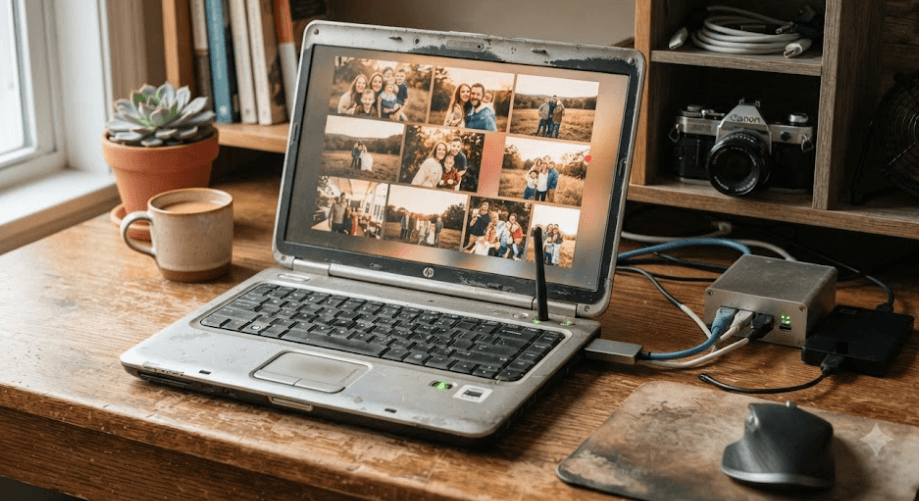
An old laptop can help organize documents, photographs, videos, and other personal files. You might use it to sort years of digital photographs, remove duplicate files, organize scanned documents, or prepare selected folders for backup to an external drive or supported cloud service.
First, check the condition and capacity of the laptop's internal storage. If the drive is unreliable or showing errors, do not trust it with your only copy of important files. Transfer valuable data to a healthy external drive or another reliable storage location, and verify that the files open correctly.
Remember that storing files on an old laptop is not the same as backing them up. A useful backup strategy keeps additional copies on separate storage, with at least one copy protected against common risks such as accidental deletion, theft, or hardware failure. Protect sensitive documents with appropriate access controls and encryption.
Best For
Households and individuals who need help organizing personal files and managing additional copies of important data.
9. Experiment With Technical Projects
If you want to learn more about computers, an old laptop offers a practical environment for experimentation. You can use it to explore programming, test software, practice basic networking, or learn how operating systems work without making changes to your primary computer.
Start with small projects that match your experience. Beginners might try a simple programming language, create a personal website, or learn basic command-line operations. More experienced users can explore virtual machines, local development environments, or home automation software, provided the hardware supports the workload.
Before experimenting with system settings or installing unfamiliar software, create a backup of important files. Some projects require more memory, storage, or processing power than an older laptop can provide. Avoid using it to test potentially harmful software on your regular home network, and do not assume that an isolated test environment is completely risk-free.
Best For
Students, aspiring developers, IT enthusiasts, and anyone interested in practical technical learning.
10. Donate, Sell, Or Recycle It Responsibly
If the laptop no longer meets your needs, it may still be valuable to someone else. A working device can help a student, family member, community organization, or nonprofit that needs an affordable computer. Before donating or selling it, check the keyboard, screen, ports, storage, charger, and battery condition, and describe any known faults honestly.
If you decide to sell it, compare similar models and their condition before setting a price. Remove personal accounts, back up important files, and securely erase the internal storage before handing the laptop over. If the device contains particularly sensitive information, consider professional data-wiping or storage-destruction services appropriate to your needs.
When reuse is no longer practical, choose an authorized electronics collection or recycling service. Do not put the laptop or its battery into ordinary household waste. If the battery is swollen, stop using and charging the device, avoid puncturing or pressing the battery, and seek guidance from the manufacturer or a qualified battery-handling or recycling service.
Best For
Anyone whose laptop is no longer practical to use but wants to recover some value or reduce electronic waste.
Final Recommendation And Decision Framework
The best way to reuse an old laptop depends on its condition, specifications, and the amount of effort you want to invest. If it still performs everyday tasks reasonably well, using it for studying, writing, media playback, or file management is often the simplest option. These uses require little technical knowledge and can extend the device's practical life.
If the laptop feels slow, check whether it can support a more suitable operating system or a hardware upgrade. Adding compatible RAM or replacing a failing mechanical hard drive with an SSD may improve responsiveness, but the benefit depends on the existing configuration and upgrade compatibility. Compare the cost of repairs with the value of the device before spending money on it.
For a laptop with serious hardware faults, an unsafe battery, or no suitable supported software, donation or responsible recycling may be the better choice. Before deciding, back up your files, verify the operating system's support status, and inspect the device for safety issues. The smartest reuse option is the one that gives the laptop a practical second life without compromising security, reliability, or your budget.
Frequently Asked Questions
Q. Is it worth keeping an old laptop?
Yes, if it still works safely and can perform a useful task. A laptop that struggles with demanding applications may still be suitable for writing, studying, file organization, or older games.
Q. Can I make an old laptop faster without buying a new one?
Yes. Removing unnecessary applications, reducing startup programs, freeing storage, and keeping supported software updated may help. Compatible RAM or SSD upgrades can also improve performance.
Q. Can I use an old laptop without an internet connection?
Yes. You can use it for offline writing, reading downloaded documents, playing compatible games, and organizing locally stored files. Some applications require internet access for activation or specific features.
Q. Can I turn an old laptop into a Chromebook?
You may be able to install ChromeOS Flex if the laptop meets its requirements. Google officially supports certified models, so check compatibility before installing it.
Q. Is Linux a good option for an old laptop?
It can be. A suitable Linux distribution may run well on older hardware, but requirements vary. Check processor compatibility, memory, storage, and hardware support before installation.
Q. Can an old laptop work as a home server?
Yes. It can support tasks such as local file sharing or certain self-hosted applications, depending on its hardware. Configure access controls, apply security updates, and maintain separate backups.
Q. Can I use an old laptop as a security camera?
You can use compatible software to display supported camera feeds. However, the built-in webcam may not provide the viewing angle, night vision, or reliability expected from a dedicated security camera.
Q. Should I upgrade the RAM or SSD in my old laptop?
Consider upgrading if the laptop supports the required components and the cost is reasonable. An SSD can improve loading times, while additional RAM may help when running multiple applications.
Q. How do I prepare an old laptop before donating it?
Back up your files, sign out of accounts, remove personal data securely, and follow the manufacturer's reset or storage-erasure guidance. Check the battery and charger for damage before handing it over.
Q. What should I do with a laptop that no longer works?
Check whether repair is economical. If not, take it to an authorized electronics recycler. Handle damaged or swollen batteries carefully and follow appropriate disposal guidance.
Ready to upgrade your tech?
Browse our collection of quality refurbished products at unbeatable prices.