
Signs Your Device Needs Professional Repair over a DIY Fix
Not every device problem needs a repair shop. Learn which issues you can safely troubleshoot yourself and which signs mean your phone, laptop, or tablet needs professional repair.

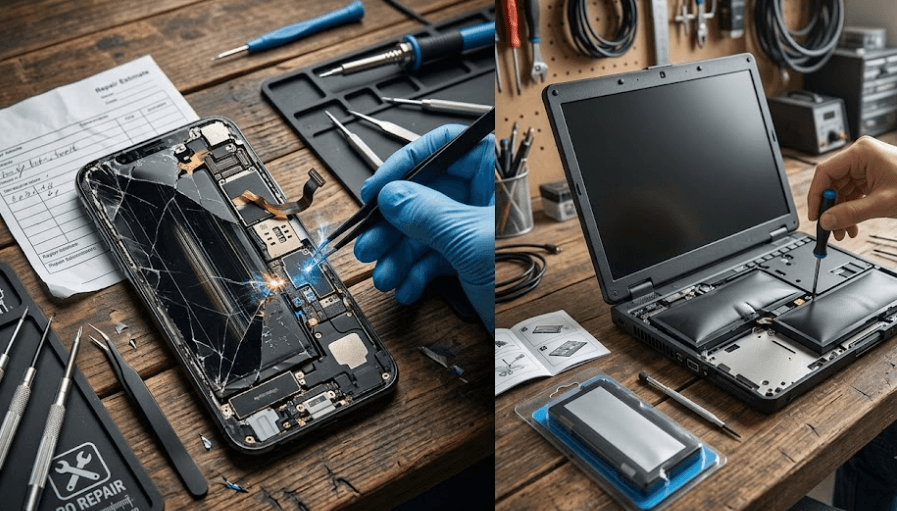
TL;DR Many device problems can be handled without immediately visiting a repair shop, especially when the issue is related to software, settings, cables, storage, or simple troubleshooting. However, physical damage, battery swelling, liquid exposure, repeated overheating, charging faults, display failure, or problems involving internal components are better handled by a trained technician. Modern phones, tablets, and laptops can contain tightly integrated components and lithium-ion batteries, so opening a device without the right tools or repair information can create additional damage or safety risks. The best approach is to diagnose the problem first, check the manufacturer's support guidance and warranty status, and attempt a DIY fix only when the repair is straightforward and you have the right experience.
When A DIY Fix Makes Sense?
Start With Simple Troubleshooting
A DIY fix makes the most sense when the problem appears to be software-related or can be isolated without opening the device. A frozen application, temporary slowdown, failed update, unusual settings change, or connectivity problem can often be investigated through basic troubleshooting. Restarting the device, installing available software updates, checking storage space, testing another compatible cable or charger, and removing a recently installed application are reasonable first steps. These actions do not require you to dismantle the device, and they can sometimes resolve problems that initially look like hardware failures. Google, for example, provides repair options for Pixel devices but also supports self-repair for technically experienced users, showing that the right repair route depends on the issue and the user's skill level.
DIY troubleshooting is also appropriate when you can clearly identify the source of the problem and the solution does not involve opening the device. If a laptop is running slowly, checking available storage, unnecessary start-up applications, background processes, and pending updates is a much safer starting point than immediately removing the back panel. Similarly, if a phone will not charge, testing a known-good compatible cable and power adapter can help establish whether the accessory or the device is responsible. The important distinction is between troubleshooting and physical repair. Troubleshooting usually carries limited risk, while replacing internal components requires considerably more care.
The availability of proper documentation should also influence your decision. Repairability depends not only on whether a component can technically be replaced, but also on whether the correct parts, tools, instructions, and procedures are available. iFixit identifies access to parts, tools, repair information, and non-destructive disassembly as important elements of a workable repair process. If you cannot find reliable instructions for your exact model, do not assume that a similar-looking tutorial applies. Internal layouts, connectors, adhesives, screws, and component placement can vary significantly between models.
| Problem | DIY Approach | Professional Repair |
|---|---|---|
| App repeatedly crashes | Check updates, restart, reinstall | Usually unnecessary |
| Device feels slow | Check storage and software | Consider diagnosis if problem persists |
| Cable or charger issue | Test a compatible replacement | Needed if port or internal charging circuit is faulty |
| Display settings problem | Adjust software settings | Needed if physical display is damaged |
| Battery swelling | Do not open or puncture device | Recommended |
| Liquid damage | Stop using and seek guidance | Recommended |
Signs You Should Stop And Call A Professional
Physical Damage And Battery Problems
The clearest reason to choose professional repair is when the problem involves a damaged battery. Swelling, visible deformation, smoke, unusual heat, or a device chassis that is being pushed apart should not be treated as an ordinary DIY repair. Lithium-ion batteries store substantial energy, and damaging or puncturing a cell can cause rapid heating or fire. iFixit's device safety guidance specifically warns against puncturing or prying at lithium-ion batteries and recommends stopping work and moving away if a battery is smoking or significantly swollen. This is one situation where saving a repair fee is not worth taking unnecessary risks.
Liquid exposure is another situation where professional diagnosis can be more appropriate, particularly when the device has been submerged or liquid has reached internal components. A device that still turns on after getting wet may appear fine, but corrosion or electrical damage can develop later. Similarly, repeated shutdowns, unexplained overheating, burning smells, sparks, or charging behavior that changes suddenly should not be treated as normal software glitches. These symptoms can point to problems that require internal inspection, and continuing to use the device may make the damage worse.
A cracked screen can fall somewhere between DIY and professional repair depending on the device and your experience. Replacing a screen is not simply a matter of removing the damaged glass and installing a new panel. Modern devices may use tightly integrated display assemblies, delicate cables, adhesives, sensors, biometric components, or other parts that can be damaged during disassembly. Apple, for example, states that Mac laptops with built-in batteries should have battery replacement performed by Apple, an Apple Authorized Service Provider, or an Independent Repair Provider using genuine Apple parts.
| Warning Sign | Recommended Action | Why |
| Swollen battery | Professional service | Battery damage can create a safety hazard |
| Smoke or burning smell | Stop using and seek professional help | Possible electrical or battery failure |
| Liquid inside device | Professional diagnosis | Internal corrosion or electrical damage may occur |
| Device repeatedly overheats | Professional diagnosis | Could indicate hardware or battery problems |
| Broken charging port | Professional repair | Internal connectors may require disassembly |
| Severe screen damage | Professional repair is usually safer | Modern displays can involve delicate assemblies |
When DIY Repair Can Cost More
Damage Beyond The Original Problem
One of the biggest mistakes people make with DIY repair is focusing only on the price of the replacement part. A screen, battery, charging port, fan, or keyboard may appear inexpensive when viewed online, but the total repair involves tools, shipping, time, and the possibility of damaging another component. A repair can become considerably more expensive if a connector is torn, a cable is damaged, a screw is misplaced, or a component is installed incorrectly. iFixit notes that successful repair requires several stages, including diagnosis, obtaining parts and tools, disassembly, replacement, reassembly, and testing.
This is particularly important with premium laptops and smartphones because manufacturers increasingly integrate components to save space or improve the overall design. A repair that looks simple from the outside may involve substantial internal disassembly. Some devices also require software configuration or calibration after a component has been replaced. Google, for example, provides self-repair resources for Pixel devices but explicitly recommends self-repair only for users with relevant technical experience. That is a useful distinction: a repair being possible does not automatically mean that it is suitable for every owner.
Warranty and service coverage should also be checked before opening a device. Warranty terms differ by manufacturer, country, device, and type of damage, so there is no universal rule that opening a device automatically voids every warranty. However, manufacturer-backed service can have specific requirements. Apple states that repairs performed by Apple or an Apple Authorized Service Provider are covered by its Limited Warranty and AppleCare plans, while damage caused by unauthorized repairs is not covered by Apple unless required by law. Checking your specific warranty terms before attempting hardware repair is therefore a sensible step.
| Factor | DIY Repair | Professional Repair |
| Upfront cost | Usually lower | Usually higher |
| Required tools | Owner provides them | Technician already has them |
| Technical skill | Important | Technician handles it |
| Risk of additional damage | Higher for inexperienced users | Generally lower |
| Warranty considerations | Must be checked carefully | Authorized service may preserve applicable coverage |
| Best for | Simple, well-documented repairs | Complex or safety-sensitive repairs |
How To Decide Between DIY And Professional Repair
Use The Risk, Skill, And Cost Test
A useful way to decide is to look at three things: risk, skill, and cost. If the repair has low safety risk, you understand the procedure, and reliable instructions and compatible parts are available, DIY may be reasonable. If the repair involves batteries, liquid damage, internal power circuits, soldering, severe physical damage, or components you cannot confidently identify, professional repair is the safer choice. Repairability is not determined by how confident you feel after watching one video. It depends on whether the device can be safely disassembled and reassembled and whether the necessary information and parts are available.
You should also consider the value and age of the device. A simple repair on an older laptop may make sense if the machine otherwise meets your needs, while an expensive motherboard repair on a very old device may not be economically sensible. On the other hand, a newer premium laptop or smartphone can justify professional service because protecting the rest of the device may be more valuable than saving a repair fee. The goal is not to choose DIY every time. The goal is to choose the repair method that gives you the best combination of safety, reliability, cost, and expected device life.
Before handing over a device, back up important data whenever possible and use an established repair provider appropriate for your device. Google currently provides both mail-in and walk-in repair options for Pixel phones in India, while Apple provides Apple Stores and Apple Authorized Service Providers for certified repairs. If you use an independent technician, ask what part will be installed, whether the repair includes a service warranty, and whether the technician has experience with your exact model. A cheap repair is not necessarily good value if the replacement part is poor quality or the repair fails shortly afterward.
A Simple Decision Guide
| Situation | Better Choice |
| Software glitch | DIY troubleshooting |
| Slow performance | DIY troubleshooting first |
| Faulty cable or accessory | DIY replacement |
| Battery swelling | Professional repair |
| Liquid damage | Professional diagnosis |
| Damaged charging port | Professional repair |
| Complex motherboard issue | Professional repair |
| Simple documented component replacement | DIY if experienced |
| Device under important warranty coverage | Check manufacturer service first |
How To Prepare For Professional Repair
Protect Your Data And Device
If professional repair is the right choice, preparation can make the process smoother. Back up important files, photos, contacts, and other data before handing over the device whenever possible. Google specifically recommends backing up data before Pixel repairs and notes that users may need to sign out of their Google Account or factory-reset the device depending on the repair situation. Similar preparation is sensible for laptops, tablets, and other personal electronics because repair can sometimes involve replacing storage, resetting software, or restoring the operating system.
You should also record the condition of the device before submitting it for repair. Take photographs of the exterior, screen, ports, and any existing damage, and keep the repair estimate or service documentation. If the device contains sensitive information, review the manufacturer's instructions for preparing it for service. This is particularly important for phones and laptops because they can contain banking information, personal photographs, work documents, saved passwords, and other private material. Data preparation is therefore part of responsible repair, not an optional extra.
Finally, ask questions before approving the repair. Confirm the diagnosis, expected cost, replacement part, estimated turnaround time, and warranty on the repair. If a technician discovers additional damage, ask for an updated estimate before authorizing extra work. Google's current repair process, for example, explains that additional repair costs may be communicated when further issues are found. Taking these steps makes it easier to compare repair quality rather than choosing solely on the lowest quoted price.
Frequently Asked Questions
Q. When is a DIY device repair safe?
A DIY repair is generally more appropriate when the issue is simple, the device is outside important warranty considerations, you have the required technical skills, and reliable instructions and compatible parts are available.
Q. Should I repair a swollen battery myself?
No. A swollen lithium-ion battery should not be punctured, bent, or pried out without the appropriate expertise and equipment. Professional service is the safer option.
Q. Can I fix a slow laptop myself?
Yes. Start with software troubleshooting such as checking storage, updates, startup applications, and background processes. If the laptop continues to overheat, crash, or shut down unexpectedly, professional diagnosis may be appropriate.
Q. Should I repair a cracked phone screen myself?
It depends on your experience and the exact device. Screen replacement can involve adhesives, delicate cables, sensors, and integrated assemblies, so professional repair is often the safer option for inexperienced users.
Q. Is liquid damage suitable for DIY repair?
Liquid damage can affect internal components even when the device initially works. Professional diagnosis is generally preferable, particularly if liquid reached the motherboard or battery.
Q. Does DIY repair always void a warranty?
No universal rule applies to every device or country. Warranty terms vary, so check the manufacturer's specific conditions before opening the device or using an independent repair provider.
Q. How do I know if a repair shop is reliable?
Ask about the technician's experience with your model, replacement-part quality, repair warranty, estimated cost, and diagnostic process. Authorized service may also be preferable when warranty coverage or manufacturer-certified parts matter.
Q. Can professional repair be cheaper than DIY?
It can be, especially when you would need to purchase specialized tools or risk damaging additional components. The cheapest replacement part is not necessarily the cheapest complete repair.
Q. Should I back up my device before repair?
Yes, whenever possible. Back up important data and follow the manufacturer's preparation instructions before submitting a phone, laptop, tablet, or other device for service.
Q. When should I replace a device instead of repairing it?
Consider replacement when the repair cost is disproportionately high compared with the device's current value, multiple major components are failing, or the device no longer meets your performance or software-support needs.
Final Recommendation
The smartest approach to device repair is not to treat DIY as automatically better or professional service as automatically safer. Start by identifying whether the problem is software-related, accessory-related, or genuinely hardware-related. Simple problems such as application crashes, storage issues, settings problems, or faulty cables can often be investigated at home. However, battery swelling, liquid exposure, smoke, severe overheating, charging-circuit problems, and complicated internal damage should push you toward professional repair. This approach can save money while avoiding unnecessary risks.
Your experience should also determine how far you take a DIY repair. Someone who regularly works with electronics and has the correct tools, service documentation, and replacement parts may be comfortable handling repairs that would be inappropriate for a first-time user. Manufacturers themselves increasingly provide repair documentation and parts for selected devices, but that does not mean every repair is suitable for every person. Google, for instance, explicitly recommends relevant technical experience for Pixel self-repair.
Ultimately, the best repair decision protects both the device and your money. Troubleshoot simple problems yourself, but do not experiment with safety-critical components simply to avoid a service fee. For valuable devices, check warranty coverage, back up your data, use reliable parts, and compare professional repair costs before deciding whether to fix or replace the device. A good repair should extend the useful life of your technology without creating a bigger problem than the one you started with.






