Multi-Monitor Setup Guide for Productivity
A complete guide to building a productive multi-monitor setup with the right monitor sizes, graphics compatibility, Windows configuration, ergonomic tips, pricing, and buying advice. Learn how dual monitors can improve workflow, efficiency, and desk organization.


TL;DR A multi-monitor setup works best when you match monitor size, graphics output, and desk layout before you start. Dual monitors can lift productivity by up to 42% and improve efficiency by 40% or more because you switch between apps less often.
Understanding Multi-Monitor Setups and Their Productivity Benefits
A multi-monitor setup makes sense when one computer has to juggle email, spreadsheets, chat, and reference material at the same time. The big win is not raw speed in one app, it is the time you save moving between windows. If you live in Excel, Slack, Chrome, or Notion, that difference shows up fast.
A dual monitor setup often gives the best balance, because two displays cover most office and home tasks without crowding the desk. A dual monitor setup can increase productivity by up to 42%, and using dual monitors can improve efficiency by 40% or more. Those gains come from fewer context switches, not from magic.
For most people, the sweet spot for dual setups falls between 24" and 32" displays. That range keeps text readable and gives you enough room for multiple screens without turning the desk into a wall of glass. It also leaves space for a keyboard, mouse, and notebook.
The right settings can make the setup feel even smoother, especially when you want the cursor to move cleanly between screens. A simple change in layout can make daily work feel less cramped. Microsoft users often notice the difference quickly when switching between apps and windows across two displays, especially after a quick settings select adjustment.
Why two displays feel faster
Two monitors let you keep a document open on one side and your active work on the other. A writer can draft in Google Docs while keeping source notes in Chrome. A developer can leave VS Code open on one display and a terminal or browser on the second.
That layout matters because your eyes do less hunting. Instead of collapsing everything into one tiny window, you can compare, copy, and check across both screens. If you use Outlook, Teams, or Excel all day, that alone saves a lot of small interruptions.
What the size range actually means
For productivity, the recommended monitor size is between 24 to 27 inches. That is the easiest range to place on a normal desk and still read comfortably. For gaming, the recommended monitor size shifts to 27 to 32 inches, because a larger panel gives you a more immersive view.
The practical takeaway is simple, choose a size that fits your desk depth before you chase a bigger number.
- Use a dual monitor setup if you keep multiple apps open all day.
- Choose 24 to 27 inches for office work and 27 to 32 inches for gaming.
- Select similar sizes when you want the cursor to move cleanly between screens.
- Keep the desk wide enough so the outer edges do not crowd your shoulders.
Choosing the Right Monitors based on Graphics Card
The hardware side is where many people get stuck, but the logic is straightforward. A multi-monitor setup needs a graphics card that supports dual monitor output, or integrated graphics that support multiple displays. Most modern GPUs are sufficient for dual monitor setups, so this is usually easier than it sounds.
What matters most is compatibility. Your computer needs the right output ports, and the monitors need inputs that match your cables. If those pieces line up, the rest is mostly about choosing the right size and resolution.
Graphics card support that actually matters
To set up dual monitors, you need a graphics card that supports dual monitor output. That does not mean you need a high-end gaming card. It means the system can detect both displays and drive them at the resolution you plan to use.
This is especially important on a laptop, where one USB-C port may handle everything while another machine depends on HDMI or DisplayPort. If the port mix does not match your cables, the setup becomes annoying quickly. A quick check now avoids a dead-end purchase later.
Best sizes for different jobs
The recommended monitor size for productivity is between 24 to 27 inches, and the sweet spot for most dual setups falls between 24" and 32" displays. That range is wide enough to cover office work, creative work, and casual gaming without forcing one rigid choice.
If you edit in Photoshop, work in Excel, or keep dashboards open in a browser, a balanced pair in that range usually feels right. The key is to select a pair that fits the way you actually use the desk.
- Check that your graphics card or integrated graphics supports multiple displays.
- Select monitors with similar resolutions so windows do not jump around awkwardly.
- Match the output ports to HDMI, DisplayPort, or USB-C before you buy cables.
- Choose a size that fits your desk depth and your viewing distance.
Mixing brands without making a mess
Using different brands of monitors is possible as long as they are compatible with your computer's output ports. That helps if you already own one display and want to add another without replacing the first.
The catch is that mismatched resolutions or brightness can make the setup feel uneven. A good rule is to keep the resolutions close and the panel behaviour predictable. If one monitor is much sharper or much brighter than the other, your eyes will notice the difference every time you move your mouse across the desk.
A cleaner match makes the whole system feel more deliberate.
Connecting and Configuring Your Multi-Monitor Setup in Windows
The physical connection stage is where a hardware setup either becomes easy or turns into cable confusion. HDMI, DisplayPort, and USB-C are the common cable types for connecting monitors. Each one works, but the best choice depends on the ports on your computer and the inputs on the monitor.
Once the cables are connected, Windows gives you the controls to arrange the screens properly. This is where you make the desktop match the desk. If the software layout matches the physical layout, moving your mouse between screens feels natural.
Cable choices and external display options
HDMI is the easiest connection to recognize, especially when you are adding an external monitor to a laptop or desktop. DisplayPort is common on many desktop monitors, and USB-C is convenient when one cable can carry video and power. The label matters less than whether the port and input actually match.
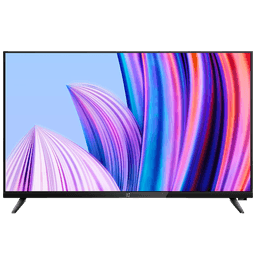
You can also use a TV as a second monitor as long as it has an HDMI port and is compatible with your computer's output port. A wireless display adapter can connect to an HDMI port on newer TVs if you need a temporary external display. That is handy for presentations or a living room workspace, but a proper monitor is still better for text clarity.
Windows display settings that make the setup usable
Open Start, go to Settings, then System, then Display. In the Windows display settings, you can arrange your displays to match their physical arrangement. That is the step that stops the cursor from feeling backward when you move between screens.
You can also select Identify to see which display corresponds to which number. After that, designate which monitor will be your primary display. That matters because your taskbar, login flow, and main apps will follow the primary screen.
These start settings are the quickest way to make the setup feel right.
- Press Windows key + P when you want to switch display modes quickly.
- Use Identify in display settings to match the numbers to the right screens.
- Drag the display icons until they mirror the real desk layout.
- Select the primary monitor for your main apps and taskbar.
- Set different wallpapers if you want one screen for active work and one for reference material.
Brightness and layout details
You can adjust brightness across multiple monitors using the on-screen display menu on each monitor. That matters when one panel sits closer to a window or lamp. A mismatched pair can feel distracting even if the resolution is correct.
If you use Outlook, PowerPoint, or a browser all day, a small brightness mismatch becomes obvious within an hour. Matching the panels makes the desk feel calmer and reduces the sense that one screen is shouting at you. It is a small fix, but it pays off every day.
These start settings help you fine-tune the setup after the displays are connected.
Ergonomics and Workspace Organization
A build can be comfortable, but only if the screens sit at the right height and distance. The most common mistake is positioning monitors too high, which can cause neck strain. People often notice the problem after a few long sessions in VS Code, Excel, or a browser.
A settings system can help you keep the display position consistent once you find what works. Vertical orientation is useful when your work involves long documents or code. A vertical monitor can display more lines of code on screen, and vertical setups are considered more ergonomic for neck posture.
That makes them a smart choice for developers, editors, and anyone reading long pages. In a settings system, it is easier to keep that layout aligned across different tasks.
Vertical monitor use cases
A vertical monitor is especially useful in Visual Studio Code, IntelliJ IDEA, or Notepad++. You see more lines at once, so you scroll less and keep more context in view. That is practical when you are comparing code, reading logs, or reviewing a long article draft.
The benefit is not just extra lines. Your neck moves less aggressively than it does when you keep tilting down to read a wide screen. If your day includes PDFs, code reviews, or long spreadsheets, the vertical option is hard to ignore.
It also fits well into a settings system that lets you switch between layouts without changing your whole desk setup.
Monitor arms and desk space
Using monitor arms can free up desk space and allow for flexible positioning. That helps when you want room for a mechanical keyboard, a mouse pad, or a docking station. It also makes it easier to line up the screens at the right height.
The desk feels better when the stands are not eating up half the surface. A good arm lets you raise, lower, or angle the display without dragging the whole base around. For a dual monitor setup, that flexibility matters more than most people expect.
It also works well with a settings system when you want to fine-tune placement and keep it consistent.
- Use monitor arms if you want more desk space for a keyboard and notebook.
- Keep the top of the display close to eye level to avoid neck strain.
- Select a vertical monitor if you read code, logs, or long documents all day.
- Move the mouse across both screens before you lock in the final height.
Cable management that keeps the desk usable
Cable management solutions help keep cords tidy and reduce clutter in parts. Clips, sleeves, and routing channels keep power cords and display cables organized. That makes the desk easier to clean and less annoying to work at.
If you use a laptop dock, speakers, and an external monitor, the cable count climbs quickly. A tidy route keeps the cables from crossing the middle of the desk and getting snagged when you move your mouse. It also makes future changes much easier, especially when your settings system depends on a clean, usable workspace.
Pricing and Best Monitor Recommendations for Dual Setups
The price range for dual monitor setups in India starts from ₹16,000 to ₹22,000. That is the practical entry point for most buyers who want a usable desk without paying premium money for every panel. It is a much cheaper path than buying one high-end monitor and hoping the rest of the setup fills itself in.
For many buyers, this is the best way to build a practical desk.
Budget vs premium
At the premium end, the Dell U2725QE costs ₹90,739. That gap matters because it changes whether you should build around a balanced pair or anchor the desk with one expensive panel. In a system display setup, the choice affects the rest of the desk.
If your work is mostly email, spreadsheets, browser tabs, and video calls, the lower price range is usually enough. A sensible pair in the ₹16,000 to ₹22,000 range gives you the benefits of multiple screens without overspending. The Dell U2725QE makes more sense when you want one monitor to act as the main anchor for the desk.
It is a premium display, and the price reflects that.
When to choose each option?
Choose the cheaper path when both screens will carry similar work. That is the case for writing, research, coding, and admin tasks. Spend more only when one system display will do the heavy lifting and the second screen is just supporting it.
A refurbished option can also shift the value equation if the hardware condition is solid. The point is to spend where the work happens, not just where the branding looks impressive. For most buyers, a practical dual monitor setup is the better place to start.
- Choose the ₹16,000 to ₹22,000 range if you want a balanced setup for everyday work.
- Choose the Dell U2725QE if you want the premium anchor display.
- Select the premium option only if the main monitor matters more than the second screen.
- Choose the budget route if you want the fastest path to a useful desk.
Common Mistakes to Avoid in Multi-Monitor Setups
The biggest mistake is ignoring compatibility until the monitors are already on the desk. A computer should have a graphics card or integrated graphics that supports multiple displays, and the ports need to match the cables. HDMI, DisplayPort, and USB-C all work, but only if the chain is complete.
Another common problem is letting the displays sit too high or too far apart. That creates neck strain and makes moving your mouse feel less natural. If the cursor has to travel awkwardly, the setup is working against you.
Software and layout mistakes
Open Start, go to Settings, then System, then Display as soon as both monitors are connected. Use the settings system display menu to arrange the screens in the same order they sit on your desk. Then select the primary display so the taskbar and main apps land where you expect.
If you skip that step, Windows may place windows in the wrong spot every time you open them. A few minutes in display settings now prevents that annoyance later.
Ergonomic mistakes that show up later
Positioning monitors too high is one of the most common errors in a setup. It causes neck strain, especially during long sessions in code editors or spreadsheet work. The fix is simple, but people often ignore it because the desk looks neat from a distance.
Another easy mistake is assuming any arrangement will feel fine after a week. If the screens are too far apart, your head and eyes work harder than they should. The better setup is the one you can use for hours without thinking about it.
- Do not raise both screens just because the stands allow it.
- Select similar resolutions, so windows move between screens without awkward jumps.
- Choose the primary monitor before you start working for the day.
- Ensure the cables do not stretch tight across the desk.
Frequently Asked Questions
Q. What is a multi-monitor setup?
A multi-monitor setup is a computer workspace with more than one display connected at the same time. Most people use a dual monitor setup because two screens cover email, documents, chat, and reference work without crowding the desk. That arrangement also matches the article's recommended 24 to 32-inch sweet spot for most desks.
Q. What monitor size should I choose for productivity?
The recommended monitor size for productivity is between 24 and 27 inches. That range is easier to place on a desk and keeps text readable without forcing too much head movement. It also fits neatly into the broader 24" to 32" range that works well for dual setups.
Q. Do I need a special graphics card for dual monitors?
You need a graphics card that supports dual monitor output, or integrated graphics that support multiple displays. Most modern GPUs are sufficient for dual monitor setups, so the main check is whether your ports and cables match. That means HDMI, DisplayPort, or USB-C compatibility matters more than raw power for most office use.
Q. How do I set up Windows display settings?
Open Start, go to Settings, then System, then Display. From there, arrange the displays, use Identify, and choose the primary display so Windows matches your desk layout. You can also press Windows key + P to switch display modes quickly.
Q. Can I use a TV as an external monitor?
Yes, you can use a TV as an external monitor if it has an HDMI port and is compatible with your computer's output port. It works well for temporary use, presentations, or reference material. For daily text work, a proper monitor is still better because it gives clearer reading comfort.
Q. What is the best monitor for a dual setup?
The Dell U2725QE is the premium option mentioned in this article, and it costs ₹90,739. It makes sense mainly when you want one monitor to act as the main anchor for the desk. If both screens will do similar work, the ₹16,000 to ₹22,000 range is the more practical place to start.
Is a Multi-Monitor Setup Worth It for Your Desk?
A multi-monitor setup is worth it if you spend most of your day switching between apps, documents, and browser tabs. The strongest case comes from the productivity gains already noted in this article, including up to 42% higher productivity and 40% or more efficiency improvement. Those gains matter most when the desk supports real work instead of forcing constant window juggling.
If you want the most practical route, start with a balanced dual monitor setup in the ₹16,000 to ₹22,000 range. Choose 24 to 27-inch displays for office work, or move toward 27 to 32-inch displays if you need a larger visual workspace. If you want a premium anchor display, the Dell U2725QE at ₹90,739 is the higher-end choice, but it only makes sense if a single screen carries the main workload.
The best next step is to check your graphics support, match your ports, and plan the desk layout before you buy. Then set the primary display in Windows, align the screens to the real desk position, and adjust brightness so both panels feel balanced. If you do that, the setup stays comfortable, practical, and easy to live with over time.
Ready to upgrade your tech?
Browse our collection of quality refurbished products at unbeatable prices.