Laptop Security Features: TPM, Hello, BitLocker
Laptop security features like TPM 2.0, Windows Hello, BitLocker, MFA, and Secure Boot work together to protect your data and identity. Learn how these essential tools improve laptop security and which features you should enable for safer everyday use.


TL;DR Laptop security features work best as a stack, with TPM 2.0, Windows Hello, BitLocker, strong passwords, MFA, and updates doing different jobs on modern Windows laptops.
Understanding Laptop Security Features and Why They Matter
Laptop security features matter because a laptop usually holds far more than apps and files. It carries personal data, saved logins, work documents, browser sessions, and sometimes tax records or client work. Once you think about the device that way, weak protection stops looking like a minor annoyance and starts looking like a real risk.
TPM 2.0 is the anchor point for modern laptop security features because Windows 11 requires it, and it supports tools such as Windows Hello and BitLocker. That matters because the computer is no longer relying only on a password screen at startup. Instead, the system can verify hardware trust before it lets you into your files.
That hardware trust is useful in everyday work, not just in corporate IT. If you spend the day in Excel, Outlook, Chrome, or Teams, you want the machine to protect the boot chain before those apps even open. A laptop that starts from a trusted state is harder to tamper with, and that is the kind of protection people usually notice only after something goes wrong.
Windows Defender adds another layer of protection, and the best setup is the one you will actually keep turned on every day. For most buyers, that means choosing a Windows 11 laptop with TPM 2.0, then enabling Windows Hello and BitLocker right away. If you handle work files, tax records, or client data, that combination is the baseline that makes protection feel real instead of theoretical.
Key Security Technologies for Laptops
TPM 2.0 is a hardware security module built into the laptop, and that hardware role is what makes it valuable. A software-only defense can be copied or tampered with more easily, while a hardware-backed module gives Windows a trusted place to store key security information. In practical terms, that helps protect the startup chain and gives the operating system a safer place to manage security functions.
Windows Hello improves laptop authentication by letting you sign in with facial recognition or fingerprint scanning instead of typing a password every time. That cuts friction during daily use and reduces the temptation to reuse weak passwords just to get into the laptop faster. Biometric sign-in is convenient, but it still works best when it sits alongside a strong password and MFA.
BitLocker is a full-volume encryption feature designed to protect data from theft or exposure from lost or stolen devices. Once the hard drive is encrypted, the contents are not useful to someone who pulls the storage out and tries to read it elsewhere. That is why BitLocker is one of the most practical laptop security features for anyone who travels, commutes, or keeps sensitive files locally.
Secure Boot, BIOS, and Hardware Trust
Secure boot helps the laptop boot using only trusted software, which reduces the chance that malicious code loads before Windows starts. This is not a flashy feature, but it is one of the most important because early-stage attacks are hard to detect later. If you work in browser-based tools, Teams, or cloud storage all day, secure boot protects the foundation those apps depend on.
The BIOS also matters because it sits close to the machine’s startup behavior. Self-healing BIOS features help protect against firmware-level attacks by restoring trusted code if the firmware gets altered. That kind of protection is easy to ignore until a boot-level attack tries to survive a reinstall.
Microsoft Pluton security processors add a hardware-based root of trust in newer Windows 11 PCs, which strengthens the foundation under these settings. Together, those controls make the laptop harder to tamper with before the operating system fully loads. For people who sign in online every day, that cleaner start helps protect the accounts and websites they rely on.
Essential Data Protection Features
Strong passwords and multi-factor authentication are the first laptop security settings you should tighten because they stop the easiest account takeovers. A weak password is still one of the simplest ways to lose access to email, cloud storage, and work accounts. MFA adds a second check, so even if a password leaks, the attacker still has to get past another barrier.
Regular software updates are critical because they fix vulnerabilities that attackers already know to exploit. Skipping updates leaves an opening in the operating system, browser, or security software, and that opening often matters more than any single hardware feature. If you work in Chrome, Teams, or a browser-based CRM, one unpatched flaw can become the easiest path into your system.
Using a password manager helps generate and store complex, unique passwords for every account. That matters because password reuse turns one breach into many. If you manage shopping accounts, bank logins, and work portals on the same laptop, a password manager gives each of them a separate lock instead of one master key.
Malware protection is a critical component of laptop security, and strong encryption methods protect sensitive data stored on laptops. These tools do different jobs, so they work best together instead of in isolation. If you rely on email, cloud storage, or downloaded files every day, layered protection gives you a better chance of stopping mistakes and deliberate attacks.
Strong Passwords, MFA, and Password Managers
The mistake many people make is treating laptop security settings as a one-time setup. In reality, the account side of security matters every day, because your laptop is only as safe as the accounts tied to it. Strong passwords and MFA are the simplest way to raise the cost of account theft.
A password manager helps generate and store complex, unique passwords for every account, which removes the biggest reason people reuse the same login everywhere. If you use the same laptop for personal banking and office logins, this is the first mistake to fix. It also answers the common question of whether you need extra security on your laptop, because the answer is usually yes when work, banking, or shopping accounts live on the same device.
Why Regular Updates and Malware Protection Matter
Regular software updates are critical for maintaining laptop security by fixing vulnerabilities. Skipping updates leaves known vulnerabilities open, and attackers actively look for those gaps. If you use Chrome, Teams, or a browser-based CRM every day, delaying updates is the fastest way to turn a routine laptop into an easy target.
Automatic updates are the safest default for most users. They reduce the chance that an old flaw becomes the easiest path into your system. Windows Security also plays a big role here, because it keeps virus definitions current and helps block common malware before it spreads.
Malware protection is not just about catching obvious viruses. Modern attacks often arrive through email attachments, fake installers, or compromised websites, and that is where layered protection matters most. If you use business laptops for daily work, keep antivirus and anti-malware tools active so the machine has more than one line of defense.
Full-Disk Encryption Explained
Full-disk encryption is the feature that makes a stolen drive far less useful, because the data on it stays unreadable without the correct login credentials. The tradeoff is that encryption protects data at rest, not bad habits in use. If you leave your account signed in on a shared machine or write sensitive passwords in plain text, encryption cannot save you from yourself.
That is why full-disk encryption should be part of a broader laptop security plan, not the whole plan. For teams that use tracking software or remote support tools, encryption adds another barrier if the computer is lost during travel or a move between offices. It is one of the strongest laptop security options because it protects files even when the hardware is gone.
Physical Security Essentials for Laptops
Physical security still matters because a laptop can be stolen in seconds from a café table, meeting room, or train seat. Cable locks help anchor the device to an immovable object, while a webcam cover blocks camera access when you are not using it. A non-descript bag also reduces attention in public, which is a simple but effective habit if you carry a company laptop through airports or co-working spaces.
Location tracking software can help recover lost or stolen laptops, especially when the device disappears outside the office. That is not a replacement for encryption, but it is a useful recovery tool when the machine is still online. Physical locks and tracking together give you a better chance of protecting personal data if the laptop leaves your hands.
Device lockdown tools can disable USB ports and restrict access to specific functions, which is useful when you want to stop data from walking out on a thumb drive. Privacy screens also help prevent shoulder surfing in public spaces, especially when you are reading emails or working in spreadsheets. If you use a laptop on a train, in an airport, or at a shared desk, those small measures against theft and prying eyes matter more than most people think.
Public Use and Travel
Public spaces are where weak habits get expensive. If you never leave your laptop unattended, keep it in sight, and use a cable lock in shared offices, you cut the odds of casual theft. That is especially important for business laptops that hold client files, internal documents, or saved VPN access.
A physical webcam cover is still one of the cheapest protections you can add. It prevents unauthorized access to the camera when you are not using it, and it works even when software settings are ignored. That kind of protection is simple, but it closes a real privacy gap.
Recovery Tools and Location Tracking
Location tracking software can help you monitor where the device last connected, which is often enough to guide recovery or escalation. For company-owned laptops, that information also helps IT teams decide whether to lock the machine, wipe it, or keep tracking it. A non-descript laptop bag is another easy win because it does not advertise expensive hardware.
That matters in transit, where a flashy bag can attract attention before you even sit down. These are not glamorous solutions, but they are practical against theft and loss. They work best when you combine them with encryption and account protection already turned on.
Comparing Laptop Security Features Across Popular Models and Brands
The price spread from ₹35,990 to ₹99,999 shows much room there is between a basic laptop and a premium one. That gap usually reflects how much security hardware and software a laptop can include, along with how long it is meant to stay in service. If you compare laptops only by processor names, you miss the part that actually affects long-term protection.
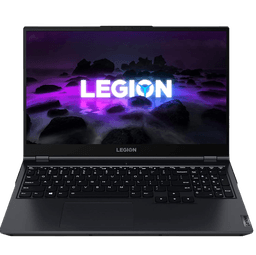
HP hardware is worth paying attention to when you want a machine that feels ready for business use rather than just casual browsing. The higher-priced OmniBook 7 is the clearest example, because premium pricing usually tracks with stronger internal security and more polished system management. Lenovo laptops are often associated with business-oriented hardware, and the LOQ at ₹81,100 sits above the mid-range crowd for a reason.
The price puts it closer to a machine you would keep for longer, which matters because security support and hardware trust features become more valuable over time. For users who want a laptop that can handle work files, meetings, and heavier day-to-day use, Lenovo’s positioning makes sense even before you look at the rest of the spec sheet. That difference usually shows up in the overall experience, not just in raw specs.
If you want a practical build without overpaying, the middle tier is usually the smarter place to focus. The right choice still depends on how often you work online and whether the computer stays at home or travels. Security features matter most when they match the way you actually use the laptop.
Budget and Security Needs
- Choose budget laptops if your work is mostly browsing, documents, and streaming.
- Choose mid-range laptops if you want a stronger mix of hardware trust, account protection, and everyday use.
- Choose premium laptops if the laptop handles business files or frequent travel.
- Compare the security stack, not just the processor name.
Common Mistakes to Avoid in Laptop Security Configuration
Weak passwords and skipped updates are still the two mistakes that cause the most trouble, because they leave the easiest openings for attacks. A laptop can have strong hardware protection and still fail if the account password is reused or the operating system has known vulnerabilities. That is why laptop security configuration needs regular attention instead of a one-time setup screen.
Relying only on passwords is a bad habit because one leaked login can expose email, cloud storage, and work apps at the same time. Multi-factor authentication closes that gap by forcing a second check, and that extra step is far cheaper than recovering from account theft. If you use business laptops, this is the first habit to lock down.
Physical security mistakes are just as serious because a stolen laptop can expose files even if the software stack is solid. Leaving a device unattended in a café, conference room, or train seat is asking for trouble, and a cable lock or secure storage routine reduces that risk. A webcam cover also matters because camera access is one of those privacy issues people ignore until it is too late.
Turning off encryption or ignoring secure boot removes protections that are hard to replace later. BitLocker and secure boot work best when they stay enabled, because they protect the laptop before and after Windows loads. If you disable them for convenience, you are trading away the exact protections that make a lost or tampered machine harder to exploit.
Ignoring Updates and Windows Security
Attackers look for gaps because they know many users postpone restarts and patches. If you want the safest default, let the computer install security patches automatically. That habit is simple, but it closes a lot of risk.
Windows Security is useful because it keeps virus definitions current and helps block common malware. It will not stop every attack, but it does catch a lot of the routine stuff before it spreads. If your laptop handles email, cloud storage, or business apps, automatic protection is the smarter default.
Risks of Public Wi-Fi and VPN Use
Public Wi-Fi adds another layer of exposure because you are sharing a network with strangers and unknown devices. Antivirus software helps with malware protection, but it cannot make an unsafe network safe by itself. If you must work in a café or airport lounge, a VPN adds another layer against casual snooping.
The best laptop security settings are the ones you actually maintain, not the ones you only enable once. If your routine includes email, cloud storage, and business apps, the practical move is to combine strong passwords, MFA, updates, and basic physical discipline. That combination prevents more damage than any single advanced feature can solve on its own.
Frequently Asked Questions
Q. What is TPM 2.0?
TPM 2.0 is a hardware security chip or module that helps Windows verify trust during startup. It supports features like Windows Hello and BitLocker, which use that hardware base to protect sign-in and data. On Windows 11 laptops, it is part of the standard security baseline.
Q. Does Windows Hello improve laptop authentication?
Yes, Windows Hello improves laptop authentication by letting you use facial recognition or fingerprint scanning instead of typing a password each time. That makes daily sign-in faster and reduces the pressure to reuse weak passwords. It works best when paired with a strong password and MFA.
Q. Is full-disk encryption necessary for all laptop users?
Yes, full-disk encryption is worth using on almost every laptop because it keeps drive data unreadable without the correct credentials. That matters most when a device is lost or stolen, since the files on the drive become much harder to access. It is especially important for anyone storing work documents, tax records, or browser data locally.
Q. What physical security measures can I take to protect my laptop?
Cable locks, webcam covers, and careful storage habits are the most practical physical security measures for a laptop. A cable lock helps stop casual theft, while a webcam cover prevents unauthorized camera access when you are not using it. A non-descript bag also reduces attention in public places, which matters more than people admit.
Q. Are biometric security features more secure than passwords?
Biometric security features are often more convenient than passwords, but they are not a complete replacement for them. Fingerprint scanning and facial recognition make sign-in faster, while passwords still matter for fallback access and account recovery. The best setup uses both, not one or the other.
Q. How often should I update my laptop’s security software?
You should update your laptop’s security software as soon as updates are available, not on a casual schedule. Regular software updates fix vulnerabilities that attackers already know to exploit, which makes delay the real risk. If your laptop handles email, cloud storage, or business apps, automatic updates are the safest default.
Which Laptop Security Setup Fits Your Needs
The best components work together, not as isolated checkboxes. TPM 2.0, Windows Hello, BitLocker, secure boot, strong passwords, MFA, updates, and physical discipline each solve a different problem, and the weak link usually decides the outcome. On a modern Windows 11 laptop, the right mix gives you hardware trust, faster sign-in, and much better protection if the device is lost, stolen, or targeted by malware.
If you travel, store work files locally, or use the same device for banking and business, the safer move is to enable the protections you already have instead of waiting for a problem. The price range from ₹35,990 to ₹99,999 shows that you can choose a setup that fits both budget and risk. Start by checking whether your laptop has TPM 2.0, then turn on Windows Hello, BitLocker, automatic updates, and MFA where available.
For most readers, the middle tier is the most balanced choice because it gives enough room for a serious security setup without jumping straight to premium pricing. The HP OmniBook 7 Intel Core at ₹99,999 makes sense if you want a higher-end security baseline and expect heavy office use or travel. Budget models can still work well for browsing and documents, but they need more careful setup to reach the same level of protection.
The best long-term value comes from a laptop you will actually secure every day. If the device already supports the features in this guide, turn them on now and keep them active. That is the simplest way to protect your files, your accounts, and your time.
Ready to upgrade your tech?
Browse our collection of quality refurbished products at unbeatable prices.