Laptop AI Noise Cancellation Explained: Does It Really Improve Meetings?
Discover how AI noise cancellation works, its limitations, pricing, and the best tools for removing background noise from audio and video. Compare popular AI noise reduction solutions for calls, podcasts, recordings, and content creation to choose the right one for your workflow.

TL;DR AI noise cancellation is the smarter choice when you need usable audio from messy recordings, and LALAL.AI Voice Cleaner, ElevenLabs Voice Isolator, Cleanvoice, Krisp, and Noise Reducer each solve different problems.
Understanding AI Noise Cancellation Technology
AI noise cancellation can achieve up to 40dB dynamic suppression, and that matters because it does more than mute a room. It separates speech from background noise, then keeps the useful part of the recording intact. That is why it helps with calls, podcasts, interviews, and video edits where a bad take would otherwise go straight to the trash.
AI noise cancellation means the software looks at the full recording and decides what belongs in the final mix. A basic filter can dull everything, but this approach is more selective. If you record in Zoom, OBS Studio, or Camtasia, the difference shows up fast when the mic picks up keyboard clicks, fan hum, or traffic sounds. The practical value is simple. You spend less time re-recording and more time fixing only the parts that matter. In audio or video workflows, background noise removal can make cleanup faster without changing the rest of the project.
What AI noise cancellation mean in practice?
It is not the same thing as a headphone noise blocker. The hardware works on the file itself, so it can clean up audio and video after the recording is done. That makes it useful when the problem is already baked into the clip. It also explains why these tools are popular for calls and post-production. The workflow changes, but the goal stays the same: clearer speech without the junk around it.
Where the quality difference shows up
Quality matters most when the noise keeps changing. A laptop fan is one thing, but sudden chair scrapes, street sounds, or overlapping chatter are harder to tame. That is where the best AI tools earn their keep, because they can preserve the main track without making it sound hollow. This is also where people confuse noise removal with simple silence. Good background noise removal keeps the recording natural, not empty. If the cleaned result sounds robotic, the tool may have removed too much.
Types of Background Noise Removed
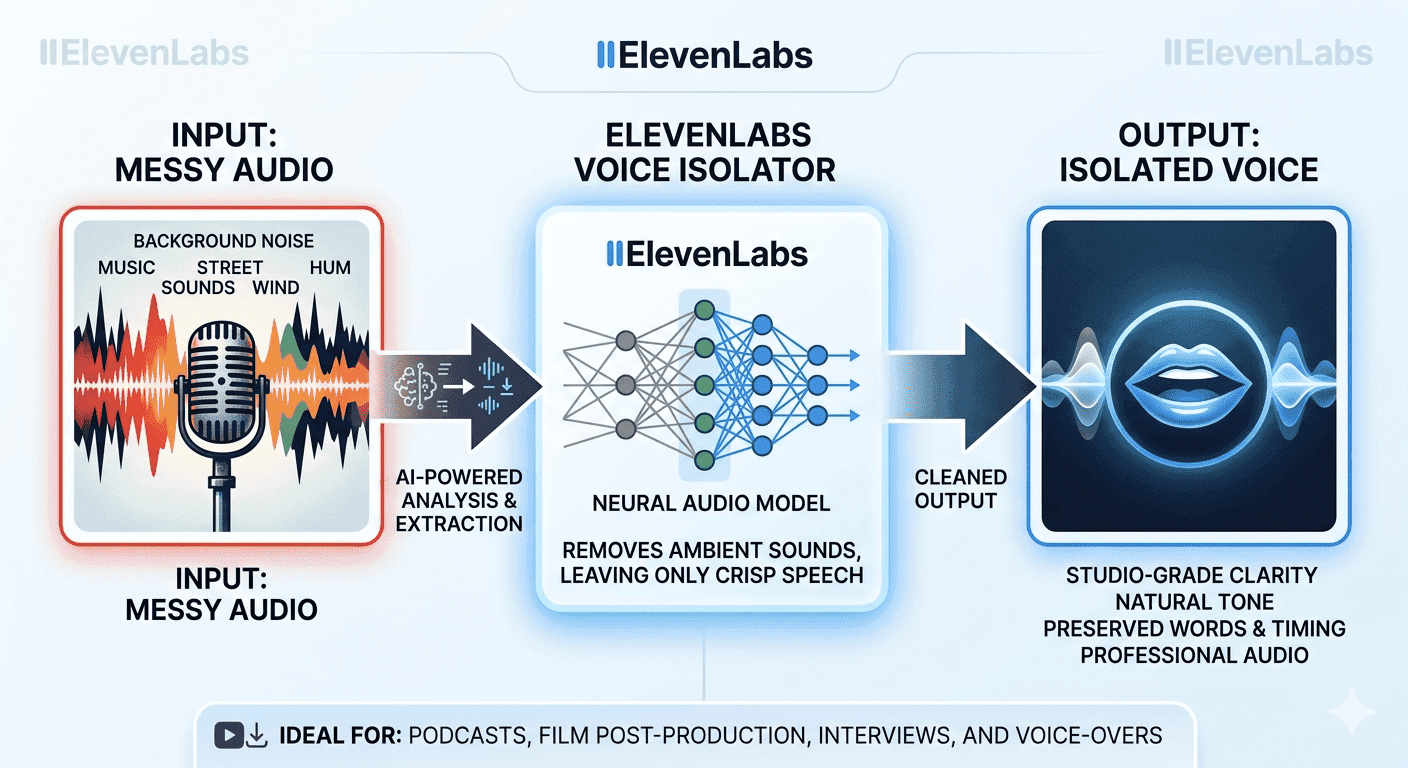
LALAL.AI Voice Cleaner removes background noise, ambient music, mic rumble, and vocal plosives. ElevenLabs Voice Isolator removes ambient noise, mic feedback, and street sounds. Cleanvoice handles wind, traffic, and children sounds, which covers the problems that make interviews and casual video takes hard to use. These tools do not all attack the same problem, and that is a good thing. A studio-quality voiceover in Descript needs different treatment from a field interview recorded near a road. If you know the noise profile, you can pick a remover that fits the recording instead of hoping one tool will fix everything.
Common noise patterns and why they matter
- Ambient noise sits under the whole track and makes speech feel distant. It is common in home offices, hotel rooms, and conference rooms.
- Mic rumble usually comes from handling, desk vibration, or poor placement. It is especially annoying in podcast recording because it makes the low end muddy.
- Street sounds and traffic can spike without warning, which is why they are harder to remove than steady hum.
- Vocal plosives hit hard on words with p and b sounds, and they can ruin an otherwise crisp take.
That list matters because different tools handle different problems better. If your file has constant fan noise, one tool may work well. If it has sudden chair noise or a siren outside, another remover may do a better job. Wind noise can be just as disruptive in field recordings, especially when it changes suddenly.
Noise removal in audio and video
Noise removal is not only for podcasts. It also helps when you upload a webinar recording, a screen capture, or a short social media clip with poor room acoustics. A cleaner track makes the final media easier to watch because the listener can follow the message without straining. That is why the hardware for calls gets so much attention. The same idea applies whether you are fixing an interview, a product demo, or a training video. Wind noise and other background distractions can make even a good recording harder to use.
Choosing AI Noise Cancellation Tools: Key Factors
Audio format support is the first filter because the wrong tool wastes time before cleanup even starts. LALAL.AI Voice Cleaner supports MP3, OGG, WAV, FLAC, AIFF, AAC, and M4A. ElevenLabs Voice Isolator supports WAV, MP3, FLAC, OGG, and AAC. Noise Reducer supports multiple audio and video formats, including MP3, WAV, and MP4, which makes it more useful when your source is a clip instead of a standalone file. That matters for editors working in CapCut, Premiere Pro, or Final Cut Pro, because the format decides much of the friction you face before the first click.
Different tools also handle different kinds of interference. LALAL.AI is strong when you need to remove background chatter, background music, mic rumble, or vocal plosives from a voice track. ElevenLabs is useful when ambient noise, mic feedback, or street sounds are the main issue, while Noise Reducer is the simpler choice for mixed audio and video files.
Supported formats and best-fit use cases
| Tool | Supported formats | Best fit |
|---|---|---|
| LALAL.AI Voice Cleaner | MP3, OGG, WAV, FLAC, AIFF, AAC, M4A | Broad file cleanup |
| ElevenLabs Voice Isolator | WAV, MP3, FLAC, OGG, AAC | Voice-focused processing |
| Noise Reducer | MP3, WAV, MP4 | Audio and video cleanup |
That specialization matters because no single tool handles every scenario equally well. A webinar recording in Microsoft Teams has different problems from a field interview near traffic. If your files come from different sources, choose by noise profile first and format support second. This is a useful comparison because ANC, or active noise cancellation, reduces what you hear in headphones. Your tool cleans the recording itself, which is what you need when the file already contains unwanted noise. That difference matters in real work. ANC helps you focus while editing in Adobe Audition or listening during a call, but it does not fix the recording. The system does the repair work after the fact, which is why it is the better fit for uploaded files and exported clips.
AI noise cancellation earbuds and headphones
Earbuds and headphones are useful when you want quieter monitoring during calls, but they are not the same as a file cleaner. They do not replace a tool that removes noise from the actual recording. That distinction saves time and money. If your goal is better monitoring, earbuds or headphones make sense. If your goal is cleaner output for a video, podcast, or voice memo, you need software that performs noise removal on the file.
Popular AI Noise Cancellation Tools and Features
Cleanvoice stands out because it removes background noise from audio and video in under 10 minutes, and it does that as a web-based tool with no software download. That is useful when you need fast clean-up on a shared laptop or a work machine where installing extra software is a pain. LALAL.AI Voice Cleaner is better when the recording is mostly usable, but the environment is not. It can remove background noise, ambient music, mic rumble, and vocal plosives, which gives it a clear role in post-production. ElevenLabs Voice Isolator takes a similar approach, but it leans harder into ambient noise, mic feedback, and street sounds. That makes it a strong fit when your priority is cleaner speech during the meeting, not after export. Krisp also provides a free version with limited features, while premium features require a paid subscription. That free tier is handy for testing, but it is not a full replacement for paid use.
Live calls and recorded files
If you spend a lot of time on conference calls, the difference shows up quickly. Krisp is the clearest fit for live calls because it works in real time. That makes it useful for meetings where you need cleaner speech before the recording ever starts. For recorded files, LALAL.AI, ElevenLabs, and Cleanvoice are better matches because they focus on cleanup after capture. The call sounds smoother, but only when the feature set is actually unlocked.
Browser-based clean-up and quick fixes
- Cleanvoice is a web-based AI tool, so you do not need a software download.
- Media.io’s online AI Noise Reducer can remove background noise in just a few seconds.
- Veed.io’s AI noise remover enhances audio automatically and detects unwanted sounds.
- GoTranscript’s AI-powered noise removal eliminates background noise, hiss, hum, and static.
Those tools are useful when speed matters more than deep control. A marketing team uploading a media clip for review, or a freelancer cleaning a short voice note, can get a cleaner result without opening a heavy editor. The trade-off is that fast tools sometimes miss the more stubborn noise.
Noise removal tools for creators
Audo.ai’s noise removal algorithm can automatically remove undesirable background noise of any kind. The AI Noise Remover: Audio&Video app has over 50,000 downloads and is rated 4.4 stars. Those numbers suggest steady use, not just a one-off experiment. For creators working in CapCut, Descript, or Premiere Pro, that kind of remover is useful when the goal is to publish quickly. It can clean a rough take, then let you move on to editing captions, trimming pauses, or tightening the pacing of the video.
Pricing Models and Cost Comparison
The AI Background Noise Reducer app charges per month or per year, which puts it in the low-cost subscription tier for individual users. Agora’s AI Noise Suppression service costs per 1,000 participant minutes for voice, so its bill scales with meeting volume rather than seats. Those models are very different, and that difference matters more than the headline price.
ElevenLabs Voice Isolator API charges based on 1,000 characters per minute of audio. That model can be efficient if you know your output volume, but it can also surprise you if you process long recordings without tracking usage. Krisp gives you a free version with limited features, while premium features require a paid subscription. A free tier is usually enough to test quality, but not enough for daily work. That is true for your build-free tools as well as paid platforms with limited trial access. If you are cleaning one short clip, free may be fine. If you are processing weekly meetings or a podcast backlog, the limits add up fast. The real question is whether the tool matches your habits. A content team that uploads several files a week may prefer predictable billing. A support team that only needs occasional clean-up may be happier with usage-based pricing. For clean audio workflows, the best choice is the one that fits often you upload, not the one that looks cheapest on paper.
Pricing models at a glance
| Tool | Pricing model | Notes |
|---|---|---|
| AI Background Noise Reducer app | Monthly or annual subscription | Simple app-based cleanup |
| Agora AI Noise Suppression | Usage-based | Per 1,000 participant minutes |
| ElevenLabs Voice Isolator API | Usage-based | 1,000 characters per minute of audio |
| Krisp | Free version, paid premium | Limited free access |
A monthly plan makes sense when your workflow is predictable. A usage-based plan makes sense when you only process audio on demand. A tool that charges by usage can stay efficient if the volume stays low. Once the volume rises, the bill can climb faster than expected.
Limitations of AI Noise Cancellation
A common mistake is assuming every tool solves the same problem in the same way. Some are built for live calls, some for post-production clean-up, and some for both. That is why a remover that works well on one recording can disappoint on another. AI noise reduction tools may struggle with sudden or fluctuating sounds. A laptop mic in a quiet room may sound excellent after processing, while the same tool can struggle if the speaker is far from the microphone or the room has echo, keyboard clatter, and overlapping voices. The more the noise blends into the speech, the harder it is to separate.
What the software can and cannot fix?
It does not restore words that were never captured clearly. It can reduce unwanted noise, but it cannot invent missing details. That is why a bad recording of a live webinar in Microsoft Teams may improve, yet still not reach studio quality. Some tools are surprisingly strong here. The hardware can achieve up to 40dB dynamic suppression in the right conditions, and that can dramatically improve quality. But it is still best treated as a repair tool, not magic.
File handling and upload problems
File compatibility is another area where people make avoidable mistakes. Noise Reducer supports multiple audio and video formats, including MP3, WAV, and MP4, which helps when the source comes from a screen recording or meeting export. If you upload the wrong format, the result can be weaker clean-up or unnecessary rework. That is why upload checks matter before you try a remover on a finished file. The wrong file type can slow removal, and the wrong setup can leave unwanted background noise behind. A quick sign that you picked the wrong tool is when the cleaned track still sounds like the original, just slightly softer.
Real-world limits you should expect
- Sudden chair scrapes and door slams are harder to remove than steady fan noise.
- Overlapping voices can confuse even strong AI audio tools.
- Echo in a bare room can reduce the quality of the final result.
- Wind and traffic often need more than one pass of noise removal.
That is why the best results usually come from a decent source recording first, then clean-up second. A noise remover can improve a bad take, but it works best when the microphone is already in the right place.
ASUS Device Controls and Built-In AI ENC Noise Cancellation
ASUS devices include a built-in AI ENC noise cancellation setting for calls. To turn it on, open the Settings app, tap Network & internet > Call, and toggle the build on or off. That matters because it gives you a quick hardware-level option before you reach for a separate app. This is the closest thing to AI noise cancellation for calls built into the device itself. It does not replace a full editor, but it can make everyday calls easier to follow.
When do built-in controls make sense?
A remote worker joining back-to-back meetings can switch it on once and leave it there. A creator recording a short screen share in OBS Studio may still want software cleanup later, but the call-side improvement is still useful. This is also where the parts Asus fit into the bigger picture. ASUS gives you a device-level toggle, while web tools and desktop apps handle the heavier post-production work. If you use both, you can keep live calls cleaner and still polish the file afterward. Use ASUS device-level controls when you want quick call clean-up without adding another app. A laptop user might rely on ASUS for calls, then use a web tool later for a recorded presentation in OBS Studio or Camtasia.
Frequently Asked Questions
Q. What does AI noise cancellation mean in practice?
AI noise cancellation uses machine learning to remove background noise from audio and video while preserving useful speech. Traditional noise reduction often cuts broad frequency ranges, which can make the final track sound thin. AI-based tools are more selective, so they handle chatter, wind, traffic, and mic rumble more cleanly.
Q. Is Krisp free for basic use?
Krisp provides a free version with limited features, which is useful for testing. The article also notes that premium features require a paid subscription, so the free tier is not meant for full-time use. If you only need to try the workflow, the free version is enough to evaluate quality before paying.
Q. Which tool is best for live calls?
Krisp is the clearest pick for live calls because it works in real time. That makes it a better fit than file-based tools when your main goal is cleaner meetings. If you need to clean a recorded clip later, LALAL.AI or ElevenLabs is a better match.
Q. How is ANC different from AI noise cancellation?
ANC reduces what you hear in headphones, while AI noise cancellation cleans the recording itself. That means ANC helps during monitoring, but it does not fix the file you already captured. If your goal is a better podcast, video, or interview file, AI cleanup is the one that matters.
Q. Which tools work best for video and podcasts?
Cleanvoice, LALAL.AI, and ElevenLabs are the strongest starting points for video and podcast cleanup. Cleanvoice is fast in the browser, LALAL.AI handles broad file support, and ElevenLabs is strong for voice-focused processing. If your source is MP4, Noise Reducer is useful because it handles both audio and video files.
Q. Can these tools remove noise from video uploads?
Yes, several tools can remove noise from video uploads. Cleanvoice, Noise Reducer, and Media.io all handle video-friendly clean-up, and that is helpful for screen recordings, interviews, and social clips. The result is a cleaner track and a more professional final video.
Which AI Noise Cancellation Setup Fits Your Workflow?
Choose LALAL.AI Voice Cleaner if you need broad file support and want to handle background music, mic rumble, or vocal plosives in spoken-word recordings. Choose ElevenLabs Voice Isolator if your main problem is ambient noise, mic feedback, or street sounds, and you work with WAV, MP3, FLAC, OGG, or AAC.
Choose Cleanvoice if you want browser-based cleanup for audio and video without installing software. Choose Noise Reducer if your workflow includes both audio and video files, and you want a simpler cleanup path for MP3, WAV, or MP4. Choose the AI Background Noise Reducer app if you want a subscription model that stays centered on app-based cleanup. Skip LALAL.AI if your source files are outside its supported formats or if your workflow depends on live call cleanup. Skip ElevenLabs if you need a tool that is not tied to usage-based pricing. Skip Cleanvoice if you need a desktop-installed workflow instead of browser-based processing.
Skip Krisp if you do not need real-time noise cancellation for conferencing apps. Skip Noise Reducer if you only work with live calls and never touch exported files. For most people who split time between meetings and editing, the smartest setup is one live tool plus one file-based remover, because that covers both calls and post-production cleanup without overcomplicating the workflow. A quick example makes the choice obvious. If you record a client interview in Zoom, then edit the clip in Premiere Pro, use a live tool for the call and a separate noise remover for the export. That gives you cleaner speech in the meeting and better quality in the final upload.
Why AI Noise Cancellation Still Makes Sense
AI noise cancellation works best when you match the tool to the job, not just the price tag. The article shows that some tools are built for live calls, while others are better for recorded files, and the difference can be as high as 40dB dynamic suppression in the right conditions. Pricing also changes the decision, since some tools use subscriptions, others charge by usage, and free tiers often come with limits. If you want the cleanest result, start with the noise type, check the supported formats, and then choose the pricing model that fits how often you upload. Use one live tool for calls and one file-based remover for edits, and you will cover most real-world workflows without adding unnecessary complexity.