
How To Deal With The Windows Blue Screen Of Death
An in depth explanation of Windows Blue Screen errors and how to diagnose and fix them safely

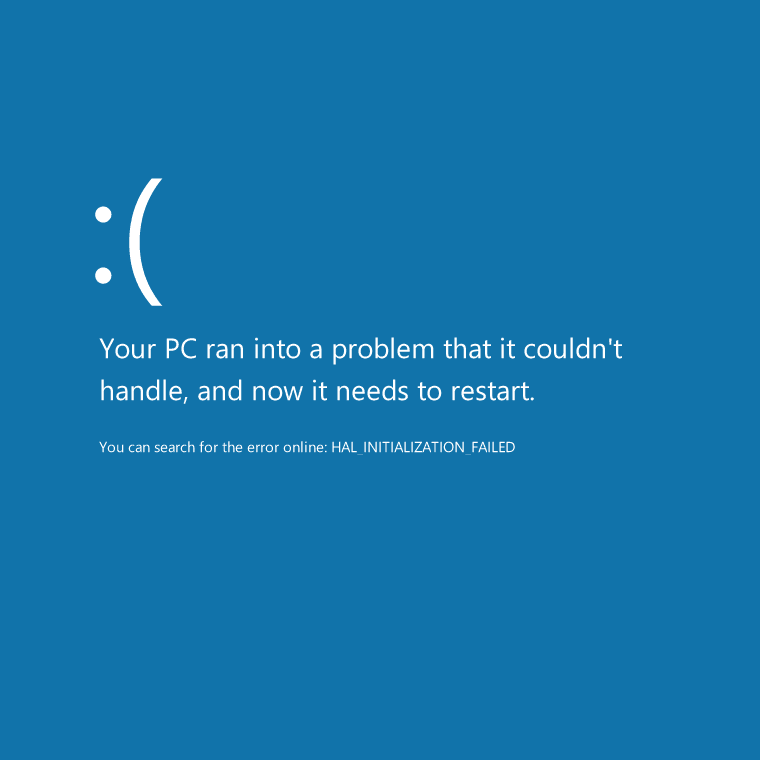
TL;DR The Windows Blue Screen of Death is a protective mechanism that stops the system when a critical failure occurs. It is usually caused by driver issues, hardware faults, memory problems, storage errors, overheating, or low level software conflicts. This guide explains what a BSOD actually means, how to read the information shown, and how to identify patterns in repeated crashes. It covers practical steps such as checking drivers, updates, memory, storage, and system files, using Safe Mode, and knowing when a clean Windows installation or hardware replacement is necessary. With a calm and structured approach, most BSOD issues can be diagnosed and resolved effectively.
Understanding What The Blue Screen Of Death Actually Is
The Windows Blue Screen of Death, often abbreviated as BSOD, is not an error message in the traditional sense. It is a protective mechanism built into the Windows operating system to prevent further damage when the system encounters a critical failure. When Windows detects a condition it cannot safely recover from, it deliberately stops everything, displays a blue screen with diagnostic information, and forces a restart. This behaviour exists to protect data integrity and hardware stability rather than to inconvenience the user.
A BSOD usually appears suddenly, interrupting whatever task was being performed. This suddenness is what makes it alarming. However, the blue screen itself is not the problem. It is a symptom of an underlying issue, often related to hardware communication, drivers, memory, storage, or low level system components. Understanding this distinction is crucial. Treating the BSOD as the enemy leads to panic and guesswork. Treating it as a signal allows structured troubleshooting and resolution.
Why Windows Uses Blue Screens Instead Of Graceful Errors?
Windows operates at multiple levels, from user facing applications down to the kernel that manages hardware. Most errors occur at higher levels and can be handled without crashing the system. The blue screen appears only when something goes wrong at a level where continuing operation could corrupt memory, damage files, or destabilise the system beyond recovery.
When a driver behaves unpredictably, when memory access rules are violated, or when hardware sends invalid responses, Windows cannot simply close an application and move on. At that point, stopping the system is safer than guessing. The blue screen is Windows choosing safety over continuity. While it feels disruptive, it is often preventing more serious long term damage such as filesystem corruption or hardware stress.
Common Misconceptions About Blue Screen Errors
One of the most common misconceptions is that a blue screen means the computer is permanently damaged. In reality, most BSOD issues are software related and fully fixable. Another misconception is that the error message itself is meaningless. While the text on the screen can look technical, it often provides valuable clues about what failed.
There is also a belief that blue screens only happen on old or poorly maintained systems. This is not true. Even new systems can experience BSOD events due to driver bugs, firmware issues, or compatibility problems. The difference is that well maintained systems usually encounter them less frequently and recover more predictably. Understanding that BSODs are part of Windows’ defensive design helps remove fear and encourages systematic problem solving.
What The Information On A Blue Screen Actually Tells You
Modern Windows blue screens display several pieces of information. The stop code is the most visible part. This code describes the category of failure that occurred, such as memory access violations, driver faults, or system service errors. While the wording may seem cryptic, it narrows the scope of investigation significantly.
In some cases, the blue screen also references a specific file or driver. This is especially useful because it points directly to the component that triggered the crash. Additionally, Windows creates a memory dump file in the background. This file contains detailed technical information that can be analysed later. Even if you never open these files yourself, they are important because they allow advanced diagnostics if needed.
The Most Common Causes Of Blue Screen Errors
Blue screens are usually triggered by a small set of root causes. Faulty or outdated drivers are among the most common. Drivers operate at a low level, translating Windows commands into hardware instructions. When they malfunction, they can destabilise the entire system. Hardware issues are another frequent cause. Defective RAM, failing storage drives, or overheating components can all trigger BSOD events.
Software conflicts also play a role. Low level utilities, antivirus software, and system customisation tools sometimes interact poorly with Windows updates or hardware drivers. Corrupted system files can also cause blue screens, especially after interrupted updates or sudden power losses. Understanding these categories helps structure troubleshooting instead of randomly trying fixes.
What To Do Immediately After A Blue Screen Occurs
When a blue screen appears, the most important action is not to panic. Windows will usually restart automatically. Once the system boots again, observe its behaviour. If the system returns to normal and the blue screen does not reappear, it may have been a one time event. However, if blue screens repeat, further action is required.
Take note of any visible stop codes or file names shown on the screen. Even a partial memory of the wording can be helpful. Also consider what you were doing when the crash occurred. Installing software, connecting new hardware, updating drivers, or performing heavy workloads can all provide context. This information becomes valuable later when isolating the cause.
Recognising Patterns In Repeated Blue Screens
Repeated blue screens often follow patterns. They may occur during startup, under heavy load, while gaming, during video playback, or when the system wakes from sleep. Each pattern points toward a different class of problems. Startup crashes often relate to drivers or system services. Load related crashes may indicate overheating, power issues, or unstable hardware. Sleep related crashes often involve driver power management bugs.
Keeping track of when crashes happen helps narrow the investigation. If the system crashes only when a specific application is running, that application or its dependencies may be involved. If crashes happen randomly, hardware or memory issues become more likely. Pattern recognition turns troubleshooting from guesswork into analysis.
Using Windows Reliability Monitor To Understand Crashes
Windows includes a built in tool called Reliability Monitor that provides a timeline of system stability. It records application failures, Windows errors, hardware events, and updates. Reviewing this timeline can reveal correlations between system changes and blue screen events.
Reliability Monitor is especially useful because it presents information in a human readable format. You can see when blue screens started, whether they align with driver updates, software installations, or system updates. This historical view often reveals causes that are not obvious from a single crash. It is one of the most underused tools for diagnosing Windows stability issues.
Checking Driver Health And Stability
Drivers are a primary suspect in most BSOD cases. Updating drivers is often the first recommended step, but it must be done carefully. Blindly installing the newest driver version is not always the solution. Some newer drivers introduce bugs, especially on older hardware.
The safest approach is to identify which drivers are involved. If the blue screen references a driver file, focus on that component. If not, consider recent driver changes. Rolling back a recently updated driver can sometimes restore stability. For systems with dedicated graphics cards, graphics drivers are particularly important. Network drivers, storage controllers, and chipset drivers also operate at low levels and can trigger blue screens if unstable.
Windows Updates And Their Relationship With Blue Screens
Windows updates are designed to improve security and stability, but they can sometimes introduce compatibility issues. A blue screen that begins immediately after a Windows update may indicate a conflict between updated system components and existing drivers or firmware.
In such cases, allowing Windows to install subsequent updates can sometimes resolve the issue, as Microsoft often releases fixes quickly. In more severe cases, temporarily uninstalling a problematic update may restore stability. It is important to understand that updates themselves are rarely malicious. They often expose pre existing weaknesses in drivers or firmware that were previously dormant.
Memory Problems And How They Cause Blue Screens
Faulty RAM is a classic cause of blue screen errors. Memory issues can produce a wide variety of stop codes because corrupted data can affect almost any system component. Unlike some hardware failures, memory problems can be intermittent, making them difficult to diagnose.
Testing memory stability is an important step when blue screens occur randomly or under load. Even systems that appear to work normally can have marginal memory issues that surface only during specific workloads. Memory related blue screens often persist across clean software installations, which is why hardware testing is sometimes necessary.
Storage Issues And Filesystem Corruption
Storage problems can also trigger blue screens, especially if the system drive is failing or corrupted. Windows relies heavily on fast and reliable disk access. When critical system files cannot be read or written correctly, Windows may halt to prevent further damage.
Signs of storage related issues include slow boot times, file access errors, and system freezes preceding blue screens. Checking disk health and filesystem integrity is an important step in diagnosing BSOD issues. Storage problems often worsen over time, so early detection is valuable.
Overheating And Power Related Blue Screens
Thermal and power issues are often overlooked because they do not always produce clear warning signs. When components overheat, they may behave unpredictably. Modern processors and graphics cards have protection mechanisms, but extreme or sustained heat can still cause system instability.
Power supply issues can also cause blue screens, especially under load. An inadequate or failing power supply may deliver inconsistent voltage, leading to sudden system crashes. Blue screens that occur during gaming, rendering, or heavy computation often point toward thermal or power related causes rather than software issues.
Software Conflicts And Low Level Utilities
Some software operates very close to the operating system kernel. Antivirus programs, system monitoring tools, disk utilities, and virtualisation software fall into this category. While these tools serve important purposes, they can sometimes conflict with drivers or Windows updates.
If blue screens begin after installing new system level software, temporarily disabling or uninstalling it can help confirm whether it is involved. This does not mean the software is inherently bad. It may simply require an update or configuration change to coexist with your system environment.
Using Safe Mode To Isolate Problems
Safe Mode is a diagnostic environment that loads Windows with minimal drivers and services. If blue screens stop occurring in Safe Mode, it strongly suggests that a third party driver or service is responsible. This makes Safe Mode a powerful tool for narrowing down causes.
While in Safe Mode, you can uninstall recently added software, roll back drivers, or run system checks without interference. The goal is not to use Safe Mode permanently, but to use it as a controlled environment for investigation. Stability in Safe Mode is a valuable clue.
System File Integrity And Why It Matters
Windows relies on thousands of system files to operate correctly. If these files become corrupted, the system may behave unpredictably. Corruption can occur due to power loss, failed updates, or disk issues.
Checking and repairing system files is an important step when blue screens occur without an obvious cause. This process verifies that core Windows components are intact and functioning as expected. While it does not fix every problem, it eliminates one major category of potential causes.
When A Clean Windows Installation Becomes Necessary
In some cases, blue screens persist despite driver updates, hardware checks, and system repairs. This may indicate deep software corruption or accumulated conflicts. At this stage, a clean Windows installation can be the most efficient solution.
A clean installation resets the software environment completely. If blue screens disappear afterward, the issue was software related. If they persist, hardware becomes the primary suspect. While reinstalling Windows is time consuming, it often saves time compared to endless troubleshooting when the system environment is severely compromised.
Hardware Replacement As A Last Resort
When all software based solutions fail, hardware replacement may be necessary. Faulty RAM modules, failing storage drives, or unstable power supplies are common culprits. Hardware diagnostics can sometimes identify these issues, but not all failures are easily detectable.
Replacing suspected components one at a time is the safest approach. Memory and storage are often the easiest to test or replace. While hardware replacement feels drastic, it is sometimes the only way to restore long term stability.
Preventing Blue Screens Through Good Practices
While not all blue screens are preventable, good system practices reduce their likelihood significantly. Keeping drivers updated from reliable sources, avoiding unnecessary low level utilities, maintaining proper cooling, and using stable power sources all contribute to system stability.
Regular backups are also essential. While blue screens themselves do not usually cause data loss, repeated crashes increase risk. A well maintained system is not one that never crashes, but one that recovers quickly and predictably when problems occur.
Understanding That Occasional Blue Screens Are Normal
It is important to accept that occasional blue screens can happen even on healthy systems. Software ecosystems are complex, and interactions between hardware, drivers, and updates are not always perfect. One isolated blue screen does not mean your system is failing.
The key is frequency and pattern. Repeated blue screens demand investigation. Rare, isolated events may simply be the system protecting itself from a transient issue. Understanding this distinction reduces anxiety and encourages rational troubleshooting.
When To Seek Professional Help
If blue screens persist despite systematic troubleshooting, professional assistance may be appropriate. Technicians can perform hardware diagnostics, analyse memory dumps, and identify issues that are difficult to diagnose at home. This is especially relevant for systems used for critical work where downtime is costly. Seeking help is not a failure. It is a recognition that some problems require specialised tools or experience. The goal is system stability, not personal pride.
Conclusion On Dealing With The Windows Blue Screen Of Death
The Windows Blue Screen of Death is a defensive mechanism, not a sign of immediate disaster. It exists to protect the system when something goes critically wrong. Understanding what a blue screen represents, why it occurs, and how to respond transforms it from a source of panic into a diagnostic tool.
By observing patterns, checking drivers, verifying hardware health, and maintaining good system practices, most BSOD issues can be resolved. Even when problems are complex, a structured approach leads to clarity. Blue screens are part of the reality of complex computing systems. Learning to deal with them calmly and methodically is an essential skill for any Windows user.Why Understanding BSOD Properly Is the Key to Fixing It in 2026 and What Users Should Actually Focus On
The most important takeaway is simple. The Windows Blue Screen of Death is not the problem itself, it is a protective response designed to prevent deeper system damage when something critical goes wrong.
What matters most in 2026 is not reacting with panic, but approaching the issue with structure and clarity. A blue screen is a signal that something at a low level, such as drivers, memory, storage, or hardware communication, has failed in a way Windows cannot safely recover from. Instead of guessing fixes randomly, users should focus on identifying patterns, understanding when the crashes occur, and connecting them to recent changes such as updates, new software, or hardware additions.
Another important factor is recognising that most BSOD issues are fixable and often software-related. Problems such as unstable drivers, corrupted system files, or conflicting low-level utilities are far more common than complete hardware failure. However, when crashes persist across resets or clean installations, it becomes necessary to consider deeper causes such as faulty RAM, failing storage, overheating, or power instability.
Long-term stability depends on consistent system practices rather than one-time fixes. Keeping drivers stable, avoiding unnecessary system-level tools, maintaining proper cooling, and monitoring hardware health all contribute to reducing future crashes. Users who treat their systems proactively rather than reactively experience far fewer disruptions.
Ultimately, the goal is not to eliminate every possible blue screen, but to understand them well enough to respond effectively. Occasional isolated crashes can happen even on stable systems, but repeated patterns always point to a solvable issue. With a calm and structured approach, BSODs become manageable diagnostic signals rather than sources of confusion or frustration.
Frequently Asked Questions
Q. Does a Blue Screen of Death mean my computer is permanently damaged?
No, most BSOD issues are caused by software or driver problems and can be resolved without permanent hardware damage.
Q. What is the first thing I should do after a blue screen occurs?
You should note the stop code if possible, restart the system, and observe whether the issue repeats under similar conditions.
Q. Are drivers the most common cause of BSOD errors?
Yes, faulty or incompatible drivers are one of the most frequent causes because they operate at a low level in the system.
Q. Can Windows updates cause blue screen errors?
Yes, updates can sometimes trigger compatibility issues with existing drivers or firmware, although they often expose pre-existing problems rather than create new ones.
Q. How do I know if my RAM is causing blue screen errors?
Memory-related issues often cause random crashes under load and persist even after software fixes, making hardware testing necessary.
Q. Can overheating lead to BSOD crashes?
Yes, excessive heat can destabilise system components, especially during heavy tasks like gaming or rendering.
Q. What role does storage play in blue screen errors?
Failing or corrupted storage can prevent Windows from accessing critical files, which may trigger system crashes.
Q. Should I reinstall Windows to fix BSOD issues?
A clean installation should be considered only after other troubleshooting steps fail, as it helps isolate software-related problems.
Q. Is Safe Mode useful for diagnosing BSOD problems?
Yes, Safe Mode helps identify whether third-party drivers or software are causing the issue by running the system with minimal components.
Q. When should I consider replacing hardware?
Hardware replacement should be considered when BSOD issues persist after all software fixes and are linked to components like RAM, storage, or power supply.
Ready to upgrade your tech?
Browse our collection of quality refurbished products at unbeatable prices.