eGPU Setup Guide for Laptops
Learn eGPU setup for laptops, from Thunderbolt compatibility and enclosure choices to cost, installation, and performance.

TL;DR An eGPU setup can turn a capable laptop into a desktop-class graphics machine, and the best choice depends on budget and convenience. The Sonnet eGPU Breakaway Box 750ex at ₹52,990 is the premium option, while the ADT-LINK R23SG at ₹17,824.35 is the cheaper DIY route.
Why an eGPU Setup Matters
An eGPU setup matters because it gives laptop owners a realistic path to desktop-class graphics without replacing the whole machine. At the core, the system relies on a Thunderbolt 3, Thunderbolt 4, or Thunderbolt 5 port, an eGPU enclosure, a desktop graphics card, and ideally an external monitor connected to the dock. That combination lets a thin-and-light laptop tap into much higher GPU performance than its internal graphics can provide, especially when the workload is too demanding for integrated graphics or a low-power discrete chip.
Modern workloads have become more GPU-dependent than many buyers expect. AAA games at high resolution, 4K timelines in Adobe Premiere Pro or DaVinci Resolve, and local AI tools such as Stable Diffusion or image upscalers can quickly overwhelm a laptop’s built-in hardware. Instead of buying a second desktop just for performance, you can extend the life and capability of the laptop you already own.
In June, that flexibility can be especially appealing for buyers comparing upgrade paths, and in January it can matter just as much for people planning a new setup.
Setup, Drivers, and Performance
A proper build is also more than just plugging in a box. The installation process usually starts with checking compatibility, then installing the graphics card inside the enclosure, connecting the enclosure to the laptop, and finally installing the correct GPU drivers so the system recognizes the hardware properly. That driver step is not optional, because without it the system may boot, but the card will not deliver the performance you paid for.
Performance gains are easiest to understand in real workflows. HP notes that eGPU setups are particularly useful for gaming, 4K video rendering, and AI workloads, and that is exactly where the difference becomes obvious in day-to-day use. When the display is wired straight to the dock’s video outputs, the rendered frames do not need to travel back through the laptop’s internal display path, which reduces overhead and keeps the system responsive.
For users searching for support details, the same setup logic still applies: the hardware path matters.
Cost and Flexibility
Cost is another reason the hardware deserves careful planning. Enclosures sit in a wide price band in India, up to ₹63,600, so the market includes both budget-oriented and premium options. The Sonnet eGPU Breakaway Box 750ex is a premium example at ₹52,990, while the ADT-LINK R23SG adapter cable is far cheaper at ₹17,824.35.
That price difference shows why buyers need to separate a full-featured enclosure from a bare-bones adapter, especially if they want reliable power delivery, thermal headroom, and compatibility with AMD Radeon or NVIDIA GeForce RTX cards. For most users, the setup time is still approachable, usually around twenty to thirty minutes once the parts are ready. The real value is flexibility, because you can build a workstation-grade graphics solution without abandoning portability.
Compatibility and Hardware Requirements for eGPU Setup
A working build starts with the right hardware chain. You need a Thunderbolt 3, Thunderbolt 4, or Thunderbolt 5 port on the laptop, an eGPU enclosure, a desktop graphics card, and an external monitor. That list sounds simple, but each piece matters because the connection standard, the enclosure design, and the GPU family all determine whether the dock behaves like a serious Thunderbolt GPU dock or just an expensive box on your desk.
Core Hardware Requirements
The most important compatibility point is Thunderbolt 3 on the host computer. Most eGPU docks require it to connect to the external graphics dock, and the Thunderbolt 3 standard provides 40 Gbps bandwidth plus 100W power delivery. That bandwidth is what makes the whole idea viable, while the power delivery can help with the laptop side of the setup.
The four parts are easy to name, but they solve different problems. The enclosure holds the card and often provides the power supply. The desktop GPU handles rendering. The laptop provides the computing platform. The external monitor gives you the cleanest display path when the eGPU is doing the work.
Thunderbolt is the reason this category exists at all. A PCIe graphics card cannot simply plug into a laptop and work without the external bridge, and Thunderbolt is the bridge that makes the dock usable. The 40 Gbps link is not a desktop motherboard connection, so you still need to respect the limits of the interface.
The eGPU Breakaway Box 750ex supports AMD Radeon and NVIDIA GeForce RTX families, which is useful if you already own a card or plan to reuse one later. On Windows, that compatibility can make setup easier to test.
Setup and Compatibility Notes
The dock can also handle multiple USB ports for peripherals, so your keyboard, mouse, and other gear can live on the same desk connection. That makes the setup feel less like a temporary hack and more like a proper workstation layout. For a buyer comparing hardware, the safest path is a laptop with Thunderbolt 3, an enclosure that explicitly supports your GPU family, and a monitor that stays connected to the dock.
If you want to test the setup quickly, start with the monitor and the main GPU connection first. You need a laptop with Thunderbolt 3, 4, or 5, not a random USB-C port. You need an eGPU enclosure that physically supports the card and its power demands. You need a desktop graphics card that matches the enclosure’s compatibility list. You get better results when the external monitor is wired directly to the dock.
You can keep peripherals on the same dock if the enclosure includes enough USB ports. If you already own an AMD Radeon or NVIDIA GeForce RTX card, that can make the rest of the build much easier. If the host laptop does not have the right port, the rest of the hardware is irrelevant.
Comparing Popular eGPU Enclosures and Specs
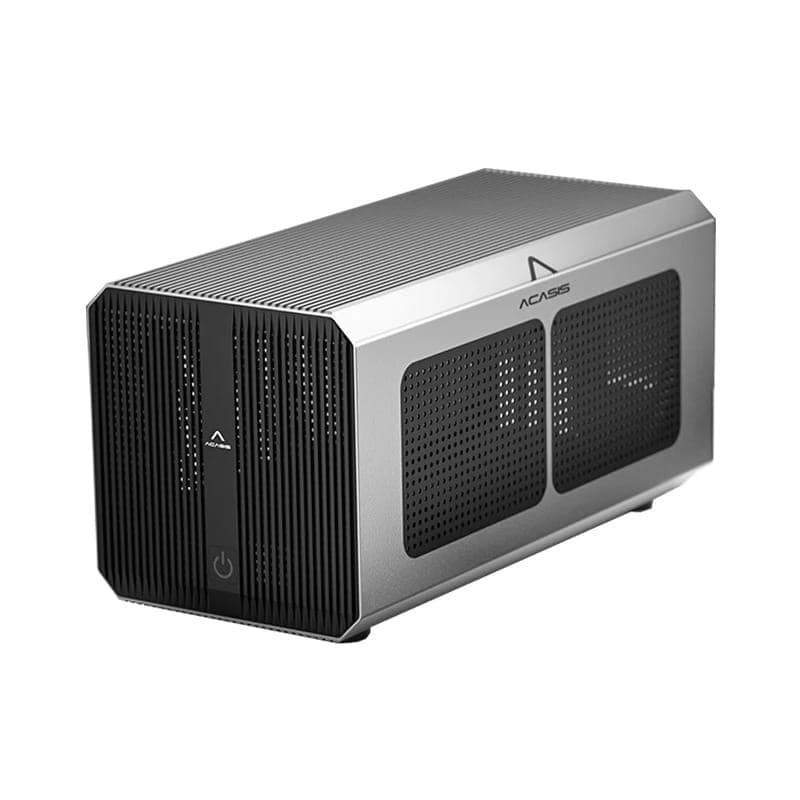
The Sonnet eGPU Breakaway Box 750ex sits at the premium end of the market, while the ADT-LINK R23SG adapter cable is the lower-cost, more stripped-down option. That difference matters because enclosure choice changes both your budget and how polished the build feels on the desk. If you want a true Thunderbolt GPU dock experience, the Sonnet-style box is closer to a finished product.
The Sonnet eGPU Breakaway Box 750ex supports a PCIe 3.0 x16 slot and includes a built-in 750W power supply. That is a serious amount of headroom for a dock, and it explains why the price sits at ₹52,990. The ADT-LINK R23SG eGPU PCIe x16 to PCIe x4 Extension Adapter Cable costs ₹17,824.35, which makes it dramatically easier to fit into a tighter budget.
The tradeoff is obvious. One is a full enclosure, the other is much closer to a specialized adapter-based hardware path. The Sonnet box is the more straightforward choice if you want a cleaner desk setup and less improvisation. The ADT-LINK route is cheaper, but cheaper does not mean simpler.
eGPU Enclosure Comparison Table
Specs and Features
A built-in power supply means fewer loose parts, and the PCIe 3.0 x16 slot support gives you a conventional path for a desktop card. That matters if you plan to move between Lightroom, Photoshop, and a game like Cyberpunk 2077 without rebuilding the hardware every time. You are buying a different kind of cost structure, not just a lower sticker price.
The adapter approach is attractive if you already understand the hardware and want to control the build more tightly, but it is not the same thing as dropping a card into a polished mini enclosure and walking away.
Price and Value Tradeoffs
The India price range for eGPU enclosures runs up to ₹63,600, which tells you how wide the market really is. At the low end, you are looking at bare-bones hardware. At the high end, you are paying for enclosure quality, power delivery, and a more complete dock experience.
That spread is why first-time buyers often overpay for features they do not need or underbuy and regret the missing convenience later. The Sonnet box makes sense when you want a cleaner, more complete desktop-like setup. The ADT-LINK option makes sense when budget matters more than enclosure polish.
- The premium box is easier to live with if you swap cards or move the setup often.
- The cheaper adapter path is for buyers who already understand the hardware tradeoffs.
- The market range shows why enclosure pricing needs context, not just a lowest-price search.
If you want a finished enclosure that feels closer to a proper Thunderbolt GPU dock, the Sonnet Breakaway Box 750ex at ₹52,990 is the more mature choice.
Budgeting a DIY eGPU Setup
A DIY build can include the GPU and PSU, which puts the project in a very different category from buying a new gaming laptop. That number matters because it shows you where the real money goes, especially the graphics card, the power supply, and the enclosure or adapter path. If you already own a compatible laptop, whether on Mac or another system, you are not buying a whole new computer, only the graphics layer it lacks.
Budgeting becomes easier when you separate the enclosure cost from the GPU cost. The Sonnet eGPU Breakaway Box 750ex sits at ₹52,990, while the ADT-LINK R23SG sits at ₹17,824.35. That gap alone can change whether the project feels reasonable or excessive.
The right answer depends on whether you value a polished dock or whether you are comfortable trading convenience for lower cost. You are not just paying for a box. You are paying for the power supply, the PCIe routing, the connection hardware, and the physical space that lets a desktop GPU operate beside your laptop.
A good budgeting rule is to spend where the bottleneck lives. If your card is weak, a fancier enclosure will not save it. If your enclosure is flimsy or underpowered, a fast GPU will not deliver its full value either.
Cost Components and Price Ranges
- DIY these components with GPU and PSU.
- Sonnet eGPU Breakaway Box 750ex: ₹52,990.
- ADT-LINK R23SG adapter cable: ₹17,824.35.
- eGPU enclosure price range in India: up to ₹63,600.
The most common budgeting mistake is buying the premium enclosure first and then discovering the graphics card budget has collapsed. That flips the logic of the build. For gaming, the card usually matters more than the enclosure once the basics are covered. For creative work, a stable enclosure and a dependable power supply can matter more than shaving a little off the dock price.
The trick is to keep the cost aligned with the workload you actually run. If your work includes Adobe Premiere Pro, Blender, or long gaming sessions, the enclosure quality affects how pleasant the setup feels day after day. A Sunday ticket build may look appealing, but the real test is whether the parts match your actual use.
Balancing Cost with Performance
If you want hardware for laptop use that stays sensible, aim for the least expensive enclosure that still supports your card and your power needs. The ADT-LINK route can keep the budget under control, but it asks more from your planning. The Sonnet route costs more, but it removes some uncertainty and gives you a more finished desk setup.
- Spend more on the enclosure if you want a cleaner desktop and fewer hardware compromises.
- Spend more on the GPU if your main goal is gaming or 4K video rendering.
- Keep the PSU decision conservative if you plan to run demanding cards for long sessions.
- Use the lower-cost adapter path only if you are comfortable with a more DIY build.
- Compare the enclosure price against the total build, not in isolation.
For most buyers, the budget decision is not about finding the cheapest enclosure. It is about deciding whether you want a polished external eGPU dock or a lower-cost hardware bridge that leaves more money for the card itself.
Step-by-Step Installation Process for eGPU Setup
The installation process starts with compatibility, then moves to the enclosure, the laptop connection, and the driver install. That order matters because a system is not plug-and-play in the way a USB mouse is. You want the hardware path right first, or you will spend time troubleshooting a problem that started with the wrong port, the wrong card, or the wrong software stack.
Verify Compatibility
The host laptop needs a Thunderbolt 3 port for most eGPU docks, and that is the first thing to confirm before you buy anything. If the laptop cannot talk to the dock correctly, the rest of the build never gets a chance. This is where many first-time buyers go wrong, especially when they assume any USB-C port can handle a Thunderbolt GPU dock.
In December, this is still the step that prevents the most avoidable problems.
Install the Graphics Card in the Enclosure
Once compatibility checks out, install the graphics card in the enclosure and make sure the card family is supported. The Sonnet Breakaway Box 750ex explicitly supports AMD Radeon and NVIDIA GeForce RTX cards, which makes it easier to plan around existing hardware. If you are using a more DIY-style adapter path, the card and power arrangement need even more attention because the physical build is less forgiving.
Connect the eGPU and Install Drivers
After the card is seated, connect the eGPU to the laptop and install the GPU drivers. That driver step is not optional, because the eGPU needs the correct software layer to function properly. If you skip it or leave an old driver in place, the hardware may connect but still behave unpredictably during gaming, video editing, or GPU-accelerated apps.
Set Up USB Peripherals
The dock can also handle multiple USB ports for peripherals, which makes the desk setup cleaner. You can leave a keyboard, mouse, and other accessories connected to the dock instead of moving them between the laptop and the enclosure. That matters in real life because it turns the eGPU from a one-off test into a usable workstation you can rely on every day.
Compatibility and Core Setup
A solid build starts with compatibility, because the whole idea depends on a laptop that can actually talk to the external graphics hardware at high speed. In practice, that means a Thunderbolt 3, Thunderbolt 4, or Thunderbolt 5 port, plus an eGPU enclosure, a desktop graphics card, and an external monitor connected to the dock. That combination matters because the eGPU is not just a GPU in a box, it is a complete bridge between portable computing and desktop-class graphics.
Most eGPU docks also rely on Thunderbolt 3-class connectivity, which offers 40 Gbps bandwidth and up to 100W power delivery. That makes the connection fast enough for demanding workloads but still not identical to a native desktop PCIe slot.
Performance and Workflow Gains
What makes the system appealing is that it can turn a thin-and-light machine into something far more capable without replacing the laptop itself. For gaming, the difference can be dramatic when you move from integrated graphics or a low-power mobile GPU to an RTX or Radeon card in the enclosure. For creators, the same hardware can accelerate timelines in Adobe Premiere Pro, speed up effects in DaVinci Resolve, and make 4K exports much less painful.
It is also useful for AI workloads, especially when you want to run local inference, test models, or work in tools like TensorFlow and PyTorch without buying a dedicated desktop tower. The setup adds a desktop-style performance layer while keeping the laptop portable.
Installation and Everyday Use
The installation process is usually straightforward, but it is still more involved than plugging in a mouse or monitor. You first verify that the laptop supports the enclosure, then install the desktop graphics card into the dock, connect the power, attach the Thunderbolt cable, and install the required GPU drivers. In many cases, the whole process takes about twenty to thirty minutes, assuming the hardware is compatible and the driver stack behaves normally.
The most reliable results usually come when an external monitor is plugged directly into the eGPU’s video outputs rather than routing frames back to the laptop screen, because that avoids extra overhead and helps preserve performance. The same logic applies to gamers who want high-refresh 1440p or 4K play without carrying a gaming laptop everywhere.
Practical Benefits Beyond Graphics
There are also practical workflow benefits that go beyond raw frame rates. Some eGPU docks include multiple USB ports, which means the enclosure can double as a desk hub for a keyboard, mouse, capture device, or external storage. That makes the setup cleaner for people who want a single cable from laptop to desk and fewer dongles hanging off the side of the machine.
If your work is mostly Google Docs, email, and streaming, the hardware is overkill. If you edit video, play modern games, or use GPU-heavy apps, the setup solves a real problem. For a traveler using a compact laptop, this is a useful compromise. The machine stays light on the road, then becomes a fuller workstation at home or in the office.
Which eGPU Setup Fits Your Laptop and Budget
Choosing the right setup starts with the laptop’s port, then moves to the enclosure, then the card. The biggest split is between a polished enclosure like the Sonnet Breakaway Box 750ex at ₹52,990 and a cheaper, more DIY route like the ADT-LINK R23SG at ₹17,824.35. The Sonnet gives you a built-in 750W power supply and support for AMD Radeon and NVIDIA GeForce RTX cards, while the lower-cost route keeps more money free for the GPU itself.
If you want a cleaner desk, fewer loose parts, and a setup that feels closer to a proper workstation, the Sonnet is the better fit. If you want to spend less on the enclosure and more on the graphics card, the ADT-LINK route is easier to justify. Either way, the right choice depends on how much time you want to spend managing the hardware and how much you value convenience over cost.
Compatibility comes first for any laptop eGPU build. The laptop’s port is the first filter, then the enclosure, then the card. The ticket to a stable build is matching the enclosure to the GPU family, checking power needs, and confirming that the monitor will stay connected to the dock.
Think of it as a hardware chain, not a single product purchase. Security starts with the right port, the right drivers, and a case that fits the card properly. If you are comparing options in March or revisiting the setup on Sunday, the same basics apply.
Is an eGPU Setup Worth
Is it for Laptop Users? An eGPU setup is worth it when your laptop is still useful but its graphics hardware is holding it back. The Sonnet Breakaway Box 750ex at ₹52,990 makes sense if you want a polished enclosure, a built-in 750W power supply, and support for AMD Radeon and NVIDIA GeForce RTX cards. The ADT-LINK R23SG at ₹17,824.35 makes sense if you want to keep the enclosure cost down and leave more room in the budget for the GPU itself.
The best buyer is someone who wants desktop-class graphics without giving up laptop portability. Gamers, video editors, and AI users get the clearest benefit because those workloads can outgrow integrated graphics quickly. If your work is mostly Google Docs, email, and streaming, the hardware is probably more than you need.
The next step is simple: check your laptop’s Thunderbolt port, match the enclosure to your GPU, and decide whether you want the premium dock-like route or the lower-cost DIY path. Once those three pieces line up, the build becomes much easier to plan. If you are ready to upgrade, start with compatibility first and buy around the port, not around the price tag.
Frequently Asked Questions
Q. What laptops are compatible with an eGPU setup?
Laptops with Thunderbolt 3, Thunderbolt 4, or Thunderbolt 5 ports are the compatible ones for this setup. Most eGPU docks require the host computer to have Thunderbolt 3, and the Thunderbolt 3 standard provides 40 Gbps bandwidth with 100W power delivery. That makes the port the first thing you should verify before buying an enclosure or graphics card. If your laptop lacks Thunderbolt, the setup usually stops there, so check the port before you plan the rest of the build.
Q. Can I use any desktop graphics card with an eGPU enclosure?
No, you cannot assume any desktop graphics card will work with every eGPU enclosure. The Sonnet eGPU Breakaway Box 750ex supports AMD Radeon and NVIDIA GeForce RTX families, which shows how important enclosure compatibility is. Some builds are more flexible than others, especially with DIY adapter hardware, but the card still has to fit the enclosure and power plan. If you already own a card, match it to the enclosure before you spend on anything else.
Q. Is Thunderbolt 4 required, or is Thunderbolt 3 sufficient for eGPU?
Thunderbolt 3 is sufficient for most systems, and Thunderbolt 4 is not mandatory. The key requirement in most cases is a Thunderbolt 3 port on the host laptop, because that is what most eGPU docks expect. Thunderbolt 3 also offers 40 Gbps bandwidth and 100W power delivery, which is enough for the dock connection itself. If your laptop has Thunderbolt 4 or 5, that is fine too, but Thunderbolt 3 remains the baseline to check.
Q. How much performance improvement can I expect from an eGPU setup?
You can expect a meaningful graphics boost, especially in gaming, 4K video rendering, and AI workloads. The exact gain depends on the laptop, the card, and whether you use an external monitor, but an eGPU is specifically built to raise graphics performance far beyond integrated graphics. In macOS, using an external display connected directly to the eGPU yields at least 30% higher performance than feeding the image back to the internal display. That makes the monitor connection an important part of the setup, not just an accessory.
Q. What are common issues during eGPU installation, and how do I fix them?
The most common issues are port mismatch, driver problems, and loose hardware connections. Start by confirming the laptop has a Thunderbolt 3 port, because most docks require it, then make sure the graphics card is seated correctly in the enclosure. GPU drivers are necessary for the eGPU to function properly, so install them after the first connection and update them if detection fails. If the dock also carries USB peripherals, test the graphics connection first before blaming the keyboard, mouse, or other accessories.
Q. Can I use an eGPU setup without an external monitor?
Yes, you can use an eGPU setup without an external monitor, but it is not the best-performing arrangement. Using an external monitor connected directly to the eGPU’s video outputs is recommended for optimal performance, and that is the cleaner path for gaming and creative work. If you route the image back to the laptop screen, you add extra overhead that can reduce the point of the upgrade. For the best experience, connect the display to the dock and keep the laptop panel as a backup.