HP ZBook Firefly G11 Refurbished Checklist 2026: GPU, Battery, Warranty, And Condition
Planning to buy a refurbished HP ZBook Firefly G11 in 2026? This detailed checklist explains how to verify GPU stability, battery health, warranty terms, display condition, SSD wear, cooling performance, and overall hardware integrity before purchase.

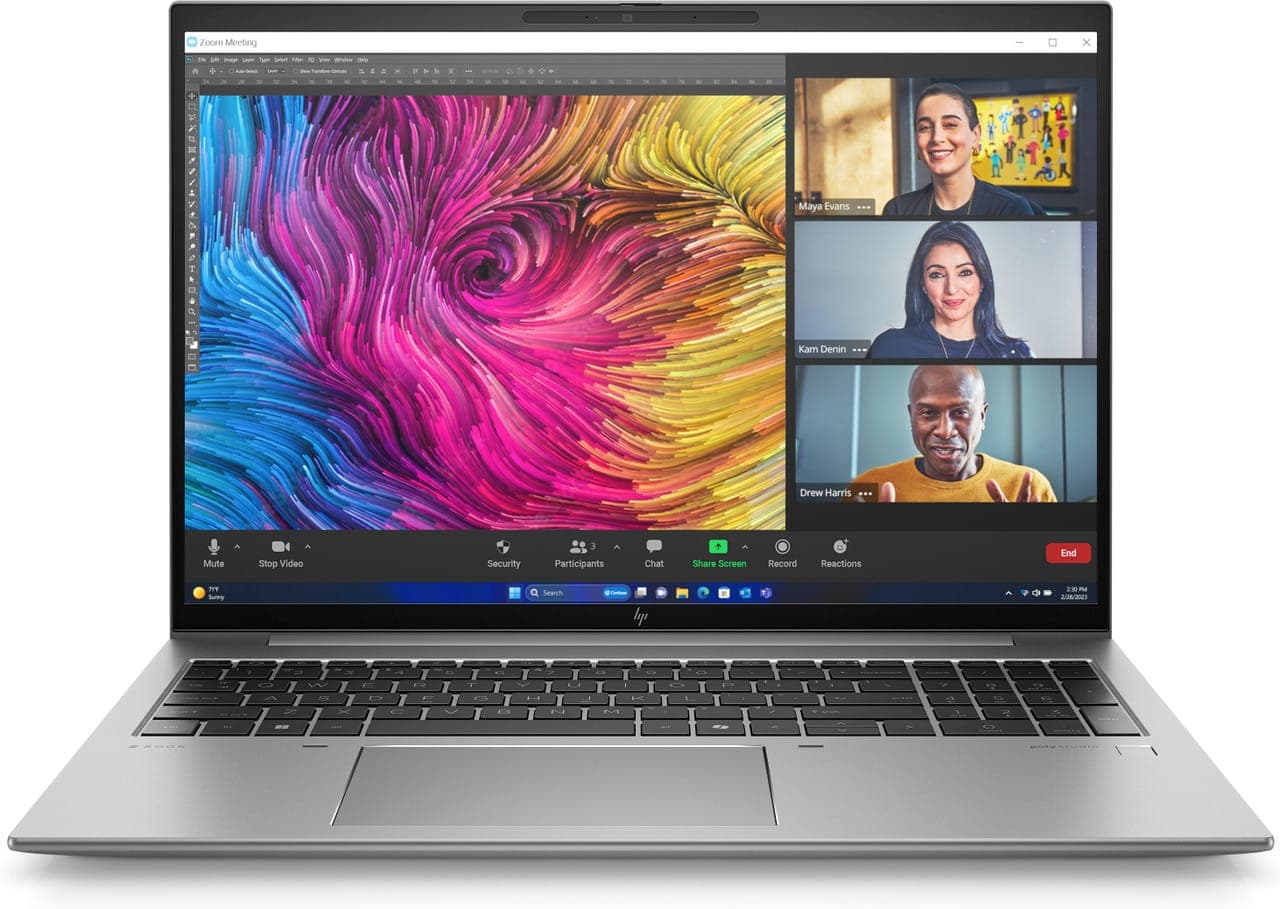
Buying a refurbished HP ZBook Firefly G11 in 2026 can be a smart financial decision, especially for professionals and students who want modern workstation performance without paying full retail price. However, refurbished quality depends heavily on the seller’s testing standards. Some units are professionally inspected, cleaned, and repaired where necessary, while others may only undergo basic cosmetic cleaning.
To avoid costly surprises, you need a structured inspection checklist. This guide walks you through GPU testing, battery health evaluation, warranty verification, physical inspection, display checks, storage diagnostics, thermal testing, and connectivity validation so that your purchase remains reliable for years.
GPU And Graphics System Verification
The graphics subsystem is critical in a workstation class laptop. The Firefly G11 may include integrated graphics or an optional professional grade GPU depending on configuration. Before purchase, confirm the exact GPU model and verify that it matches the seller’s listing.
Once the laptop is in hand, run a GPU benchmark such as FurMark or Unigine Heaven for at least 10 to 15 minutes. Watch for visual artefacts, flickering, driver crashes, or sudden system restarts. Monitor temperature levels to ensure they remain within safe limits. If you use CAD or design software, open a complex 3D file and rotate the model continuously to check viewport smoothness. Stable rendering without lag or glitches indicates healthy GPU performance.
If available, verify:
- Correct GPU detection in Device Manager
- Updated and properly installed drivers
- Stable operation under moderate load
A workstation should never show graphical instability during routine testing.
Battery Health And Power Delivery
Battery wear is common in enterprise laptops that have been used extensively before refurbishment. Generating a battery report through Windows diagnostics provides insight into design capacity versus current full charge capacity. A healthy battery should retain at least 80 percent of its original design rating.
After reviewing the report, perform a practical drain test. Use the laptop under moderate workload conditions such as browsing, document editing, or light professional applications. Observe discharge speed and overall runtime. Charging should be smooth and consistent without interruptions. Confirm that the included charger is genuine or certified compatible, as unstable third party adapters can cause long term issues.
Key checks include:
- Battery cycle count
- Charging consistency
- No overheating near the charging port
- Power delivery stability through USB C if supported
Poor battery performance significantly reduces portability value.
Warranty Coverage And Seller Transparency
Warranty protection is essential when buying refurbished hardware. Confirm the exact warranty duration and clarify what components are covered. A minimum of three months provides basic reassurance, while six to twelve months offers stronger protection against early hardware failure.
Review the seller’s return window carefully so you have enough time to conduct thorough testing. Marketplace ratings and customer reviews provide additional insight into reliability. Sellers who provide clear refurbishment grading and detailed hardware information inspire more confidence than vague listings with minimal description.
Before completing the purchase, ensure:
- Written warranty confirmation
- Clear return policy terms
- Transparent product description
- Reliable seller reputation
Warranty protection reflects the seller’s confidence in product quality.
Physical Condition And Structural Integrity
Careful physical inspection reveals how the laptop was treated previously. Examine the chassis for dents, cracks, deep scratches, or bent edges. Minor cosmetic wear is acceptable, but structural damage can indicate internal stress.
Open and close the lid several times to confirm hinge stability. The display should remain firm without wobbling. Inspect all ports including Thunderbolt, USB, HDMI, and charging connectors to ensure they are secure and not loose. Loose connectors can lead to unreliable connectivity.
Test the keyboard by typing continuously for several minutes and confirm all keys respond correctly. The trackpad should track smoothly without lag or erratic movement. Check that all screws are present and properly seated, as missing hardware may indicate improper servicing.
Display And Panel Inspection
The display is one of the most expensive components to replace. Use solid colour backgrounds to detect dead or stuck pixels. Lower brightness levels to examine backlight uniformity and identify excessive bleed along screen edges.
Observe colour consistency from different viewing angles. Brightness adjustments should occur smoothly without flickering. Since the Firefly G11 may be used for professional tasks, accurate and stable display output is crucial for long term usability.
Storage Health And SSD Performance
Most Firefly G11 units use NVMe SSD storage, which provides fast performance but still experiences wear over time. Access SMART diagnostics to check health percentage and total data written. An SSD showing critical warnings should be replaced before purchase.
Run a storage benchmark to confirm read and write speeds align with expected NVMe performance for the installed drive. Slower than expected speeds may indicate degradation or configuration issues. Healthy storage ensures fast boot times, smooth application launches, and reliable file management.
Memory Configuration And Upgrade Planning
Memory capacity directly influences performance in professional applications. Confirm installed RAM matches the seller’s listing and check system diagnostics to ensure it is recognised correctly. Some configurations may feature soldered memory, limiting upgrade potential.
If you anticipate heavy multitasking or future workload growth, ensure installed RAM is sufficient from the beginning. Insufficient memory can lead to slowdowns and application instability.
Thermal Performance And Cooling Stability
Thin and light workstations must manage heat effectively under load. Run a CPU stress test such as Cinebench for 10 to 15 minutes and monitor temperatures using a reliable hardware monitoring tool. Temperatures should remain stable without severe throttling.
Listen for unusual fan noise such as grinding or rattling. Smooth and consistent fan operation indicates healthy cooling components. If temperatures rise excessively, dust buildup or degraded thermal paste may require servicing.
BIOS, Firmware, And Software Cleanliness
Firmware condition directly impacts system reliability and security. Confirm that the BIOS version is updated and that no password locks restrict access. The operating system should be freshly installed without leftover corporate accounts.
A factory reset ensures a clean start for professional use. Check that all drivers are properly installed and that no unknown devices appear in system diagnostics.
Connectivity And Peripheral Testing
Connectivity validation prevents workflow disruptions later. Connect to WiFi and verify stable network performance. Pair a Bluetooth device to confirm consistent wireless operation. Test the webcam, microphone, and speakers to ensure communication features function properly.
Plug external devices into all available ports to confirm detection and stable operation. If you use docking stations, test Thunderbolt connectivity to ensure seamless desk integration.
Final Acceptance Procedure
Before confirming your purchase, verify the serial number and confirm warranty registration if applicable. Run full system diagnostics one final time and document any issues within the return window. Taking photos and notes during testing can help if warranty claims are necessary.
Warning signs that should prompt reconsideration include:
- Battery health below 70 percent
- Display flickering or pixel damage
- SSD critical warnings
- Loose Thunderbolt ports
- No warranty coverage
Avoid rushing the acceptance process. A methodical inspection protects your investment.
Conclusion
The HP ZBook Firefly G11 offers strong professional capability in 2026, especially when purchased refurbished at the right price. However, the difference between a dependable workstation and a problematic device lies in careful inspection. By systematically evaluating GPU stability, battery health, warranty protection, structural integrity, display quality, storage wear, cooling performance, firmware status, and connectivity, you can ensure that your refurbished Firefly G11 delivers consistent and reliable performance for years to come.
Frequently Asked Questions
1. How do I test the GPU in a refurbished HP ZBook Firefly G11?
Run a GPU stress test such as FurMark or Unigine Heaven for at least 10 to 15 minutes. Monitor for artefacts, crashes, overheating, and driver instability. Also test professional applications to confirm smooth 3D rendering.
2. What battery health percentage is acceptable in a refurbished unit?
A battery retaining 80 percent or more of its original design capacity is considered healthy. If the health is below 70 percent, replacement may be required soon.
3. Is warranty important when buying a refurbished Firefly G11?
Yes. A minimum three month warranty is recommended. Certified refurbishers often provide six to twelve months, offering better protection against early hardware failure.
4. How can I check SSD health before finalising the purchase?
Use SMART diagnostic tools to review drive health, total data written, and error status. Running a storage benchmark can also confirm whether performance matches expected NVMe speeds.
5. What are the biggest red flags when buying refurbished?
Major red flags include no warranty, very low battery health, loose ports, display flickering, SSD critical errors, and sellers who refuse to provide diagnostic proof or clear refurbishment details.
Ready to upgrade your tech?
Browse our collection of quality refurbished products at unbeatable prices.