HP ZBook 15 G3 Refurbished Checklist 2026: GPU, Battery, Warranty, And Condition
This detailed refurbished checklist for the HP ZBook 15 G3 explains how to verify GPU configuration, battery health, warranty terms and physical condition in 2026. A practical guide for engineers, students and professionals seeking reliable workstation performance at a lower cost.

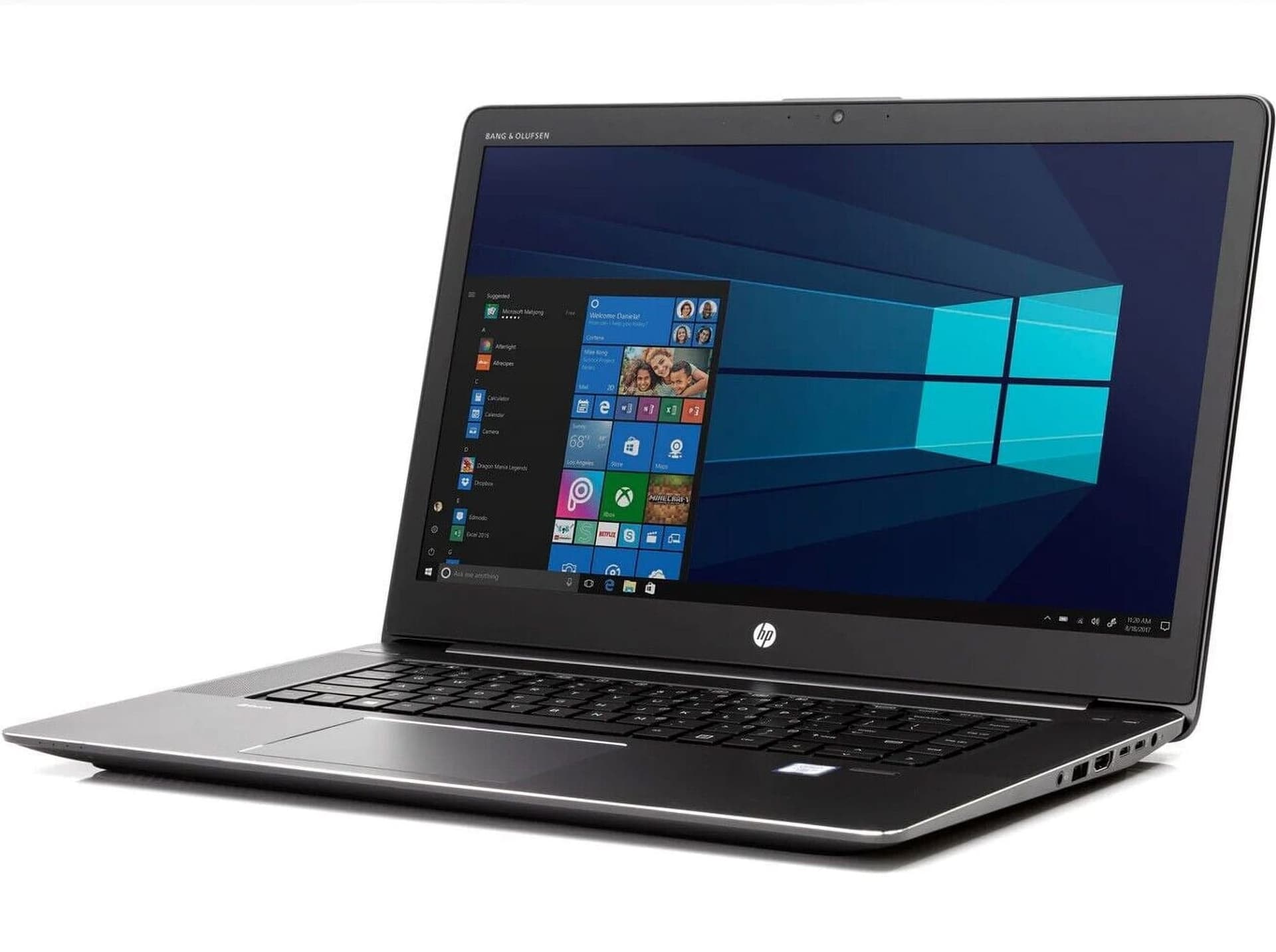
The market for refurbished laptops in 2026 is mature and competitive. Buyers who know what to inspect can secure enterprise grade hardware at a fraction of new prices. The HP ZBook 15 G3 remains a common corporate workhorse and appears frequently in refurbished inventories. For engineers, designers, and business users the appeal is obvious. A well maintained ZBook 15 G3 offers robust build quality, professional expandability, and a repairable design that many modern thin and light laptops no longer provide. If you are considering a refurbished unit, careful inspection of key components will determine whether the purchase is sensible or risky.
Why a checklist matters for refurbished workstations
Buying refurbished is not simply about saving money. It is about risk management and matching a machine to real world workloads. A refurbished ZBook may look fine cosmetically but hide issues that only appear under sustained use. For professionals who rely on consistent daily performance, hidden defects are costly. A checklist reduces uncertainty by prioritising checks that directly affect long term reliability. Following a structured inspection process ensures that critical areas such as graphics capability, battery condition, warranty status and service history are verified before handing over payment.
Understand the ZBook 15 G3 platform and its common configurations
The ZBook 15 G3 was built for demanding corporate and engineering duties. Its chassis supports discrete professional graphics, multiple storage options, and desktop class expansion such as MXM or swappable bays in some SKUs. Common factory configurations vary widely and include different CPU families, optional NVIDIA Quadro GPUs, and a range of RAM and storage capacities. Knowing the original intended specification helps you spot mismatches in refurbished listings. An accurate spec sheet prevents surprises and ensures the unit will handle the software you rely on.
Step 1: Verify the GPU configuration and functional health
The graphics subsystem is crucial for CAD, rendering and visualisation tasks. Confirm whether the unit has integrated graphics only or a discrete professional GPU such as a Quadro model. Examine driver reports in the operating system for installed GPU identifiers and driver date stamps. Run a short graphical stress test or request a video of the device rendering a complex model to reveal artefacts, stuttering or overheating. Check VRAM amount and ensure that the GPU is recognised properly by ISV applications where possible. If a Quadro or professional GPU is present make sure the vendor driver supports the applications you run.
Step 2: Assess battery health, cycle count and charging behaviour
Battery condition determines mobility and user experience. Request battery health metrics such as full charge capacity versus design capacity and the cycle count from the system diagnostics. A health value above eighty percent and a modest cycle count are acceptable for many buyers but anything below seventy five percent warrants negotiation or replacement. Test charging while running moderate workloads to check for sudden drops or overheating. Inspect the chassis for signs of battery swelling and confirm that the battery sits flush with no panel lifting. For field work or campus use a healthy battery is essential.
Step 3: Confirm warranty coverage and seller terms
Warranty reduces financial risk after purchase. Determine whether manufacturer warranty remains active by checking the serial number with HP support or request seller provided warranty documentation. Understand what the warranty covers, whether it includes parts and labour, and how long it lasts. A minimum of three months seller warranty is a reasonable baseline for refurbished purchases but longer coverage is better. Confirm the returns policy, repair turnaround expectations and whether the seller provides technical support. Knowing warranty status will also inform your negotiation on price.
Step 4: Inspect physical condition and mechanical integrity
A thorough physical inspection reveals issues that affect longevity and ergonomics. Examine the display for dead pixels, backlight bleed and pressure marks. Test hinge stiffness across its range to ensure the panel does not wobble. Check the keyboard for stuck keys, inconsistent travel and missing keycaps. Test the trackpad for responsiveness and palm rejection. Inspect port alignment and look for looseness in frequently used connectors such as the power jack and dock port. Cosmetic scratches are acceptable within reason but structural damage or bent chassis parts are red flags.
Step 5: Test RAM capacity, configuration and upgrade potential
Memory size directly impacts application performance and multitasking ability. Check the installed RAM and determine whether modules are user replaceable or soldered. The ZBook 15 G3 family was designed with upgradeability in mind so many units will have accessible DIMM slots. Verify both the number of slots and the maximum supported capacity. Run a memory test to check for errors and ensure the system recognises full capacity. For engineering workloads plan for at least sixteen gigabytes and preferably thirty two for heavier simulation and rendering tasks. If upgrades are needed factor the cost into your purchase decision.
Step 6: Evaluate SSD and storage health and performance
Storage reliability influences system responsiveness and data safety. For NVMe or SATA drives request SMART data and health metrics such as percentage used or total bytes written. Inspect firmware versions and confirm drive manufacturer support if possible. Perform a read and write benchmark to confirm expected throughput. Look for signs of excessive wear that may indicate a drive near end of life. If the unit has multiple bays ensure connectors and caddies are present and that the second bay is functional. A fast and healthy SSD improves boot times and reduces latency for heavy file operations.
Step 7: Test ports, connectivity and peripheral behaviour
A workstation is only as useful as its connectivity. Test all USB ports, video outputs, Ethernet, audio jack and any enterprise features such as smart card readers. Verify that the docking connector or port replicator functions correctly if the listing includes a docking accessory. Check wireless modules for both Wi Fi and Bluetooth operation and examine whether the drivers are current. Loose or intermittent ports are common wear items in refurbished units and may require future repair, which should be reflected in the price.
Step 8: Check thermal performance and fan behaviour under load
Sustained workloads expose cooling weaknesses. Run a moderate CPU stress workload and observe fan response and thermal behaviour. Listen for unusual grinding or intermittent noise which suggests fan bearing wear. Monitor core temperatures to see if throttling occurs prematurely. Excessive temperatures or abrupt thermal throttling reduce usable performance for long simulation or rendering tasks. If possible ask for a screenshot of temperature and frequency graphs while the unit is under load. Replacing thermal paste and cleaning dust are common service tasks and they are relatively inexpensive compared to replacing failing hardware.
Step 9: Verify system firmware, BIOS locks and security status
Enterprise laptops can carry BIOS passwords or management locks which may restrict full access. Confirm that the BIOS is accessible, that no supervisor password is set, and that the system is not enrolled in a corporate device management service that would hinder reconfiguration. Ensure secure boot and TPM are functional for modern security features. Validate the system UUID and Windows activation status to avoid licensing complications. A unit locked by previous corporate IT may be difficult or impossible to use fully without cooperation from the prior owner.
Step 10: Review service history, repairs and component replacements
A clean service history increases confidence. Ask the seller whether the laptop underwent professional refurbishment including component replacement and thermal servicing. Request documentation of hardware repairs, replaced parts and any BIOS updates applied. Units from corporate leases that received scheduled maintenance are often better maintained, but documentation is key. If repairs were made with non OEM parts verify compatibility and ask about the warranty on replaced components. Good refurbishment shops will disclose replaced components and perform quality control checks.
Step 11: Battery replacement and spare parts availability
Even if the existing battery is acceptable you should consider the availability and cost of replacement parts. The ZBook 15 G3 benefits from a modular design that makes battery and storage replacement straightforward in many markets. Confirm that genuine or high quality compatible batteries are available locally and that other common spare parts such as chargers, hinges and display assemblies are obtainable should the need arise. Factor spare part costs into the total lifetime ownership calculation.
Step 12: Software licensing and operating system integrity
Ensure the operating system is genuine and that any preinstalled software licenses transfer where applicable. Ask for a clean OS install if you prefer a fresh start and verify that drivers are properly installed. Some refurbished units may come with corporate images that include additional management software. Remove unused enterprise tools and verify that reinstalling the OS does not trigger licensing issues for bundled software. A fresh operating environment reduces the risk of background processes that might distort performance assessments.
Step 13: Price evaluation and condition grading strategy
Refurbished units are commonly graded into Excellent, Good and Acceptable condition tiers. A fair price reflects the grade and component health. Compare the asking price against the cost of potential immediate repairs such as battery replacement, SSD swap or thermal servicing. If the unit lacks a discrete GPU or has limited RAM consider the cost of upgrades when calculating total value. Avoid deals that look cheap but require substantial immediate investment to reach usable condition.
Step 14: Who should choose a refurbished ZBook 15 G3
The ZBook 15 G3 suits users who prioritise repairability and expansion. It is fitting for engineering students, entry level designers, small business owners who need a reliable workstation on a budget, and IT departments sourcing cost effective machines. If you will run moderate CAD, simulation or data analysis workloads and value upgrade paths the ZBook is a sensible choice. For those who require the absolute latest CPU performance or maximum battery runtime a newer model might be more appropriate.
Step 15: Limitations and realistic expectations for 2026 buyers
While the ZBook 15 G3 offers robust features it is an older platform and carries age related constraints. Expect shorter battery life than new ultrabooks, potential driver limitations for the newest software releases and reduced mobile efficiency compared to modern silicon. Components such as the CPU and certain firmware items cannot be upgraded. Accepting these limits while focusing on the machine strengths such as expandability and serviceability leads to successful purchases. limitations
Conclusion and purchase checklist summary
Buying a refurbished HP ZBook 15 G3 in 2026 can be a pragmatic way to obtain workstation class hardware affordably. The difference between a good purchase and a regrettable one lies in inspection and due diligence. Prioritise GPU verification, battery health, warranty terms and physical condition. Test ports, storage health and thermal behaviour. Confirm BIOS accessibility and request service history documentation. Factor in upgrade costs and spare part availability. If the unit matches your workload requirements and the price reflects condition and potential service work you have a machine that should serve reliably for several more years. buying checklist
Frequently Asked Questions
1. Is it safe to buy a refurbished ZBook 15 G3 in 2026?
Yes. With proper checks on GPU, battery, SSD health and warranty you can secure a dependable workstation that offers strong value.
2. Which component should I insist on testing first?
Start with the GPU and battery. Both determine usability for mobility and engineering workloads.
3. What battery health threshold is acceptable?
Aim for above eighty percent if you need reasonable unplugged runtime. Below that consider replacement or negotiate price.
4. Should I prefer a unit with documented service history?
Absolutely. Service documentation reduces uncertainty about past repairs and increases confidence in component reliability.
5. Is it worth upgrading RAM and storage after purchase?
Often yes. Upgrading RAM and switching to a new NVMe drive can extend the machine life and improve day to day performance significantly. FAQ
Ready to upgrade your tech?
Browse our collection of quality refurbished products at unbeatable prices.