Building a Custom PC in 2026: Complete Guide to Choosing the Best PC Components
Learn how to build a custom PC in 2026 with the best components, hardware choices, and step by step instructions. Discover why custom PC builds offer better performance, upgradeability, and long term value.

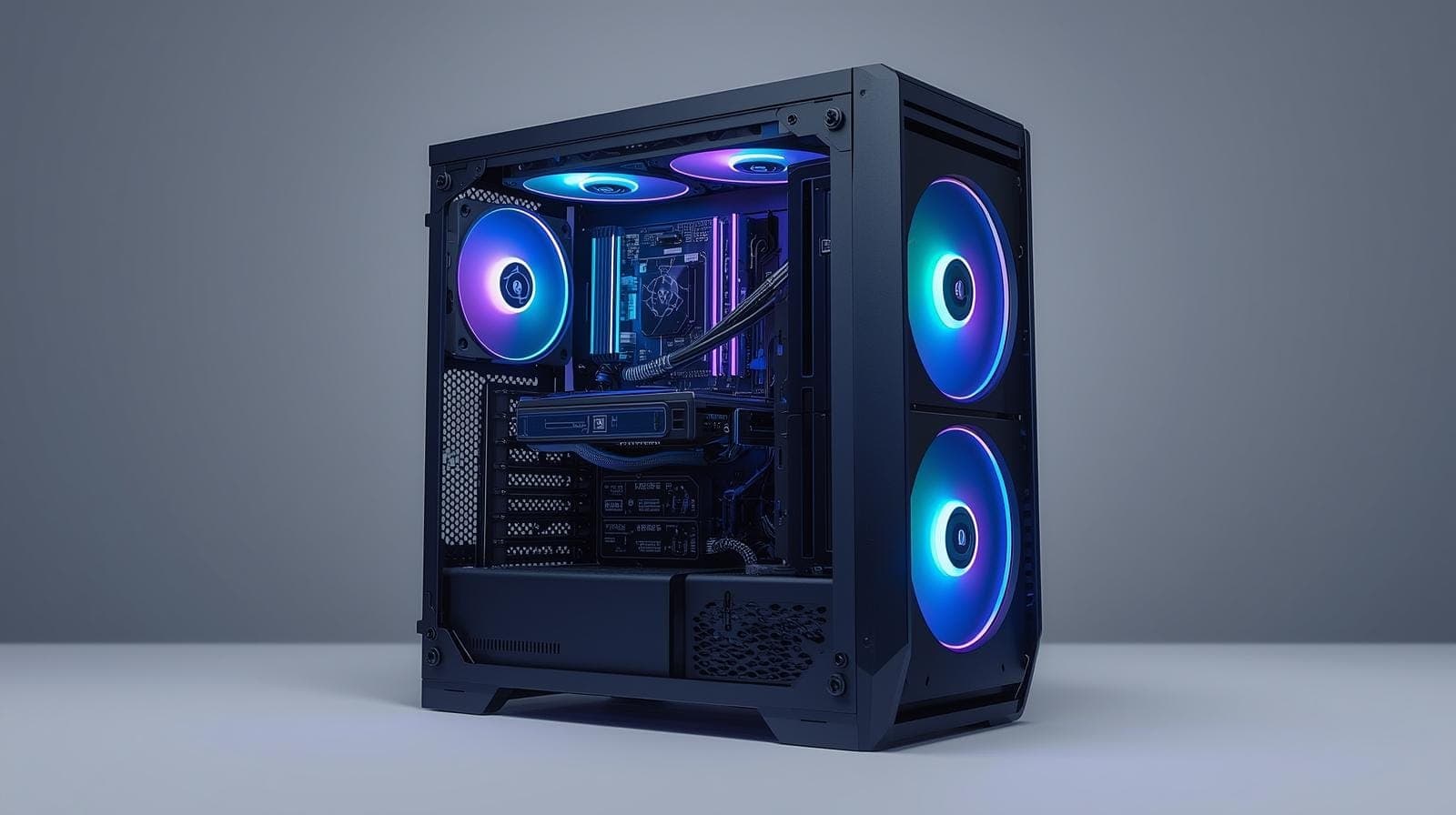
TL;DR Building a custom PC in 2026 is one of the best ways to get maximum performance, upgrade flexibility, and long term value. Instead of buying a prebuilt computer, users can select the best CPU, GPU, RAM, motherboard, storage, cooling system, and power supply based on their needs. Modern PC hardware such as DDR5 memory, NVMe SSD storage, and powerful GPUs allows custom builds to deliver excellent performance for gaming, content creation, and productivity tasks. Following a clear step by step process makes PC building manageable even for beginners. With the right components and careful assembly, a custom PC can outperform many prebuilt systems while remaining easy to upgrade in the future.
Why Building a Custom PC in 2026 Makes More Sense Than Ever
Building a custom PC in 2026 has become one of the most popular ways to get the best performance for gaming, content creation, and productivity. While prebuilt computers are widely available, a custom built PC allows users to choose the exact hardware configuration that fits their needs and budget. This flexibility ensures that the system performs efficiently for specific tasks such as gaming, video editing, software development, or 3D rendering. As hardware technology continues to evolve, the ability to select individual components makes custom PC building an attractive option for both beginners and experienced enthusiasts.
Another major advantage of building a custom PC is the ability to control performance and upgradeability. Prebuilt systems often limit users with proprietary components or restricted upgrade options. In contrast, a custom PC build allows you to select a motherboard, processor, graphics card, memory, and storage configuration that can be upgraded in the future. This approach increases the lifespan of the computer because individual parts can be replaced without needing to purchase an entirely new system.
The PC hardware ecosystem in 2026 also provides more options than ever before. Modern processors from companies like AMD and Intel offer excellent performance for gaming and productivity tasks. Graphics cards have become significantly more powerful, supporting advanced rendering technologies and high resolution gaming. Faster storage solutions, high speed DDR5 memory, and improved cooling systems have made it easier to build a powerful yet efficient computer. Because of these improvements, building a custom PC has become both easier and more rewarding for users who want complete control over their computing experience.
Essential PC Components Needed to Build a Custom PC
Before building a custom computer, it is important to understand the major components that make up a PC. Each component plays a specific role in determining the performance, stability, and efficiency of the system. Selecting compatible parts is the most important step in the custom PC building process. Understanding how these components work together will help you create a balanced system that delivers strong performance without unnecessary bottlenecks.
The processor, also known as the CPU, is the central processing unit responsible for executing instructions and performing calculations. A powerful CPU is essential for tasks such as gaming, video editing, programming, and multitasking. In 2026, modern CPUs include multiple cores and threads that allow computers to handle several tasks simultaneously. This means that even mid range processors can deliver excellent performance for everyday computing workloads.
The graphics card, or GPU, is another critical component, particularly for gaming PCs and content creation systems. Modern GPUs handle complex visual processing tasks such as rendering 3D graphics, accelerating video editing workflows, and supporting artificial intelligence based features. A high performance GPU is essential for gamers who want to run modern games at high frame rates and high resolutions.
Memory, also known as RAM, plays a key role in multitasking and system responsiveness. When applications run on a computer, they store temporary data in RAM for quick access. Systems with larger amounts of memory can handle more simultaneous tasks without slowing down. In 2026, DDR5 memory has become the standard for modern custom PC builds, offering higher speeds and improved efficiency compared with previous generations.
Storage is another important consideration when building a PC. Solid state drives have largely replaced traditional hard drives in performance oriented systems. NVMe SSDs provide extremely fast data transfer speeds, which reduces application load times and improves overall system responsiveness. Many builders combine a fast NVMe SSD for the operating system with larger storage drives for files and media.
Choosing the Best CPU and GPU for a Custom PC Build
Selecting the right processor and graphics card is one of the most important decisions when building a custom PC. These two components largely determine the overall performance of the system. The ideal combination depends on the primary use case for the computer. Gamers, content creators, and productivity focused users may prioritize different hardware configurations depending on their workload requirements.
For gaming PCs in 2026, the graphics card typically has the greatest impact on performance. Modern GPUs support advanced rendering technologies, real time ray tracing, and AI driven upscaling that improve visual quality and frame rates. High end graphics cards allow gamers to run demanding titles at high resolutions such as 1440p and 4K while maintaining smooth gameplay. Pairing a strong GPU with a capable processor ensures that the system can handle both graphics processing and game logic without bottlenecks.
Content creators often prioritize both CPU and GPU performance. Video editing software, 3D rendering tools, and professional design applications rely on powerful processors with many cores. These applications also benefit from GPU acceleration that speeds up rendering tasks and improves real time preview performance. Choosing a balanced CPU and GPU combination ensures that the system performs well across a variety of creative workloads.
Another important factor is future upgradeability. When selecting a processor and motherboard combination, it is useful to consider whether future processor upgrades will be supported on the same platform. This allows builders to upgrade the CPU later without replacing the entire motherboard. Similarly, selecting a power supply and case that can accommodate larger GPUs ensures that future upgrades remain possible.
Best RAM, Storage, and Motherboard Options for Modern PC Builds
Once the processor and graphics card have been selected, the next step in building a custom PC is choosing the supporting components that allow the system to function efficiently. These include the motherboard, memory modules, and storage drives. While these parts may not receive as much attention as CPUs or GPUs, they play a crucial role in system stability and performance.
The motherboard acts as the central hub that connects all components together. It determines which processors, memory types, and expansion devices can be used in the system. Modern motherboards support advanced features such as PCIe 5.0 connectivity, high speed networking, and multiple storage interfaces. Choosing a motherboard with sufficient expansion slots and connectivity options ensures that the system remains flexible for future upgrades.
Memory capacity is another important consideration. In 2026, most gaming and productivity systems benefit from at least 16GB of DDR5 RAM. Systems designed for heavy multitasking, professional content creation, or virtualization may require 32GB or more. Faster memory speeds can also improve system performance in certain workloads, particularly gaming and rendering applications.
Storage performance has improved significantly in recent years. NVMe solid state drives provide extremely fast read and write speeds compared with older SATA drives. Installing the operating system and frequently used applications on a fast NVMe SSD dramatically improves system responsiveness. Many builders also add secondary storage drives for large media libraries, project files, and backups. Combining multiple storage devices allows users to balance speed and capacity effectively.
Cooling, Power Supply, and PC Case Selection
Cooling and power delivery are essential elements of any custom PC build. High performance processors and graphics cards generate significant amounts of heat during operation. Proper cooling ensures that components operate within safe temperature ranges while maintaining consistent performance. Modern cooling solutions include both air cooling and liquid cooling systems that can effectively dissipate heat from critical components.
Air cooling remains one of the most reliable and cost effective options for most PC builds. Large tower coolers with multiple heat pipes and high performance fans can efficiently cool modern processors while maintaining low noise levels. For enthusiasts who want additional cooling performance or aesthetic customization, liquid cooling systems provide an alternative solution. These systems circulate coolant through a radiator that dissipates heat more efficiently.
The power supply unit is another critical component that often receives less attention than it deserves. The power supply converts electricity from the wall outlet into the voltages required by the computer’s components. A high quality power supply ensures stable operation and protects the system from electrical fluctuations. Selecting a unit with sufficient wattage and efficiency certification helps ensure long term reliability.
The PC case also plays an important role in airflow and system organization. Modern cases are designed with improved airflow patterns, cable management features, and support for large graphics cards and cooling systems. Choosing a case with adequate ventilation and internal space makes the building process easier and helps maintain optimal temperatures during operation.
Step by Step Process for Building a Custom PC
Building a custom PC in 2026 may seem complicated for beginners, but the process becomes manageable when it is broken down into clear steps. Modern PC components are designed with standardized connectors and installation mechanisms, which makes assembly much easier than it used to be. With the right tools, proper planning, and compatible components, most users can successfully assemble a powerful custom gaming PC or workstation at home. The key is to follow a logical sequence so that each component is installed safely and correctly. Below is a clear ten step process that covers the essential stages involved in building a custom PC from scratch.
Step 1: Prepare the Workspace and Tools
Before beginning the PC build, it is important to prepare a clean and organized workspace. A large flat surface with good lighting helps prevent mistakes while installing delicate components. Builders should also gather essential tools such as a Phillips screwdriver, cable ties, and anti static precautions if possible. Static electricity can damage sensitive components such as the motherboard or processor, so touching a grounded metal object before handling parts can reduce this risk. Keeping all screws and accessories organized during the process prevents confusion later. Preparing the workspace first ensures that the entire PC building process proceeds smoothly and safely.
Step 2: Install the CPU on the Motherboard
The processor installation is one of the most important steps in building a custom PC. The CPU must be carefully aligned with the socket on the motherboard before being placed into position. Modern processors include alignment markers that make it easier to position the chip correctly. It is essential not to force the processor into the socket because this can damage the delicate pins or contacts. Once the CPU is seated properly, the socket locking mechanism can be secured to hold the processor firmly in place. Installing the CPU first ensures that it can be handled easily before the motherboard is mounted inside the case.
Step 3: Install the CPU Cooler
After installing the processor, the next step is attaching the cooling solution that will regulate the CPU temperature. Cooling systems may include air coolers or liquid cooling systems depending on the chosen configuration. Most processors require thermal paste between the CPU surface and the cooler base to ensure efficient heat transfer. Many coolers come with pre applied thermal paste, while others require manual application. Once the cooler is mounted securely using the provided brackets or screws, the cooling fan cable must be connected to the appropriate header on the motherboard. Proper CPU cooling ensures stable performance during demanding workloads.
Step 4: Install the RAM Modules
Memory installation is a relatively simple step but must be performed correctly to ensure system stability. The RAM modules are inserted into the memory slots on the motherboard. Builders should check the motherboard manual to determine the correct slots when installing two memory modules for optimal performance. Each module should be aligned with the slot and pressed down firmly until the locking clips snap into place. Installing RAM at this stage is easier because the motherboard is still outside the case, providing better access to the memory slots.
Step 5: Install the NVMe SSD or Storage Drives
Modern PC builds often use NVMe solid state drives for the operating system and primary storage. These drives connect directly to the motherboard through specialized slots. Installing the storage drive involves inserting the SSD into the slot at a slight angle and securing it with a small screw. Some systems may also include additional SATA SSDs or hard drives for larger storage capacity. Installing storage components early in the process ensures that they are easily accessible before the motherboard is mounted inside the case.
Step 6: Prepare the PC Case
Before installing the motherboard, the PC case must be prepared. This includes installing motherboard standoffs that create space between the case and the motherboard to prevent electrical contact. Many cases also include removable panels that provide easier access to cable routing areas. Preparing the case also involves planning airflow direction and identifying fan mounting locations. A well prepared case ensures that the components can be installed efficiently while maintaining proper airflow for cooling.
Step 7: Install the Motherboard into the Case
Once the motherboard components are installed, the motherboard can be placed inside the PC case. The board must be carefully aligned with the case standoffs and rear input output shield. After alignment, screws are used to secure the motherboard firmly to the case. It is important to tighten the screws evenly without applying excessive force. Installing the motherboard inside the case provides the foundation for connecting the remaining components.
Step 8: Install the Power Supply Unit
The power supply unit is responsible for delivering stable power to all components inside the computer. It is typically installed in a dedicated compartment within the PC case. After positioning the power supply, it is secured with screws and connected to the motherboard using the main power cables. Additional cables are routed toward the CPU power connector, graphics card, and storage drives. Proper cable management during this stage improves airflow and keeps the interior of the case organized.
Step 9: Install the Graphics Card
The graphics card is installed into the primary PCIe expansion slot on the motherboard. This component is often the largest and most powerful part of a gaming PC or creative workstation. The card must be inserted firmly into the slot until the retention mechanism locks into place. After installation, the graphics card is secured to the case with screws and connected to the power supply using the appropriate power connectors. A properly installed GPU ensures that the system can handle graphics intensive tasks such as gaming and video editing.
Step 10: Connect Cables and Perform the First Boot
The final step involves connecting all remaining cables, including case fans, front panel connectors, USB ports, and audio headers. These small connections allow the power button, USB ports, and other case features to function correctly. Once everything is connected, the system can be powered on for the first time. If all components are installed correctly, the computer will start and display the motherboard firmware screen. At this stage, the operating system can be installed and the system can be configured for everyday use.
Following these ten steps provides a clear and structured approach to building a custom PC. With patience and careful installation, even beginners can assemble a powerful computer that delivers excellent performance for gaming, productivity, and creative work.
Why Custom PCs Are the Best Choice for Gamers and Creators?
Custom PCs remain the preferred choice for gamers and creators because they provide unmatched flexibility and performance. Unlike laptops or prebuilt systems, a custom PC can be tailored to specific performance requirements. Gamers can prioritize high end graphics cards for smooth gameplay, while creators can focus on powerful processors and large memory capacities for rendering and editing tasks.
Another major advantage of custom PCs is upgradeability. As technology advances, new components can be installed without replacing the entire system. This allows users to keep their systems up to date with the latest hardware innovations while minimizing costs. For example, upgrading a graphics card or adding more memory can significantly extend the useful life of a computer.
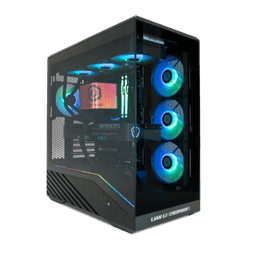
Custom PCs also allow users to optimize cooling, storage capacity, and aesthetic design. Many enthusiasts enjoy building systems with custom lighting, transparent panels, and unique hardware configurations. This level of customization transforms the computer from a simple tool into a personalized workstation that reflects the user’s preferences and performance requirements.
Final Thoughts on Building a Custom PC in 2026
Building a custom PC in 2026 remains one of the most rewarding ways to obtain a powerful and personalized computer system. The modern hardware ecosystem offers a wide range of components that cater to different budgets and performance needs. Whether the goal is gaming, professional content creation, or everyday productivity, a carefully planned PC build can deliver exceptional performance and reliability.
The key to a successful custom PC build is selecting compatible components and maintaining a balanced configuration. Investing in a strong processor, capable graphics card, fast memory, and reliable storage ensures that the system performs well across a variety of tasks. Proper cooling and power delivery also contribute to long term system stability and efficiency.
As technology continues to advance, custom PC building will remain an important part of the computing landscape. The ability to choose individual components, upgrade hardware over time, and optimize performance for specific workloads makes custom PCs a superior option for many users. For anyone looking to maximize performance and flexibility, building a custom PC remains one of the best computing decisions in 2026.
Frequently Asked Questions
Q. What are the main components needed to build a custom PC?
A. The essential components required to build a custom PC include the processor, motherboard, graphics card, memory, storage drive, power supply, cooling system, and PC case. These components work together to create a complete system capable of running operating systems and applications. Additional accessories such as case fans, thermal paste, and cable management tools may also be needed during the building process.
Q. Is building a custom PC cheaper than buying a prebuilt computer?
A. In many cases, building a custom PC can be more cost effective than buying a prebuilt computer. Custom builds allow users to choose only the components they need and avoid paying extra for unnecessary features. Builders can also take advantage of hardware discounts and upgrade individual components later rather than replacing the entire system.
Q. How much RAM is recommended for a custom PC in 2026?
A. For most users in 2026, 16GB of DDR5 RAM is considered the standard for gaming and everyday productivity tasks. Systems designed for professional workloads such as video editing, 3D rendering, or software development may benefit from 32GB or more. Choosing faster memory speeds can also improve performance in certain applications.
Q. Do I need a dedicated graphics card for a custom PC?
A. A dedicated graphics card is essential for gaming, 3D rendering, video editing, and other graphics intensive workloads. However, some processors include integrated graphics that can handle basic tasks such as web browsing, office work, and video playback. For high performance gaming or creative workloads, a dedicated GPU is strongly recommended.
Q. How long does it take to build a custom PC?
A. For beginners, building a custom PC typically takes two to four hours depending on the complexity of the build. Experienced builders may complete the process faster. Taking time to carefully install each component and manage cables properly ensures that the system operates safely and efficiently once it is powered on.
Ready to upgrade your tech?
Browse our collection of quality refurbished products at unbeatable prices.