Work From Home Laptop Setup Guide
Build a better work from home laptop setup with ergonomic accessories, docking stations, headphones, and video tools for daily productivity.

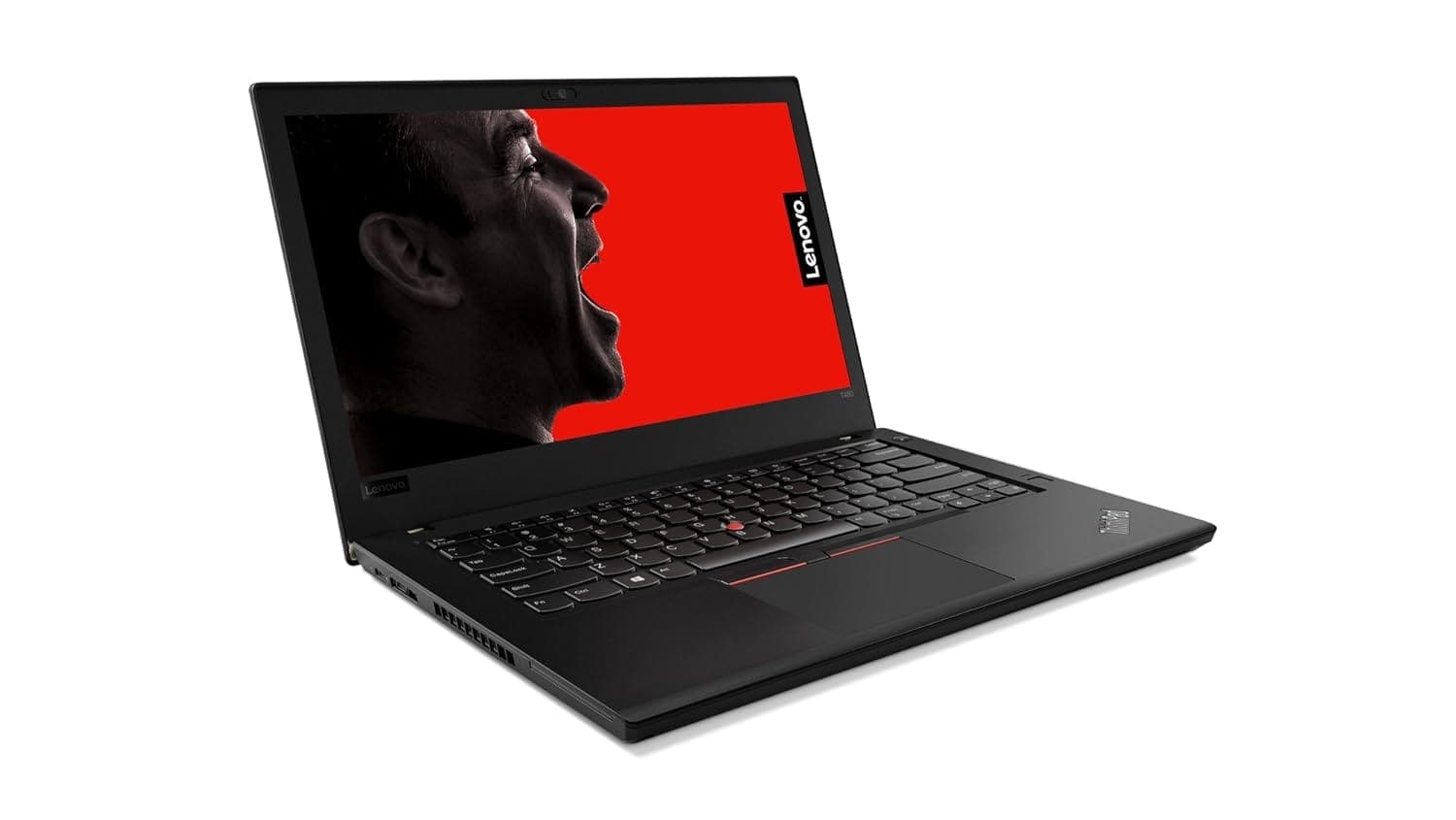
TL;DR A work from home laptop setup works best when it combines ergonomics, audio, lighting, and connectivity instead of relying on the laptop alone. The right mix of a stand, lamp, headphones, and dock can reduce strain and make long workdays easier to manage.
Understanding Work From Home Laptop Setups
A strong work from home laptop setup starts with understanding that remote work is no longer an occasional exception. In 2023, 2% work in a hybrid model, which means a home workstation has become a daily reality for millions of people. The question is not just whether you can work from home with a laptop, but whether that laptop can handle long meetings, document editing, file transfers, and constant app switching without creating fatigue.
That is why the best setup is less about owning one device and more about arranging a system around it. The most important factor is ergonomics, because comfort directly affects output over an eight-hour day. Poor posture turns into neck pain, wrist tension, and eye strain faster than most people expect.
A laptop placed too low on the desk forces you to hunch forward, while a screen that is too close makes your eyes work harder than they should. Even if the machine is fast, a bad physical setup can make you feel slower and more distracted. A good WFH laptop setup usually begins with the right audio gear, because remote work depends heavily on communication.
Headphones are not just for music, they help you hear clearly during calls and reduce the impact of household noise, whether that means a fan, a TV in another room, or family activity nearby. For long meeting days, the Honeywell Trueno U20 ANC Bluetooth Headphones stand out with a 70-hour battery life, which is especially useful if you forget to charge overnight or move between calls and focus sessions. If you need a mic for frequent presentations, the Honeywell Suono P40 headphones include a 120-degree rotatable noise-cancelling mic, which helps keep your voice clear in Zoom or Microsoft Teams.
For lighter, more affordable everyday use, Honeywell Moxie V20 Bluetooth headphones are priced at ₹1,329 and offer 25 hours of battery life, while the Honeywell 9 is priced at ₹2,850 and sits in a more premium range. That price gap matters if you are building the desk in stages and want to spend first on the essentials you use every day. Connectivity is the next piece of the puzzle, especially if your laptop has limited ports.
A docking station can turn a thin notebook into a more complete workstation by adding displays, storage access, and wired internet, which helps when you are moving between spreadsheets, cloud drives, and video calls. The Honeywell Type C Docking Station provides up to 14 ports, including HDMI, DisplayPort, USB 3.2 Gen 2, SD card slots, a Gigabit ethernet port, and 100W Power Delivery, making it a serious hub for a desk-based setup. The Honeywell Momentum USB Type-C Hub also supports high-speed data transfer up to 10Gbps, which matters when you are copying large files, syncing project folders, or connecting external drives.
Screen placement also matters more than many people realize. Keeping your screen at least 50cm, about an arm’s length, away from your eyes and at eye level reduces the need to lean forward and helps you maintain a neutral posture. If you use a second display, a work from home setup laptop and monitor arrangement can be even more effective, especially when the monitor is positioned with a proper arm.
Honeywell monitor arms allow for better positioning of monitors to reduce glare and can help adjust the position of monitors for better ergonomics. This is especially useful in rooms with windows, because glare from daylight can make you squint and re-read the same line of text repeatedly. Lighting is another overlooked part of productivity because eye fatigue often builds quietly.
The Honeywell e-Reading Desk Lamp can adjust brightness and color temperature, and it includes a built-in ambient light sensor that helps it adapt to changing room conditions. That means the light can stay comfortable whether you are working in the morning, late afternoon, or after sunset. It is designed to reduce eye strain, which becomes especially important if you are alternating between a bright screen and a dim room.
In a real home office, this can be the difference between feeling alert through a final review session and feeling drained before the workday ends. Video conferencing equipment matters too, because many remote roles depend on being seen and heard clearly. The Honeywell monitor light bar webcam improves video and audio for video conferencing, which helps if you spend your day in client calls, interviews, or internal meetings.
When your camera, audio, and lighting are all aligned, you spend less time fixing technical issues and more time doing the actual work. The practical takeaway is that a productive work from home laptop setup should solve three problems at once: physical strain, connectivity, and communication.
Choosing the Right Ergonomic Accessories and Lighting
The Honeywell laptop stands and monitor arms are the quiet upgrades that change how a desk feels after three or four hours. Honeywell laptop stands are designed to improve comfort and ergonomics while working, and they can improve posture and reduce eye strain.
Benefits Of Laptop Stands And Monitor Arms
The real value of a laptop stand is not the stand itself, it is the way it changes your screen height. Monitor arms go one step further by letting you move a screen into a position that avoids window glare and puts the display where your eyes expect it. If you have ever fought reflections during a PowerPoint review or a Figma presentation, you already know why that matters.
A lot of people get this wrong by buying a stand and stopping there. A stand helps, but if the screen is still too close or the chair is too low, you are only solving half the problem. That is why a compact stand can work even in a small room, while a monitor arm makes more sense when you need a cleaner, space-saving desk layout.
Features Of Adjustable Desk Lamps
The Honeywell e-Reading Desk Lamp is built for the kind of lighting problem that home offices create every day. It can adjust brightness and color temperature, and it includes a built-in ambient light sensor. That combination matters because morning light, evening light, and cloudy daylight all change how your screen feels to your eyes.
A lamp that can adapt to the room keeps you from squinting through a design review in Figma or a spreadsheet audit in Google Sheets. The lamp is also designed to reduce eye strain, which is the real reason desk lamps show up in serious WFH setups. A dim room forces your eyes to work harder, while harsh lighting can make a monitor feel uncomfortable even when the brightness is already low.
If you use a laptop for reading PDFs, reviewing contracts, or joining long video calls, the right desk lamp gives you a steadier visual environment without turning your desk into a bright studio. A standing desk can also help if you like switching between sitting and standing during the day. It pairs well with the lamp because both tools support a more comfortable viewing angle.
Ergonomic Setup Tips
The cleanest setup usually starts with the screen at a sensible height and the keyboard in a position that keeps your shoulders relaxed. If you use a monitor, place it so the top of the screen sits near eye level. If you use only a laptop, a stand can lift it into a better position while leaving space for an external keyboard, which is the more practical arrangement for long sessions.
The goal is not to build a perfect showroom, it is to stop your body from compensating for a bad desk. Use a laptop stand when you want better posture without adding clutter to the desk. Choose an adjustable desk lamp if your room lighting changes during the day.
Keep the screen high enough that you are not looking down for hours. Keep enough open space for a keyboard, mouse, and notebook so the desk does not feel crowded. If you want the shortest path to a better desk, start with the Honeywell laptop stand and the Honeywell e-Reading Desk Lamp.
A LED desk light can also help if you need a smaller light source with a more focused beam. The key is to match the accessory to the room, not the other way around.
Why Audio Quality Matters
A work from home laptop setup lives or dies on audio quality. Bad sound wastes time on every call. Noise cancelling matters in a noisy home.
Clear microphones matter when your manager, client, or team cannot hear the end of a sentence. The right headphones also help you stay focused during writing, coding, or document review. Wireless sound keeps distractions out of the equation without tying you to the laptop.
Best Picks for WFH Use
The Honeywell Trueno U20 ANC Bluetooth Headphones are the endurance pick here, with a battery life of 70 hours. That battery life is useful if you rotate between calls, music, and focus sessions across several days. You will not need another charging cycle hanging over your desk.
The Honeywell Moxie V20 Bluetooth headphones are the budget-friendly option at ₹1,329. Their battery life puts them in a different class for heavy daily use. If you work eight to ten hours a day, the U20 is the safer pick.
Docking Stations and Connectivity Hubs Explained
A docking station turns a thin laptop into something that behaves like a desktop, and that matters when your work depends on multiple peripherals. The Honeywell Type C Docking Station provides up to 14 ports, including HDMI, DisplayPort, USB 3.2 Gen 2, SD card slots, a Gigabit ethernet port, and 100W Power Delivery. That is not just a long port list, it is a way to stop swapping adapters every time you want to connect a monitor, transfer files, or plug in wired networking for a stable call.
Port Types And Connectivity Options
The point of those ports is flexibility. HDMI and DisplayPort let you connect external monitors, while the SD card slots help if you move files from cameras or portable storage. Gigabit ethernet is important in a home office because wired networking is often steadier than Wi-Fi during long meetings, large uploads, or cloud sync tasks in Google Drive and OneDrive.
The Honeywell 9-in-1 Type C Docking Station is the simpler, more affordable option for a smaller desk. It includes a 4K HDMI port, 1Gbps RJ45 Ethernet, two USB 3.0 ports, one USB 2.0 port, and a Type C 3.0 PD100W port. The Honeywell Momentum USB Type-C Hub is the speed-focused compact option, with high-speed data transfer up to 10Gbps, which is useful when you care more about moving files quickly than about loading up every port imaginable.
Data Transfer Speeds And Power Delivery
The practical difference between a dock and a hub shows up in daily use. A hub is better when your desk is small and you mainly need a few extra connections, fast file transfer, and a cleaner cable layout. If you are editing photos, moving large folders, or attaching external storage for work files, that 10Gbps transfer rate on the Momentum hub is the kind of detail you notice.
Price Comparison Of Docking Stations
Choose a docking station if you use an external monitor, wired internet, and multiple USB devices every day. Choose a hub if you want fewer cables and only need a few extra ports. Choose the 9-in-1 dock if you want the clearest value at ₹2,850.
Choose the larger Type C Docking Station if your desk has to support a more complete workstation. For a build that feels like a real office, the dock matters as much as the laptop itself. If you spend time in Excel, Lightroom, or large cloud folders, the right dock saves you from constantly unplugging and replugging devices.
Keep a charger nearby if your dock does not handle power the way you want it to.
Optimizing Your Laptop Setup with Proper Steps and Avoiding Mistakes
The most useful setup changes are the ones that reduce strain before it starts. Keeping your screen at least 50cm away from your eyes and at eye level matters, since that gives your neck less reason to crane forward and keeps your focus anchored in one place instead of bouncing around the desk.
Essential Setup Steps
Elevating the laptop a few inches above your desk using a stable support surface is one of the easiest changes you can make. It creates room for a keyboard and mouse, and it helps your screen sit higher without forcing you to hunch over the keyboard deck. Taking breaks every half hour also helps reduce strain, and it gives your eyes a chance to reset before fatigue builds.
A good routine is to keep the laptop on a stable stand, connect an external keyboard and mouse, and position the screen so you are not looking down. That combination keeps the body in a more neutral position and makes long sessions easier to manage.
Common Mistakes To Avoid
Using a laptop on your lap can lead to poor posture and strain on your neck, which is why it is a bad default for long sessions. It usually pushes the screen too low and the keyboard too high, so your body ends up folding around the machine instead of sitting around it.
Ignoring the need for an ergonomic chair can also lead to discomfort and strain, because even a perfect screen height cannot fix a seat that does not support your back. The biggest mistake in a WFH laptop setup is assuming that comfort is optional. If your desk is set up poorly, you will feel it in your neck before you notice it in your output.
The fix is not complicated, but it has to be deliberate: raise the screen, separate the typing surface, and give your body a chair that does not fight you while you work.
Enhancing Video Conferencing and Final Setup Tips
The Honeywell monitor light bar webcam is built for one of the most visible parts of remote work: video conferencing. It improves video and audio for calls, and it is designed for a more polished experience. That matters because a lot of remote work is judged through a camera frame, where lighting, sound, and framing can make a call feel organized or chaotic before you even speak.
Benefits Of Enhanced Video Conferencing
A better webcam setup reduces the mismatch between what you mean and what the other person hears or sees. If your audio is muddy, people ask you to repeat yourself. If your face is underlit, they focus on the lighting instead of the message.
A monitor light bar webcam helps because it combines the camera and light treatment around the display area, which is a cleaner answer than stacking random lamps around a desk. This matters in practical workflows like client check-ins, team standups, and interview calls. In Zoom, Microsoft Teams, or Google Meet, the difference between a dim room and a controlled setup is obvious in the first few seconds.
You do not need a studio, but you do need enough light and audio clarity that the call feels deliberate rather than improvised.
Final Setup Recommendations
The best final setup is the one that keeps the desk balanced. Headphones handle calls, a docking station handles ports, ergonomic accessories handle posture, and lighting handles eye comfort. Use a monitor light bar webcam when your calls need better framing and cleaner audio.
Keep the desk clear enough that your keyboard, mouse, and notebook still have room. Build around the tasks you do most often, not the gear that looks most complete. A space-saving setup is not about owning less gear, it is about using the right gear in the right order.
If your day is mostly video calls and document work, the monitor light bar webcam and headphones matter more than an oversized dock. If your day includes file transfers, external displays, and wired internet, then the dock moves higher on the list. The trick is to keep the setup full-fledged enough for real work without turning the desk into a cluttered pile of cables and chargers.
Work From Home Laptop Setup Overview
A strong set of these components is really a system, not a single device. The laptop is the core, but productivity depends on how well the rest of the desk supports it throughout the day. In 2023, 2% follow a hybrid model, so a lot of people are now turning dining tables, spare corners, and compact bedrooms into long-term workspaces.
That shift has made the difference between a temporary arrangement and a reliable build much more visible. The best work from home laptop setup is the one that reduces friction, supports your posture, and keeps your calls, files, and lighting under control.
Ergonomics First
Using an external keyboard and mouse is recommended for long-term laptop use to maintain proper posture, and elevating the laptop a few inches above the desk on a stable support surface helps keep the screen in a healthier position. A good rule is to keep the display at eye level and at least 50 cm away, which reduces the forward-head posture that often causes neck and shoulder fatigue.
It is also worth remembering that using a laptop on your lap can lead to poor posture and strain on your neck, so even a small stand can make a meaningful difference. An ergonomic chair should not be treated as optional if you are working full days from home. Ignoring the need for an ergonomic chair can lead to discomfort and strain, especially when your work stretches beyond a few hours.
That is why many people build their WFH laptop setup in layers: first the chair and screen height, then the keyboard and mouse, then any add-ons like monitor arms. This approach is more effective than buying a lot of equipment at once because it addresses the body mechanics that affect every task, whether you are typing, reading, or joining video calls.
Audio, Connectivity, and Lighting
Audio is another major productivity factor, especially for people who spend much of the day in meetings. The Honeywell Trueno U20 ANC Bluetooth Headphones offer a 70-hour battery life, which is useful if you want to avoid daily charging and keep your desk uncluttered. If you need clearer meeting communication, the Honeywell Suono P40 headphones include a 120-degree rotatable noise-cancelling mic, which can help when you are speaking in a shared home environment.
For lighter use, the Honeywell TWS Earbuds with ENC provide crisp wireless sound and clarity, making them a practical choice for quick calls or focused listening. Connectivity is where many people realize whether their setup can actually handle real work. The Honeywell Type C Docking Station provides up to 14 ports, including HDMI, DisplayPort, USB 3.2 Gen 2, SD card slots, a Gigabit ethernet port, and 100W Power Delivery, which makes it easier to run multiple peripherals from a single laptop connection.
The Honeywell Momentum USB Type-C Hub also delivers high-speed data transfer up to 10Gbps, which is helpful if you regularly move files between drives, cameras, or storage devices. Lighting also affects concentration more than many people expect. The Honeywell e-Reading Desk Lamp can adjust brightness and color temperature, and its built-in ambient light sensor helps the lamp adapt to changing conditions across the day.
That makes it easier to reduce eye strain during long reading, writing, or spreadsheet sessions, especially in rooms with mixed daylight and artificial light. If your desk is near a window, a monitor arm can also help position the screen to reduce glare, which is one reason the Honeywell monitor arms are useful in compact home offices.
Matching the Setup to the Work
For many people asking what laptop is best for working from home, the better question is often what laptop works best with the rest of the desk. A lightweight machine may be enough for writing, spreadsheets, and browser-based tools, while a more demanding workflow may need more ports and a stable wired connection. For example, someone managing campaigns in Google Sheets, editing copy in Notion, jumping into Zoom, and uploading assets to Drive will benefit from a dock, external screen, and proper audio more than from a bigger laptop alone.
In that sense, the answer to can you work from home with a laptop is absolutely yes, but only if the laptop is supported by the right accessories. Video calls deserve their own setup because a poor camera or weak lighting can make even routine meetings feel tiring. The Honeywell monitor light bar webcam improves video and audio for video conferencing, which can be especially useful if you are presenting frequently or leading team meetings.
A real-world example is a project manager running daily standups in Microsoft Teams while reviewing tasks in Asana and notes in OneNote. In that workflow, clearer audio, better lighting, and a stable camera setup save time and reduce repetition. This is also where a more premium accessory choice can make sense: Honeywell 9 is priced at ₹2,850, while Honeywell Moxie V20 Bluetooth headphones are priced at ₹1,329, so the Moxie V20 is the more affordable option if you are building your desk gradually.
The most productive setups are not necessarily the most expensive. They are the ones matched to the work you actually do. If your day is mostly calls, prioritize headphones and a webcam. If your day involves data, files, and multiple devices, prioritize a dock and wired networking. If your work is reading-heavy or writing-heavy, focus on ergonomics, screen height, and lighting first, because those are the pieces that shape how long you can stay focused without physical fatigue.
A good setup is task-driven, not gear-driven, because your daily routine should decide what gets priority. Small rooms can still support serious work if the screen, chair, and lighting are handled properly. The best home office is the one that removes friction from the tasks you repeat every day.
Is a Work From Home Laptop Setup Worth Building Carefully?
A work from home laptop setup is worth building carefully because the right accessories solve the problems that a laptop alone cannot. The Honeywell Trueno U20 ANC Bluetooth Headphones bring 70 hours of battery life, the Honeywell Moxie V20 Bluetooth headphones start at ₹1,329, and the Honeywell 9 sits at ₹2,850, so there are clear options for different budgets. The Honeywell Type C Docking Station, the Momentum USB Type-C Hub, and the e-Reading Desk Lamp cover the rest of the desk by improving connectivity, file handling, and eye comfort.
If you work mostly on calls, the headphones and webcam should come first. If you handle files, external displays, or wired internet every day, the dock should move higher on your list. If you spend long hours reading, writing, or reviewing spreadsheets, start with ergonomics and lighting before you add more gear.
The best next step is to build in layers instead of buying everything at once. Start with the screen height, chair support, and audio, then add a dock or hub if your workflow needs it. That approach keeps the desk practical, comfortable, and ready for real work without adding clutter you do not need.
Frequently Asked Questions
Q. What is the best laptop configuration for working from home?
The best laptop configuration for working from home is a laptop paired with an external keyboard, mouse, proper lighting, and either a dock or hub if you need more ports. If your day includes Excel, Google Docs, and calls, build around comfort and connectivity first. A simple desk can still work well when the screen height, audio, and charging are handled correctly.
Q. Can I use a laptop without a docking station for a productive WFH setup?
Yes, you can use a laptop without a docking station and still stay productive, especially if your work is mostly writing, browsing, and calls. The catch is that you will have fewer ports, less flexibility for external monitors, and more cable swapping if you use USB devices often. For simple desk use, the lighter setup is fine; for a full workstation, the dock earns its space.
Q. How important is ergonomic furniture in a home office setup?
If you work more than a few hours a day, ergonomic support is not optional. A chair that supports your back, plus a screen at the right height, reduces the neck and eye fatigue that builds through the day. Even small changes, like a stand or monitor arm, can make long sessions easier to handle.
Q. Which headphones are best for video calls during remote work?
The Honeywell Suono P40 is the most call-focused option because its 120-degree rotatable noise-cancelling mic is built for clearer speaking. If you want something lighter, the Honeywell TWS Earbuds with ENC offer crisp wireless sound and clarity. Pick based on how often you speak, how long you work, and how much charging you want to avoid.
Q. How far should my laptop screen be from my eyes for optimal comfort?
Your laptop screen should be at least 50cm away from your eyes and positioned at eye level for optimal comfort. That distance gives your eyes a more natural viewing angle and helps prevent the neck strain that comes from looking down for hours. It also pairs well with an external keyboard and mouse, because those let you raise the laptop without turning typing into an awkward reach.
Q. Are external keyboards and mice necessary for long hours of laptop use?
Yes, external keyboards and mice are strongly recommended for long hours of laptop use because they help maintain proper posture. Once the laptop is elevated a few inches above the desk, the built-in keyboard becomes too low for a healthy screen position, so separate input devices solve that mismatch. If you want a more comfortable full-day desk, those two accessories are among the first things to add.